
1. Introduction
This manual provides detailed instructions for the proper use, setup, operation, and maintenance of your AOCHUAN 3-Axis Gimbal Stabilizer Smart XE AI and its accompanying B20 Storage Bag. Please read this manual thoroughly before using the product to ensure optimal performance and longevity. Keep this manual for future reference.
2. Product Overview
2.1 Package Contents
Upon unpacking, verify that all the following items are included:
- AOCHUAN Smart XE/X2/XPro Gimbal (depending on specific model purchased)
- AI Tracking Module
- P02/P03 Magnetic Fill Light (optional, if included in package)
- Mini Tripod
- Charging Cable
- E10 Extension Pole (optional, if included in package)
- B20 Storage Bag

Image: The B20 Storage Bag open, displaying the gimbal, AI tracking module, magnetic fill light, mini tripod, charging cable, and extension pole neatly organized inside.
2.2 Key Features
- 3-Axis Stabilization: Provides smooth, stable footage by counteracting unwanted movements.
- Magnetic AI Vision Sensor: Enables flawless stable shots and intelligent tracking without requiring a dedicated app or Bluetooth connection.
- Advanced Anti-Shake Algorithm: Incorporates an 8.0 anti-shake algorithm for enhanced stability and AI tracking capabilities.
- Smart Gesture Control: Allows hands-free operation for functions like face tracking, photo/video toggling, and landscape/portrait switching.
- Precise Focus Control: Features a dedicated control for on-the-fly focus adjustments.
- B20 Storage Bag: Custom-designed, durable hard shell bag made from PU and EVA materials, offering anti-collision, scratch-resistant, dustproof, and waterproof protection for the gimbal and accessories.
3. Setup
3.1 Charging the Gimbal
Before first use, fully charge the gimbal using the provided charging cable. Connect the cable to the gimbal's charging port and a suitable USB power adapter (not included). The indicator light will show charging status.
3.2 Mounting Your Smartphone
- Extend the phone clamp on the gimbal.
- Carefully place your smartphone into the clamp, ensuring it is centered and secure.
- Adjust the phone's position to achieve balance. The phone should remain level when the gimbal is powered off.
3.3 Attaching the AI Vision Sensor
The Magnetic AI Vision Sensor attaches magnetically to the top of your smartphone. Ensure it is securely fastened and aligned with your phone's camera for optimal tracking performance.

Image: A smartphone is mounted on the gimbal, with the magnetic AI vision sensor attached to the top, demonstrating its position for AI tracking.
3.4 Powering On/Off
Press and hold the power button for a few seconds to turn the gimbal on or off. The gimbal will automatically initialize and stabilize.
4. Operating Instructions
4.1 Basic Controls
The gimbal features a joystick and various buttons for controlling movement and functions:
- Joystick: Controls the pan and tilt movements of the gimbal.
- Shutter Button: Press once to take a photo, press and hold to record video.
- Mode Button: Cycles through different gimbal modes (e.g., Pan Follow, Lock Mode, POV).
- Focus Wheel: Allows for precise manual focus adjustments during recording.

Image: A close-up of the gimbal's handle, highlighting the focus wheel and other control buttons, demonstrating precise and flexible focus control.
4.2 AI Tracking
The integrated Magnetic AI Vision Sensor enables intelligent tracking without an app. Simply activate the AI tracking feature (refer to specific gimbal model instructions for activation) and the gimbal will automatically follow the subject it detects.

Image: A split image showing the effect of the advanced 8.0 anti-shake algorithm with AI tracking, comparing a stable shot with a blurry, unstabilized shot.
4.3 Smart Gesture Control
Utilize hand gestures to control specific functions of the gimbal, freeing your hands for creative shots:
- Gesture for Face Tracking: Use a specific hand gesture (e.g., an open palm or 'OK' sign) to turn face tracking on or off.
- Gesture for Photo/Video: A distinct gesture can toggle between photo and video recording modes.
- Gesture for Landscape/Portrait: Change the orientation of your smartphone between landscape and portrait modes with a simple hand movement.

Image: A person demonstrating various hand gestures for controlling the gimbal, including turning face tracking on/off, toggling photo/video, and switching between landscape and portrait modes.
5. Maintenance
5.1 Cleaning
- Wipe the gimbal and storage bag with a soft, dry cloth.
- For stubborn dirt, use a slightly damp cloth and mild detergent, then wipe dry immediately.
- Do not use harsh chemicals or abrasive materials.
5.2 Storage
When not in use, store the gimbal and its accessories in the B20 Storage Bag. The bag's durable, waterproof EVA material protects against dust, scratches, and minor impacts.

Image: The B20 Storage Bag is shown with water splashing on it, illustrating its high-quality EVA waterproof material and protective capabilities.

Image: A detailed display of the B20 Storage Bag, highlighting its large capacity, hardened EVA shell for protection, waterproof hard shell, and silky double-zipper design.
6. Troubleshooting
- Gimbal not powering on: Ensure the gimbal is fully charged.
- Gimbal unstable/vibrating: Check if the smartphone is properly balanced in the clamp. Recalibrate the gimbal if necessary (refer to specific gimbal model instructions).
- AI tracking not working: Ensure the AI Vision Sensor is correctly attached and aligned. Check for any obstructions.
- Controls unresponsive: Power off and restart the gimbal. Ensure no physical obstructions are blocking the buttons or joystick.
7. Specifications
7.1 B20 Storage Bag Specifications
| Feature | Detail |
|---|---|
| Compatibility | AOCHUAN Smart XE, Smart X2, Smart XPro Gimbals |
| Dimensions | 10cm (3.94in) x 6cm (2.36in) x 19cm (7.48in) |
| Material | PU + EVA |
| Weight | 137g (0.3lb) |
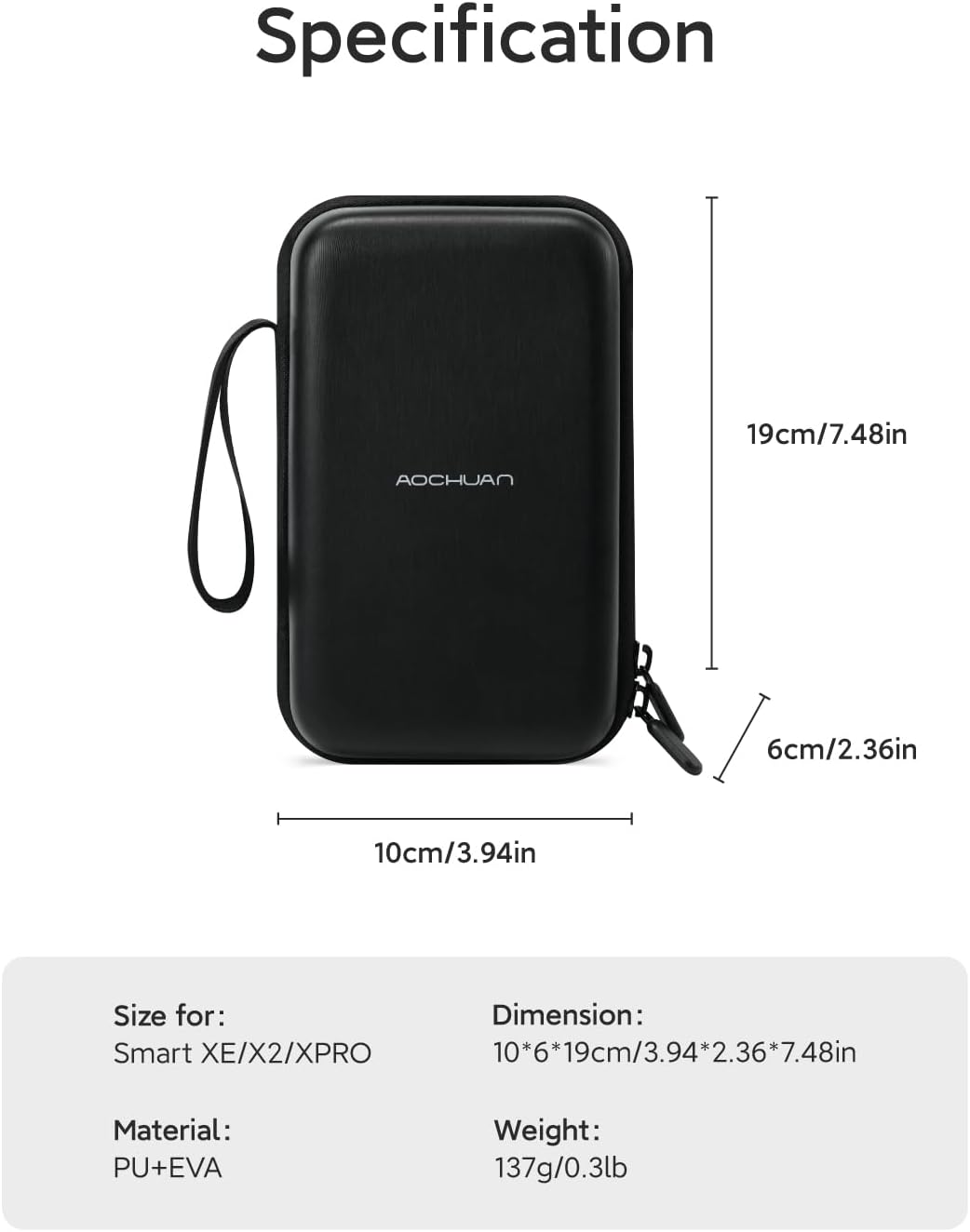
Image: A visual representation of the B20 Storage Bag with its dimensions (10cm, 6cm, 19cm) and key specifications like material (PU+EVA) and weight (137g) clearly labeled.
7.2 Gimbal Specifications
For detailed technical specifications of the Smart XE AI Gimbal, please refer to the product packaging or the official AOCHUAN website, as these may vary slightly by specific model version.
8. Warranty and Support
AOCHUAN products come with a standard manufacturer's warranty. For specific warranty terms, duration, and to register your product, please visit the official AOCHUAN website or contact customer support. If you encounter any issues or have questions not covered in this manual, please reach out to AOCHUAN customer service for assistance.
Contact Information: Refer to your product packaging or the official AOCHUAN website for the most up-to-date customer support contact details.