
Moman Xview M4 Pro
Moman Xview M4 Pro Selfie Monitor User Manual
Model: Xview M4 Pro
1. Introduction
This manual provides comprehensive instructions for the safe and efficient use of your Moman Xview M4 Pro Selfie Monitor. Please read this manual thoroughly before operating the device and retain it for future reference.
2. Safety Information
To ensure safe operation and prevent damage, observe the following precautions:
- Do not expose the monitor to water or excessive humidity.
- Avoid dropping or subjecting the device to strong impacts.
- Do not attempt to disassemble or repair the monitor yourself. Contact qualified service personnel.
- Keep the monitor away from direct sunlight and heat sources.
- Use only the specified power adapter and accessories.
3. Package Contents
Verify that all items are present in the package:
- Moman Xview M4 Pro Selfie Monitor (main unit)
- USB-C Charging Cable
- User Manual (this document)
Note: The package contents may vary slightly depending on the region or specific bundle purchased.
4. Setup
4.1 Charging the Monitor
Before first use, fully charge the Moman Xview M4 Pro monitor. Connect the provided USB-C cable to the monitor's charging port and the other end to a compatible USB power adapter (not included) or a computer's USB port.
The charging indicator light will typically show red while charging and turn green or off when fully charged.
4.2 Mounting the Monitor
The Moman Xview M4 Pro is designed to be mounted on various camera rigs or smartphone cages. It features a standard 1/4"-20 screw hole for attachment.
- Attach the monitor to a cold shoe mount or a compatible bracket (sold separately) using the 1/4"-20 screw.
- Securely fasten the monitor to your smartphone cage or camera setup.
- Adjust the viewing angle as needed.
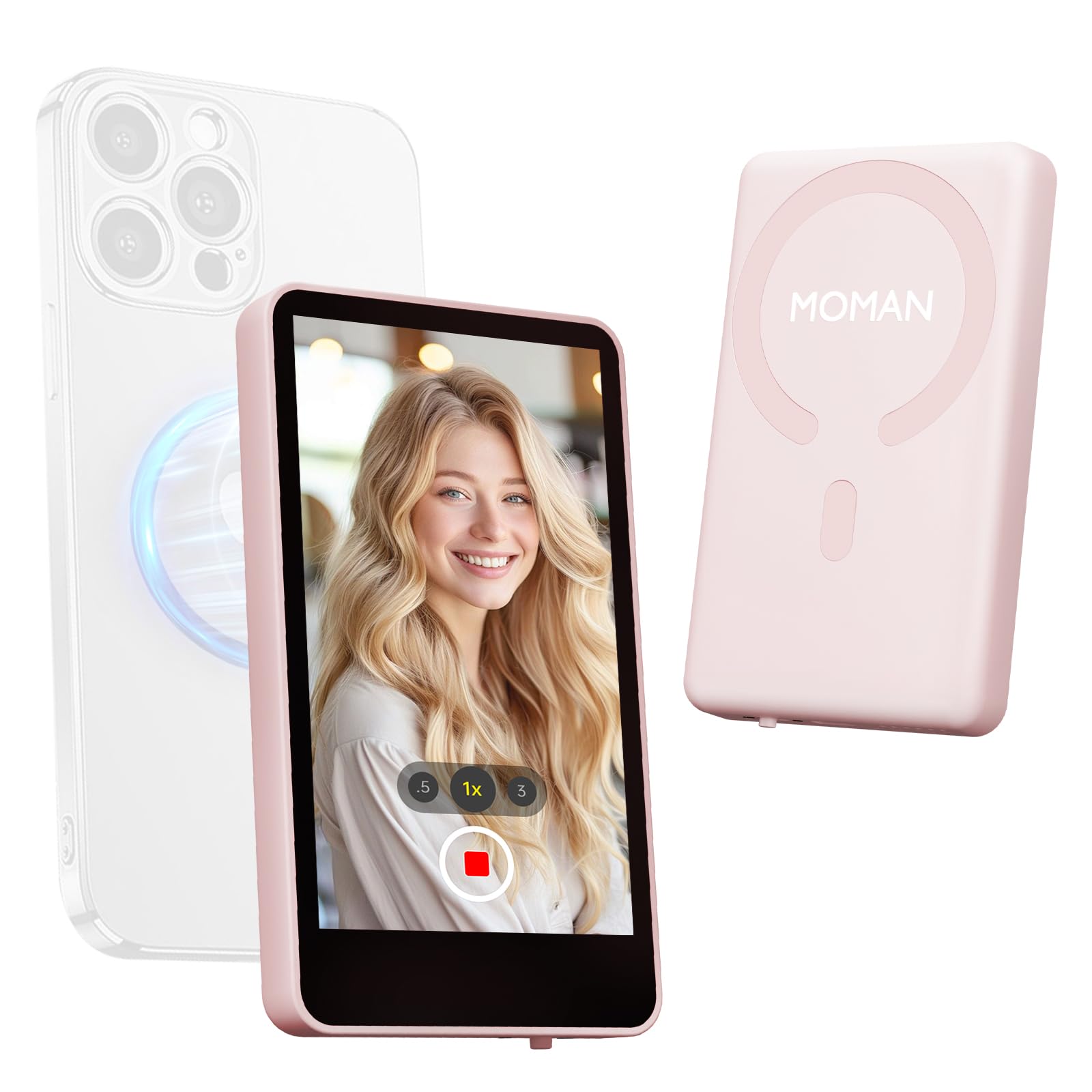
Image: The Moman Xview M4 Pro Selfie Monitor shown attached to a smartphone rig, demonstrating its compact size and mounting flexibility.
5. Operating Instructions
5.1 Powering On/Off
To power on the monitor, press and hold the power button located on the side/back of the device for approximately 3 seconds. The screen will illuminate. To power off, press and hold the power button again until the screen turns off.
5.2 Connecting to a Smartphone
The Moman Xview M4 Pro connects wirelessly to your smartphone (iPhone 7-17 Series & Android). Follow these steps:
- Ensure your smartphone's Bluetooth and Wi-Fi are enabled.
- Download and install the dedicated Moman Xview app from your smartphone's app store.
- Open the Moman Xview app and follow the on-screen instructions to pair with the M4 Pro monitor. The app will guide you through the connection process, typically involving selecting the monitor from a list of available devices.
- Once connected, your smartphone's camera feed will be mirrored on the M4 Pro monitor.
For optimal performance, ensure your smartphone and the monitor are within close proximity and free from wireless interference.
5.3 Monitor Functions
The M4 Pro monitor provides various functions to enhance your selfie and video recording experience:
- Real-time Monitoring: View your smartphone's camera feed in real-time.
- Brightness Adjustment: Use the dedicated buttons or app controls to adjust screen brightness.
- Mirror/Flip Function: Some models or app versions may offer options to mirror or flip the display for specific shooting scenarios. Refer to the app for available features.
- Battery Indicator: The monitor displays its current battery level.
6. Maintenance
6.1 Cleaning
To clean the monitor, use a soft, dry, lint-free cloth. For stubborn smudges, lightly dampen the cloth with water or a screen-cleaning solution. Do not use harsh chemicals or abrasive materials.
6.2 Storage
When not in use, store the monitor in a cool, dry place, away from direct sunlight and extreme temperatures. It is recommended to use the original packaging or a protective case to prevent scratches and damage.
7. Troubleshooting
| Problem | Possible Cause | Solution |
|---|---|---|
| Monitor does not power on. | Low battery. | Charge the monitor using the provided USB-C cable. |
| Cannot connect to smartphone. | Bluetooth/Wi-Fi off; App not installed; Monitor not in pairing mode; Interference. | Ensure Bluetooth/Wi-Fi are on. Install Moman Xview app. Restart monitor and app. Move closer to the monitor. |
| Screen is blank or flickering. | Loose connection; Software glitch. | Ensure secure connection. Restart monitor and smartphone. Check for app updates. |
If the problem persists after trying these solutions, please contact Moman customer support.
8. Specifications
| Feature | Detail |
|---|---|
| Model | Xview M4 Pro |
| Connectivity | Wireless (Bluetooth/Wi-Fi) |
| Compatibility | iPhone 7-17 Series & Android smartphones |
| Dimensions | 12.19 x 9.91 x 1.9 cm (approx.) |
| Weight | 168 grams (approx.) |
| Power Source | USB-C (internal rechargeable battery) |
Specifications are subject to change without notice.
9. Warranty and Support
Moman products are covered by a limited warranty. For detailed warranty terms and conditions, please refer to the warranty card included with your product or visit the official Moman website.
For technical support, troubleshooting assistance, or service inquiries, please contact Moman customer support through their official website or the contact information provided in your product packaging.
Moman Official Website: www.moman.co
Related documentsXview M4 Pro


Ask a question about this manual
Ask about setup, troubleshooting, compatibility, parts, safety, or missing instructions. Manuals+ will review the question and use this page’s manual context to help answer it.