1. Introduction
This manual provides detailed instructions for the AOCHUAN Smart XE 3-Axis Gimbal Stabilizer, along with its accompanying accessories: the B20 Storage Bag, P03 RGB Magnetic Fill Light, and E10 Extension Rod. Please read this manual carefully before using the product to ensure proper operation and to maximize its capabilities. This kit is designed to enhance your smartphone videography and photography with stability, versatile lighting, and extended reach.
2. Product Overview and Components
The AOCHUAN Smart XE kit includes the following items:
- AOCHUAN Smart XE 3-Axis Gimbal Stabilizer: Provides smooth, stabilized footage for smartphones.
- B20 Storage Bag: A custom-fit carrying case for the gimbal and accessories.
- P03 RGB Magnetic Fill Light: Offers adjustable colored and white lighting.
- E10 Extension Rod: Extends the reach of the gimbal for wider shots and selfies.
- Charging Cable
- Mini Tripod (may be included with some kits)
- AI Tracking Module (optional, for advanced tracking features)

Image: The AOCHUAN Smart XE gimbal, B20 storage bag, P03 magnetic fill light, E10 extension rod, AI tracking module, mini tripod, and charging cable laid out, illustrating the complete packing list.
3. Setup
3.1 Charging the Gimbal and Fill Light
- Connect the charging cable to the charging port on the gimbal and the P03 RGB Magnetic Fill Light.
- Connect the other end of the cable to a USB power adapter (not included).
- The indicator lights will show charging status and turn off or change color when fully charged.
3.2 Mounting the Smartphone
- Unfold the gimbal.
- Place your smartphone into the phone clamp. Ensure the phone is centered and securely held.
- For optimal balance, adjust the phone's position in the clamp so it remains level when the gimbal is powered off.
3.3 Attaching the P03 RGB Magnetic Fill Light
- The P03 fill light features a magnetic design.
- Align the magnetic base of the fill light with the designated magnetic attachment point on the gimbal (usually near the phone clamp).
- Ensure it snaps firmly into place.

Image: The P03 RGB Magnetic Fill Light attached to the gimbal, showcasing its magnetic design and various color outputs.
3.4 Using the E10 Extension Rod
- The E10 extension rod can be screwed into the 1/4-inch thread at the bottom of the gimbal.
- To extend, gently pull the sections outwards. To retract, push them back in.
- The rod has five adjustable sections, allowing for various lengths to suit your shooting needs.

Image: The E10 Extension Rod shown at various extended lengths, from 18 cm (7.09 in) to 73 cm (28.74 in), demonstrating its adjustable design.
4. Operating Instructions
4.1 Powering On/Off
- Power On: Press and hold the power button for a few seconds until the indicator lights illuminate.
- Power Off: Press and hold the power button again for a few seconds until the indicator lights turn off.
4.2 Gimbal Modes
The Smart XE gimbal typically features multiple stabilization modes. Refer to the gimbal's specific button layout for mode switching.
- Pan Follow Mode (PF): The camera pans left/right following your hand movements, while tilt and roll axes are locked.
- Lock Mode (L): All three axes (pan, tilt, roll) are locked, keeping the camera pointing in a fixed direction.
- Follow Mode (F): The camera follows both pan and tilt movements of your hand, with the roll axis locked.
- POV Mode: All three axes follow your movements, providing a first-person perspective.
4.3 Using the P03 RGB Magnetic Fill Light
- Power On/Off: Press the power button on the fill light.
- Change Color: Press the mode button to cycle through 7 different RGB colors.
- Adjust Brightness: Press the brightness button to select from 3 levels of brightness.

Image: A visual representation of the 7 distinct RGB colors available from the P03 Magnetic Fill Light, including white, red, green, blue, yellow, purple, and cyan.
4.4 Face Tracking 6.0
The Smart XE gimbal supports advanced tracking features when paired with its dedicated app or an optional AI module.
- Face Tracking: Automatically tracks a detected face, keeping it centered in the frame.
- Body Tracking: Tracks a person's body, useful for full-body shots or when the face is obscured.
- Object Tracking: Allows you to select any object on screen for continuous tracking.
- Other APP Tracking: Compatibility with certain third-party applications for enhanced tracking.

Image: A smartphone mounted on the gimbal, displaying a green box around a person's face, illustrating the Face Tracking 6.0 feature. Options for Face, Body, Object, and Other APP Tracking are listed.
4.5 Selfie Stick Mode
When the E10 Extension Rod is attached and extended, the gimbal can be used in a selfie stick configuration for wider self-portraits or group shots.

Image: Two hands holding the gimbal with the E10 Extension Rod fully extended, demonstrating its use in Selfie Stick Mode to capture a wider field of view.
5. Maintenance
- Cleaning: Use a soft, dry cloth to clean the gimbal and accessories. Avoid using liquid cleaners or solvents.
- Storage: Store the gimbal and accessories in the B20 Storage Bag in a cool, dry place away from direct sunlight and moisture.
- Battery Care: For long-term storage, ensure the gimbal's battery is charged to approximately 50-60% to prolong battery life. Recharge every 3 months if not in use.
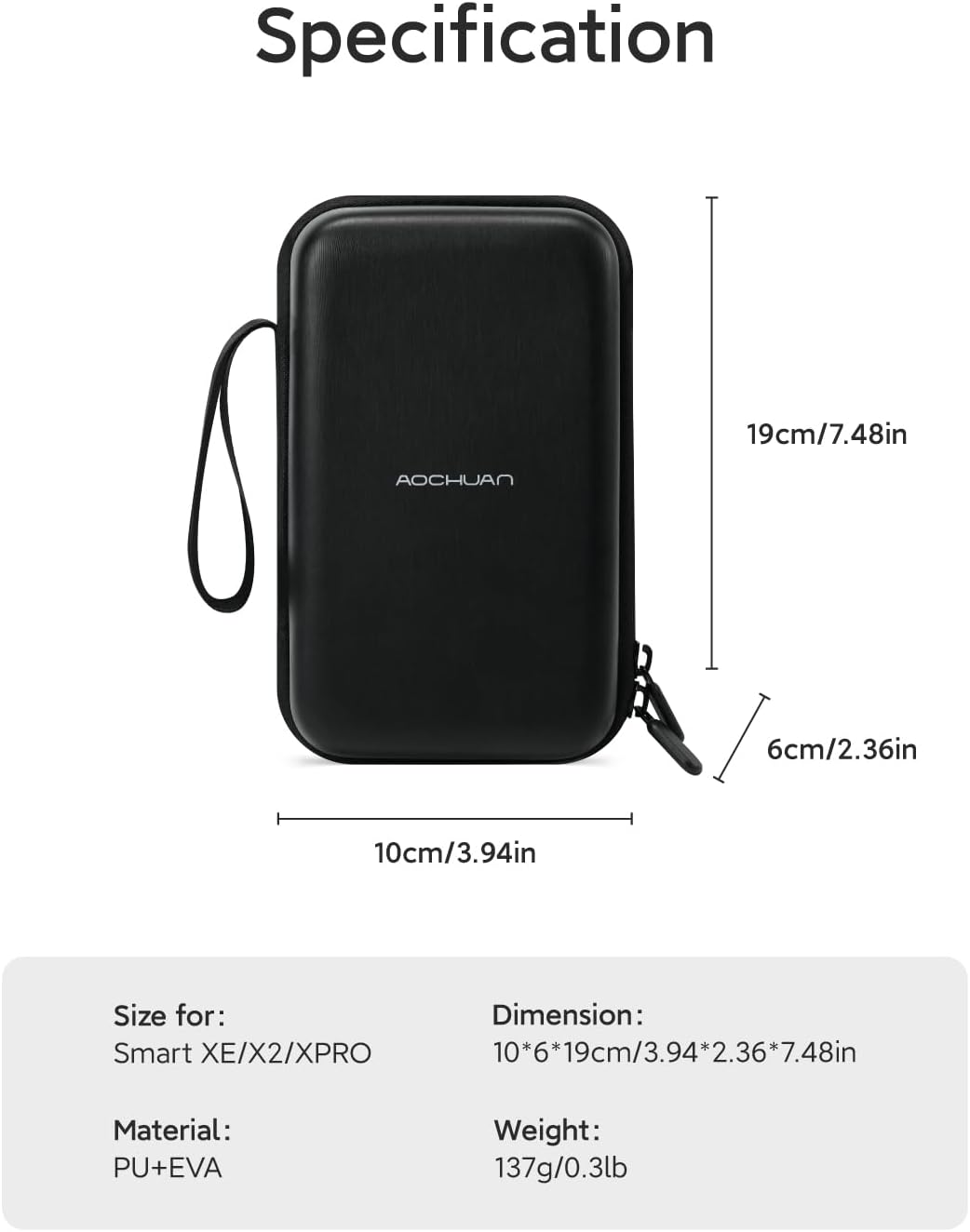
Image: The B20 Storage Bag with its dimensions (10cm x 6cm x 19cm or 3.94in x 2.36in x 7.48in) and specifications (Material: PU+EVA, Weight: 137g/0.3lb) clearly labeled.
6. Troubleshooting
- Gimbal not powering on: Ensure the battery is sufficiently charged. Connect to a power source and try again.
- Gimbal shaking or unstable: Ensure the smartphone is properly balanced in the clamp before powering on the gimbal. Recalibrate the gimbal if necessary (refer to the AOCHUAN app for calibration options).
- Bluetooth connection issues: Ensure Bluetooth is enabled on your smartphone. Restart both the gimbal and your phone. Try unpairing and re-pairing the device in your phone's Bluetooth settings.
- Fill light not working: Check if the fill light is charged. Ensure it is securely attached magnetically to the gimbal.
- App not detecting gimbal: Ensure the AOCHUAN app is updated to the latest version. Grant all necessary permissions to the app on your smartphone.
7. Specifications
7.1 AOCHUAN Smart XE Gimbal
- Stabilization: 3-Axis
- Compatibility: AOCHUAN Smart XE, Smart X2, Smart XPro gimbals (for accessories)
- Tracking: Face Tracking 6.0 (Face, Body, Object, Other APP Tracking)
- Connectivity: Wireless (Bluetooth, for app control)
7.2 P03 RGB Magnetic Fill Light
- Colors: 7 RGB colors
- Brightness: 3 adjustable levels
- Attachment: Magnetic
- Fill Light Angle: 180°
7.3 E10 Extension Rod
- Material: Aluminum alloy
- Retracted Length: Approximately 7.8 inches (20 cm)
- Extendable Lengths: Five sections, up to 73 cm (28.74 inches)
- Feature: Selfie Stick Mode
7.4 B20 Storage Bag
- Dimensions: 10cm x 6cm x 19cm (3.94in x 2.36in x 7.48in)
- Material: PU+EVA
- Weight: 137g (0.3lb)
- Capacity: Accommodates Smart XE/X2/XPro, P03 magnetic light, E10 extension rod, AI module, charging cable, and other small accessories.
8. Support
For further assistance, product updates, or warranty information, please visit the official AOCHUAN store or contact customer support.


