
Introduction
Thank you for choosing the Wodgreat AX1800 USB WiFi 6 Adapter. This device provides high-speed wireless connectivity for your desktop or laptop computer, leveraging Wi-Fi 6 technology for improved performance. This manual will guide you through the installation, operation, and troubleshooting of your new adapter.
Package Contents
Please check the package for the following items:
- 1 x Wodgreat AX1800 USB WiFi 6 Adapter
- 1 x User Manual
- 1 x Driver Card (Built-in driver for Windows 10/11)
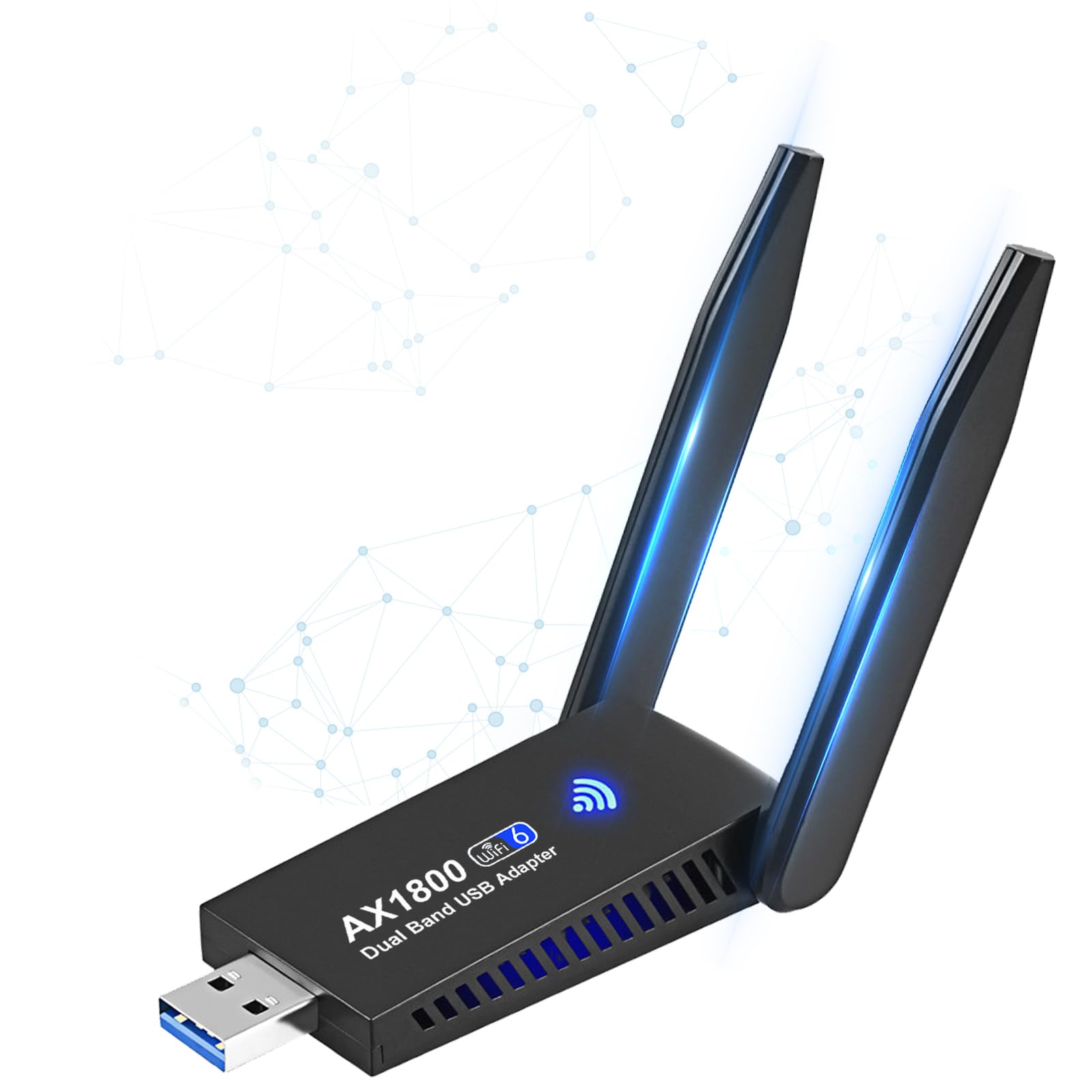
Image: The Wodgreat AX1800 USB WiFi 6 Adapter with its dual antennas and USB 3.0 connector.
Product Features
- Wi-Fi 6 (802.11ax) Technology: Provides faster data transfer speeds, lower latency, and extended range.
- Dual Band Connectivity: Up to 1201 Mbps on 5 GHz and 574 Mbps on 2.4 GHz for versatile network performance.
- USB 3.0 Interface: Ensures optimal speed and performance, up to 10 times faster than USB 2.0.
- Built-in Driver: Plug-and-play setup for Windows 10 and 11, eliminating the need for manual driver installation.
- Dual High-Gain Antennas: Enhances signal reception for stronger, more stable wireless connectivity.
- Advanced Security: Supports WPA3 encryption for enhanced personal password safety.
- OFDMA & MU-MIMO: Technologies for efficient data transmission and lower latency, especially in busy network environments.

Image: Visual representation of the AX1800 adapter's dual-band capabilities (2.4GHz and 5GHz) and speed benefits.
Setup Guide
1. Driver Installation (Windows 10/11)
The Wodgreat AX1800 USB WiFi 6 Adapter features a built-in driver for Windows 10 and Windows 11, allowing for a plug-and-play experience. No CD or external download is required.
- Insert the AX1800 USB WiFi 6 Adapter into an available USB 3.0 port on your desktop or laptop. For optimal performance, use a USB 3.0 port (usually blue inside).
- Windows will automatically detect the new hardware and install the necessary drivers. This process may take a few moments.
- Once the driver installation is complete, a notification may appear, or you can check the network icon in your system tray.

Image: The AX1800 adapter connected to a laptop, illustrating the plug-and-play setup without external drivers.
2. Connecting to a Wi-Fi Network
- Click on the Wi-Fi icon in the system tray (bottom-right corner of your screen).
- A list of available Wi-Fi networks will appear. Select your desired network.
- Click "Connect". If prompted, enter the network security key (password).
- Once connected, the Wi-Fi icon will indicate an active connection, and you can begin using the internet.

Image: The AX1800 adapter shown with compatibility for Windows 10 and Windows 11, and a note that it does not support Mac, Linux, or TV.
Operating Instructions
Once the Wodgreat AX1800 USB WiFi 6 Adapter is successfully installed and connected to a Wi-Fi network, it operates automatically. The adapter will maintain a stable wireless connection, allowing you to browse the internet, stream media, and engage in online activities.
- Signal Strength: The dual high-gain antennas can be adjusted to optimize signal reception. Position them for the best possible signal strength.
- Band Selection: The adapter automatically selects the optimal band (2.4 GHz or 5 GHz) based on network conditions and device capabilities. For higher speeds and less interference, connect to a 5 GHz network if available. For wider coverage, 2.4 GHz is often preferred.
- Disconnecting: To disconnect from a network, click the Wi-Fi icon in the system tray, select the connected network, and click "Disconnect".
- Reconnecting: The adapter will typically reconnect to previously saved networks automatically when in range.

Image: The AX1800 adapter showcasing its adjustable dual antennas for improved signal reception.
Specifications
| Feature | Detail |
|---|---|
| Brand | Wodgreat |
| Model | AX1800 USB WiFi 6 Adapter |
| Hardware Interface | USB 3.0 |
| Color | Black |
| Compatible Devices | Desktop, Laptop |
| Data Link Protocol | IEEE 802.11ax, IEEE 802.11ac, IEEE 802.11b, IEEE 802.11g, IEEE 802.11n |
| Data Transfer Rate | 1800 Megabits Per Second (1201 Mbps on 5 GHz + 574 Mbps on 2.4 GHz) |
| Item Weight | 0.05 Kilograms |
| Compatible Operating System | Windows 10, Windows 11 (Does not support Mac, Linux, TV) |
| Security | WPA3 |
| Special Features | MU-MIMO, OFDMA, Dual High-Gain Antennas, Built-in Driver |

Image: A close-up view of the AX1800 adapter, highlighting its USB 3.0 interface and compact design.
Troubleshooting
- Q: The adapter is not detected or not working.
- Ensure the adapter is fully inserted into a USB 3.0 port.
- Try a different USB port on your computer.
- Restart your computer.
- Verify that your computer is running Windows 10 or Windows 11. This adapter does not support Mac, Linux, or TV operating systems.
- Check Device Manager in Windows to see if the adapter is listed under "Network adapters" without any error symbols. If there are errors, try updating the driver (though it's built-in, sometimes a Windows update can interfere).
- Q: Cannot connect to Wi-Fi or connection is unstable.
- Ensure your Wi-Fi router is powered on and broadcasting a signal.
- Check if you have entered the correct Wi-Fi password.
- Move closer to your Wi-Fi router to improve signal strength.
- Adjust the antennas on the adapter for better reception.
- Try restarting your Wi-Fi router and modem.
- Ensure your computer's built-in Wi-Fi (if any) is disabled to avoid conflicts.
- Q: Slow internet speeds.
- Ensure you are connected to a 5 GHz network if available, as it generally offers higher speeds.
- Confirm your internet service provider (ISP) plan supports the speeds you expect.
- Check for other devices consuming bandwidth on your network.
- Ensure the adapter is plugged into a USB 3.0 port. USB 2.0 ports will limit performance.
- Minimize physical obstructions between the adapter and your router.
Maintenance
- Keep the adapter clean and free from dust. Use a soft, dry cloth for cleaning.
- Avoid exposing the adapter to extreme temperatures, humidity, or direct sunlight.
- Do not attempt to disassemble or repair the adapter yourself, as this will void the warranty.
- Ensure proper ventilation around the adapter to prevent overheating, especially during prolonged use. The adapter features a cooling design to help manage heat.

Image: The AX1800 adapter highlighting its ventilation holes for efficient cooling during operation.
Warranty and Support
Wodgreat offers a 2-year warranty for this product. For technical support or warranty claims, please contact Wodgreat customer service through the platform where you purchased the product or refer to the contact information provided in your product packaging.
For further assistance, please visit the Wodgreat Store on Amazon.