
1. Introduction
This manual provides essential information for the installation, operation, and maintenance of your XFX AMD Radeon AI Pro R9700 graphics card. Designed with cutting-edge RDNA 4 Architecture and 2nd-gen AI Accelerators, this card delivers enhanced AI performance and features 32GB of dedicated GDDR6 memory, making it ideal for demanding AI workloads and professional applications. Please read this manual thoroughly before proceeding with installation.
2. Safety Information
Always observe the following safety precautions to prevent injury and damage to your equipment:
- Ensure your computer is powered off and unplugged from the wall outlet before installing or removing any components.
- Discharge static electricity from your body by touching a grounded metal object (e.g., the computer chassis) before handling the graphics card.
- Avoid touching the gold-plated connector pins on the graphics card.
- Install the graphics card in a well-ventilated area to prevent overheating.
- Do not expose the graphics card to moisture or extreme temperatures.
3. Package Contents
Verify that all items are present in your product package:
- XFX AMD Radeon AI Pro R9700 Video Card
- Quick Install Guide
4. Setup
4.1 System Requirements
Before installation, ensure your system meets the following minimum requirements:
- PCI Express-compliant motherboard with one x16 graphics slot.
- Minimum 750W power supply unit (PSU) with two available 8-pin PCIe power connectors.
- Minimum 8GB system memory (16GB recommended).
- Operating System: Windows 10 64-bit, Windows 11 64-bit, or Linux 64-bit.
- Internet connection for driver download and updates.
4.2 Physical Installation
Follow these steps to install your graphics card:
- Power Off and Unplug: Shut down your computer completely and unplug the power cord from the wall outlet.
- Open PC Case: Remove the side panel of your computer case to access the motherboard.
- Locate PCIe Slot: Identify an available PCI Express x16 slot on your motherboard. This is typically the longest slot.
- Remove Slot Cover: Remove the metal slot cover(s) from the back of your PC case corresponding to the PCIe slot you will use.
- Insert Graphics Card: Carefully align the graphics card with the PCIe x16 slot and press down firmly until it is fully seated. Ensure the retention clip on the PCIe slot locks into place.
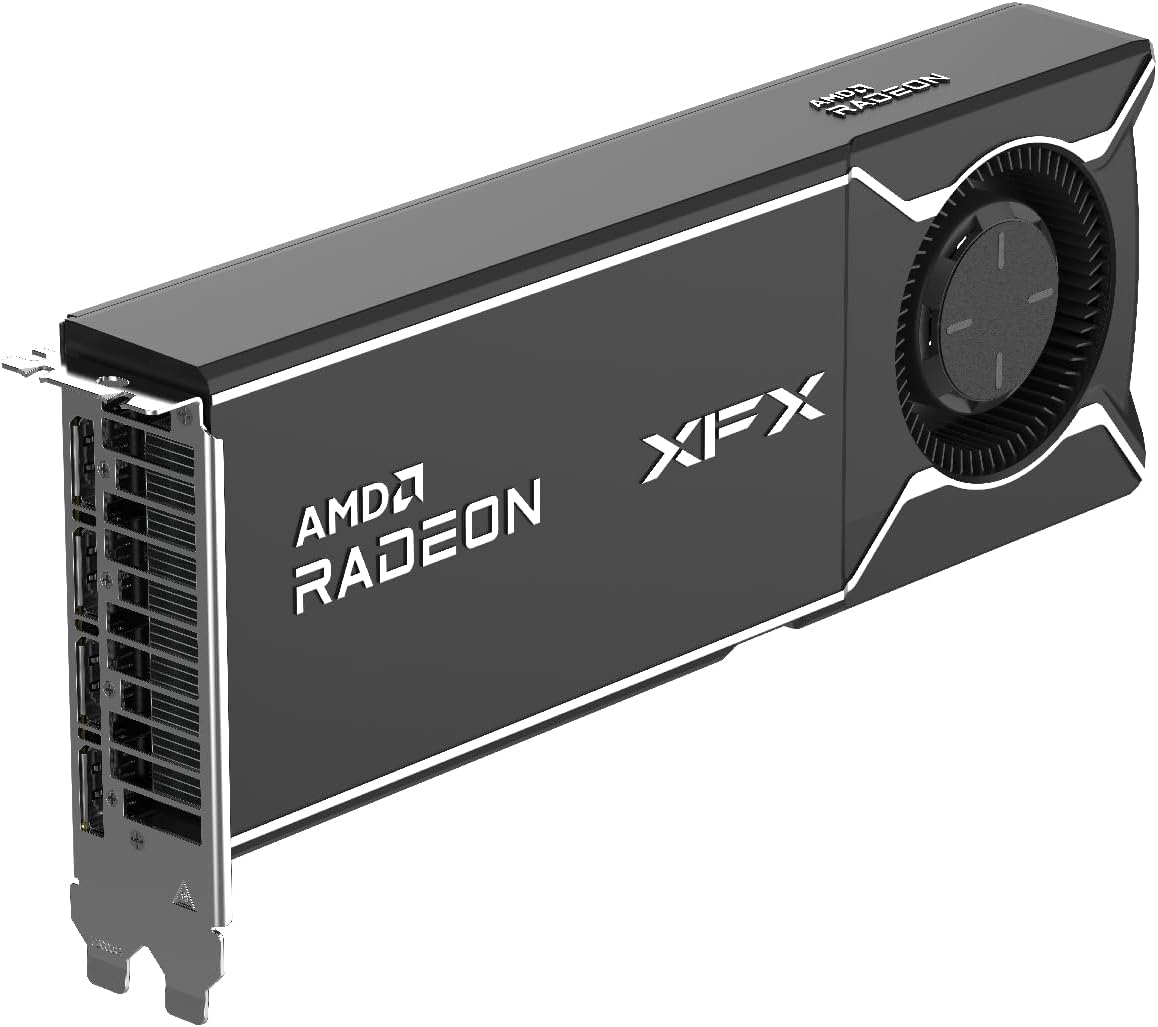
Image: The XFX AMD Radeon AI Pro R9700 graphics card, showing its overall design and cooling solution.
- Secure Card: Secure the graphics card to the PC case with the screw(s) removed earlier.
- Connect Power Cables: Connect the two 8-pin PCIe power cables from your power supply to the corresponding power connectors on the top or side of the graphics card. Ensure a secure connection.

Image: Rear view of the XFX AMD Radeon AI Pro R9700 graphics card, highlighting the multiple DisplayPort outputs.
- Close PC Case: Replace the side panel of your computer case.
- Connect Display Cables: Connect your monitor(s) to the DisplayPort outputs on the graphics card.
- Power On: Plug the power cord back into the wall outlet and power on your computer.
4.3 Driver Installation
After physical installation, you must install the graphics drivers:
- Boot into OS: Allow your computer to boot into your operating system. The system may use a generic display driver initially.
- Download Drivers: Visit the official AMD website (www.amd.com/en/support) or the XFX support page to download the latest drivers for the Radeon AI Pro R9700.
- Run Installer: Locate the downloaded driver package and run the installer executable.
- Follow Prompts: Follow the on-screen instructions to complete the driver installation. It is recommended to perform a clean installation if prompted.
- Restart Computer: Restart your computer after the driver installation is complete to apply all changes.
5. Operating the Graphics Card
Once drivers are installed, your XFX AMD Radeon AI Pro R9700 is ready for use. The card is designed to accelerate AI workloads and provide high-performance graphics.
5.1 Display Connections
The graphics card features four DisplayPort outputs. You can connect up to four monitors simultaneously. Ensure your display cables are securely connected to the graphics card and your monitors.
- Video Output Interface: 4x DisplayPort
After connecting your displays, you can configure display settings (resolution, refresh rate, multi-monitor setup) through your operating system's display settings or the AMD Radeon Software.
6. Maintenance
Proper maintenance ensures the longevity and optimal performance of your graphics card:
- Keep Clean: Periodically clean your computer case and the graphics card to prevent dust buildup on the fans and heatsink. Use compressed air to gently remove dust.
- Ensure Airflow: Make sure there is adequate airflow within your PC case. Avoid obstructing the graphics card's fans or vents.
- Driver Updates: Regularly check for and install the latest graphics drivers from AMD to ensure optimal performance, stability, and access to new features.
7. Troubleshooting
If you encounter issues with your graphics card, refer to the following common troubleshooting steps:
- No Display Output:
- Ensure the monitor is powered on and set to the correct input source.
- Check that the display cables are securely connected to both the graphics card and the monitor.
- Verify that the graphics card is fully seated in the PCIe slot and that all power cables are connected.
- Driver Issues or Instability:
- Download the latest drivers from the AMD website.
- Consider using a display driver uninstaller (DDU) tool in Safe Mode to completely remove old drivers before installing new ones.
- Ensure your operating system is up to date.
- Poor Performance or Overheating:
- Check for dust buildup on the graphics card's fans and heatsink.
- Ensure adequate airflow within your PC case.
- Monitor GPU temperatures using AMD Radeon Software or third-party tools.
- Verify that your power supply unit (PSU) meets the recommended wattage and is providing stable power.
- System Not Booting:
- Reseat the graphics card and all power connections.
- If possible, test the card in another PCIe slot or another compatible system to rule out motherboard issues.
8. Specifications
Key technical specifications for the XFX AMD Radeon AI Pro R9700 graphics card:
| Feature | Specification |
|---|---|
| Model Number | RX-97XPROAIY |
| Chipset | AMD Radeon AI Pro R9700 |
| Memory | 32 GB GDDR6 |
| Boost Clock | Up to 2920 MHz |
| GPU Clock Speed | 1620 MHz |
| Video Output Interface | 4x DisplayPort |
| Product Dimensions | 18 x 8 x 0.1 inches |
| Item Weight | 4 pounds |
| Manufacturer | XFX |
9. Warranty and Support
For detailed warranty information, please refer to the official XFX website or the warranty card included with your product. XFX provides technical support for its products.
If you require further assistance or have questions not covered in this manual, please visit the XFX support website or contact their customer service directly.
- XFX Support Website: www.xfxforce.com/support