
1. Introduction
Thank you for choosing the ANJIELO SMART Wired Video Intercom System. This manual provides essential information for the safe and efficient installation, operation, and maintenance of your new security system. Please read this manual thoroughly before use and retain it for future reference.
2. Product Overview and Components
The ANJIELO SMART Wired Video Intercom System offers enhanced home security and communication. This package includes:
- 10-inch TFT-LCD Touch Screen Monitor (Indoor Unit)
- 1080P Doorbell Camera (Outdoor Unit)
- Power Adapter for Monitor
- 4-wire connection cable (approx. 3 meters)
- RFID Cards (5 pieces)
- Rain Cover for Doorbell Camera
- Mounting Hardware
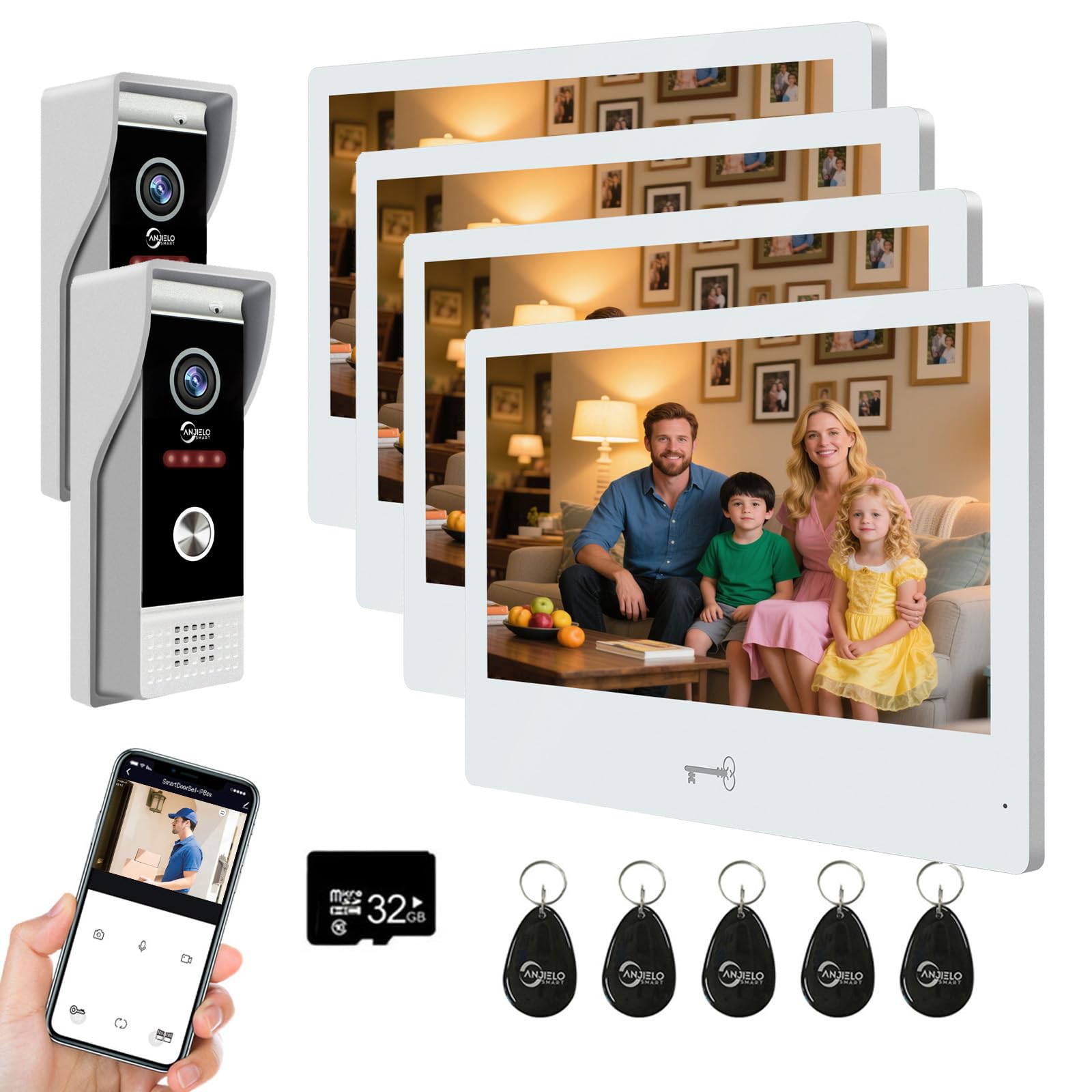
Image: Overview of the ANJIELO SMART Wired Video Intercom System, showing the indoor monitor and outdoor doorbell unit.
3. Specifications
Doorbell Camera (Outdoor Unit)
- Camera Sensor: 1/2.7 CMOS
- Resolution: 1080P
- Lens: 3.2 mm
- Viewing Angle: 148°
- Night Vision: IR LEDs (120°)
- Power Consumption: Max 200 mA
- Power Supply: Provided by indoor unit
- Operating Temperature: -40℃ to +50℃
- Installation: Surface mount
- Dimensions: 120 mm x 52 mm x 33 mm
Indoor Monitor
- Screen: 10-inch TFT-LCD Touch Screen
- Resolution: 1024 x 680
- Ringtones: 7-chord melodies
- Adjustable Settings: Volume, Color
- Connection Method: 4-wire (to doorbell), WiFi (to home network)
- WiFi Solution: TUYA App compatible (2.4 GHz band only)
- Panel Material: Acrylic/ABS cover
- Installation: Surface mount
- Input Voltage: AC 100-240V 50/60Hz
- Operating Voltage: DC 12 V, 2 A
- Dimensions: 250 mm x 182 mm x 12 mm
General System Specifications
- Connectivity Technology: Wired (doorbell to monitor), Wireless (monitor to WiFi)
- Control Method: App (Tuya), Touch Screen
- Maximum Range (Wired): Up to 100 meters (using RVV4 wires)
- Supported Devices: Up to 2 doorbells and 6 indoor monitors
- Unlocking Compatibility: All standard 12V electronic locks
4. Safety Information
Please observe the following safety precautions:
- Ensure all wiring is performed by a qualified electrician if you are unsure.
- Disconnect power before performing any installation or maintenance.
- Do not expose the indoor monitor to water or high humidity.
- Use only the provided power adapter.
- Keep the product away from direct sunlight and heat sources.
- Do not attempt to disassemble or repair the unit yourself. Contact support for assistance.
5. Setup
5.1. Wiring and Installation
- Mount the Doorbell Camera: Choose a suitable outdoor location, preferably protected from direct heavy rain, and mount the doorbell camera using the provided hardware. Ensure the rain cover is properly installed.
- Mount the Indoor Monitor: Select an indoor location for the monitor. It should be within reach of a power outlet and a suitable distance for the 4-wire connection to the doorbell.
- Connect Doorbell to Monitor: Use the provided 4-wire cable to connect the outdoor doorbell unit to the indoor monitor. Ensure connections are secure and follow the wiring diagram in the detailed installation guide (not provided in this summary). The maximum recommended distance for this wired connection is 100 meters using RVV4 wires.
- Connect Power: Plug the power adapter into the indoor monitor and then into a standard AC power outlet.
- Connect Electronic Lock (Optional): If you are integrating an electronic lock, connect it to the doorbell unit according to the lock's instructions and the system's wiring diagram. The system is compatible with all standard 12V electronic locks.
5.2. WiFi and App Configuration
- Download Tuya App: Download and install the Tuya Smart app on your smartphone from your device's app store.
- Register/Log In: Create an account or log in to the Tuya Smart app.
- Connect Monitor to WiFi: On the indoor monitor, navigate to the WiFi settings. Select your home's 2.4 GHz WiFi network and enter the password. Note: The monitor only supports 2.4 GHz WiFi bands.
- Add Device in App: Follow the instructions within the Tuya app to add your video intercom system as a new device. This typically involves scanning a QR code displayed on the monitor or selecting the device type manually.
- Share Access: The system supports sharing access with up to 5 mobile phones without requiring additional app installations on those devices.
6. Operating Instructions
6.1. Answering Calls and Two-Way Audio
- When a visitor presses the doorbell, all connected indoor monitors and your smartphone (via the Tuya app) will ring simultaneously.
- On the monitor or app, you can see and hear the visitor. Tap the answer button to initiate two-way audio communication.
- The system also functions as an intercom between indoor monitors, allowing room-to-room communication.
6.2. Unlocking Doors
The system offers three methods for unlocking compatible electronic locks:
- RFID Cards: Present a pre-programmed RFID card to the doorbell unit to unlock the door. Five RFID cards are included for your convenience.
- Tuya App: From your smartphone app, you can remotely unlock the door.
- Indoor Monitor: Tap the unlock icon on the 10-inch touch screen monitor.
6.3. Motion Detection
- The doorbell camera features customizable motion detection. By default, the entire camera view is monitored.
- To define specific monitoring areas, access the motion detection settings on the indoor monitor.
- You can tap and drag to create transparent boxes over areas you wish to exclude from motion detection, minimizing false alarms. Tap again to re-enable detection for an area.
7. Maintenance
- Cleaning: Use a soft, dry cloth to clean the monitor screen and doorbell camera lens. Do not use abrasive cleaners or solvents.
- Outdoor Unit: Periodically check the doorbell camera for any obstructions or dirt that might affect its performance. Ensure the rain cover is intact.
- Wiring: Occasionally inspect visible wiring for any signs of damage or wear.
- Software Updates: Check the Tuya app or monitor settings for available firmware updates to ensure optimal performance and security.
8. Troubleshooting
- No Video/Audio from Doorbell:
- Check the 4-wire connection between the doorbell and the monitor. Ensure all wires are securely connected.
- Verify the monitor is powered on.
- Monitor Not Connecting to WiFi:
- Ensure your home router is broadcasting a 2.4 GHz WiFi signal. The monitor does not support 5 GHz networks.
- Check your WiFi password for accuracy.
- Move the monitor closer to the WiFi router to improve signal strength.
- Restart your router and the indoor monitor.
- RFID Card Not Unlocking:
- Ensure the RFID card is correctly programmed.
- Present the card directly to the RFID reader area on the doorbell unit.
- Verify the electronic lock is properly connected and powered.
- Motion Detection Not Working:
- Check motion detection settings on the monitor to ensure it is enabled and the detection area is correctly configured.
- Ensure the camera lens is clean and unobstructed.
- Intercom Not Working Between Monitors:
- Verify all monitors are powered on and correctly wired to the system.
- Check intercom settings on each monitor.
9. Warranty and Support
For warranty information, technical support, or service inquiries, please contact your retailer or the manufacturer directly. Keep your purchase receipt as proof of purchase.


