
1. Introduction
This manual provides detailed instructions for the safe and efficient use of your MUNBYN MC240 Bluetooth Thermal Label Printer. Please read this manual thoroughly before operating the device and retain it for future reference. Proper use ensures optimal performance and longevity of your printer.

Figure 1.1: MUNBYN MC240 Printer in operation with accompanying labels and mobile application interface.
2. Product Overview
2.1. Key Features
- Smart Dual Connectivity: Connects wirelessly via the MUNBYN Print App (iOS/Android) or via USB to Windows, Mac, and Chromebook.
- Flexible Dual Printing Modes: Features a built-in paper bin for rolls up to 52mm wide (approx. 50–150 labels) and supports an external feed option for larger labels (1.57"–4.3" sizes).
- Portable Battery Design: Integrated rechargeable battery allows for printing 4x6 shipping labels without a power outlet.
- Wide Label Compatibility: Supports various thermal label sizes, including 1.97'' x 1.18'' (50mm x 30mm) labels.
2.2. Package Contents
Upon unboxing, please ensure all items are present:
- MUNBYN MC240 Thermal Label Printer
- USB Cable
- Power Adapter
- Quick Start Guide
- Sample Thermal Labels
3. Setup
3.1. Loading Thermal Labels
The MUNBYN MC240 supports both internal roll loading and external fanfold label feeding.
- Open the printer cover by gently lifting it.
- For roll labels, place the label roll into the built-in paper bin. Ensure the labels feed smoothly through the printer's mechanism. The built-in bin accommodates rolls up to 52mm in width.
- For fanfold labels, feed them from the rear external slot.
- Close the printer cover securely.

Figure 3.1: Loading labels into the MUNBYN MC240 printer, demonstrating both internal roll and external fanfold label options.
3.2. Connecting the Printer
The printer offers both Bluetooth and USB connectivity.
3.2.1. Bluetooth Connection (iOS/Android)
- Download the MUNBYN Print App from your device's app store.
- Ensure the printer is powered on and Bluetooth is enabled on your mobile device.
- Open the MUNBYN Print App and follow the in-app instructions to pair with your MC240 printer.
3.2.2. USB Connection (Windows/Mac/Chromebook)
- Connect the printer to your computer using the provided USB cable.
- Install the appropriate printer drivers for your operating system. Drivers can typically be found on the official MUNBYN website.
- Once drivers are installed, the printer should appear in your computer's list of available printers.

Figure 3.2: Connectivity options for the MUNBYN MC240 printer, including Bluetooth for mobile and USB for desktop devices.
4. Operating Instructions
4.1. Powering On/Off
- To power on, press and hold the power button until the indicator light illuminates.
- To power off, press and hold the power button again until the indicator light turns off.
4.2. Printing from the MUNBYN Print App
- Ensure your printer is connected via Bluetooth to your mobile device.
- Open the MUNBYN Print App.
- Select or create your desired label design. The app offers over 2,000 templates and 3,500 pre-made elements for customization.
- Adjust print settings such as label size and quantity.
- Tap the 'Print' button to send the job to the printer.

Figure 4.1: The MUNBYN Print App interface for label customization and printing.
4.3. Printing from a Computer
- Ensure your printer is connected via USB to your computer and drivers are installed.
- Open the document or application from which you wish to print (e.g., shipping software, word processor).
- Select 'Print' from the application's menu.
- Choose the MUNBYN MC240 from the list of available printers.
- Adjust print settings, such as paper size (to match your labels) and orientation, as needed.
- Click 'Print' to send the job.
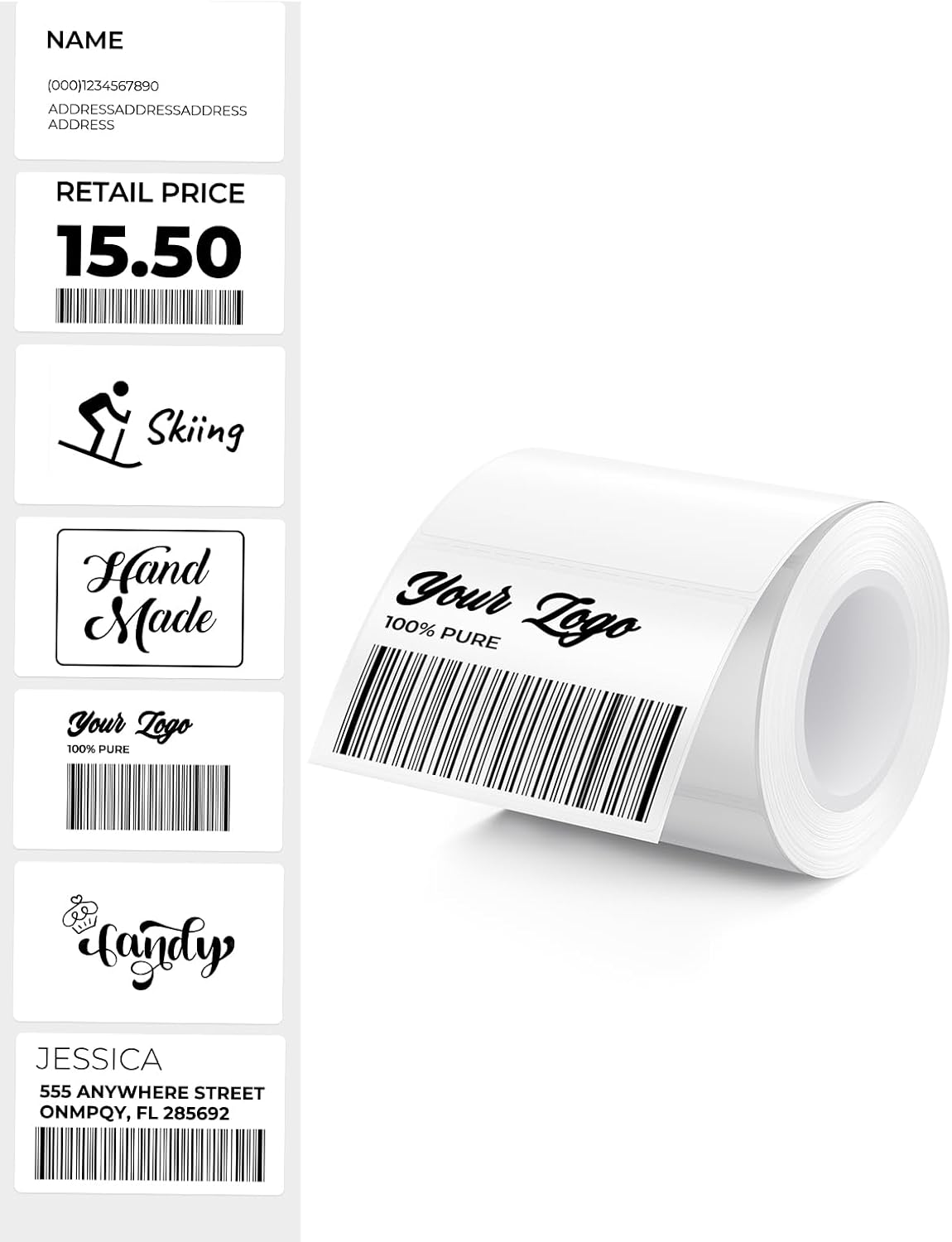
Figure 4.2: Examples of labels that can be printed with the MUNBYN MC240.
5. Maintenance
5.1. Cleaning the Print Head
Regular cleaning of the print head ensures clear and consistent print quality.
- Turn off the printer and disconnect it from the power source.
- Open the printer cover.
- Gently wipe the print head with a cotton swab lightly dampened with isopropyl alcohol. Do not use water or abrasive cleaners.
- Allow the print head to dry completely before closing the cover and powering on the printer.
5.2. Storage
Store the printer in a cool, dry place away from direct sunlight and extreme temperatures. When not in use for extended periods, ensure the printer is powered off and disconnected.
6. Troubleshooting
If you encounter issues with your MUNBYN MC240 printer, refer to the following common problems and solutions:
| Problem | Possible Cause | Solution |
|---|---|---|
| Printer not powering on | Low battery or no power connection | Charge the printer or connect to a power source. |
| Labels not feeding correctly | Labels improperly loaded or jammed | Ensure labels are loaded correctly and clear any jams. Refer to Section 3.1. |
| Poor print quality | Dirty print head or incorrect label type | Clean the print head (Section 5.1). Ensure you are using direct thermal labels. |
| Bluetooth connection failure | Printer not discoverable or app issue | Ensure printer is on and in pairing mode. Restart the app and your device's Bluetooth. Refer to Section 3.2.1. |
| USB printing not working | Missing or incorrect drivers | Install or update printer drivers from the MUNBYN website. Refer to Section 3.2.2. |
7. Specifications
- Model: MC240
- Printing Method: Direct Thermal
- Connectivity: Bluetooth, USB
- Supported OS: iOS, Android, Windows, Mac, Chromebook
- Label Width (Internal Bin): Up to 52mm (approx. 50-150 labels per roll)
- Label Width (External Feed): 1.57" – 4.3" (40mm – 110mm)
- Battery: Rechargeable (Portable operation)
- Included Labels: 1.97'' x 1.18'' (50mm x 30mm), 230 labels/roll
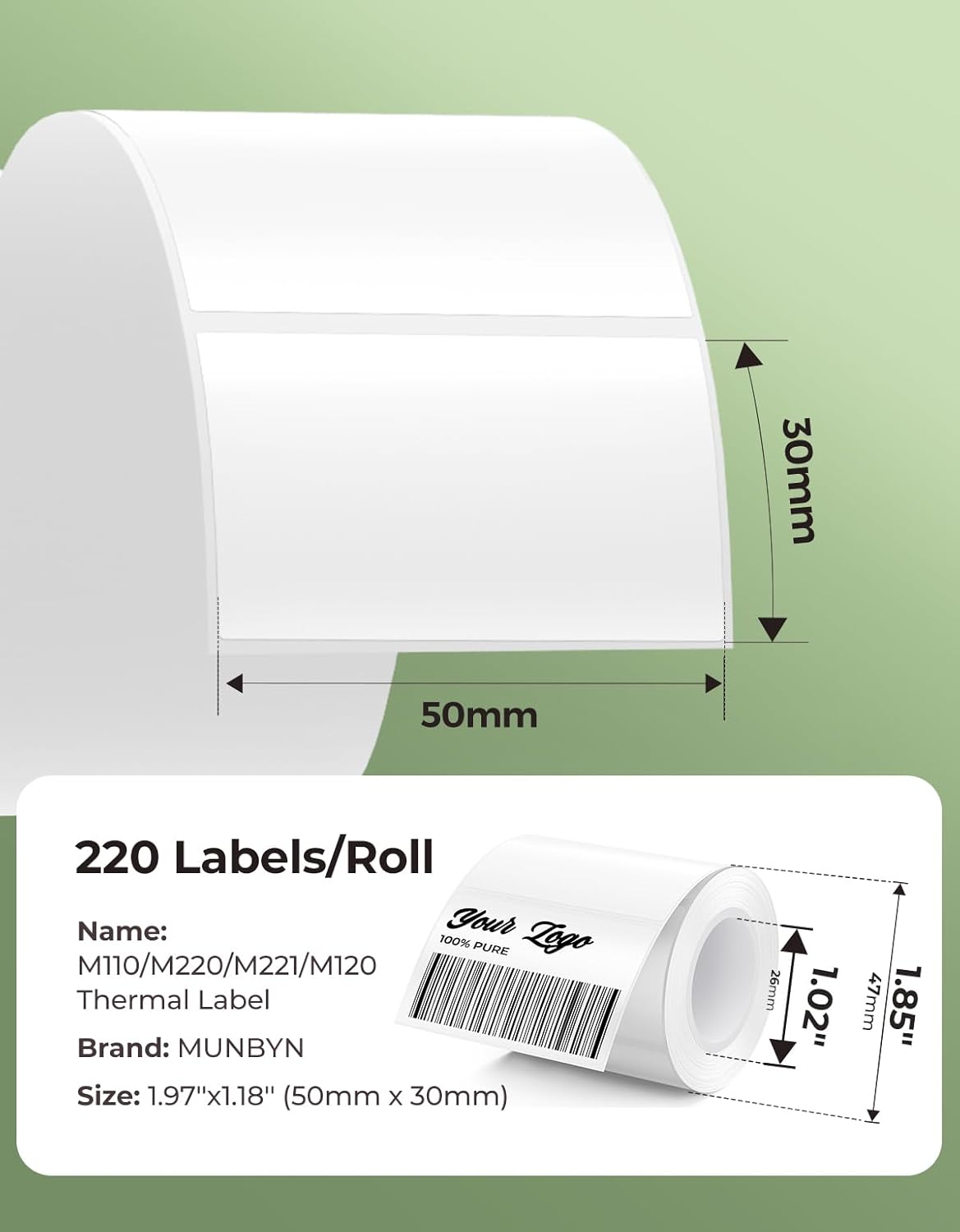
Figure 7.1: Example label dimensions compatible with the MUNBYN MC240 printer.
8. Warranty & Support
The MUNBYN MC240 Bluetooth Thermal Label Printer comes with a standard manufacturer's warranty. For specific warranty terms, registration, or technical support, please visit the official MUNBYN website or contact their customer service. Keep your purchase receipt as proof of purchase.
Online Support: Visit www.munbyn.com for FAQs, driver downloads, and contact information.


