
1. Product Overview
The SCULPFUN iCube Ultra 12W is a compact and fully enclosed laser engraving and cutting machine designed for a wide range of materials. It features a 12W diode laser, a 150 x 150 mm working area, and a 0.08 mm laser spot for precise engraving and efficient cutting. The machine prioritizes user safety with its enclosed design, automatic shut-off upon door opening, emergency stop switch, temperature sensors, and a USB security key. An integrated smoke filter system ensures a cleaner working environment.
This device supports multiple operating systems and software, making it accessible for both beginners and experienced users.

Figure 1: SCULPFUN iCube Ultra 12W with features including Class 1 Safety, Laser Auto Focus, Operation Status Indicator, Built-in Smoke Filter System, Large Working Area, and Compact Size.
2. Safety Information
Operating a laser engraving machine requires adherence to strict safety protocols to prevent injury and damage. The SCULPFUN iCube Ultra 12W is designed with several safety features:
- Class 1 Safety Certification: The machine meets Class 1 safety standards, indicating a low risk of laser radiation exposure during normal operation.
- Fully Enclosed Design: The protective enclosure contains laser emissions and fumes.
- Automatic Shut-off: The laser automatically stops if the door is opened during operation.
- Emergency Stop Switch: A prominent button allows for immediate shutdown in case of an emergency.
- Temperature Sensors: Monitors internal temperature to prevent overheating.
- USB Security Key: Prevents unauthorized use of the machine.
- Removable Acrylic Eye Protection: Provides additional eye safety, though the enclosed design generally negates the need for separate safety glasses during operation.
- Integrated Smoke Filter: Reduces exposure to harmful fumes and particles.
Always ensure the machine is placed on a stable, non-flammable surface. Do not leave the machine unattended during operation. Keep flammable materials away from the working area.

Figure 2: The SCULPFUN iCube Ultra 12W is certified for Class 1 safety.
3. Setup Instructions
The SCULPFUN iCube Ultra 12W is designed for quick and easy setup, allowing you to begin your projects shortly after unboxing.
3.1 Unboxing and Placement
- Carefully remove all components from the packaging.
- Place the machine on a flat, stable, and heat-resistant surface in a well-ventilated area.
- Ensure there is sufficient space around the machine for proper airflow and access.
3.2 Initial Assembly (if required)
The iCube Ultra comes largely pre-assembled. Verify that all internal components are secure and that the laser module is correctly seated. Refer to the quick start guide included in the box for any specific assembly steps.
3.3 Power Connection
- Connect the power adapter to the machine.
- Plug the power adapter into a suitable electrical outlet.
3.4 Software Installation
The iCube Ultra is compatible with SCULPFUN APP, LightBurn, and LaserGRBL. Choose the software that best suits your needs:
- SCULPFUN APP: Available for Android and iOS. Download from your device's app store for a user-friendly experience, ideal for beginners.
- LightBurn: A powerful, paid software compatible with Windows and macOS, offering advanced features for experienced users.
- LaserGRBL: A free, open-source software for Windows, suitable for basic engraving tasks.
Install your chosen software on your computer or mobile device. Follow the on-screen instructions for installation.

Figure 3: The iCube Ultra supports various software including LightBurn and the SCULPFUN App, compatible with Windows, macOS, Android, and iOS.
4. Operating Instructions
This section outlines the basic steps for operating your SCULPFUN iCube Ultra 12W laser engraver.
4.1 Connecting the Machine
The machine can be connected via Bluetooth or USB.
- Bluetooth: For mobile devices, enable Bluetooth on your phone/tablet and pair with the iCube Ultra via the SCULPFUN APP.
- USB: For computers, connect the machine to your PC/Mac using the provided USB cable. The software (LightBurn/LaserGRBL) should detect the device.
4.2 Preparing Your Material
- Place your material (e.g., wood, paper, leather) flat on the working platform inside the machine.
- Ensure the material is within the 150 x 150 mm working area and does not obstruct the laser path or door closure.
4.3 Auto-Focus Function
The iCube Ultra features an automatic focus function, eliminating the need for manual adjustments.
- In your chosen software, initiate the auto-focus process (often a single-click option).
- The laser module will automatically adjust its height to achieve optimal focus on the material surface.
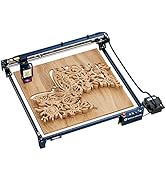
Figure 4: The automatic Z-axis motor performs one-click auto-focus and adjusts for cutting depth.
4.4 Starting an Engraving/Cutting Job
- Load your design file into the software.
- Adjust laser power, speed, and passes according to your material and desired outcome. Refer to material testing guides for optimal settings.
- Preview the job to ensure correct placement and scale.
- Close the machine door securely.
- Insert the USB security key (if applicable).
- Initiate the job from the software. Monitor the operation status indicator on the machine.
4.5 Compatible Materials
The iCube Ultra 12W can engrave and cut a variety of materials, including:
- Wood, Paper, Fabric, Leather, Cardboard, Bamboo, MDF
- Stone, Ceramic, Jade, Marble, Cement, Brick
- Painted Metal, Plated Metal, Felt, Dark Opaque Acrylic
- Enamelled Metal, Dark Glass, Cork, Stainless Steel

Figure 5: The 12W 455nm diode laser offers high precision for engraving and high speed for cutting across various materials.
5. Maintenance
Regular maintenance ensures optimal performance and extends the lifespan of your SCULPFUN iCube Ultra 12W.
5.1 Cleaning the Machine
- Exterior: Wipe the exterior surfaces with a soft, damp cloth. Avoid abrasive cleaners.
- Interior: Periodically clean the interior of the working area to remove dust and debris. Use a soft brush or compressed air.
5.2 Laser Lens Cleaning
A dirty laser lens can reduce laser power and engraving quality. Clean the lens gently with a specialized lens cleaning solution and a lint-free cloth or cotton swab. Refer to the detailed cleaning instructions in the full manual.
5.3 Smoke Filter Replacement
The built-in smoke filter system requires periodic replacement of its filter elements to maintain effective fume extraction.
- The filter system consists of a smoke dust filter and an activated carbon smell filter.
- The frequency of replacement depends on usage and the types of materials processed. Monitor the filter's condition and replace when efficiency decreases or odors become noticeable.
- To replace, open the filter compartment, remove the old filters, and insert new ones in the correct orientation.

Figure 6: Detailed view of the iCube Ultra's high-efficiency smoke filter system.
5.4 Lubrication of Guide Rails
The sleeve guide rails ensure smooth and precise movement. Periodically apply a small amount of appropriate lubricant to the guide rails to maintain optimal performance and prevent wear.

Figure 7: The precision sleeve guide rail design contributes to rapid engraving speeds of up to 10000mm/min.
6. Troubleshooting
This section addresses common issues you might encounter and provides potential solutions.
6.1 Machine Not Powering On
- Check Power Connection: Ensure the power adapter is securely connected to both the machine and the electrical outlet.
- Verify Outlet: Test the outlet with another device to confirm it is functional.
- Emergency Stop: Ensure the emergency stop button is not pressed in.
6.2 Laser Not Firing or Weak Output
- Door Closed: Confirm the machine door is fully closed. The safety interlock prevents laser operation if open.
- USB Security Key: Ensure the USB security key is inserted.
- Software Settings: Check laser power settings in your software. Ensure they are not set too low.
- Laser Lens: Clean the laser lens as described in the Maintenance section. A dirty lens can significantly reduce output.
- Focus: Perform auto-focus to ensure the laser is correctly focused on the material.
6.3 Poor Engraving/Cutting Quality
- Focus: Re-run the auto-focus function.
- Material Settings: Adjust laser power, speed, and number of passes in your software. Different materials require different settings.
- Material Stability: Ensure the material is flat and securely placed, preventing movement during operation.
- Lens Cleanliness: Clean the laser lens.
6.4 Connection Issues (Bluetooth/USB)
- Restart: Restart both the machine and your computer/mobile device.
- USB Cable: Try a different USB cable or port.
- Bluetooth Pairing: For Bluetooth, unpair and re-pair the device. Ensure Bluetooth is enabled on your mobile device.
- Software Recognition: Ensure your software is updated and correctly configured to detect the iCube Ultra.
7. Specifications
| Feature | Specification |
|---|---|
| Model | iCube Ultra Single Laser |
| Laser Power | 12W Diode Laser |
| Laser Wavelength | 455 nm |
| Working Area | 150 x 150 mm |
| Laser Spot Size | 0.08 mm |
| Movement Precision | 0.1 mm |
| Max Working Speed | 10,000 mm/min |
| Focus Method | Automatic Focus |
| Compatible Systems | Windows / macOS / Android / iOS |
| Compatible Software | SCULPFUN APP / LightBurn / LaserGRBL |
| Connection Method | Bluetooth / USB |
| Machine Size | 335 x 357 x 289 mm |
| Machine Weight | 5.95 kg |
| Safety Certification | Class 1 Safety |
| Included Components | SCULPFUN iCube Ultra Mini Laser Engraving Machine |
8. Warranty and Support
For warranty information and technical support, please refer to the documentation included with your product or visit the official SCULPFUN website. Information regarding the availability of spare parts is not provided in this manual. For any service or parts inquiries, please contact SCULPFUN customer support directly.


