1. Introduction
This manual provides essential instructions for the installation, operation, and maintenance of your new Generic Laptop Keyboard, model HT14CCIC44SGH. Please read this guide thoroughly before attempting any installation or use to ensure proper function and to prevent damage.
2. Product Overview
The Hyundai HT14CCIC44SGH is a replacement laptop keyboard designed for specific Hyundai laptop models. It features a Latin America (LA) layout and a black finish. This keyboard is intended to replace a damaged or non-functional original keyboard.
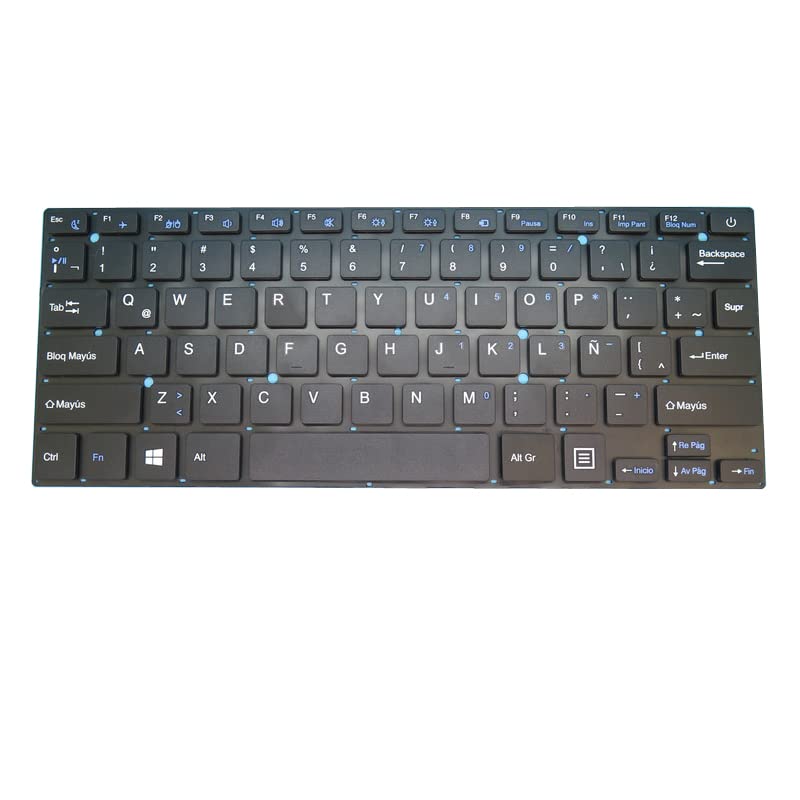
Image 1: Front view of the Generic Hyundai HT14CCIC44SGH Laptop Keyboard. This image displays the full keyboard layout, including alphanumeric keys, function keys, and the numeric keypad, all in a black finish with a Latin America (LA) key arrangement.
3. Setup and Installation
Proper installation is crucial for the functionality and longevity of your new keyboard. It is highly recommended that installation be performed by a qualified technician. Incorrect installation can lead to damage to the keyboard or the laptop.
3.1 Compatibility Check
Before proceeding with installation, it is imperative to verify that this keyboard is compatible with your specific laptop model. Please carefully check your laptop model number or the product part number of your original keyboard against the HT14CCIC44SGH model. Discrepancies can lead to fitment issues or non-functionality.
3.2 Installation Steps (General Guidance)
- Power Off: Ensure your laptop is completely powered off and disconnected from any power source. Remove the battery if it is external.
- Disassembly: Carefully disassemble the laptop to access the existing keyboard. This often involves removing screws from the bottom case, detaching the palm rest, or releasing clips around the keyboard bezel. Refer to your laptop's specific service manual for detailed disassembly instructions.
- Disconnect Old Keyboard: Gently disconnect the ribbon cable(s) connecting the old keyboard to the motherboard. Be cautious not to damage the delicate connectors.
- Remove Old Keyboard: Remove the old keyboard from its housing. Note how it was secured (screws, clips, adhesive).
- Install New Keyboard: Position the new HT14CCIC44SGH keyboard into the laptop's keyboard housing. Ensure it sits flush and aligns correctly.
- Connect Ribbon Cable(s): Carefully connect the new keyboard's ribbon cable(s) to the motherboard connectors. Ensure the cables are fully inserted and the locking mechanisms (if present) are secured.
- Reassembly: Reassemble the laptop, ensuring all screws and components are returned to their original positions.
- Initial Test: Reconnect the battery and power adapter. Power on the laptop and test all keys to confirm proper functionality before fully securing all panels.
If you have disassembled pictures of your original keyboard or laptop interior, sending them to your seller for verification can help confirm compatibility and guide installation.
4. Operating Instructions
Once installed, the HT14CCIC44SGH keyboard functions as a standard laptop keyboard. All keys, including alphanumeric, function keys (F1-F12), and special keys (e.g., volume, brightness controls, if supported by your laptop's drivers), should operate as expected.
- Function Keys (Fn): Many laptops require holding down the 'Fn' key (usually located near the left Ctrl key) in combination with the F1-F12 keys to access secondary functions (e.g., screen brightness, volume control, Wi-Fi toggle).
- Language Layout: This keyboard features a Latin America (LA) layout. Ensure your operating system's keyboard language settings are configured to 'Spanish (Latin America)' or a similar regional setting to match the physical key assignments.
5. Maintenance
To ensure the longevity and optimal performance of your keyboard, follow these maintenance guidelines:
- Cleaning: Regularly clean the keyboard surface with a soft, lint-free cloth. For dust and debris between keys, use compressed air. For stubborn grime, a slightly damp cloth with a mild cleaning solution (e.g., isopropyl alcohol) can be used, ensuring no liquid seeps under the keys.
- Avoid Spills: Keep liquids away from the keyboard. Accidental spills can cause permanent damage to the internal circuitry.
- Gentle Use: Avoid excessive force when typing. While designed for daily use, undue pressure can wear out key mechanisms prematurely.
- Storage: If the laptop is stored for extended periods, ensure it is in a clean, dry environment to prevent dust accumulation and moisture damage.
6. Troubleshooting
If you encounter issues with your HT14CCIC44SGH keyboard, consider the following troubleshooting steps:
- Keys Not Responding:
- Check if the keyboard ribbon cable(s) are securely connected to the motherboard. A loose connection is a common cause.
- Ensure no debris is lodged under the non-responsive keys.
- Restart your laptop.
- Verify that the correct keyboard drivers are installed and updated in your operating system.
- Incorrect Key Output:
- Confirm that your operating system's keyboard language settings match the Latin America (LA) layout of the physical keyboard.
- Check if any accessibility features (e.g., Sticky Keys, Filter Keys) are enabled in your operating system, which might alter key behavior.
- Keyboard Not Detected:
- Power off the laptop, disconnect the battery and power adapter, then reconnect the keyboard ribbon cable(s) firmly.
- Ensure the keyboard is fully seated in its housing.
- If possible, test with another known working keyboard to rule out a motherboard issue.
If these steps do not resolve the issue, professional assistance may be required.
7. Specifications
| Feature | Detail |
|---|---|
| Brand | Generic |
| Model Number | HT14CCIC44SGH |
| Layout | Latin America (LA) |
| Color | Black |
| Item Height | 7 centimetres |
| Item Width | 18 centimetres |
| Product Dimensions | 43 x 18 x 7 cm |
| Item Weight | 300 g |
| Batteries Included | No |
| ASIN | B0FXGPBJGH |
8. Warranty and Support
For warranty information and technical support, please refer to the documentation provided by your seller or contact the seller directly. As this is a Generic brand product, specific warranty terms may vary depending on the point of purchase. Always retain your proof of purchase for warranty claims.
