
1. Introduction
The Rapoo VT0 MAX is a high-performance wireless gaming mouse engineered for competitive players. It features an ultra-lightweight design and an ergonomic right-handed shape, providing comfort and precision during extended gaming sessions. With dual-mode connectivity (2.4G wireless and USB-C wired) and 8K polling rate support, the mouse ensures instant click registration with minimal latency. The advanced PAW3950 Ultimate optical sensor offers up to 45,000 DPI, flawless tracking, and esports-level accuracy. An 800mAh rechargeable battery delivers up to 750 hours of continuous use, and programmable buttons with cross-platform software allow for extensive customization.
2. Package Contents
Verify that all items are present in your package:
- Rapoo VT0 MAX Wireless Gaming Mouse
- 2.4G USB Receiver (Dongle)
- USB-C to USB-A Charging/Data Cable
- USB-A to USB-C Adapter (Dongle Extender)
- Mouse Grip Tape / Anti-slip Stickers
- User Manual (this document)
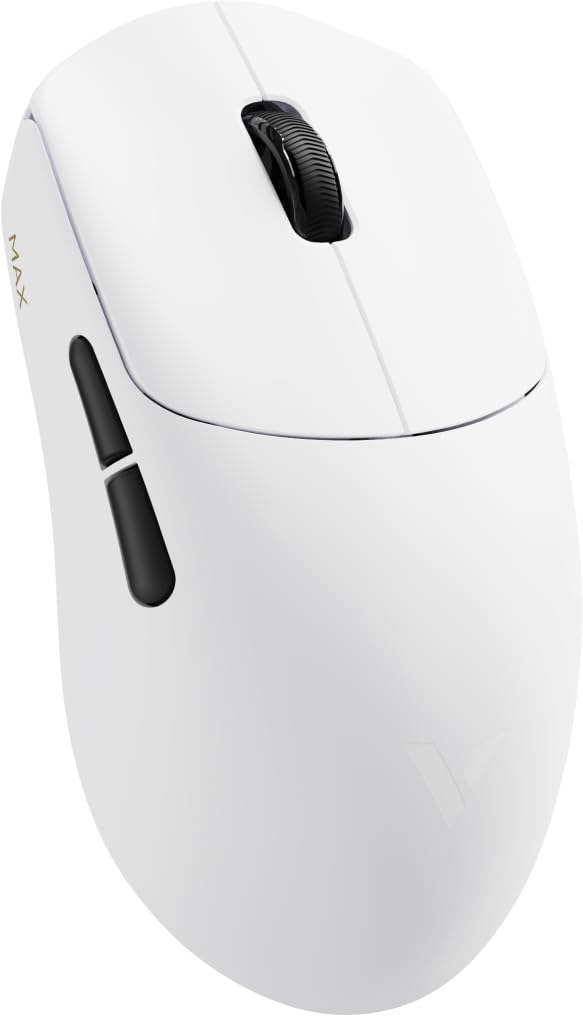
Image: Rapoo VT0 MAX Wireless Gaming Mouse with its included accessories, including the USB-C cable and 2.4G receiver.
3. Setup
3.1 Initial Charging
Before first use, fully charge the mouse using the provided USB-C cable. Connect the USB-C end to the mouse and the USB-A end to a powered USB port on your computer or a USB charger. The LED indicator on the mouse will show charging status.
3.2 2.4G Wireless Connection
- Locate the 2.4G USB receiver. It may be stored in a compartment on the underside of the mouse.
- Plug the USB receiver directly into an available USB-A port on your computer. For optimal signal, use the provided USB-A to USB-C adapter and cable to position the receiver closer to the mouse.
- Turn on the mouse using the power switch located on the underside.
- The mouse should automatically connect to your computer.
3.3 USB-C Wired Connection
To use the mouse in wired mode, simply connect the USB-C cable from the mouse to a USB-C port on your computer. The mouse will function as a wired device and charge simultaneously.
3.4 Software Installation (A Hub)
For full customization, including DPI settings, button remapping, and lighting control, download and install the A Hub software from the official Rapoo website. The software is compatible with both Windows and macOS.
4. Operating Instructions
4.1 Power On/Off
Use the switch on the bottom of the mouse to turn it on or off. Turning off the mouse when not in use helps conserve battery life.
4.2 Switching Connectivity Modes
The mouse automatically switches to wired mode when connected via USB-C cable. Disconnect the cable to revert to 2.4G wireless mode (ensure the USB receiver is plugged in and the mouse is powered on).
4.3 DPI Adjustment
The Rapoo VT0 MAX features a PAW3950 Ultimate optical sensor with a DPI range of 100 to 45,000. Use the dedicated DPI button (usually located behind the scroll wheel) to cycle through preset DPI levels. Customize these levels and add more through the A Hub software.
4.4 Programmable Buttons
The mouse has 7 buttons that can be programmed using the A Hub software. Assign macros, keyboard functions, or multimedia controls to enhance your gaming and productivity.
4.5 Battery Status
The mouse is equipped with an 800mAh rechargeable battery. Battery status can be monitored via the A Hub software or through an indicator light on the mouse (refer to the software manual for specific light patterns).
5. Features and Specifications

Image: Visual overview of Rapoo VT0 MAX features including dimensions, weight, sensor, polling rate, switches, and battery capacity.
5.1 Key Features
- PAW3950 Ultimate Optical Sensor: Delivers 100–45,000 DPI, 750 IPS, and 50G acceleration. Tracks flawlessly on glass and adapts to various gaming surfaces.
- 800mAh Long-Lasting Battery: Provides up to 750 hours of continuous use on a single charge. Designed for extended gaming sessions without interruptions.
- Dual-Mode Connectivity: Offers flexibility with USB-C wired play or advanced 2.4G wireless. Powered by V+Wireless 2.0 for 8K polling, long-range stability, strong anti-interference, and low latency.
- Optimized PCB Design: Compact and balanced circuit layout enhances signal stability and responsiveness for smoother tracking and faster reactions.
- Nordic MCU: Built with a Nordic 54L15 MCU for efficient processing, low power consumption, and stable wireless transmission.
- Customizable Driver: Full support through A Hub software for profile management, key remapping, and lighting control. Compatible with Windows & macOS, with onboard and cloud storage for personalized settings.
5.2 Technical Specifications
| Specification | Detail |
|---|---|
| Brand | Rapoo |
| Model Name | VT0 MAX |
| Color | White |
| Connectivity Technology | 2.4G Wireless, USB-C Wired |
| Movement Detection Technology | Optical (PAW3950 Ultimate Sensor) |
| DPI Range | 100-45,000 DPI |
| Polling Rate | Up to 8000Hz |
| Acceleration | 50G |
| IPS (Tracking Speed) | 750 IPS |
| Battery Capacity | 800mAh |
| Battery Life | Up to 750 hours |
| Number of Buttons | 7 (Programmable) |
| Hand Orientation | Right |
| Compatible Devices | Personal Computer (Windows, macOS) |
| UPC | 840096102376 |
6. Maintenance
6.1 Cleaning the Mouse
To maintain optimal performance and hygiene, regularly clean your mouse. Use a soft, dry cloth to wipe the surface. For stubborn dirt, slightly dampen the cloth with water or a mild cleaning solution. Avoid using harsh chemicals or abrasive materials.
6.2 Battery Care
The 800mAh rechargeable battery is designed for long life. To prolong its lifespan:
- Avoid fully discharging the battery frequently.
- Store the mouse in a cool, dry place when not in use for extended periods.
- Use only the provided USB-C cable for charging.
6.3 Sensor Cleaning
Occasionally, dust or debris may accumulate around the optical sensor on the underside of the mouse, affecting tracking performance. Use a can of compressed air to gently blow away any particles.
7. Troubleshooting
7.1 Mouse Not Responding
- Check Power: Ensure the mouse is powered on.
- Battery Level: Charge the mouse if the battery is low.
- Wireless Connection: For 2.4G wireless, ensure the USB receiver is securely plugged into a working USB port and is within range. Try a different USB port.
- Wired Connection: For USB-C wired, ensure the cable is securely connected to both the mouse and the computer. Try a different USB-C port or cable.
- Re-pair: If using wireless, try re-pairing the mouse with the receiver (refer to A Hub software for specific instructions if needed).
7.2 Inconsistent Tracking or Lag
- Surface: Ensure you are using the mouse on a suitable surface. The PAW3950 sensor tracks on glass, but a good quality mouse pad is recommended for optimal performance.
- Sensor Cleanliness: Clean the optical sensor as described in the Maintenance section.
- Interference: In wireless mode, other wireless devices or strong electromagnetic fields can cause interference. Try moving the USB receiver closer to the mouse using the extender cable.
- DPI Settings: Adjust DPI settings via the mouse button or A Hub software.
7.3 A Hub Software Not Detecting Mouse
- Connection: Ensure the mouse is connected to the computer (either wired or wirelessly with the receiver).
- Software Version: Make sure you have the latest version of the A Hub software installed.
- Restart: Restart your computer and try again.
8. Warranty and Support
8.1 Warranty Information
This Rapoo VT0 MAX Wireless Gaming Mouse comes with a 14-day warranty from the date of purchase. Please retain your proof of purchase for any warranty claims. The warranty covers manufacturing defects but does not cover damage caused by misuse, accidents, or unauthorized modifications.
8.2 Customer Support
For further assistance, technical support, or to download the latest A Hub software, please visit the official Rapoo website or the Rapoo Store on Amazon.
9. Product Videos
Rapoo VT0 MAX Gaming Mouse Overview
Video: An official seller video showcasing the Rapoo VT0 MAX Gaming Mouse, highlighting its design and features.
RAPOO VT7 MAX Gaming Mouse True 8K Wireless Polling Rate
Video: An official seller video demonstrating the 8K wireless polling rate feature, relevant to the VT0 MAX's performance capabilities.


