1. Introduction
This manual provides detailed instructions for the installation, operation, and maintenance of your CAMECHO A4151 Android Car Stereo. Please read this manual thoroughly before using the product to ensure proper functionality and safety.
The CAMECHO A4151 is an advanced in-dash navigation system designed for various Volkswagen, Skoda, and Seat models. It features a 7-inch IPS HD touch screen, Android operating system, wireless CarPlay, wireless Android Auto, GPS navigation, Bluetooth connectivity, and FM/RDS radio.
2. Product Overview
The CAMECHO A4151 car stereo offers a comprehensive entertainment and navigation solution for your vehicle. Key features include:
- Android System: Latest Android operating system with 2GB RAM and 64GB ROM.
- Display: 7-inch IPS HD touch screen.
- Connectivity: Wireless and wired Apple CarPlay, Android Auto, and MirrorLink.
- Navigation: Built-in GPS receiver with support for online and offline maps.
- Wireless: Integrated WiFi for app downloads and internet access.
- Audio: Bluetooth for hands-free calls and music streaming, FM/RDS radio, built-in preset EQ.
- Control: Supports original steering wheel buttons.
- Expansion: Dual USB ports for media playback and phone charging, subwoofer output, external backup camera support (camera not included).
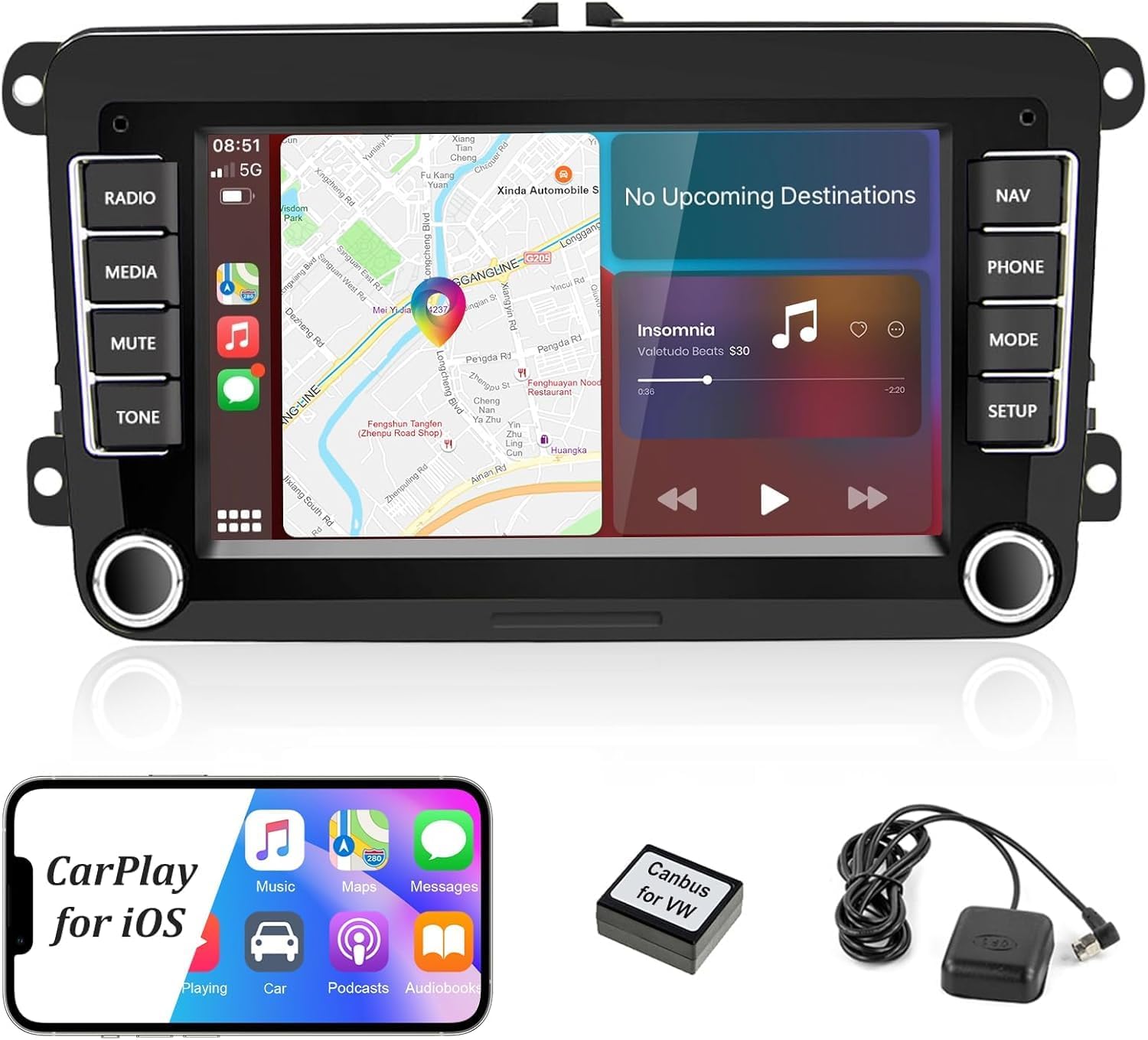
Image: Front view of the CAMECHO A4151 car stereo displaying the CarPlay interface, along with a smartphone, Canbus module, and GPS antenna.
3. Setup and Installation
3.1 Applicable Car Models
This unit is compatible with various Volkswagen, Skoda, and Seat models. Please verify your vehicle's compatibility before installation.

Image: A list detailing compatible car models for Volkswagen (e.g., Amarok, Beetle, Caddy, EOS, Golf, Jetta, Passat, Polo, Scirocco, Tiguan, Transporter, Rabbit, Sharan), Skoda (Octavia, Fabia, Roomster), and Seat (Altea, Alhambra, Leon).
3.2 Wiring and Connections
Refer to the included wiring diagrams and the 'Packing List & Size' image for identification of all cables and ports.

Image: Diagram showing the dimensions of the head unit, its rear connection ports (labeled 1-6 for Power Cable, RCA Cable, USB Cable, Camera Input, Radio Antenna, GPS Antenna), and a visual list of included accessories such as power cables, RCA cable, rear camera input cable, radio antenna, Canbus, GPS antenna, USB cable, and user manual.
3.3 Canbus Connection
If your car has original features like steering wheel buttons, door information display, large screen display, or reversing tracking, a Canbus module is required. Otherwise, it is not needed.
- If using a Canbus: Connect the Canbus module. DO NOT connect the small black plug. Select power cable according to the original vehicle interface. Disconnect the small black plug. Connect Canbus to the white connector. Choose the correct protocol for your car model in 'Car Settings' -> 'Factory (password 000000)' -> 'CarType settings' -> 'Xinpu' -> 'VW PQ'.
- If not using a Canbus: Connect the power cable to the original vehicle interface. DO NOT connect the small white plug. Connect the small black plug.

Image: Two diagrams illustrating Canbus connection. The left diagram shows correct wiring for a car requiring Canbus, indicating to connect the Canbus module and not the small black plug. The right diagram shows wiring for a car not requiring Canbus, indicating to connect the small black plug and not the small white plug.
3.4 Connector Confirmation
The unit typically includes 36-pin and 40-pin ISO power harnesses. If your car's connector matches the 50-pin type shown in the image, you will need to purchase an additional adapter.

Image: A comparison showing standard 30-pin and 40-pin connectors (left) versus a 50-pin connector (right), advising users to confirm their vehicle's connector type.
3.5 Reversing Camera Installation
The reversing input must be connected even if a reversing camera is not used. For camera wiring:
- Connect the positive pole of the power supply of the car's reversing light.
- Connect to the negative pole of the car's reversing light.
- The reversing trigger is controlled by the stereo, so no separate connection is required for the trigger.
Note: The white plug must be connected to the main device for Bluetooth and WiFi signals to function correctly.

Image: Diagram illustrating the wiring for a reversing camera, showing connections to the car's reversing light power and ground, and the RCA input to the head unit. It also highlights the white plug connection for signal integrity.
4. Operating Instructions
4.1 Wireless Apple CarPlay
To connect your iPhone to CarPlay:
- Enable Bluetooth on your iPhone and pair with the car radio.
- Open the "Zlink" application on the car stereo.
- If connection fails, connect your phone to the car stereo's hotspot, then reopen the "Zlink" app. Ensure both Bluetooth and hotspot connections are maintained.

Image: A visual guide demonstrating the steps to connect Wireless Apple CarPlay, showing the car stereo display with CarPlay icons and a smartphone with the CarPlay app.
4.2 Wireless Android Auto
To use Android Auto:
- Ensure you have the "Android Auto" app installed on your mobile phone.
- Enable Bluetooth on your Android phone and pair with the car radio.
- Open the "Zlink" application on the car stereo.

Image: A visual guide demonstrating the steps to connect Wireless Android Auto, showing the car stereo display with Android Auto icons and a smartphone with the Android Auto app.
4.3 GPS Navigation
The unit includes a built-in GPS receiver and supports both online and offline navigation. You can download map applications from the Application Store using WiFi connectivity.

Image: Top panel shows the car stereo displaying GPS navigation with route information. Bottom panel illustrates WiFi functionality, showing the stereo displaying YouTube and various app icons, indicating internet access and app downloads.
4.4 Bluetooth Features
Connect your smartphone via Bluetooth for hands-free calling and wireless music streaming. This allows you to make and receive calls safely while driving and play audio from your device.
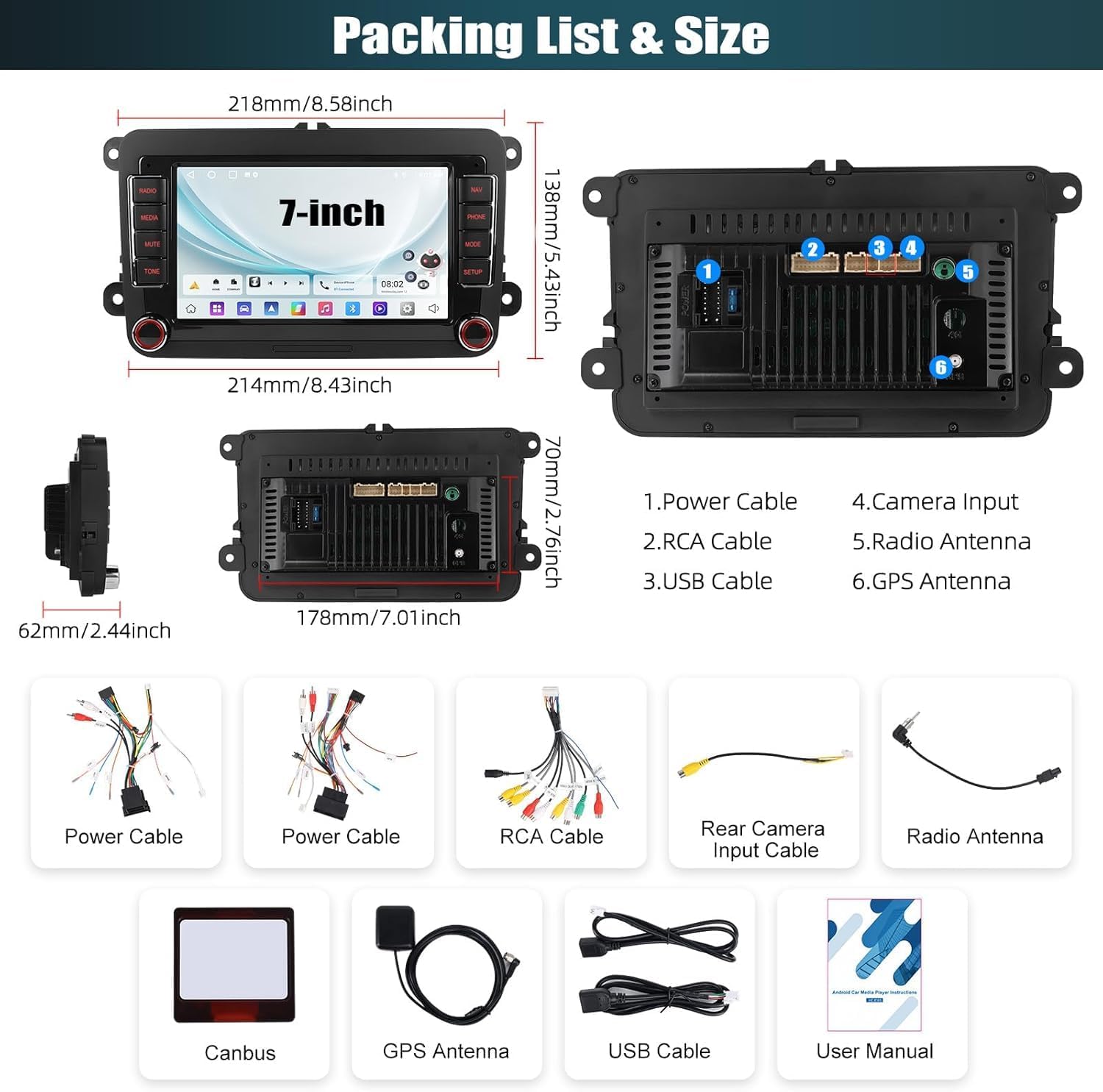
Image: Top panel shows the car stereo displaying a phone dialer for hands-free calls. Bottom panel shows the FM/RDS radio interface with frequency display and preset stations.
4.5 FM/RDS Radio
The high-quality digital stereo (RDS) FM tuner allows you to enjoy your favorite radio stations and receive traffic information. You can preset up to 18 radio stations.
4.6 Steering Wheel Control (SWC)
The unit supports your vehicle's original steering wheel buttons, allowing you to control music, answer calls, and navigate menus without diverting your attention from the road. This enhances operational convenience and safety.

Image: Top panel shows a clear image from an AHD reverse camera. Bottom panel displays the car stereo interface with on-screen controls for power, home, volume, navigation, Bluetooth, and media, indicating compatibility with steering wheel controls.
4.7 Equalizer Adjustment
Utilize the built-in preset EQ to customize your audio experience. Choose from various music styles such as Rock or Pop, or adjust settings manually to suit your preferences.

Image: Top panel shows the equalizer adjustment interface with options for preset EQ curves and sound balance. Bottom panel displays various customizable UI desktop themes available for the multimedia system.
4.8 Multiple UI Themes
The system offers multiple customized UI desktop themes. You can switch between these themes to personalize the appearance of your car stereo interface.
4.9 Mirror Link
The MirrorLink function allows you to cast your smartphone's screen directly to the car radio touchscreen, enabling you to view phone content on a larger display.
5. Maintenance
To ensure the longevity and optimal performance of your CAMECHO A4151 car stereo, follow these maintenance guidelines:
- Screen Cleaning: Use a soft, lint-free cloth to gently wipe the touchscreen. Avoid abrasive cleaners or harsh chemicals that could damage the display.
- Software Updates: Periodically check for available software updates to ensure you have the latest features and performance enhancements. Follow the on-screen instructions for any updates.
- Environmental Conditions: Avoid exposing the unit to extreme temperatures, direct sunlight for prolonged periods, or excessive moisture.
- Cable Connections: Ensure all cables are securely connected. Loose connections can lead to intermittent issues.
6. Troubleshooting
If you encounter issues with your CAMECHO A4151, refer to the following common troubleshooting steps:
6.1 No Sound Output
If the car media player is experiencing power consumption issues or no sound, try the following solutions:
- Confirm that the Canbus and A&B ports of the power line are connected at the same time. Do not connect them simultaneously.
- If the Canbus is connected, try unplugging it to see if the issue persists. This can help determine if the problem is Canbus-related.
- After turning off the engine, confirm whether the ACC red wire of the power supply still has electricity. If it does, it indicates a wiring error. Reconnect the ACC red wire separately.
- If your Canbus is not from Simple Soft, consider replacing it with a Simple Soft Canbus.
- If using an external amplifier, ensure the AMP cable from the RCA output is connected to the AMP cable of the power harness. Also, connect the AMP cable to the ACC cable of the power harness. For power amplifiers, connect the power cable of the amplifier to the ACC cable of the power harness.

Image: Four diagrams illustrating wiring solutions for 'No Sound' issues, focusing on RCA connections, AMP cable connections, and power harness wiring for external amplifiers.
6.2 Bluetooth Connection Issues
If Bluetooth fails to connect:
- Ensure Bluetooth is enabled on both your phone and the car stereo.
- Delete previous pairings on both devices and attempt to pair again.
- Restart both the car stereo and your phone.
- Ensure the white plug for Bluetooth/WiFi signals is securely connected to the main device.
6.3 General System Unresponsiveness
If the unit becomes unresponsive:
- Perform a soft reset by pressing the reset button (if available) or by turning off the vehicle ignition and restarting.
- Check all power connections to ensure they are secure.
7. Specifications
| Feature | Detail |
|---|---|
| Brand | CAMECHO |
| Model | A4151 |
| Memory Storage Capacity | 64 GB |
| Operating System | Android |
| Screen Size | 7 Inches |
| Special Features | Android Auto, Apple CarPlay, Built-In Bluetooth, Built-In Wi-Fi, GPS Navigation |
| Connectivity Technology | Bluetooth, Wi-Fi |
| Compatible Devices | Volkswagen (Golf, Jetta, Passat, Tiguan, Beetle, EOS, Polo, T5, Scirocco, Amarok, Caddy, Rabbit), Skoda (Octavia, Fabia, Roomster), Seat (Leon, Altea, Alhambra) |
| Product Dimensions | 21.8 x 6.2 x 13.8 cm |
| Item Weight | 800 g |
| Mounting Hardware Included | Android Head Unit, GPS Antenna, Radio Antenna, CANBUS, 2x Power Cable, 2x USB Cable, Rear Camera Cable, RCA Input/Output, User Manual |
8. Warranty and Support
For warranty information, please refer to the terms provided by your retailer at the time of purchase. Standard warranty policies typically cover manufacturing defects.
For technical support, troubleshooting assistance, or any questions regarding your CAMECHO A4151 Android Car Stereo, please contact our customer support team:
Email: CAMECHOVIP@126.com
Please provide your product model (A4151) and a detailed description of your issue when contacting support to ensure a prompt and effective resolution.


