
1. Introduction
This manual provides detailed instructions for the setup, operation, maintenance, and troubleshooting of your DAREU Wireless Ergonomic Keyboard LK302. This keyboard features an ergonomic design with a cushioned wrist rest, multiple connectivity options (2.4GHz wireless and Bluetooth), and multi-device switching capabilities to enhance your typing experience across various platforms.
2. What's in the Box
- DAREU Wireless Ergonomic Keyboard LK302
- Cushioned Wrist Rest (integrated)
- USB Receiver (2.4GHz)
- USB-C Charging Cable
- User Manual (this document)

Image: The DAREU Wireless Ergonomic Keyboard LK302, showing its full layout and integrated wrist rest.
3. Setup Instructions
3.1 Charging the Keyboard
Before initial use, fully charge the keyboard. Connect the provided USB-C charging cable to the keyboard's USB-C port and the other end to a USB power source (e.g., computer USB port, wall adapter). The charging indicator light will show charging status and turn off when fully charged. A full charge typically takes 2-3 hours and provides approximately 100 hours of use.

Image: Close-up view of the keyboard's side, showing the USB-C charging port and the On/Off switch.
3.2 Connecting via 2.4GHz Wireless
- Locate the USB receiver, usually stored in a compartment on the underside of the keyboard.
- Plug the USB receiver into an available USB port on your computer.
- Turn on the keyboard using the On/Off switch located on the side.
- The keyboard should automatically connect to your computer.
3.3 Connecting via Bluetooth (BT1 / BT2)
- Turn on the keyboard using the On/Off switch.
- Press and hold the Fn + BT1 or Fn + BT2 key combination for 3-5 seconds until the corresponding indicator light flashes rapidly. This indicates the keyboard is in pairing mode.
- On your device (laptop, tablet, smartphone), go to Bluetooth settings and search for new devices.
- Select "DAREU Keyboard" (or similar name) from the list of available devices to pair.
- Once paired, the indicator light will stop flashing and remain solid for a few seconds before turning off.
3.4 Adjusting Tilt Feet
The keyboard features five adjustable tilt feet on its underside, allowing you to set the keyboard at various angles for personalized comfort. Experiment with different angles to find the most comfortable typing position for your wrists and forearms.

Image: The underside of the keyboard showing the adjustable tilt feet in different positions.
4. Operating Instructions
4.1 Multi-Device Switching
The keyboard supports connection to up to three devices. To switch between connected devices:
- Press Fn + 1 to switch to the 2.4GHz wireless connection.
- Press Fn + 2 to switch to the first Bluetooth connection (BT1).
- Press Fn + 3 to switch to the second Bluetooth connection (BT2).

Image: The DAREU keyboard shown connected to a laptop and a tablet, illustrating multi-device capability.
4.2 Multimedia Hotkeys
Use the Fn key in combination with the F1-F12 keys to access various multimedia and system functions:
- Fn + F1: Media Player
- Fn + F2: Volume Down
- Fn + F3: Volume Up
- Fn + F4: Mute
- … (and other standard multimedia functions for F5-F12)

Image: Diagram illustrating the use of the Fn key with F1-F12 for multimedia controls.
4.3 Ergonomic Typing Posture
The keyboard's ergonomic split layout and cushioned wrist rest are designed to promote a natural and comfortable typing position. To maximize ergonomic benefits:
- Position the keyboard directly in front of you.
- Keep your wrists straight and relaxed, resting them on the cushioned palm rest.
- Adjust the keyboard's tilt feet to a height that feels most comfortable for your forearms.
- Maintain a relaxed shoulder and arm posture.
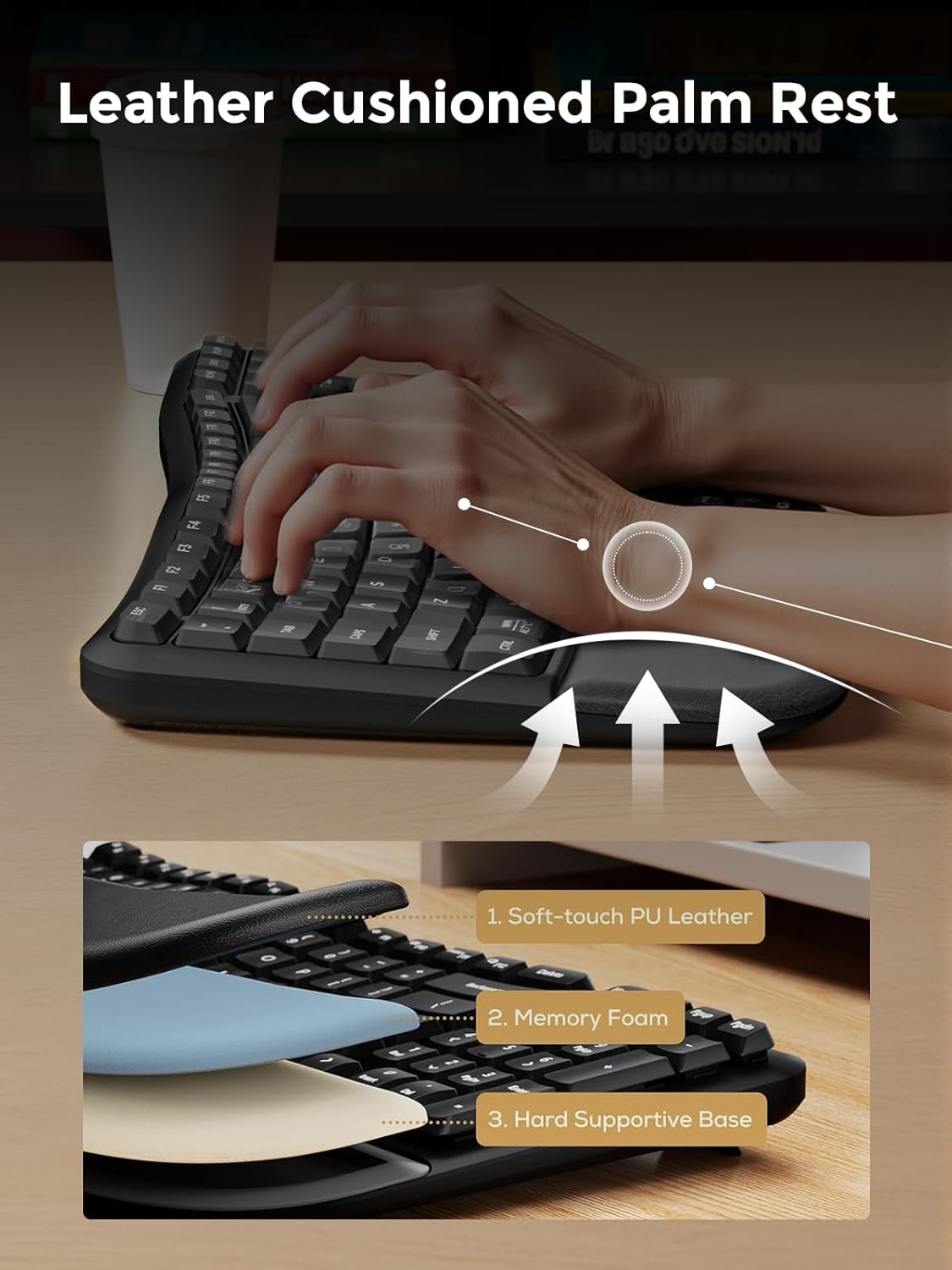
Image: A user's hands positioned on the ergonomic keyboard, demonstrating the natural wrist angle provided by the split design and wrist rest.
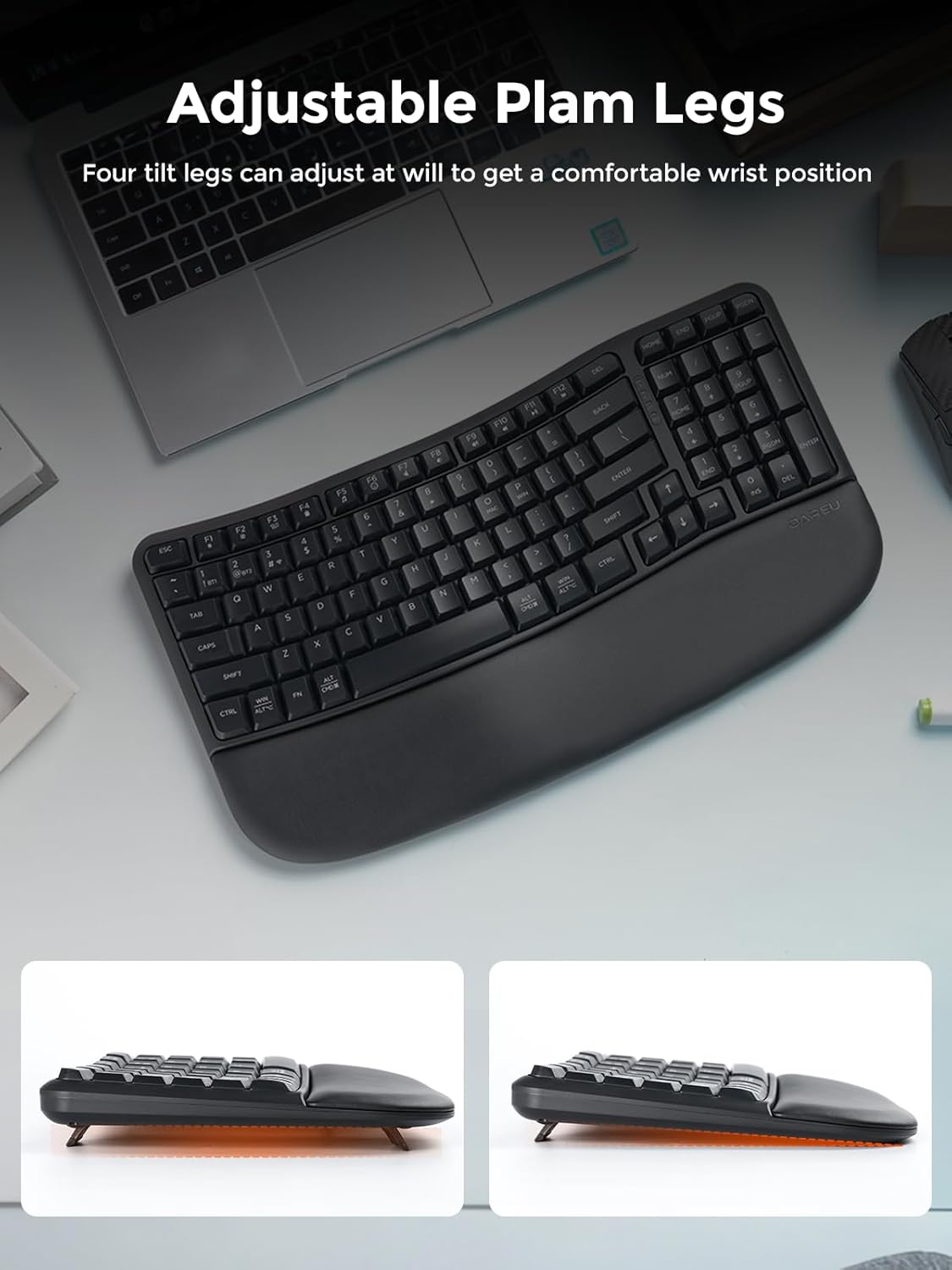
Image: A cutaway view of the cushioned wrist rest, highlighting its soft-touch PU leather, memory foam, and hard supportive base layers.
5. Maintenance
5.1 Cleaning
To clean your keyboard, ensure it is turned off. Use a soft, lint-free cloth slightly dampened with water or a mild cleaning solution. Avoid harsh chemicals, abrasive materials, or excessive moisture. For cleaning between keys, use compressed air or a small brush.
5.2 Battery Care
To prolong battery life, avoid fully discharging the keyboard frequently. Recharge the keyboard when the low battery indicator appears. If storing the keyboard for an extended period, charge it to approximately 50% before storage and recharge every few months.
6. Troubleshooting
- Keyboard not connecting or frequently disconnecting:
1. Ensure the keyboard is turned on and fully charged.
2. For 2.4GHz connection, ensure the USB receiver is securely plugged into a working USB port. Try a different USB port.
3. For Bluetooth connection, ensure Bluetooth is enabled on your device and the keyboard is within range. Re-pair the keyboard if necessary.
4. Try restarting your computer or device. - Keys not responding:
1. Check if the keyboard is connected to the correct device channel (Fn+1, Fn+2, or Fn+3).
2. Ensure the keyboard is charged.
3. If using 2.4GHz, try re-inserting the USB receiver.
4. If using Bluetooth, try re-pairing the device. - Lag or delayed input:
1. Ensure the keyboard is close to your device and there are no significant obstructions.
2. Avoid using the keyboard near strong interference sources (e.g., Wi-Fi routers, other wireless devices).
3. Ensure your device's operating system and drivers are up to date.
7. Specifications
| Brand | DAREU |
| Model Number | LK302 |
| Connectivity Technology | Bluetooth, 2.4GHz Wireless |
| Compatible Devices | Laptop, PC, Tablet |
| Compatible Operating System Family | Windows, Mac, iOS, Chrome OS, Linux |
| Keyboard Layout | QWERTY |
| Number of Keys | 104 |
| Product Dimensions | 17.5"L x 10.5"W x 2"H |
| Color | Black |
| Special Feature | Wireless Ergonomic Wave Keyboard, Cushioned Wrist Rest, Adjustable Tilt Feet, Multi-Device Connectivity |
8. Warranty Information
The DAREU Wireless Ergonomic Keyboard LK302 comes with a 1-year limited warranty from the date of purchase. This warranty covers manufacturing defects and workmanship under normal use. It does not cover damage caused by misuse, accidents, unauthorized modifications, or normal wear and tear. Please retain your proof of purchase for warranty claims.
9. Support
For further assistance, technical support, or warranty inquiries, please visit the official DAREU website or contact DAREU customer service. You can also find more information and products on the DAREU Store on Amazon.
Video: An official product video demonstrating the features and ergonomic design of the DAREU Wireless Ergonomic Keyboard.