
Introduction
This manual provides detailed instructions for setting up, operating, and maintaining your GL.iNet GL-BE6500 (Flint 3e) WiFi 7 Router. Please read this guide thoroughly to ensure optimal performance and a secure network experience. The GL-BE6500 is designed to deliver ultra-fast Wi-Fi 7 speeds, extensive coverage, and advanced features for home, business, and gaming environments.
What's in the Box
Verify that all items are present in your package:
- Flint 3e (GL-BE6500) Router
- Power Adapter
- Ethernet Cable
- User Manual

The package includes the GL-BE6500 router, a power adapter with interchangeable plugs for various regions, an Ethernet cable for wired connections, and this user manual.
Product Overview
Physical Components

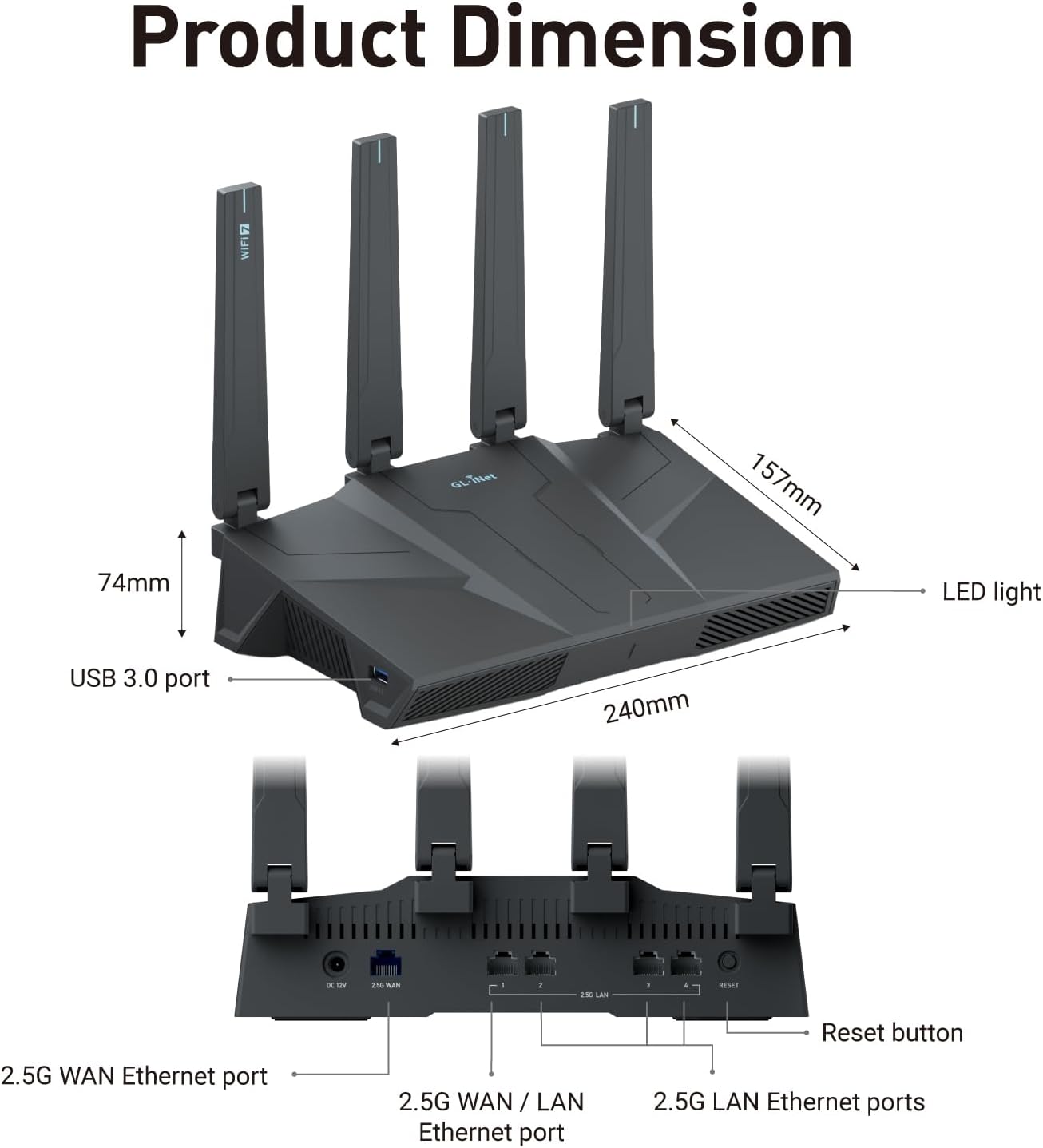
- Power Port (DC 12V): Connects to the power adapter.
- 2.5G WAN Ethernet Port: Connects to your modem or internet service provider.
- 2.5G LAN Ethernet Ports (x4): Provides high-speed wired connections for devices.
- USB 3.0 Port: For connecting external storage or other USB devices.
- Reset Button: Used to reset the router to factory settings.
- Foldable Antennas: Four external antennas for enhanced Wi-Fi signal.
- LED Light: Indicates router status (e.g., white for internet connection).
Key Features

- WiFi 7 Standard: Supports the latest Wi-Fi 7 (802.11be) standard for ultra-low latency and speeds up to 6.5 Gbps.
- Multi-Link Operation (MLO): Enhances stability and reduces latency by aggregating and switching across multiple frequency bands.
- 4K-QAM: Increases data encoding density for boosted throughput, ideal for high-definition streaming and large data transfers.
- 5 x 2.5G Ethernet Ports: All five Ethernet ports support 2.5 Gigabit speeds for high-performance wired connections.
- OpenWrt Pre-Installed: Comes with a powerful, customizable OpenWrt operating system.
- VPN Client/Server: Integrated support for various VPN services like WireGuard and OpenVPN, offering speeds up to 680Mbps.
- AdGuard Home: Built-in ad-blocking and tracking protection.
- Parental Controls: Features for managing screen time and online safety.
- Extensive Coverage: Designed to provide strong, reliable Wi-Fi signal for up to 2,500 square feet.
Setup Instructions
This section guides you through the initial setup of your GL-BE6500 router. You can use either the GL.iNet App or a laptop for configuration.
Setup Video Tutorial
Method 1: Using the GL.iNet App
- Download the App: Download the GL.iNet App from the App Store (iOS) or Google Play (Android).
- Open and Setup: Open the app and tap "Set up Router" to begin.
- Create New Network: Tap "Create a New Network."
- Scan QR Code: Tap "Scan the QR Code."
- Locate QR Code: Scan the QR code located on the bottom of your Flint 3e router.
- Prepare Items: Prepare the required items (router, power adapter) and tap "Next."
- Power On: Power on your Flint 3e router by plugging in the power cord.
- Wait for Boot: Wait for the device to fully boot (approximately one minute). Tap "Next" once booted.
- Connect to Router: The app will detect the router. Tap to log in.
- Enter Password: Enter the password to access and manage your network.
- Connection Confirmation: Once connected, a light blue icon will appear on the interface, indicating a successful connection.
Method 2: Using Your Laptop
- Find SSID: Locate the SSID (e.g., GL-BE6500-XXX) on the bottom label of your Flint 3e.
- Connect to Wi-Fi: Connect to this Wi-Fi network via your laptop's Wi-Fi settings.
- Enter Password: Enter the Wi-Fi password from the bottom label of your Flint 3e.
- Access Admin Panel: Open a web browser and go to 192.168.8.1.
- Select Language: Select your preferred language.
- Set Admin Password: Set your admin panel password.
- Enable Dynamic Bandwidth: Enable 160MHz Dynamic Bandwidth for optimal performance.
- Connect Other Devices: You can scan the QR code displayed on the screen to connect other devices to Wi-Fi.
Connecting to the Internet (Repeater Mode Example)
Once you've accessed the admin panel, you can configure your internet connection. Here's an example for Repeater mode:
- Select Repeater: In the Network Guide, click "Repeater."
- Join Wi-Fi Network: Select your existing Wi-Fi network from the list and click "Join."
- Enter Password: Enter the password for your existing Wi-Fi network and click "Join."
- Connection Confirmation: Once connected, a light blue icon will appear on the interface, and the LED light on the router will turn white, indicating a successful internet connection.
VPN Setup
The GL-BE6500 supports various VPN services:
- Access VPN Settings: In the admin panel, navigate to the VPN section. If prompted, click "VPN Setup."
- Choose VPN Service: Select your preferred VPN service (e.g., Surfshark, NordVPN, PIA).
- Enter Login Info: Enter your VPN login credentials (username and password).
- Select Server: Choose your preferred server location and click "Apply."
Operating Modes
The GL-BE6500 router supports multiple operating modes to suit various network environments:
- Ethernet Mode: Connects to the internet via an Ethernet cable from your modem.
- Repeater Mode: Extends the range of an existing Wi-Fi network.
- Tethering Mode: Connects to the internet using a smartphone's mobile data via USB tethering.
- Cellular Mode: Connects to the internet using a compatible USB cellular modem.
Advanced Features
Leverage the full potential of your GL-BE6500 with its advanced capabilities:
Enhanced Online Security with VPN

The router offers robust VPN support, allowing you to choose from over 30 VPN services. Both WireGuard and OpenVPN deliver high speeds, ensuring your online activities are private and secure. Actual speeds may vary based on your internet service provider and VPN server location.
Extensive Wi-Fi Coverage

Experience seamless Wi-Fi throughout your home or workplace with coverage up to 2,500 square feet. The router's design ensures strong wall penetration for a stable signal in every room.
Multi-Link Operation (MLO) Technology

MLO ensures highly reliable, low-latency connections for applications like AR/VR and gaming by intelligently aggregating and switching across multiple frequency bands (2.4 GHz and 5 GHz).
4K-QAM Breakthrough

Wi-Fi 7 introduces 4096-QAM (4K-QAM), significantly increasing data encoding density. This boosts throughput while maintaining robust signal integrity, making it ideal for ultra-high-definition streaming and large data transfers.
Multi-RU Puncturing

By supporting non-contiguous Resource Unit (RU) allocation, Wi-Fi 7 optimizes the use of available spectrum. This innovation improves efficiency for multi-user scenarios and minimizes interference in crowded networks.
Specifications
| Feature | Detail |
|---|---|
| Product Dimensions | 9.84 x 3.07 x 11.02 inches |
| Item Weight | 1.87 pounds |
| Item Model Number | GL-BE6500 |
| Brand | GL.iNet |
| Model Name | GL-BE6500 |
| Special Feature | Remote Access, WiFi 7 |
| Frequency Band Class | Dual-Band |
| Wireless Communication Standard | 802.11.be, 802.11ac, 82.11ax, 802.11g, 802.11n |
| Compatible Devices | Personal Computer, Smartphone |
| Recommended Uses For Product | Business, Gaming, Home |
| Connectivity Technology | Ethernet, Wi-Fi |
| Color | Black |
Maintenance
To ensure the longevity and optimal performance of your GL-BE6500 router, follow these maintenance guidelines:
- Firmware Updates: Regularly check for and install firmware updates through the admin panel to benefit from new features, security patches, and performance improvements.
- Placement: Place the router in a central location, away from obstructions and other electronic devices that may cause interference. Ensure good ventilation to prevent overheating.
- Cleaning: Keep the router clean and free of dust. Use a soft, dry cloth to wipe the exterior. Do not use liquid cleaners or abrasive materials.
- Power Cycle: If you experience network issues, try power cycling the router (unplugging it for 10-15 seconds and then plugging it back in).
Troubleshooting
If you encounter issues with your GL-BE6500 router, refer to the following common troubleshooting steps:
- No Internet Connection:
- Check if the WAN port cable is securely connected to your modem.
- Verify that your modem is working correctly.
- Ensure the router's LED light is white, indicating an active internet connection.
- Try power cycling both your modem and router.
- Slow Wi-Fi Speed:
- Ensure your devices are connected to the appropriate Wi-Fi band (5GHz for faster speeds, 2.4GHz for better range).
- Reduce interference by moving the router away from other electronics.
- Check for firmware updates.
- Consider enabling 160MHz Dynamic Bandwidth in the settings.
- Cannot Access Admin Panel:
- Ensure your device is connected to the router's Wi-Fi network or via an Ethernet cable.
- Verify you are entering the correct IP address (192.168.8.1) in your browser.
- Clear your browser's cache or try a different browser.
- VPN Connection Issues:
- Double-check your VPN login credentials.
- Try connecting to a different VPN server location.
- Ensure your VPN service subscription is active.
For more advanced troubleshooting or persistent issues, please refer to the GL.iNet official support resources.
Warranty and Support
GL.iNet provides comprehensive support for its products. For warranty information, technical assistance, or to access additional resources, please visit the official GL.iNet website or contact their customer service.
- Online Support: Visit www.gl-inet.com/support for FAQs, forums, and documentation.
- Customer Service Email: cs@gl-inet.com
- Technical Support Email: support@gl-inet.com
Please retain your proof of purchase for warranty claims.