
1. Introduction
This manual provides essential information for the safe and effective operation of your Dienspeak Mini Camera DC23. Please read it thoroughly before using the device and retain it for future reference.
The Dienspeak Mini Camera DC23 is a compact and portable digital camcorder designed for capturing high-definition video and photos. Its keychain-sized design makes it ideal for on-the-go recording of everyday moments, travel, or vlogging.
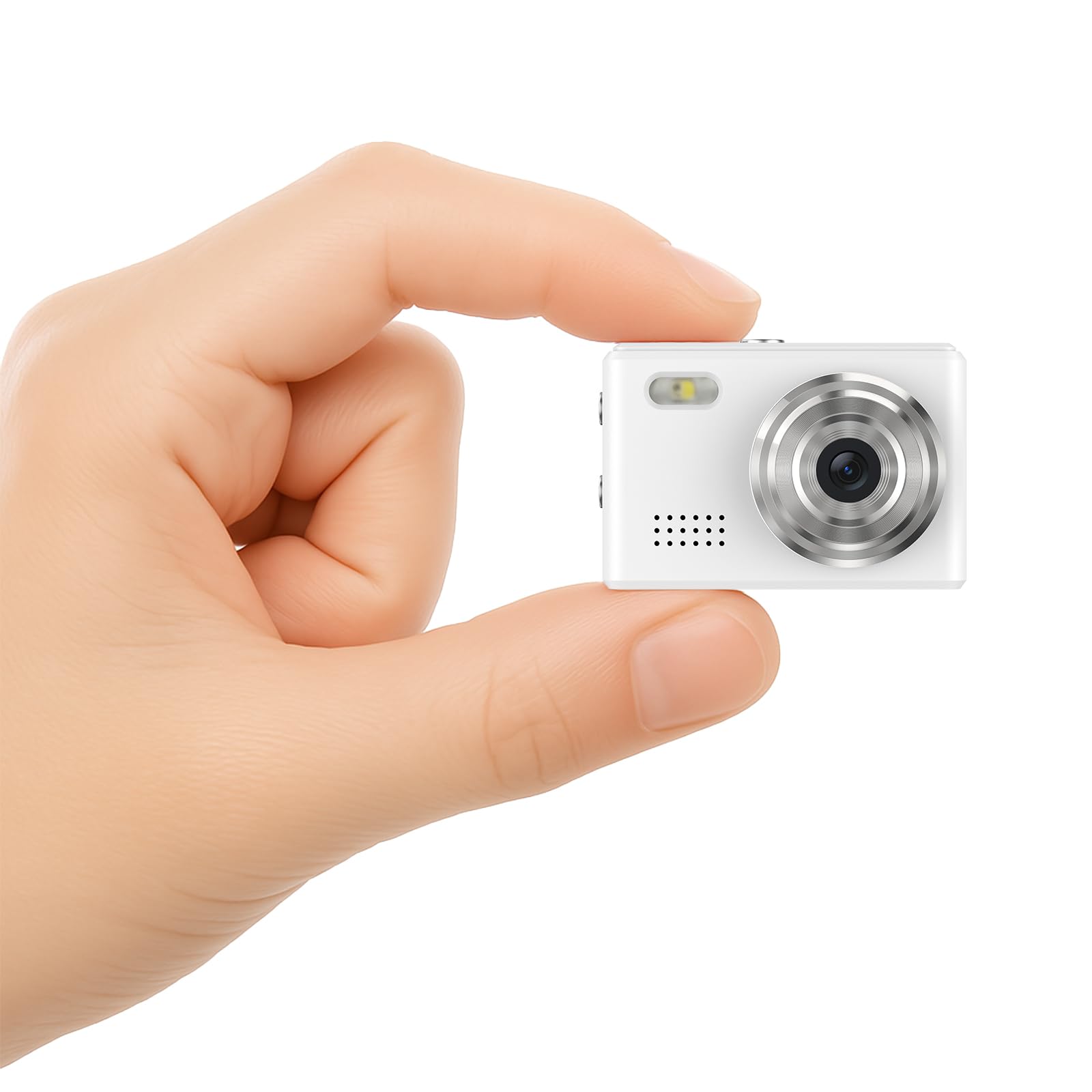
Image 1: The Dienspeak Mini Camera DC23, highlighting its small form factor.
2. Product Features
- High-Definition Recording: Captures 1080P video and 16MP effective still images.
- Compact Design: Ultra-portable keychain size (1.67 x 0.59 x 1.13 inches, 0.04 lbs).
- Display: 0.96-inch HD color LED screen for live view and playback.
- Storage: Includes a 64GB SD card, expandable up to 128GB.
- Battery Life: 180mAh battery provides over 80 minutes of continuous recording.
- Charging: Type-C port supports simultaneous recording and charging.
- Built-in Flash: Enhances low-light photography.
- Audio: Aluminum alloy speakers for clear audio playback.
- Creative Filters: 6 built-in photo filters for varied effects.
- Loop Recording: Supported for continuous video capture.
3. Package Contents
Verify that all items are present in your package:
- Dienspeak Mini Camera DC23
- 64GB SD Card (pre-installed)
- Keychain accessories
- Wrist Strap
- Type-C Charging Cable
- User Manual
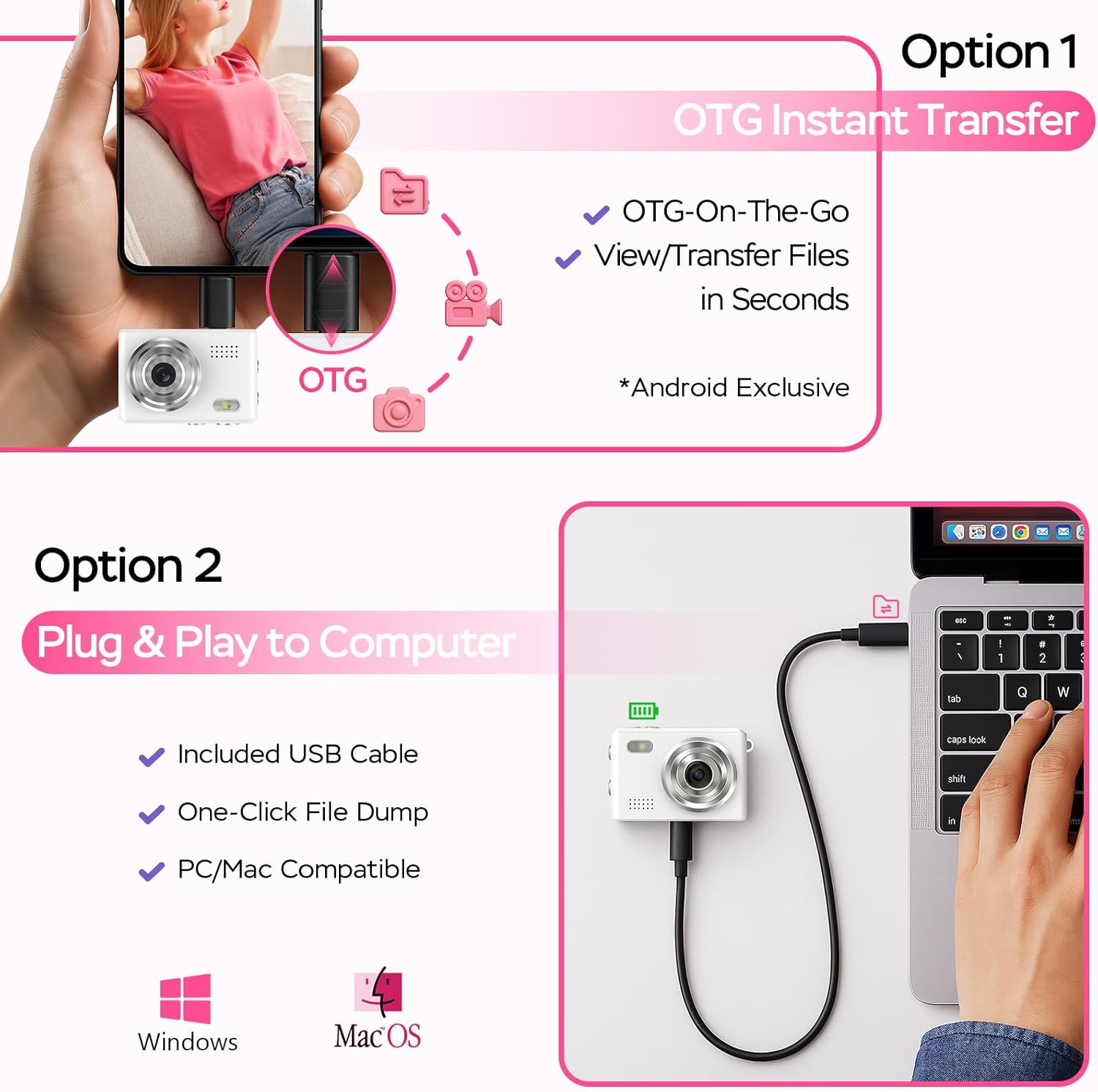
Image 2: All items included in the Dienspeak Mini Camera DC23 package.
4. Device Layout
Familiarize yourself with the buttons and ports on your Mini Camera DC23:

Image 3: Front and side view of the camera with button labels.
- Shutter Button (Top Right): Tap for Photo/Video, Hold for Voice Record.
- Power Button (Top Left): Tap to Browse Files, Hold to Power On/Off.
- Top Button (Side): Quick Press for Mute/Shutter, Long Press for Flash On/Off.
- Bottom Button (Side): Instantly Change Filters.
- Type-C Port (Bottom): For fast charging and data transfer.
- TF Card Slot (Bottom): For inserting the Micro SD card.
5. Setup
5.1 Charging the Camera
Before first use, fully charge the camera. Connect the provided Type-C cable to the camera's charging port and the other end to a USB power source (e.g., computer, wall adapter). The charging indicator will illuminate during charging and turn off when complete. A full charge takes approximately 1-2 hours.
5.2 Inserting/Managing SD Card
The camera comes with a 64GB SD card pre-installed. To insert or remove the SD card, gently push it into or out of the TF card slot until it clicks. Ensure the camera is powered off before removing the card to prevent data loss.
5.3 Attaching Accessories
Attach the keychain or wrist strap to the designated loops on the camera for secure carrying and to prevent accidental drops.
Video 1: A demonstration of the camera's features and how to attach the keychain.
6. Operating Instructions
6.1 Power On/Off
- To Power On: Press and hold the Power Button (Top Left) for a few seconds until the screen illuminates.
- To Power Off: Press and hold the Power Button (Top Left) again until the screen turns off.
6.2 Taking Photos
In photo mode (indicated by a camera icon on the screen), tap the Shutter Button (Top Right) to take a picture. The image will be saved to the SD card.
6.3 Recording Videos
In video mode (indicated by a video camera icon on the screen), tap the Shutter Button (Top Right) to start recording. Tap it again to stop recording. Videos are saved in AVI format.
6.4 Voice Recording
To activate voice recording, press and hold the Shutter Button (Top Right) for a few seconds. The camera will begin recording audio. Press and hold again to stop.

Image 4: The camera screen showing the voice recording mode.
6.5 Applying Filters
The camera features 6 built-in creative filters. While in photo or video mode, press the Bottom Button (Side) to cycle through the available filters and apply them to your shots.

Image 5: Examples of the 6 built-in photo filters.
6.6 Reviewing Media
To review captured photos and videos, tap the Power Button (Top Left) to enter browse mode. Use the side buttons to navigate through your media files. The 0.96-inch screen allows for immediate playback.
Video 2: A demonstration of recording and reviewing media on the camera.
7. Connecting to Computer/Phone (Data Transfer)
To transfer your photos and videos, connect the camera to a computer using the provided Type-C cable. The camera will appear as a removable disk, allowing you to access and copy your files. For Android phones, an OTG adapter (not included) can be used for direct transfer.

Image 6: Data transfer options for the camera, including USB to computer and OTG to Android phone.
8. Maintenance
- Keep the camera clean and free from dust and moisture.
- Use a soft, dry cloth to clean the lens and screen.
- Avoid extreme temperatures and direct sunlight.
- Do not attempt to disassemble the camera, as this will void the warranty.
9. Troubleshooting
| Problem | Possible Solution |
|---|---|
| Camera does not power on. | Ensure the battery is charged. Connect to a power source and try again. |
| Cannot take photos/videos. | Check if the SD card is inserted correctly and has sufficient storage space. Format the SD card if necessary (this will erase all data). |
| Poor video/photo quality. | Ensure the lens is clean. Check lighting conditions; use flash in low light. |
| Cannot transfer files to computer. | Ensure the camera is connected properly via the Type-C cable. Try a different USB port or cable. |
10. Specifications
| Model Name | DC23 |
| Video Resolution | 1080p |
| Effective Still Resolution | 16 MP |
| Photo Sensor Resolution | 5 MP |
| Screen Size | 0.96 Inches |
| Battery Capacity | 180 mAh |
| Battery Average Life | 80 minutes |
| Memory Storage Capacity | 64 GB (expandable to 128 GB) |
| Connectivity Technology | USB (Type-C) |
| Item Weight | 0.04 Pounds |
| Product Dimensions | 1.67 x 0.59 x 1.13 inches |
| Water Resistance Level | Not Water Resistant |
| Digital Zoom | 4x |
| Image Stabilization | Electronic |
11. Warranty and Support
Your Dienspeak Mini Camera DC23 comes with a 1-year worry-free after-sales service from the date of purchase. This warranty covers manufacturing defects such as lens fogging or battery failure.
For any issues or inquiries, please contact our U.S.-based support team. We aim to provide a 24-hour response and a satisfactory solution.
Contact information can be found on the official Dienspeak website or through your purchase platform.
Video 3: A brief overview of the Mini Camera's video capabilities.
