
Musnap Ocean
Musnap Ocean 7-inch E-Ink eBook Reader User Manual
Model: Ocean
1. Introduction
This manual provides detailed instructions for the safe and efficient use of your Musnap Ocean 7-inch E-Ink eBook Reader. Please read this manual thoroughly before using the device and keep it for future reference.
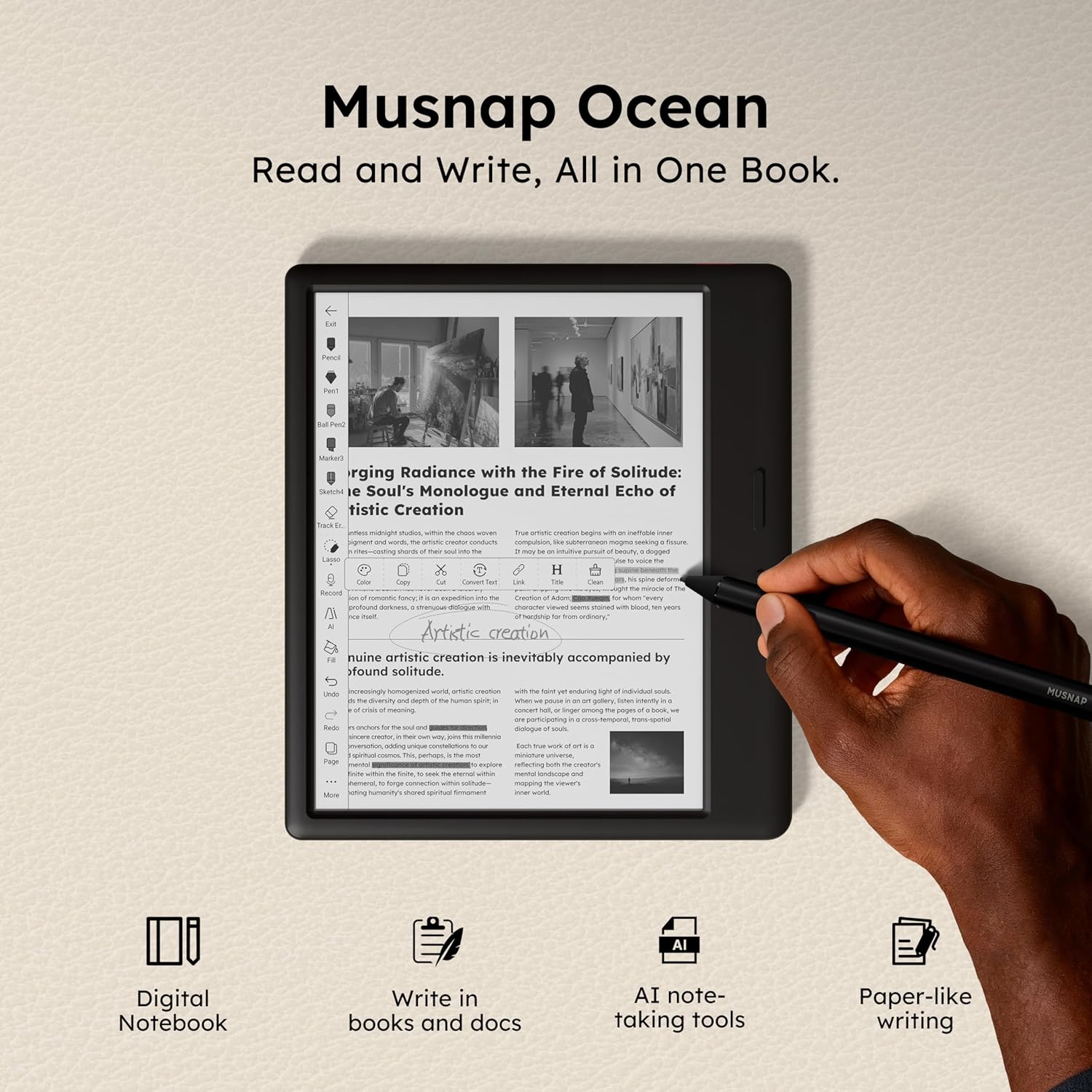
Image 1.1: Musnap Ocean device showcasing its versatile features.
The Musnap Ocean is a 7-inch E-Ink paper tablet designed for comfortable reading and precise handwriting. It features an octa-core processor, 4GB RAM, and 64GB storage, running on Android for a smooth user experience.
2. What's in the Box
Please check the contents of your package upon unboxing:
- Musnap Ocean 7-inch E-Ink eBook Reader
- Charging Cable
- Note: The Musnap Stylus Pen is sold separately and is not included in the standard package.
3. Device Overview
Familiarize yourself with the physical components of your Musnap Ocean device.
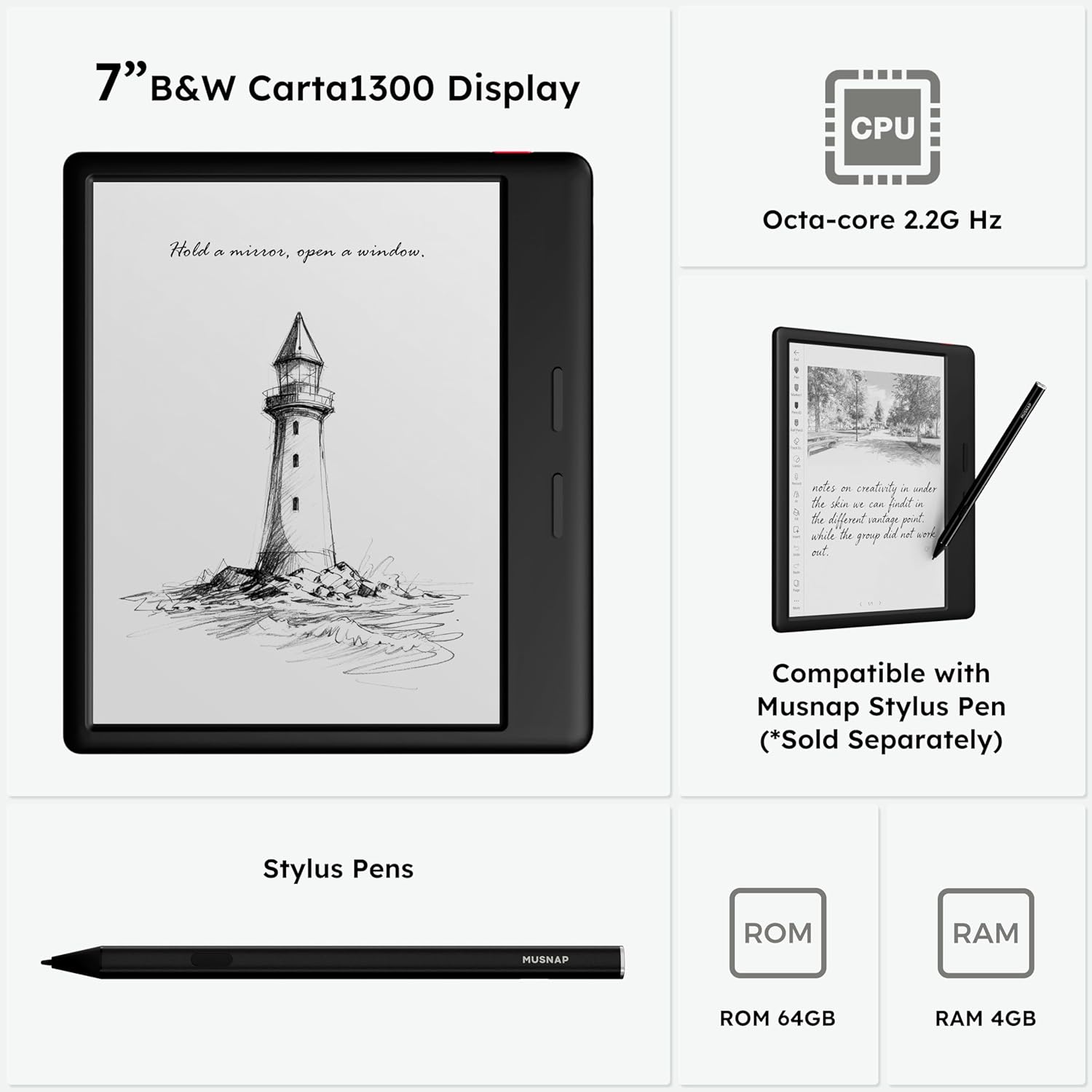
Image 3.1: Key hardware features of the Musnap Ocean.
The device features a 7-inch E-Ink display, physical page-turn buttons on the side, and a USB-C port for charging and data transfer. The ergonomic design ensures a comfortable grip.
4. Setup
4.1. Initial Charging
Before first use, fully charge your Musnap Ocean. Connect the provided USB charging cable to the device's USB-C port and plug the other end into a compatible USB power adapter (not included) or a computer's USB port.
4.2. Powering On/Off
- To Power On: Press and hold the power button (usually located on the side or bottom edge) for a few seconds until the screen lights up.
- To Power Off: Press and hold the power button until a power-off menu appears, then select "Power Off".
- To Sleep/Wake: Briefly press the power button to put the device to sleep or wake it up.
4.3. Initial Setup Wizard
Upon first power-on, the device will guide you through an initial setup process, including language selection, Wi-Fi connection, and time zone settings.
Video 4.1: Musnap Ocean Series Setup Guide.
This video demonstrates the initial setup process for the Musnap Ocean, including basic navigation and configuration steps.
5. Operating Instructions
5.1. Basic Navigation
The Musnap Ocean uses a touchscreen interface. Tap to select, swipe to scroll, and use pinch-to-zoom where applicable. Physical buttons can be customized for page turns or other functions.

Image 5.1: Device button customization options.
Customize the physical buttons for quick access to frequently used functions or navigation.
5.2. Reading Books and Documents
Open your desired book or document from the library. Tap the left or right side of the screen, or use the physical buttons, to turn pages. Adjust font size, line spacing, and margins through the reading menu.

Image 5.2: Reading experience on the Musnap Ocean.
The E-Ink display minimizes eye strain, allowing for extended reading sessions.
5.3. Note-Taking and Handwriting
With a compatible Musnap Stylus Pen (sold separately), you can write directly on documents, take notes in the dedicated notebook app, and annotate books. The screen is designed to mimic the feel of paper.
- Digital Notebook: Create new notebooks, select templates, and organize your notes.
- Document Annotation: Highlight text, draw, and add handwritten notes directly onto PDFs and other supported document formats.
- Handwriting Recognition: Convert handwritten notes to text for easier searching and sharing.

Image 5.3: Paper-like writing experience.
The device offers a natural writing feel, ideal for note-takers and artists.
5.4. Connecting Devices (Bluetooth, Wi-Fi, USB)
- Wi-Fi: Connect to wireless networks for downloading content, browsing, and syncing. Access Wi-Fi settings from the quick settings panel or the main settings menu.
- Bluetooth: Pair with Bluetooth headphones for audiobooks or other Bluetooth accessories. Enable Bluetooth in settings and search for devices.
- USB: Connect the device to a computer using the USB-C cable to transfer files. The device will appear as a removable storage drive.
5.5. App Management (3rd-Party Apps)
The Musnap Ocean supports the installation of 3rd-party Android applications. You can access the Google Play Store (if pre-installed or enabled) or sideload APK files.
Video 5.4: Musnap 3rd-Party apps Installation Guide.
This video provides instructions on how to install third-party applications on your Musnap Ocean device.
5.6. Display Settings
Adjust various display parameters to suit your preferences and environment.
- Brightness and Color Temperature: Adjust the front light for comfortable reading in any lighting condition.
- Refresh Mode: Select different refresh modes (e.g., standard, quick, intelligent) to balance display quality and speed.
- Text Contrast and Image Sharpness: Fine-tune the visual appearance of text and images.
- Dark Mode: Switch to dark mode for a different reading experience.

Image 5.5: Adjustable reading light.
The adjustable front light allows for comfortable reading day or night.

Image 5.6: Display optimization settings.
Customize the display to your preference for optimal viewing.
Video 5.7: Musnap Function Operation Guide.
This video demonstrates various operational functions of the Musnap Ocean, including display adjustments and navigation.
6. Supported Formats
The Musnap Ocean supports a wide range of file formats:
| Category | Formats |
|---|---|
| Image | JPG, JPEG, PNG |
| Book | TXT, EPUB, PDF, UMD, MOBI, EBK2, EBK3, AZW3 |
| Font | TTF, OTF, TTC |
| Audio | MP3, FLAC, WAV, M4A, AAC |
| Office Documents | XLS, XLSX, PPT, PPTX, DOC, DOCX |
7. Maintenance
7.1. Cleaning the Device
To clean the screen and body of your Musnap Ocean, use a soft, lint-free cloth. For stubborn smudges, slightly dampen the cloth with water. Avoid using harsh chemicals, abrasive cleaners, or aerosol sprays, as these can damage the screen and finish.
7.2. Battery Care
To prolong battery life, avoid exposing the device to extreme temperatures. Charge the device regularly, but avoid leaving it fully discharged for extended periods. The device uses a non-standard battery that should not be user-replaceable.

Image 7.1: Long battery life for extended use.
Proper battery care ensures weeks of reading and writing on a single charge.
8. Troubleshooting
If you encounter issues with your Musnap Ocean, try the following solutions:
- Device Not Turning On: Ensure the device is charged. Connect it to a power source for at least 30 minutes, then try powering it on again.
- Screen Frozen: Perform a forced restart by pressing and holding the power button for about 10-15 seconds until the device reboots.
- Wi-Fi Connection Issues: Check if other devices can connect to the Wi-Fi network. Restart your router and the Musnap Ocean. Ensure you are entering the correct password.
- Stylus Not Responding: Ensure the stylus is compatible and properly charged (if applicable). Check for any physical damage to the stylus tip or screen.
- Slow Performance: Close unused applications. Restart the device. If the issue persists, consider a factory reset (back up your data first).
9. Specifications
| Feature | Detail |
|---|---|
| Model | Ocean |
| Display | 7-inch E-Ink Paper Tablet (B/W) |
| Processor | Octa-core (2.2GHz) |
| RAM | 4GB |
| Storage | 64GB |
| Operating System | Android |
| Connectivity | Bluetooth, Wi-Fi, USB-C |
| Dimensions | 6.2 x 5.46 x 0.27 inches |
| Weight | 15.1 ounces |
| Battery | 1 Nonstandard Battery (included) |
10. Safety Information
- Do not expose the device to extreme temperatures, direct sunlight for prolonged periods, or high humidity.
- Avoid dropping the device or subjecting it to strong impacts.
- Do not attempt to disassemble or repair the device yourself. Refer to qualified service personnel.
- Keep the device away from water and other liquids.
- Use only approved charging cables and adapters.
11. Warranty and Support
For warranty information and customer support, please refer to the documentation provided with your purchase or visit the official Musnap website. Keep your proof of purchase for warranty claims.
For further assistance, you may contact Musnap customer service through their official channels.
Ask a question about this manual
Ask about setup, troubleshooting, compatibility, parts, safety, or missing instructions. Manuals+ will review the question and use this page’s manual context to help answer it.