1. Introduction
Thank you for choosing the Wielio Smart Projector. This device is designed to provide a versatile and high-quality projection experience, featuring a built-in Android operating system, dual-band WiFi, Bluetooth connectivity, and advanced image correction technologies. This manual will guide you through the setup, operation, and maintenance of your new projector to ensure optimal performance and longevity.

Figure 1.1: Wielio Smart Projector in use, displaying content on a curved screen.
2. Product Features
- Smart Android OS: Access millions of videos and apps directly without external devices.
- Native 1080P & 4K Support: Delivers sharp, detailed visuals with full HD quality and supports 4K input.
- 650 ANSI Brightness: Enhances contrast and color accuracy for vibrant images.
- Electronic Auto Focus & Auto Keystone: Effortless setup with automatic image correction.
- 50% Zoom Function: Customize image size to fit various environments.
- 120° Rotatable Stand: Flexible projection angles, including ceiling projection.
- 5G/2.4G Dual-Band WiFi: Convenient, stable, and fast wireless transmission.
- Two-way Bluetooth 5.1: Connects to multimedia devices and allows the projector to function as a speaker.
- Dustproof Design: Multi-layer mesh and removable side-panel for easy cleaning and longevity.
- Low Fan Noise (<29.8dB): Ensures a near-silent viewing environment.
- Wide Compatibility: HDMI, 2x USB, 3.5mm headphone jack for various devices.

Figure 2.1: Overview of the Wielio Smart Projector's key features and capabilities.
3. Setup Guide
3.1 Unboxing and Initial Inspection
Carefully remove all components from the packaging. Verify that all items listed in the product contents are present and undamaged. Keep the packaging for future storage or transport.
3.2 Power Connection
- Connect the power cord to the projector's power input port.
- Plug the other end of the power cord into a standard electrical outlet.
- The projector will typically power on automatically or can be turned on using the power button on the device or remote control.
3.3 Placement and Adjustment
The Wielio Smart Projector features a 120° rotatable stand, allowing for flexible placement and projection angles. You can project onto a wall, screen, or even the ceiling.
- Tabletop/Floor Placement: Position the projector on a stable, flat surface. Adjust the angle of the stand to direct the image as desired.
- Ceiling Projection: Rotate the stand to point the lens upwards for a unique ceiling viewing experience.
- Tripod/Mounting: The projector is compatible with standard tripod mounts for additional stability and positioning options.

Figure 3.1: The 120° rotatable stand allows for versatile projection, including onto the ceiling.
4. Operating Your Projector
4.1 Power On/Off
Press the power button on the projector or the remote control to turn the device on or off. Allow a few moments for the system to boot up.
4.2 Navigation and Interface
The projector runs on a smart Android OS, providing a user-friendly interface. Use the remote control to navigate through menus and select applications. Pre-installed apps like YouTube and Prime Video are readily available.
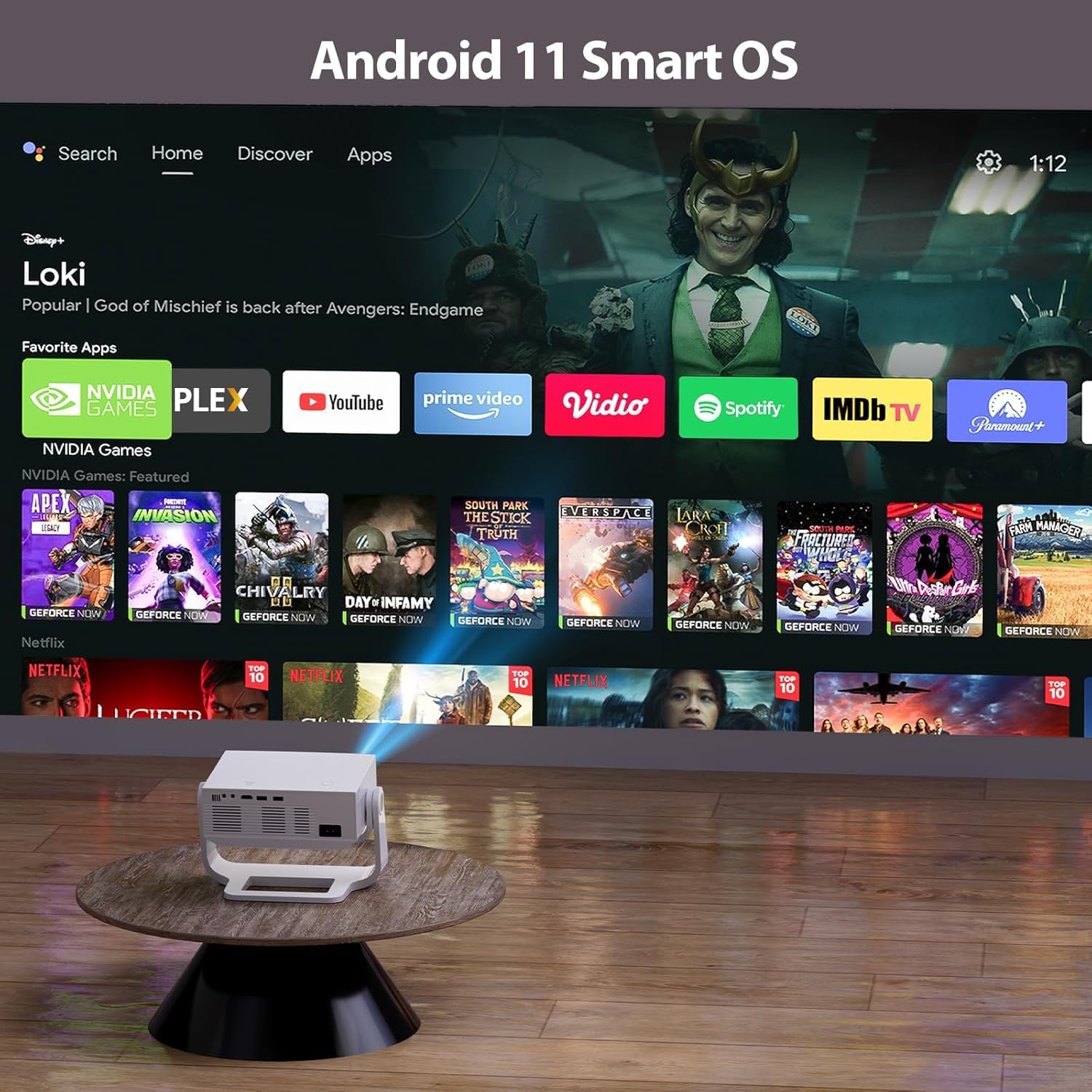
Figure 4.1: The projector's Android 11 Smart OS interface with various streaming applications.
4.3 Focus and Keystone Correction
The projector features electronic auto-focus and automatic four-point keystone correction for a clear and perfectly rectangular image, regardless of the projection angle.
- Auto Focus: The projector automatically adjusts the focus for a sharp image.
- Auto Keystone: The image shape is automatically corrected to be rectangular.
- Manual Adjustment: If needed, fine-tune focus and keystone using the remote control.

Figure 4.2: Electronic focusing and auto keystone correction ensure a clear and aligned image.
4.4 Zoom Function
Utilize the 50% zoom function to adjust the image size without moving the projector, making it adaptable to various room sizes and viewing preferences.
5. Connectivity Options
5.1 Wi-Fi Connection
Connect your projector to a 5G or 2.4G dual-band Wi-Fi network for seamless streaming and app access.
- Navigate to 'Settings' on the home screen.
- Select 'Network & Internet' or 'Wi-Fi'.
- Choose your desired Wi-Fi network and enter the password if prompted.
5.2 Bluetooth Pairing
The projector supports two-way Bluetooth 5.1, allowing connection to external audio devices or using the projector as a Bluetooth speaker.
- To connect to an external speaker: Go to 'Settings' > 'Bluetooth' and pair with your Bluetooth speaker.
- To use the projector as a Bluetooth speaker: Select the appropriate mode in settings or follow the instructions for your specific device to connect to the projector.
Video 5.1: Official product video demonstrating the features and usage of the Wielio Smart Projector, including its connectivity and projection capabilities.
5.3 Wired Connections (HDMI, USB, AV)
The projector offers multiple wired input options for various devices.
- HDMI Port: Connect TV sticks, laptops, gaming consoles (PS4, Switch), etc.
- USB Ports (x2): Connect USB flash drives for media playback or wired casting from compatible devices.
- 3.5mm Headphone Jack: Connect external headphones or speakers for private listening or enhanced audio.
- AV Port: For older devices requiring AV input.

Figure 5.1: Rear panel of the projector showing various input ports for wired connectivity.
6. Maintenance and Care
Proper maintenance ensures the longevity and optimal performance of your projector.
- Dust Prevention: The projector features a multi-layer dustproof mesh and a removable side-panel. Regularly clean these components to prevent dust accumulation and black spots on the projection.
- Lens Cleaning: Use a soft, lint-free cloth specifically designed for optical lenses to gently wipe the projector lens. Avoid abrasive materials or harsh chemicals.
- General Cleaning: Wipe the exterior of the projector with a soft, dry cloth. Do not use liquid cleaners directly on the device.
- Storage: When not in use for extended periods, store the projector in a cool, dry place, ideally in its original packaging or a protective case.
7. Troubleshooting Common Issues
If you encounter any issues, refer to the following troubleshooting tips:
- No Power: Ensure the power cord is securely connected to both the projector and the power outlet. Try a different outlet.
- No Image: Check that the projector is powered on. Verify the input source is correctly selected (HDMI, USB, etc.).
- Blurry Image: Use the electronic auto-focus or manually adjust the focus via the remote control. Ensure the projection surface is flat and the projector is within the recommended distance.
- Distorted Image: The auto keystone correction should automatically fix this. If not, use the manual keystone adjustment in the settings.
- No Sound: Check the volume settings on the projector and any connected external audio devices. Ensure Bluetooth is correctly paired if using wireless speakers. If using wired connections, verify cables are secure.
- Wi-Fi/Bluetooth Connection Issues: Ensure the projector is within range of your router/device. Restart the projector and your router/device. Re-enter Wi-Fi password if necessary.
8. Technical Specifications
| Feature | Specification |
|---|---|
| Brand | Wielio |
| Model | B0FX86J4MT |
| Display Resolution | Native 1920 x 1200 (Supports 4K) |
| Brightness | 650 ANSI Lumens |
| Operating System | Smart Android OS |
| Connectivity Technology | Wireless (5G/2.4G WiFi, Bluetooth 5.1) |
| Input Ports | 1x HDMI, 2x USB, 1x AV, 1x 3.5mm Headphone Jack |
| Special Features | Electronic Focus, Auto Keystone, 120° Rotatable Stand, 50% Zoom, Dustproof Design, Low Fan Noise (<29.8dB) |
| Recommended Uses | Indoor/Outdoor |
| Item Weight | 3.8 pounds |
| Product Dimensions | 3 x 4 x 5 inches |
9. Important Safety Information
Please read and follow these safety guidelines to prevent damage to the projector or injury to yourself and others:
- Do not look directly into the projector lens when the lamp is on.
- Ensure adequate ventilation around the projector to prevent overheating.
- Keep the projector away from water, moisture, and extreme temperatures.
- Do not attempt to disassemble or repair the projector yourself. Refer to qualified service personnel.
- Use only the power adapter supplied with the projector.
- Keep out of reach of children.
10. Warranty and Customer Support
Your Wielio Smart Projector is covered by a manufacturer's warranty. Please refer to the warranty card included in your product packaging for specific terms and conditions.
For technical support, troubleshooting assistance, or warranty claims, please contact Wielio customer service through the contact information provided on your product's official website or warranty documentation.
Optional protection plans are available for purchase to extend coverage beyond the standard warranty period. Please check product listings or contact your retailer for details on 2-Year and 3-Year Protection Plans.
