Introduction
This manual provides detailed instructions for the operation and maintenance of your Vivitar DVR4K 4K & 8K Video Camera Camcorder. Please read this manual thoroughly before using the device to ensure proper functionality and to maximize your recording experience. This camcorder is designed for capturing high-quality video and still images, featuring advanced capabilities for various content creation needs.
What's in the Box
Verify that all items listed below are included in your package:
- Vivitar DVR4K Camcorder
- Remote Control
- Battery (Nonstandard Battery, 2 included)
- HDMI Cable
- USB Cable (Standard USB to USB-C)
- Lens Cap
- Carrying Pouch
- Instruction Manual (Easy Guide)
Video: Unboxing the Vivitar DVR4K Camcorder, showing included accessories like the camcorder, remote, battery, cables, and carrying pouch.
Setup
1. Charging the Battery
The camcorder uses a 3.7V 1050mAh Li-ion battery (NP-40). Ensure the battery is fully charged before first use.
- Open the battery compartment cover on the camcorder.
- Insert the battery into the compartment, ensuring correct polarity.
- Close the battery compartment cover.
- Connect the USB cable to the camcorder's USB-C port and to a power source (e.g., computer USB port or USB wall adapter).
- The charging indicator light will illuminate. It will turn off or change color when charging is complete.
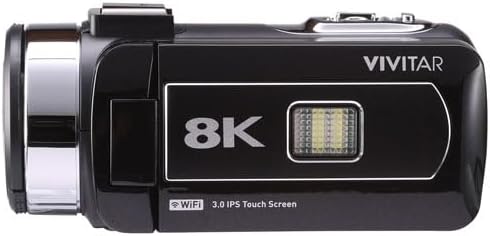
Image: Vivitar DVR4K Camcorder with its flip screen open, showing the controls and ports.
2. Inserting a Memory Card
The camcorder supports SD flash memory cards. A memory card is required to store videos and photos.
- Locate the memory card slot (usually near the battery compartment or on the side).
- Insert the SD card into the slot with the metal contacts facing the correct direction until it clicks into place.
- To remove, press the card gently until it springs out.
3. Attaching the Hand Strap and Lens Cap
- Secure the hand strap to the designated loop on the camcorder for a firm grip during operation.
- Attach the lens cap to protect the lens when the camcorder is not in use.

Image: Front view of the Vivitar DVR4K Camcorder with the lens cap in place.
Operating Instructions
1. Powering On/Off
- To power on, open the LCD flip screen. The camcorder will automatically turn on.
- To power off, close the LCD flip screen. The camcorder will automatically turn off.
- Alternatively, press and hold the POWER button located near the screen for a few seconds.
2. Basic Navigation and Modes
Use the buttons next to the LCD screen or the remote control to navigate menus and select modes.
- MODE button: Cycles through video recording, photo capture, and playback modes.
- MENU button: Accesses the settings menu for various adjustments.
- UP/DOWN/OK buttons: Navigate menu options and confirm selections.
- WiFi button: Activates Wi-Fi connectivity for file transfer.

Image: Side view of the Vivitar DVR4K Camcorder with the flip screen open, highlighting the control buttons for power, mode, menu, and Wi-Fi.
3. Recording Video
- Switch to video recording mode using the MODE button.
- Frame your shot using the LCD screen.
- Press the RECORD button (red button on the top/back) to start recording.
- Press the RECORD button again to stop recording.
- Use the zoom lever (located on top) to zoom in or out during recording.
4. Taking Photos
- Switch to photo capture mode using the MODE button.
- Frame your shot using the LCD screen.
- Press the PHOTO button (usually near the record button) to take a picture.
5. Using the Remote Control
The included remote control allows for convenient operation from a distance.
- Ensure the plastic tab is removed from the remote's battery compartment to activate it.
- Point the remote at the camcorder's IR receiver.
- Use the corresponding buttons on the remote for recording, taking photos, zooming, and navigating menus.

Image: The Vivitar DVR4K Camcorder's remote control and a spare battery.
6. Connecting to a TV (HDMI)
View your recordings and photos on a larger screen using the HDMI output.
- Connect the mini HDMI end of the HDMI cable to the camcorder's HDMI port.
- Connect the standard HDMI end to an HDMI input on your TV.
- Select the correct HDMI input on your TV.
- The camcorder's display will appear on your TV screen.
7. Transferring Files (USB & Wi-Fi)
Transfer your media to a computer or other device.
- USB Transfer: Connect the camcorder to your computer using the USB cable. The camcorder will appear as a removable drive, allowing you to copy files.
- Wi-Fi Transfer: Activate Wi-Fi on the camcorder using the WiFi button. Follow the on-screen instructions or refer to the full manual for connecting to a smartphone app for wireless transfer.
Maintenance
1. Battery Care
- Store batteries in a cool, dry place when not in use.
- Avoid fully discharging the battery frequently to prolong its lifespan.
- Do not expose batteries to extreme temperatures.
2. Cleaning
- Use a soft, dry cloth to clean the camcorder body.
- For the lens, use a specialized lens cleaning cloth and solution.
- Avoid using harsh chemicals or abrasive materials.
3. Storage
- Store the camcorder in its carrying pouch to protect it from dust and scratches.
- Remove the battery if the camcorder will not be used for an extended period.
- Keep the camcorder away from direct sunlight, high humidity, and extreme temperatures.
Troubleshooting
| Problem | Possible Cause | Solution |
|---|---|---|
| Camcorder does not power on. | Battery is not charged or incorrectly inserted. | Ensure battery is fully charged and correctly inserted. |
| Cannot record video/take photos. | Memory card is full, not inserted, or corrupted. | Insert a valid memory card, ensure sufficient space, or format the card (this will erase all data). |
| Poor video/photo quality. | Lens is dirty, lighting conditions are poor, or incorrect settings. | Clean the lens. Adjust lighting or camcorder settings (e.g., exposure, white balance). |
| Remote control not working. | Plastic tab not removed, battery dead, or not pointing correctly. | Remove plastic tab. Replace remote battery. Ensure direct line of sight to IR receiver. |
Specifications
| Feature | Detail |
|---|---|
| Brand | Vivitar |
| Model Number | DVR4K |
| Video Capture Resolution | 4K / 8K Ultra HD |
| Still Image Sensor | 48.0 MP |
| Display | 3-inch Rotatable Full-Color LCD (IPS Touchscreen) |
| Zoom | 18x Digital Zoom |
| Connectivity | Wi-Fi, Mini USB, HDMI |
| Special Features | Image Stabilization, Face Detection, Night Vision, Multiple Shooting Modes (Auto, Portrait, Landscape, Time Lapse, Motion Detection, Loop Recording) |
| Storage Media | SD Flash Memory (Max size not specified, user review mentions 128GB/256GB attempts) |
| Battery Type | Nonstandard Battery (Li-ion, 3.7V 1050mAh, NP-40) |
| Video Format | MP4 |
| Photo Format | JPG |
| Operating Temperature | -20°C to +50°C |
| Item Weight | 3.5 pounds |
Warranty and Support
For warranty information and technical support, please refer to the official Vivitar website or contact their customer service. Details are typically provided in the full product manual or on the manufacturer's website.
Protection Plans: Additional protection plans may be available for purchase. Please check with your retailer for options such as 2-Year or 3-Year Protection Plans.


