
1. Product Overview
The Abysm Gaming Arian Frame A400 is an ATX gaming PC case designed for optimal airflow and component compatibility. It features a unique inclined chassis, tempered glass side panel, and includes four ARGB PWM fans for superior cooling and customizable lighting.
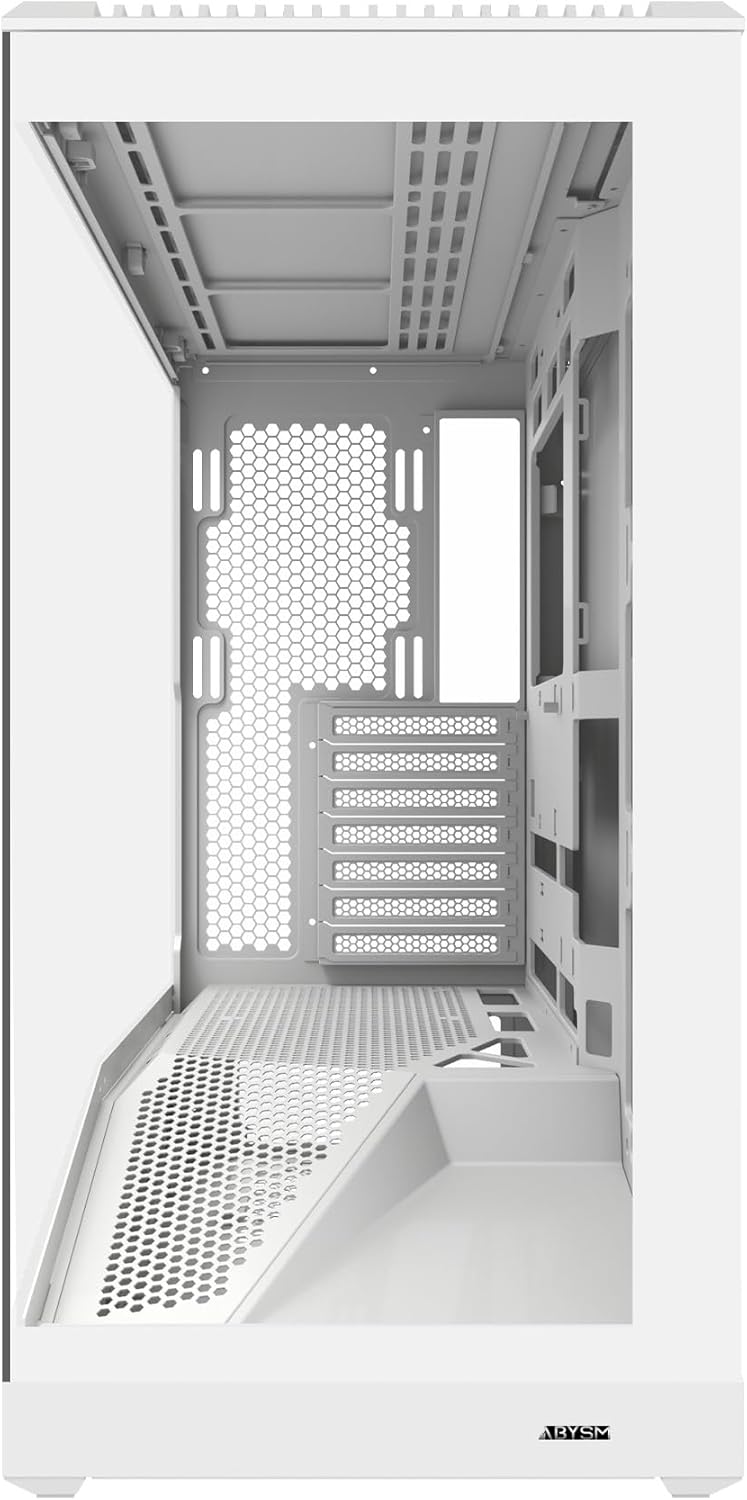
Figure 1.1: Front view of the Abysm Gaming Arian Frame A400 PC case, showcasing its clean design and front panel I/O ports.
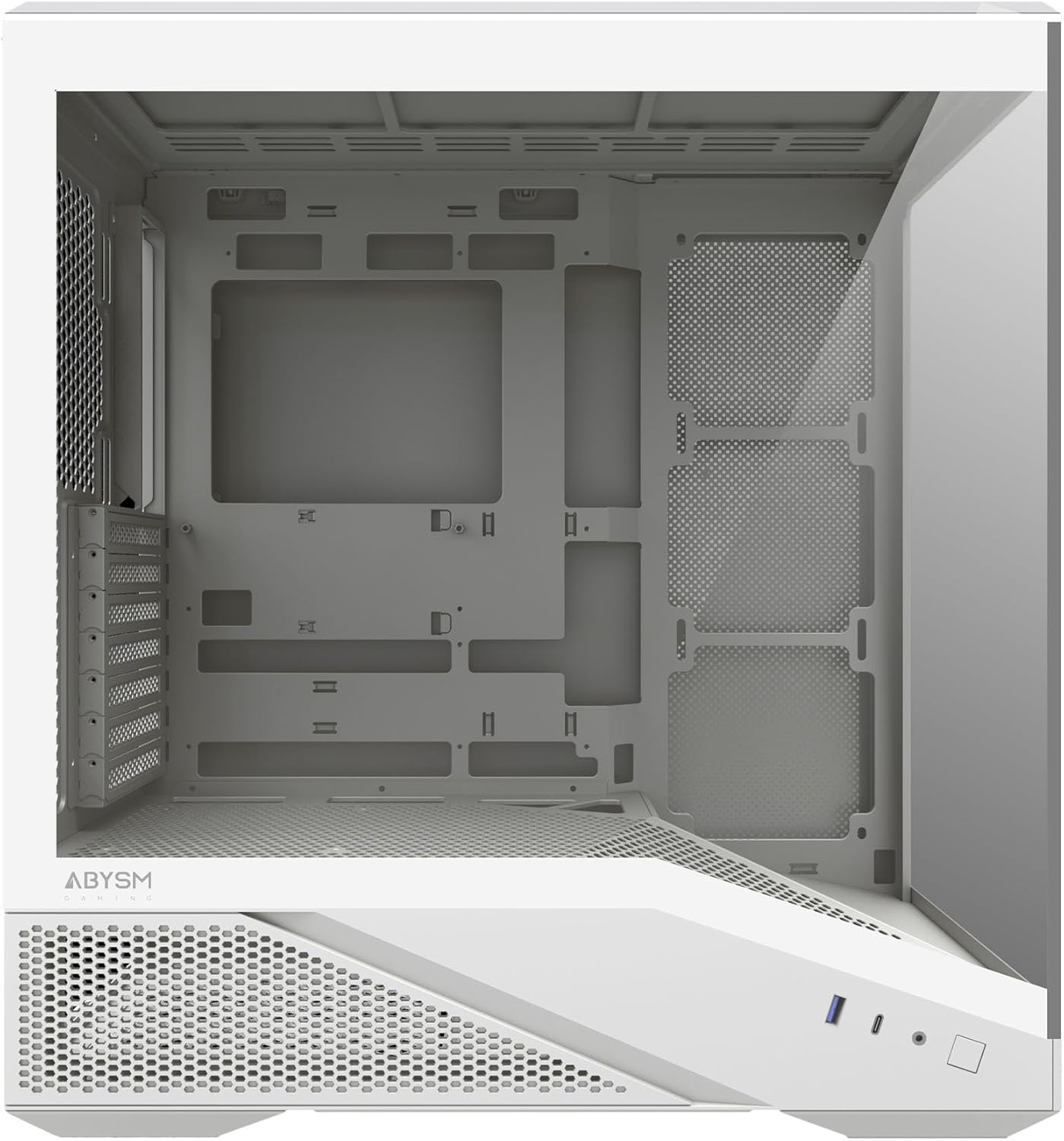
Figure 1.2: Side view of the Abysm Gaming Arian Frame A400 PC case, highlighting the tempered glass panel for component visibility.
2. Setup and Component Installation
2.1 Preparing the Chassis
Before installing components, ensure the case is placed on a stable, flat surface. Carefully remove the tempered glass side panel and the opposite metal side panel to access the interior. Refer to the exploded view for panel removal guidance.

Figure 2.1: Exploded view illustrating the various removable components of the chassis, including side panels and top cover.
2.2 Motherboard Installation
The Arian Frame A400 supports ATX, Micro-ATX, and Mini-ITX motherboards. Install the necessary standoffs for your motherboard form factor. Carefully align your motherboard with the standoffs and I/O shield, then secure it with screws.
2.3 Graphics Card (GPU) Installation
This case accommodates graphics cards up to 420 mm in length. Remove the appropriate PCIe slot covers, insert your GPU into the PCIe slot on the motherboard, and secure it with screws.
2.4 CPU Cooler Installation
The case supports CPU coolers with a maximum height of 182 mm. Install your CPU cooler according to its manufacturer's instructions, ensuring proper mounting and thermal paste application.
2.5 Storage Drive Installation
The chassis provides dedicated mounting points for both 2.5-inch SSDs and 3.5-inch HDDs. Locate the drive bays behind the motherboard tray and near the PSU shroud. Secure your drives using the provided screws.
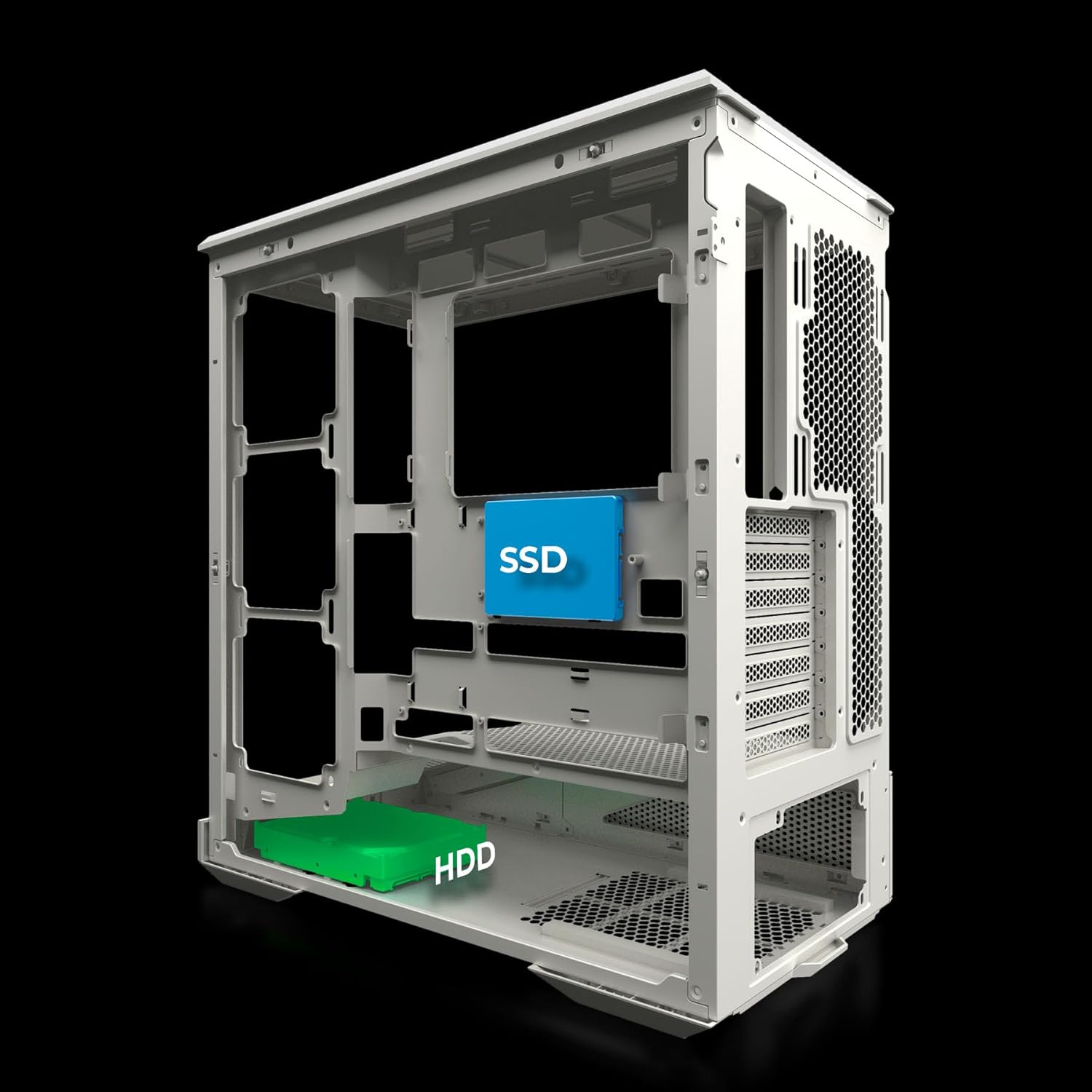
Figure 2.2: Internal view indicating the mounting positions for SSD (2.5-inch) and HDD (3.5-inch) storage drives.
2.6 Power Supply Unit (PSU) Installation
Install your power supply unit into the designated compartment at the bottom rear of the case. The inclined chassis design enhances airflow to the PSU, contributing to overall system cooling.
2.7 Fan and Radiator Installation
The Arian Frame A400 supports extensive cooling configurations:
- Up to 8 x 120 mm fans.
- Liquid cooling radiators up to 360 mm.
The case includes four ARGB PWM fans with automatic speed control (600–1600 rpm) and premium hydraulic bearings for durability and low noise. Ensure fans are oriented correctly for optimal airflow (intake/exhaust).

Figure 2.3: Compatibility diagram detailing maximum dimensions for CPU coolers, GPUs, and various fan/radiator configurations.
2.8 Cable Management
Utilize the advanced cable management system with hidden channels behind the motherboard tray to route and secure cables. This improves aesthetics and airflow within the case.
3. Operating Instructions
3.1 Front Panel Connectivity
The front I/O panel provides convenient access to:
- USB 3.0 ports
- USB Type-C 3.1 port
- HD Audio jacks (headphone and microphone)
Ensure these connectors are properly attached to your motherboard's corresponding headers during setup.
3.2 ARGB Lighting Control
The included ARGB PWM fans feature intelligent lighting. Connect the ARGB cables to a compatible motherboard header or an ARGB controller (if supplied separately or integrated with your motherboard) to synchronize and customize lighting effects using your motherboard's software.
4. Maintenance
4.1 Cleaning the Case
Regular cleaning helps maintain optimal performance and aesthetics:
- Exterior: Wipe the exterior surfaces with a soft, damp cloth. Avoid abrasive cleaners.
- Tempered Glass: Use a glass cleaner and a microfiber cloth for the tempered glass panel to prevent streaks.
- Dust Filters: Periodically remove and clean any dust filters (e.g., on the top, front, or bottom) to ensure unrestricted airflow. Use compressed air or rinse with water and allow to dry completely before reinstallation.
- Interior: Use compressed air to remove dust buildup from internal components and fan blades. Ensure the system is powered off and unplugged before cleaning the interior.
5. Troubleshooting
5.1 Fans Not Spinning or ARGB Not Lighting Up
- Check Connections: Ensure all fan power cables and ARGB cables are securely connected to the motherboard or fan controller.
- Motherboard Settings: Verify fan control and ARGB settings in your motherboard's BIOS/UEFI or software.
5.2 System Overheating
- Airflow: Confirm that fans are installed with the correct orientation for intake and exhaust.
- Dust Buildup: Clean dust filters and internal components as described in the Maintenance section.
- Component Clearance: Ensure no cables or other obstructions are blocking airflow paths.
5.3 Front Panel Ports Not Functioning
- Internal Connections: Double-check that the front panel USB and audio cables are correctly connected to the corresponding headers on your motherboard.
- Driver Installation: Ensure all necessary motherboard drivers are installed.
6. Technical Specifications
| Feature | Specification |
|---|---|
| Brand | Abysm Gaming |
| Model Name | ARIAN FRAME A400 |
| Product Model Number | AB123533W |
| Color | White |
| Material | SPCC de 0,7 mm |
| Product Dimensions (L x W x H) | 44.6 x 23.5 x 48.3 cm |
| Product Weight | 8.18 kg |
| Motherboard Compatibility | ATX, Micro-ATX, Mini-ITX |
| Max GPU Length | 420 mm |
| Max CPU Cooler Height | 182 mm |
| Liquid Cooling Support | Up to 360 mm |
| Fan Support | Up to 8 x 120 mm |
| Included Fans | 4 x ARGB PWM fans (600-1600 rpm) |
| Front I/O Ports | USB 3.0, USB Type-C 3.1, HD Audio |
| Special Features | Inclined Chassis, Tempered Glass Side Panel, RGB Lighting |
7. Warranty Information
Abysm Gaming products are manufactured to high-quality standards. For specific warranty terms and conditions, please refer to the warranty card included with your product or visit the official Abysm Gaming website. Keep your proof of purchase for warranty claims.
8. Customer Support
If you encounter any issues or have questions regarding your Abysm Gaming Arian Frame A400 PC case that are not covered in this manual, please contact Abysm Gaming customer support or the retailer from whom you purchased the product. You may find additional resources and FAQs on the official Abysm Gaming website.
Website: www.abysmgaming.com (Example link, please verify official website)


