
Introduction
This manual provides detailed instructions for the installation, operation, maintenance, and troubleshooting of your Roinvou 4+128G Android 15 Car Radio. Please read this manual thoroughly before using the product to ensure proper function and safety. Keep this manual for future reference.
Package Contents
Verify that all items listed below are included in your package. If any items are missing or damaged, please contact customer support.
- Roinvou Car Radio for Toyota Corolla Verso AR10 2004-2009
- Power Cable
- RCA Cable
- Rear Camera Input Cable
- GPS Antenna
- Dual USB Cable
- Rear View Camera
- External Microphone
- Installation Tool
- User Manual (this document)

Figure 1: Included components and accessories.
Setup and Installation
This car radio is designed for a perfect fit in Toyota Corolla Verso AR10 models from 2004-2009. Professional installation is recommended.
1. Pre-Installation Check
- Ensure the vehicle's ignition is off and the battery is disconnected before starting installation.
- Verify all package contents are present and undamaged.
2. Removing the Original Radio
Carefully remove the existing car radio and trim panels using the provided installation tool. Refer to your vehicle's service manual for specific instructions on panel removal.
3. Wiring Connections
- Power Cable: Connect the power cable harness to the corresponding port on the new radio and to the vehicle's wiring harness. Ensure all connections are secure.
- RCA Cables: Connect RCA cables for external amplifiers or other audio/video inputs/outputs as needed.
- USB Cables: Connect the dual USB cables for external storage or smartphone connectivity. Route them to a convenient location in the vehicle.
- GPS Antenna: Mount the GPS antenna in a location with a clear view of the sky, typically on the dashboard or under the windshield, ensuring it is securely attached.
- Rear Camera: Connect the rear camera input cable to the radio. Install the rear view camera at the back of the vehicle, ensuring proper wiring for power and signal.
- External Microphone: Connect the external microphone for improved call quality and voice commands. Position it near the driver for optimal performance.
- Steering Wheel Control (SWC): Connect the SWC wires if your vehicle supports this feature. Configuration may be required in the radio settings.
4. Installing the New Radio
Carefully insert the Roinvou car radio into the dashboard opening. Secure it using the appropriate mounting brackets and screws. Reattach all trim panels.
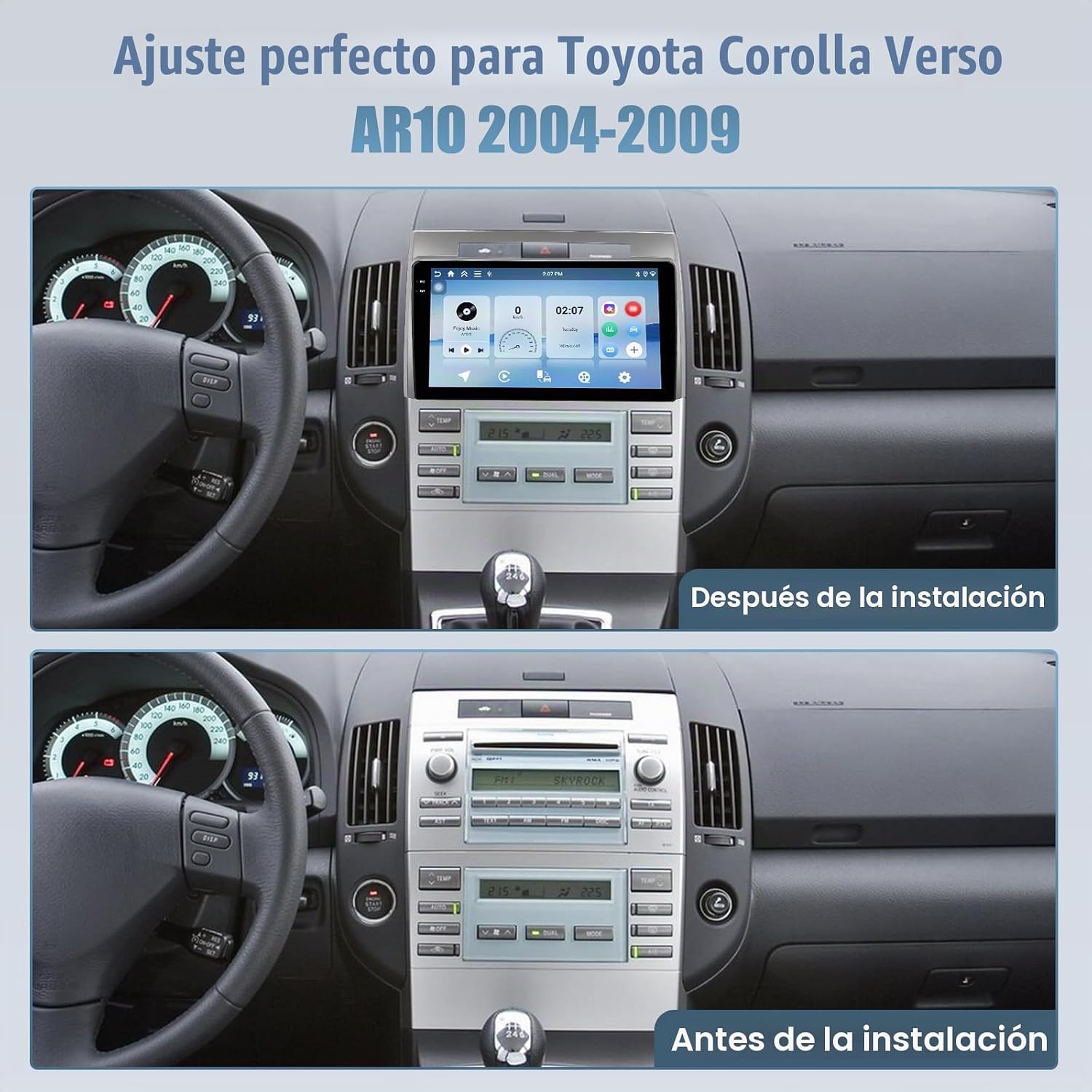
Figure 2: Roinvou car radio installed in a Toyota Corolla Verso AR10 (2004-2009).
Operating Instructions
1. Power On/Off
- The unit will power on automatically with the vehicle's ignition.
- To manually power off, press and hold the power button (if available) or turn off the vehicle's ignition.
2. Touchscreen Operation
The unit features a premium In-Cell touchscreen (1280x720 resolution) for responsive and clear interaction.
- Tap: Select an icon or option.
- Swipe: Navigate through menus or screens.
- Pinch-to-Zoom: Adjust map views or images.

Figure 3: In-Cell touchscreen technology for enhanced clarity and responsiveness.
3. Wireless CarPlay and Android Auto
Connect your iPhone or Android smartphone wirelessly for seamless integration.
- Ensure Bluetooth and Wi-Fi are enabled on your smartphone.
- On the car radio, navigate to the CarPlay or Android Auto application.
- Follow the on-screen prompts to pair your device. Once connected, you can access navigation, calls, messages, and music directly from the car radio display.
- The unit also supports wired and wireless Mirror Link for broader smartphone compatibility.

Figure 4: Wireless CarPlay and Android Auto interface.
4. Connectivity (Bluetooth, GPS, Wi-Fi)
- Bluetooth: Pair your phone for hands-free calling and audio streaming. Access Bluetooth settings from the main menu.
- GPS: The integrated GPS module provides accurate navigation. Pre-installed maps or online navigation apps can be used.
- Wi-Fi: Connect to a Wi-Fi hotspot (e.g., from your phone) to access online features, download apps, and stream content. The unit supports fast 5G Wi-Fi.

Figure 5: Fast 5G Wi-Fi and compatible internet applications.
5. Audio and EQ Settings
Optimize your listening experience with the built-in equalizer (EQ) and FM/RDS radio.
- Access the EQ settings from the audio menu to adjust sound profiles (e.g., Bass, Treble, Balance, Fader).
- Tune into FM radio stations. RDS (Radio Data System) provides station information where available.
- Supported audio formats include APE, FLAC, WAV, MP3, WMA.
6. Split Screen Function and User Interface
The unit supports split-screen functionality, allowing you to run two applications simultaneously, such as navigation and music playback.
- To activate split screen, drag an app icon to one side of the screen or use the dedicated split-screen button (if available).
- The user interface is customizable with multiple theme options.

Figure 6: Split-screen technology and customizable UI.
7. Steering Wheel Control (SWC)
If connected, the steering wheel controls allow you to manage basic radio functions (volume, track skip, mode) without taking your hands off the wheel.
- Access the SWC settings in the system menu to program the buttons according to your vehicle's controls.
8. Rear View Camera
The included rear view camera provides a wide-angle view for safer parking and reversing.
- The display automatically switches to the rear camera view when the vehicle is put into reverse gear.
- The camera supports Full HD 1080p resolution and offers clear visibility in both day and night conditions.

Figure 7: Rear view camera display and Steering Wheel Control setup.
Maintenance
To ensure the longevity and optimal performance of your Roinvou car radio, follow these maintenance guidelines:
- Cleaning: Use a soft, dry cloth to clean the screen and exterior. For stubborn smudges, lightly dampen the cloth with water or a screen-safe cleaner. Avoid abrasive materials or harsh chemicals.
- Software Updates: Periodically check for software updates. Updates can improve performance, add new features, and fix bugs. Connect the unit to Wi-Fi and navigate to system settings for update options.
- Temperature: Avoid exposing the unit to extreme temperatures. Prolonged exposure to direct sunlight or very cold conditions can affect performance and lifespan.
- Connections: Ensure all cables and connections remain secure. Loose connections can lead to intermittent issues.
Troubleshooting
If you encounter issues with your car radio, refer to the following common problems and solutions:
| Problem | Possible Cause | Solution |
|---|---|---|
| No power | Loose power connection, blown fuse, vehicle ignition off | Check power cable connections. Inspect vehicle fuses. Ensure ignition is on. |
| No sound | Volume too low, mute activated, incorrect audio source, loose speaker wires | Increase volume. Check mute status. Select correct audio source. Verify speaker wire connections. |
| GPS not working | GPS antenna not connected or obstructed, outdated maps | Ensure GPS antenna is securely connected and has a clear view of the sky. Update navigation software/maps. |
| Bluetooth pairing issues | Bluetooth off on phone/radio, device not in pairing mode, interference | Ensure Bluetooth is on for both devices. Put radio in pairing mode. Try pairing in a different location. |
| Touchscreen unresponsive | System freeze, dirty screen | Restart the unit (turn vehicle ignition off and on). Clean the screen. |
| Rear camera not displaying | Camera cable loose, camera power issue, incorrect gear selection | Check camera cable connections. Verify camera power supply. Ensure vehicle is in reverse gear. |
If the problem persists after trying these solutions, please contact Roinvou customer support for further assistance.
Specifications
| Feature | Detail |
|---|---|
| Model Number | B0FX4QM8KD |
| Operating System | Android 15 |
| RAM + Storage | 4GB RAM + 128GB Storage |
| Screen Type | In-Cell Touchscreen |
| Screen Resolution | 1280 x 720 |
| Connectivity | Wireless CarPlay, Android Auto, Mirror Link, Bluetooth, GPS, Wi-Fi (5G), RCA, USB, FM/RDS |
| Audio Output Mode | APE/FLAC/WAV/MP3/WMA |
| Video Encoding | MKV/RMVB/AVI/MP4/MDV (Supports 4K format) |
| Output Power | 45 Watts (4 Channels) |
| Special Features | EQ, UI Customization, Split Screen, Steering Wheel Control (SWC), Rear Camera Input |
| Compatible Devices | Smartphone |
| Internet Applications | Netflix, YouTube, iTunes (and others via app store) |
| Package Dimensions | 38 x 24 x 13 cm; 2.37 kg |
| Country of Origin | China |
Warranty and Support
Warranty Information
Your Roinvou car radio comes with a 24-month warranty from the date of purchase. This warranty covers manufacturing defects and ensures the product functions as intended under normal use. Please retain your proof of purchase for warranty claims.
Customer Support
Roinvou is committed to providing excellent customer service. If you have any questions regarding installation, operation, or troubleshooting, please contact our support team:
- Online Support: We offer lifetime online support for all inquiries. Our team aims to respond within 24 hours.
- Contact Seller: For direct assistance, you can contact the seller, wenheyou, through the Amazon platform where you purchased the product. Look for the 'Ask a question' option on the product page or your order details.
- Email Support: You may also reach us via email at roinvouservices@163.com.

Figure 8: Roinvou Car Radio with accessories.


