

1. Introduction
This manual provides instructions for the installation, operation, and maintenance of your Roinvou 4+128G Android 15 Car Radio. Please read this manual thoroughly before using the product to ensure proper functionality and safety. This device is designed to enhance your driving experience with advanced multimedia and connectivity features.
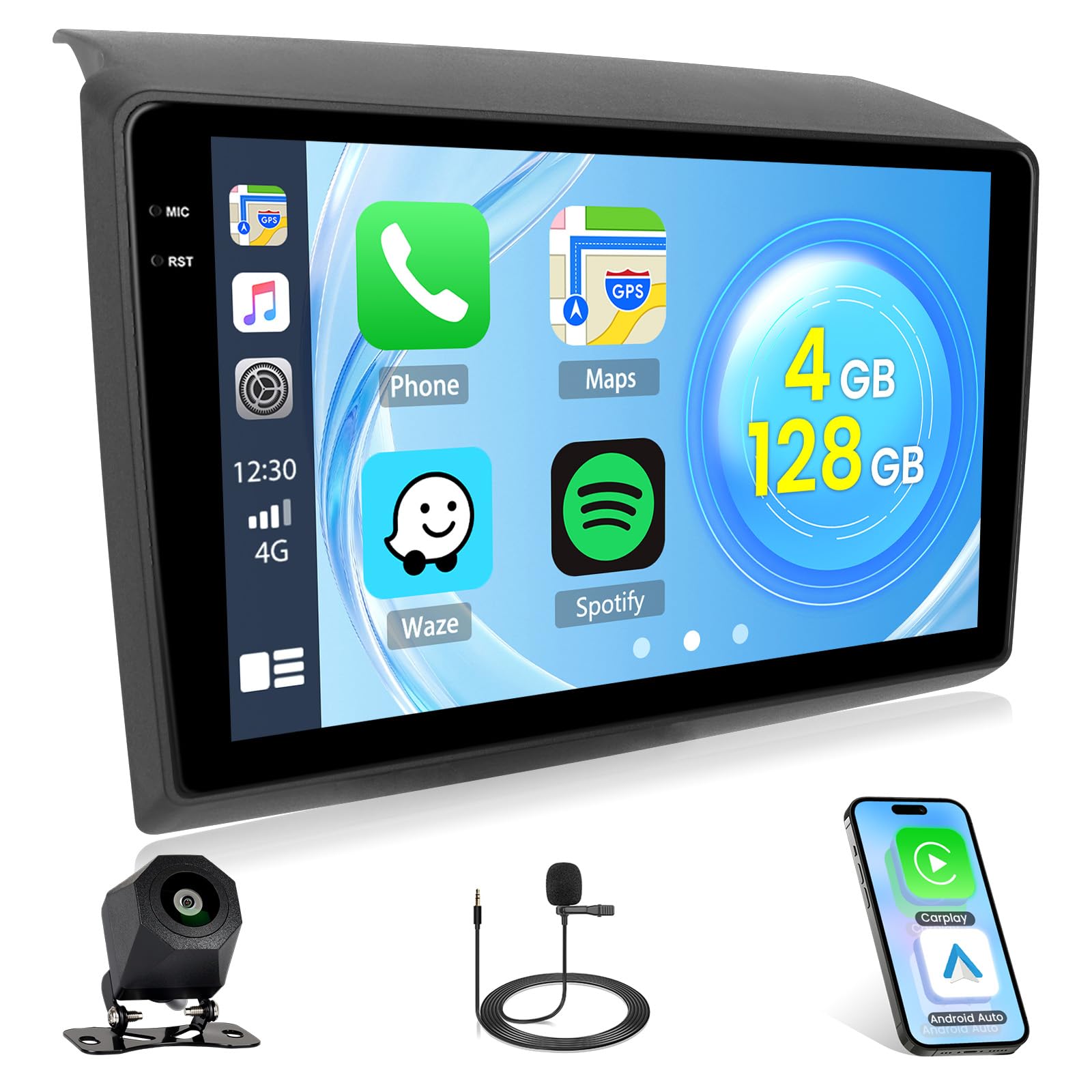
Image: Roinvou 4+128G Android 15 Car Radio with 9-inch Incell screen.
2. Vehicle Compatibility
This Roinvou car radio is compatible with Fiat Ducato, Peugeot Boxer, and Citroen Jumper models manufactured between 2006 and 2023. It is crucial to verify your vehicle's dashboard console matches the compatible configurations shown below before installation.

Image: Diagram showing compatible (A: Fit) and incompatible (B: Not Fit) car dashboard consoles for installation.
Please check your car's central console against the images provided. If your console matches Figure A, the product is compatible. If it matches Figure B, it is not compatible.
3. What's in the Box
Upon opening the package, ensure all the following items are present:
- Roinvou Android Car Radio (9-inch Incell Screen)
- Dual Power Cable
- USB Adapter Cable
- Radio Antenna
- CANbus Decoder
- RCA Cable Set
- Rear Camera Input Cable
- GPS Antenna
- Dual USB Cable
- Rear View Camera
- External Microphone
- Installation Accessories
- User Manual (this document)
- Installation Tool

Image: Visual representation of all components included in the product package.
4. Setup and Installation
Professional installation is recommended. Ensure the vehicle's power is disconnected before beginning installation.
4.1. Pre-Installation Check
Before installing the unit, compare your car's original radio and wiring harness with the provided components to ensure compatibility. Pay close attention to the power cord interface.

Image: Detailed wiring diagram showing connections for power, RCA, rear camera, and GPS antenna. Includes a note to check power cord interface compatibility.
4.2. Installation Steps
- Remove the Original Radio: Carefully remove your vehicle's existing radio unit and trim panels using the provided installation tool.
- Connect Wiring Harness: Connect the dual power cable, USB adapter cable, radio antenna, and RCA cables to the corresponding ports on the new Roinvou unit and your vehicle's wiring harness.
- CANbus Connection (if applicable): If your vehicle requires a CANbus decoder, connect it as per the instructions. Ensure the CANbus is connected before powering on the machine.
- GPS Antenna Installation: Mount the GPS antenna in a location with a clear view of the sky, typically on the dashboard or under the windshield. Connect the GPS antenna cable to the unit.
- Rear View Camera Installation:
Install the rear view camera at the back of your vehicle. Connect the camera's power cable to the reverse light power source and the video signal cable to the rear camera input on the main unit. The white plug must be connected to the car radio, or you may experience issues with Bluetooth and Wi-Fi signals.

Image: Diagram illustrating the wiring connections for the backup camera, including power and video signal lines.
- External Microphone Connection: Connect the external microphone to the designated port on the unit for improved call quality.
- Test Functionality: Before fully reassembling the dashboard, temporarily connect the vehicle's power and test all functions of the radio, including audio, touchscreen, GPS, Bluetooth, and camera.
- Secure the Unit: Once all functions are verified, secure the Roinvou unit into the dashboard and reattach all trim panels.

Image: Comparison of a car dashboard before and after the Roinvou car radio installation, showing a seamless fit.
5. Operating Instructions
Your Roinvou car radio features an intuitive Android 15 operating system with a responsive Incell touchscreen.
5.1. Basic Operation
- Power On/Off: Press and hold the power button to turn the unit on or off. A short press typically mutes or unmutes audio.
- Volume Control: Adjust volume using the physical buttons or on-screen controls.
- Home Screen: Tap the home icon to return to the main application interface.
- Navigation: Swipe left or right on the screen to access different app pages.

Image: Digital interface of the car stereo system displaying icons for CAR, IPS, Bluetooth, and other vehicle system functions.
5.2. Wireless CarPlay and Android Auto
Connect your iPhone or Android smartphone wirelessly to access navigation, calls, messages, and music directly on the car radio screen.
- Ensure Bluetooth and Wi-Fi are enabled on your smartphone.
- On the car radio, navigate to the CarPlay or Android Auto application.
- Follow the on-screen prompts to pair your device.

Image: Display showing the interface for Wireless CarPlay and Android Auto, with icons for GPS, Music, Calls, and Messages.
5.3. GPS Navigation
The unit supports GPS, BeiDou, Glonass, and Galileo satellite systems for accurate navigation. You can use pre-installed maps or download additional navigation apps.

Image: Visual representation of GPS navigation capabilities, including online and offline map options, supporting GPS, BeiDou, Glonass, and Galileo.
5.4. Bluetooth Connectivity
Pair your smartphone via Bluetooth for hands-free calling and audio streaming. The external microphone ensures clear communication.

Image: Display showing Bluetooth interface for phone calls and music playback, highlighting improved sound quality.
5.5. FM/RDS Radio and EQ Settings
Access your favorite radio stations with the built-in FM/RDS tuner. Customize your audio experience using the equalizer (EQ) settings for optimal sound quality.

Image: Digital radio interface showing FM/RDS tuner with preset stations, EQ settings, and search functions.
5.6. Wi-Fi Connectivity and Apps
Connect to Wi-Fi for internet access, allowing you to download apps, stream content, and stay updated. The unit supports 5G Wi-Fi for fast internet speeds.

Image: Illustration of 5G WiFi connectivity and compatibility with various internet applications like YouTube, Netflix, and social media.
5.7. Split Screen and User Interface Customization
Utilize the split-screen function to run two applications simultaneously, such as navigation and music. The unit also offers multiple user interface options for personalization.

Image: Display demonstrating split-screen functionality for simultaneous app use and various customizable user interface themes.
5.8. Steering Wheel Control (SWC)
The unit supports steering wheel controls for convenient and safe operation. Configuration may vary depending on whether your vehicle has a CANbus decoder.
- Without CANbus Decoder: Connect the steering wheel control wires (Key1/Key2) in the power cable to the corresponding port or wire of your original car. Then, go to "Steering Wheel Key" in the settings to manually match and activate button functions.
- With CANbus Decoder: Connect the CANbus before powering on the machine. Navigate to Apps > Settings > Factory Settings (1234) > CAN Settings. Select the brand of the CANbus decoder and then the matching model and year according to your vehicle's actual situation to ensure SWC works correctly.

Image: Illustration of steering wheel controls and instructions for configuring them with or without a CANbus decoder.
5.9. Rear View Camera
The included rear view camera provides a clear wide-angle view for safer parking and reversing, with both day and night vision capabilities.

Image: Split image showing the clear view provided by the rear view camera during both day and night conditions.
6. Maintenance
- Cleaning: Use a soft, dry cloth to clean the screen and exterior of the unit. Avoid abrasive cleaners or solvents.
- Software Updates: Periodically check for software updates through the unit's settings or the Roinvou official website to ensure optimal performance and access to new features.
- Environmental Conditions: Avoid exposing the unit to extreme temperatures, direct sunlight for prolonged periods, or excessive moisture.
7. Troubleshooting
If you encounter issues, refer to the following common problems and solutions:
| Problem | Possible Cause | Solution |
|---|---|---|
| Unit does not power on. | Incorrect wiring, blown fuse, vehicle power issue. | Check power cable connections, inspect vehicle fuses, ensure vehicle battery is charged. |
| No sound. | Volume muted, speaker wires disconnected, incorrect audio settings. | Check volume level, verify speaker connections, adjust audio output settings. |
| Touchscreen unresponsive. | Software glitch, screen damage. | Restart the unit. If issue persists, contact support. |
| CarPlay/Android Auto not connecting. | Bluetooth/Wi-Fi off, incorrect pairing, phone compatibility. | Ensure phone's Bluetooth/Wi-Fi is on, re-pair device, check phone compatibility. Ensure white plug for Wi-Fi/Bluetooth is connected. |
| Rear camera not displaying. | Incorrect wiring, camera power issue, camera faulty. | Verify rear camera input cable connection, check camera power supply, ensure reverse gear is engaged. |
| Steering Wheel Controls not working. | Incorrect SWC wiring, CANbus not configured. | Check SWC wire connections. If using CANbus, ensure it's correctly configured in Factory Settings. |
For issues not listed here or if troubleshooting steps do not resolve the problem, please contact Roinvou customer support.
8. Specifications
| Feature | Detail |
|---|---|
| Brand | Roinvou |
| Model Number | B0FX4PBKYC |
| Operating System | Android 15 |
| RAM + Storage | 4GB RAM + 128GB Storage |
| Screen Type | 9-inch Incell Touchscreen |
| Resolution | 1280 x 720 |
| Connectivity Technology | Bluetooth, USB, Wi-Fi |
| Wireless Technology | Bluetooth |
| Special Features | Wireless CarPlay, Android Auto, Mirror Link, EQ, FM/RDS, GPS, SWC, Rear Camera Support |
| Compatible Devices | Smartphone |
| Connector Type | USB Type-A, RCA |
| Audio Output Mode | Stereo |
| Surround Sound Channels | 4 |
| Output Power | 45 Watts |
| Video Encoding | MKV/RMVB/AVI/MP4/MDV |
| Internet Applications | CarPlay, Android Auto |
| Package Dimensions | 44 x 28 x 10.5 cm; 3 kg |
| Manufacturer Part Number | Roinvou-A7942A4294H6MI2EU31D |
| Software Updates Guaranteed Until | Unknown |
9. Warranty and Support
9.1. Product Warranty
This Roinvou product comes with a 24-month warranty from the date of purchase, covering manufacturing defects and malfunctions under normal use.
9.2. Customer Support
Roinvou offers lifetime online support for all inquiries. Our team aims to respond to all questions within 24 hours. If you have any questions or require assistance, please contact us:
- Email: roinvouservices@163.com
- Amazon Platform: You can also reach us through the Amazon platform by clicking "Ask a question" on our seller page.

Image: Visual representation of customer support options, including email and Amazon seller contact.