
Introduction
This manual provides essential information for the MIKUSO Russian English Keyboard, Model KB-088U. It covers setup, operation, maintenance, troubleshooting, and product specifications to ensure optimal use of your device. This wired keyboard is designed for users requiring both Russian (Cyrillic) and English characters, offering a full-size layout with multimedia keys and plug-and-play functionality.

Image: MIKUSO Russian English Keyboard KB-088U, showcasing its full-size design.
Product Features
- Dual Language Layout: Features both Russian (Cyrillic) and English characters. The characters are applied using advanced laser engraving technology to prevent fading over time, ensuring long-term legibility.
- Full-Size Design: A 104-key QWERTY layout keyboard including a dedicated numeric keypad, suitable for various computing tasks.
- Multimedia Keys: Equipped with 12 multimedia shortcut key combinations for quick access to functions such as music control, volume adjustment, computer access, and email.
- Durable Construction: Designed with spill-resistant features to protect against accidental liquid splashes. It includes anti-slip pads on the back and an integrated stand for stability and ergonomic typing.
- Plug and Play: Utilizes a wired USB interface, eliminating the need for driver installation or battery replacement. Simply connect to a compatible device to begin use.

Image: Comparison illustrating a non-standard Russian layout versus the authentic ЙЦУКЕН layout featured on this keyboard.

Image: Close-up of keyboard keys highlighting laser-engraved characters for durability and clarity.
Setup
- Connect the Keyboard: Locate an available USB port on your computer (laptop or PC). Insert the USB-A connector of the keyboard cable into the USB port.
- Automatic Recognition: The keyboard is designed for plug-and-play operation. Your operating system should automatically detect and configure the device without requiring any additional software or driver installations.
- Compatibility: The keyboard is compatible with Windows, macOS, Linux, Android, and Smart TV systems. Please note that some multimedia buttons may have limited functionality or may not be compatible with macOS systems.

Image: The USB-A connector, illustrating the plug-and-play setup process.
Operating Instructions
Basic Typing
The keyboard features a standard 104-key layout with both English (QWERTY) and Russian (ЙЦУКЕН) characters printed on each keycap. You can switch between English and Russian input methods through your operating system's language settings.
- Caps Lock Indicator: A dedicated LED indicator in the upper right corner illuminates when Caps Lock is active.
- Num Lock Indicator: A dedicated LED indicator in the upper right corner illuminates when Num Lock is active, enabling the numeric keypad.
Multimedia Functions
The keyboard includes 12 multimedia shortcut keys (F1-F12) for enhanced convenience. These keys provide direct access to various functions:
- F1: Music Player
- F2: Volume Down
- F3: Volume Up
- F4: Mute
- F5: Previous Track
- F6: Next Track
- F7: Play/Pause
- F8: Stop
- F9: Browser
- F10: Email
- F11: My Computer
- F12: Favorites

Image: The keyboard with multimedia keys (F1-F12) clearly marked with their respective functions.
Maintenance
- Cleaning: To clean the keyboard, gently wipe the surface with a soft, slightly damp cloth. Avoid using abrasive cleaners, solvents, or harsh chemicals, as these can damage the keycaps or finish.
- Spill Resistance: The keyboard features a spill-resistant design, offering protection against minor liquid splashes. However, it is not waterproof. Do not immerse the keyboard in water or any other liquid. In case of a spill, immediately disconnect the keyboard from your computer and allow it to dry completely before reconnecting.
- Storage: Store the keyboard in a dry environment, away from extreme temperatures and direct sunlight, to prolong its lifespan.
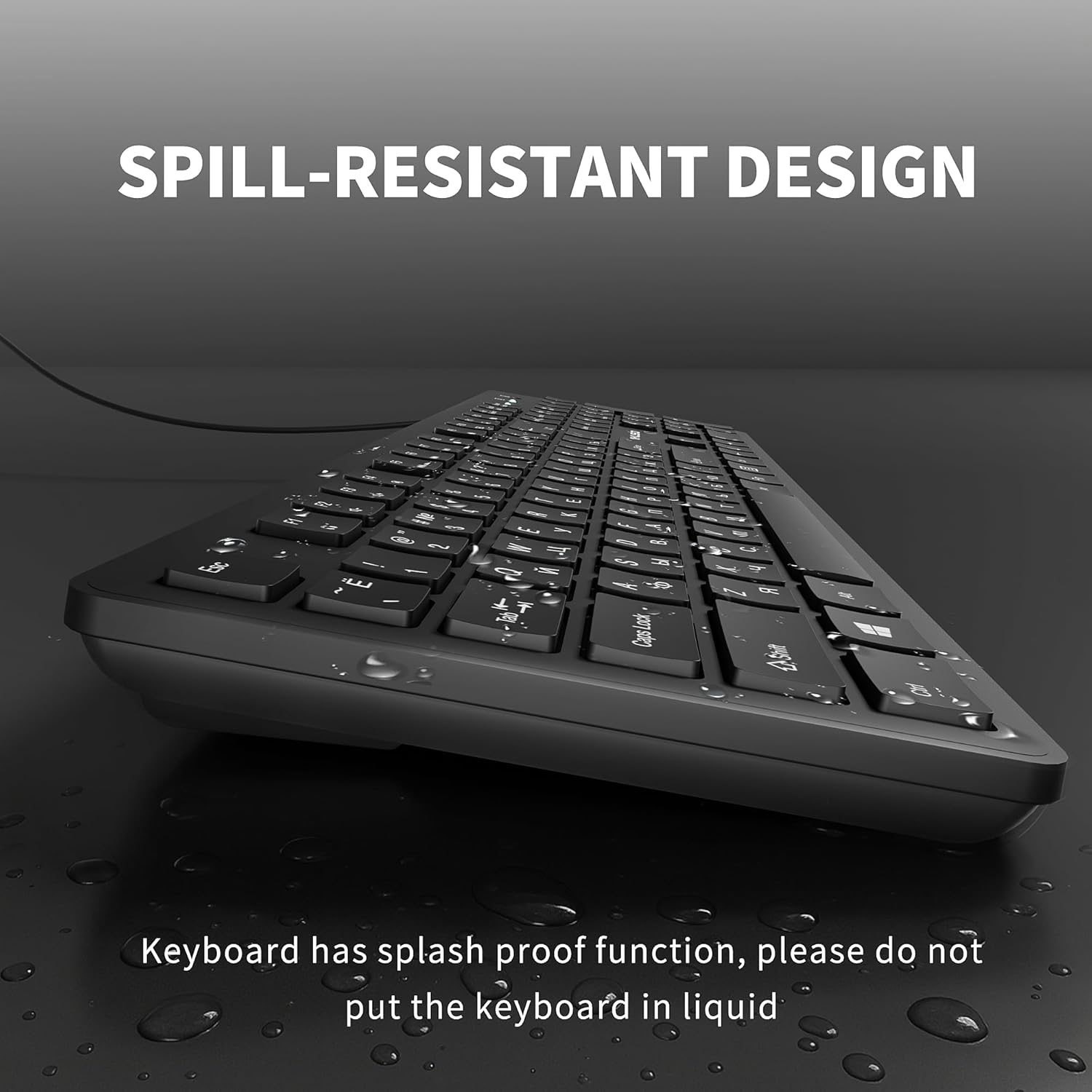
Image: The keyboard demonstrating its spill-resistant design with water droplets on the surface.
Troubleshooting
- Keyboard Not Responding:
- Ensure the USB cable is securely connected to both the keyboard and your computer's USB port.
- Try connecting the keyboard to a different USB port on your computer.
- Restart your computer to refresh the USB connections.
- Multimedia Keys Not Working on Mac:
- Due to operating system differences, some multimedia keys may not be fully compatible or functional with macOS systems. This is a known limitation.
- Keys Fading:
- The characters on the keycaps are laser-engraved to resist fading even after prolonged use. If you experience significant fading, please contact customer support for assistance.
Specifications
| Brand | MIKUSO |
| Model Number | KB-088U |
| Connectivity Technology | USB-A, Wired |
| Number of Keys | 104 |
| Keyboard Layout | QWERTY (English), ЙЦУКЕН (Russian) |
| Cable Length | 1.6 meters |
| Product Dimensions (L x W x H) | 17.3" x 5" x 1.2" (approximately 440mm x 127mm x 30mm) |
| Material | Plastic |
| Special Features | Ergonomic, Hotkeys and Media Keys, Lightweight, Low-Profile Key, Water Resistant |
| Compatible Devices | Laptop, PC (Windows, macOS, Linux, Android, Smart TV) |

Image: Diagram illustrating the physical dimensions of the keyboard.
Warranty and Support
Warranty Information
This MIKUSO keyboard comes with a 1-Year Manufacturer Warranty from the date of purchase. This warranty covers defects in materials and workmanship under normal use. It does not cover damage caused by misuse, accidents, unauthorized modifications, or external causes.
Customer Support
For technical assistance, warranty claims, or any questions regarding your MIKUSO KB-088U keyboard, please contact MIKUSO customer support. Refer to the product packaging or the official MIKUSO website for the most current contact information, including email addresses or phone numbers.