
Introduction
This manual provides essential information for the proper use and maintenance of your Techkey USB Bluetooth 5.1 Adapter. This device enables Bluetooth connectivity for your desktop or laptop PC, allowing you to connect various Bluetooth-enabled peripherals wirelessly.
The adapter features Bluetooth 5.1 technology with Enhanced Data Rate (EDR) and Bluetooth Low Energy (BLE) for efficient and stable connections. It includes a 5dBi antenna designed to extend wireless range up to 300 feet (100 meters) in open environments.
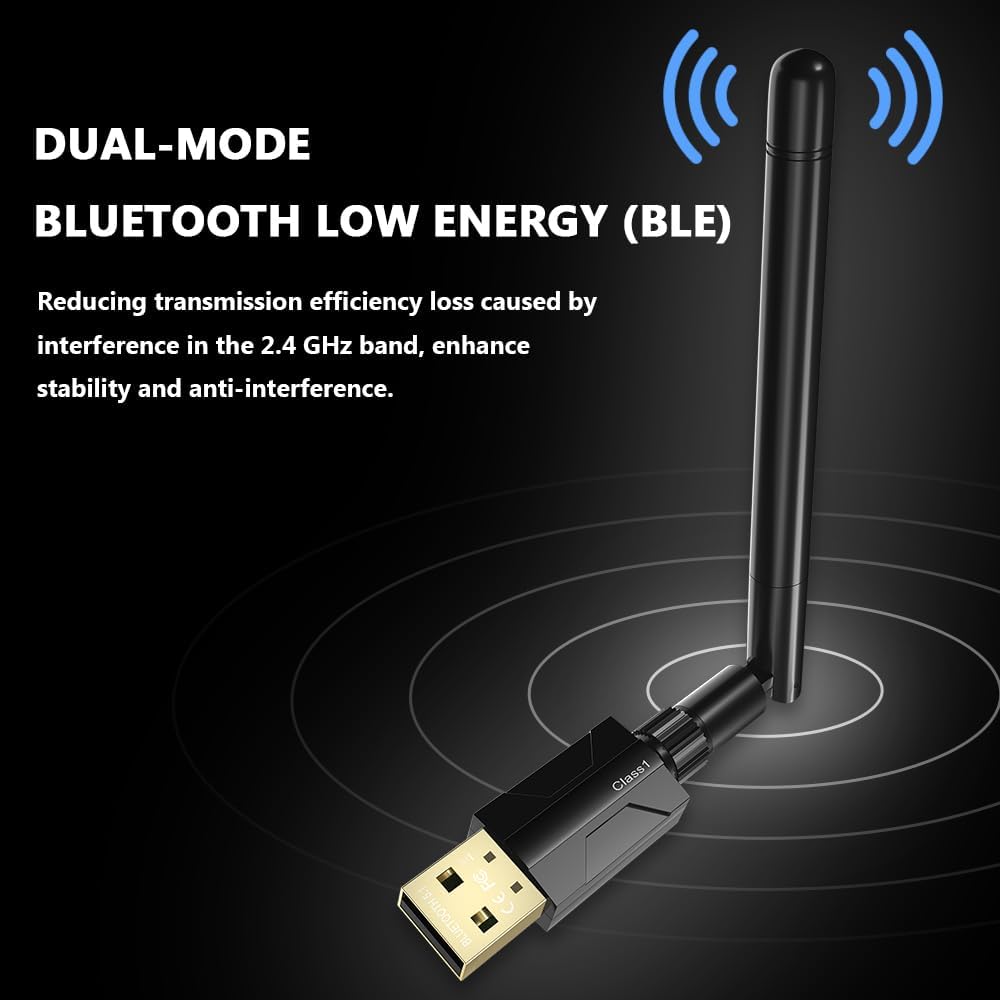
Image: The Techkey USB Bluetooth 5.1 Adapter, featuring its compact USB design and adjustable external antenna.
Setup Guide
The Techkey USB Bluetooth 5.1 Adapter is designed for plug-and-play functionality on compatible Windows operating systems. No driver installation is typically required for initial use.
- System Requirements: Ensure your computer is running Windows 11, Windows 10, or Windows 8.1. This adapter is not compatible with Mac OS, Linux, car stereo systems, XBOX, PS4, or TVs.
- Insert the Adapter: Plug the USB Bluetooth adapter into an available USB port on your desktop or laptop PC.
- Antenna Adjustment: Adjust the 5dBi antenna to an optimal position for signal reception. The antenna is rotatable for flexibility in various setups.
- Automatic Recognition: Your operating system should automatically detect and install the necessary drivers. A notification may appear indicating that the device is ready for use.

Image: The adapter connected to a computer, demonstrating the 360-degree rotatable antenna for flexible positioning.
Operating Instructions
Once the adapter is recognized by your system, you can begin pairing Bluetooth devices.
- Enable Bluetooth: Navigate to your computer's Bluetooth settings (typically found in 'Settings' > 'Devices' > 'Bluetooth & other devices' on Windows 10/11) and ensure Bluetooth is turned 'On'.
- Add a Device: Click 'Add Bluetooth or other device' and select 'Bluetooth'.
- Pairing Mode: Put your Bluetooth device (e.g., headphones, speaker, keyboard, mouse) into pairing mode. Refer to your device's manual for specific instructions on how to do this.
- Select Device: Your computer will scan for nearby Bluetooth devices. Select your device from the list when it appears.
- Confirm Pairing: Follow any on-screen prompts to complete the pairing process. You may need to enter a PIN or confirm a code.
The adapter supports simultaneous connections with up to 7 Bluetooth wireless devices, including speakers, keyboards, headsets, mice, and printers.

Image: The adapter facilitating Bluetooth connections between a computer and multiple peripheral devices such as headphones, keyboards, and mice.
Maintenance
To ensure the longevity and optimal performance of your Techkey USB Bluetooth 5.1 Adapter, follow these simple maintenance guidelines:
- Keep Clean: Periodically wipe the adapter with a soft, dry cloth to remove dust. Avoid using liquid cleaners.
- Protect from Damage: Avoid dropping the adapter or subjecting it to physical impact. When not in use, consider removing it from the USB port to prevent accidental damage.
- Temperature Control: Store and operate the adapter within normal room temperatures. Avoid extreme heat or cold, which can affect electronic components.
- Antenna Care: Handle the antenna gently. While rotatable, excessive force can cause damage.
Troubleshooting
If you encounter issues with your Techkey USB Bluetooth 5.1 Adapter, consider the following troubleshooting steps:
- Adapter Not Recognized:
- Try plugging the adapter into a different USB port on your computer.
- Restart your computer.
- Ensure your Windows operating system is up to date.
- Device Not Pairing/Connecting:
- Ensure your Bluetooth device is in pairing mode and within range.
- Turn Bluetooth off and then on again in your computer's settings.
- Remove previously paired devices from your computer's Bluetooth list and attempt to pair again.
- Check if your Bluetooth device is fully charged.
- Limited Range or Intermittent Connection:
- Physical obstructions (walls, furniture) and wireless interference (from Wi-Fi routers, microwaves, other Bluetooth devices) can reduce the effective range. Try to minimize these.
- Adjust the adapter's antenna for better signal reception.
- Ensure the adapter is not blocked by other USB devices or computer components.
- Compatibility Issues:
- Remember, this adapter is exclusively compatible with Windows 11/10/8.1. It does not support Mac OS, Linux, car stereo systems, XBOX, PS4, or TVs.

Image: An illustration depicting the long-range transmission capability of the adapter, showing signal coverage over a wide area, highlighting potential environmental factors affecting range.
Specifications
| Feature | Detail |
|---|---|
| Product Dimensions | 4.29 x 3.74 x 0.67 inches |
| Item Weight | 1.13 ounces (0.03 Kilograms) |
| Brand | Techkey |
| Hardware Interface | Bluetooth |
| Color | Black |
| Compatible Devices | Headphones, Keyboard, Laptop, Mouse, Printer, Speaker |
| Data Link Protocol | USB, Bluetooth |
| Data Transfer Rate | 3 Megabits Per Second (Mbps) |
| Minimum Required Operating System | Windows 8.1 |
| Bluetooth Standard | Bluetooth 5.1 + EDR (Enhanced Data Rate) + BLE (Bluetooth Low Energy) |
| Transmission Range | Up to 300ft / 100m (Class 1 radio technology in open areas) |

Image: A visual representation of the Bluetooth 5.1 technology, highlighting Bluetooth Low Energy (BLE), Class 1 range (up to 100m/328ft), Enhanced Data Rate (EDR), and the underlying Realtek chip.
Warranty Information
This Techkey product is covered by the manufacturer's standard warranty. For specific details regarding warranty duration and terms, please refer to the packaging or contact Techkey customer support directly. Keep your proof of purchase for warranty claims.
Customer Support
For further assistance, technical support, or inquiries not covered in this manual, please contact Techkey customer support. Contact information can typically be found on the product packaging or the official Techkey website.