
1. Introduction
The TOPDON Topscan Master is a professional-grade wireless diagnostic tool designed for automotive technicians and enthusiasts. This device connects to your vehicle's OBD2 port and communicates via Bluetooth with your iOS or Android smartphone, providing comprehensive vehicle diagnostics, bidirectional control, and numerous maintenance functions. This manual provides detailed instructions for setup, operation, and maintenance to ensure optimal performance and longevity of your device.
2. Product Overview
The Topscan Master offers a robust set of features for in-depth vehicle analysis and maintenance. Its compact design allows for easy portability and use in various environments.

Image 2.1: TOPDON Topscan Master device with smartphone interface showing live data stream.
Key Features:
- Extensive Vehicle Coverage: Supports over 120 global vehicle brands, including modern protocols like CAN-FD and DoIP for 2020+ GM/Chrysler, BMW F/G chassis, and 2017+ Land Rover.
- Secure Gateway Access: Provides unrestricted diagnostics on FCA vehicles and supports other secure gateway access (e.g., Nissan, Renault).
- Bi-directional Control: Perform active tests on various components such as windows, headlights, injectors, and fuel pumps.
- Comprehensive Maintenance Functions: Access to over 30 service functions, including Oil Reset, EPB Reset, DPF Regeneration, TPMS Reset, BMS Reset, and Cylinder Balance Test.
- Full System Diagnostics: OE-level access to all vehicle modules (Engine, Transmission, ABS, Airbag, A/C, etc.) for reading/clearing codes and viewing live data.
- TopFix AI Assistant: Interprets fault codes and provides step-by-step repair procedures, wiring diagrams, and connector pinouts.
- Wireless Portability: Operates via Bluetooth, allowing diagnostics from your smartphone.
- Multi-language Support: Menu available in 45 languages.
3. Setup Guide
3.1 Unboxing
Verify the contents of your package:
- Topscan Master Device (x1)
- Quick Start Guide (x1)
3.2 App Installation
The Topscan Master operates with the dedicated TOPDON app, compatible with iOS and Android devices.
- Download the App: Search for 'TOPDON' in the Apple App Store (for iOS) or Google Play Store (for Android) and install the application.
- NFC Quick Installation (Optional): For compatible devices, touch your smartphone to the NFC tag on the Topscan Master packaging to quickly open the app download page.

Image 3.1: NFC Quick Installation feature for downloading the TOPDON app.
3.3 Device Connection
- Locate OBD2 Port: Identify your vehicle's 16-pin OBD2 diagnostic port, typically located under the dashboard on the driver's side.
- Connect Device: Plug the Topscan Master device firmly into the vehicle's OBD2 port. The device's indicator lights should illuminate.
- Turn On Ignition: Switch the vehicle's ignition to the 'ON' position (engine off).
- Pair via Bluetooth: Open the TOPDON app on your smartphone. The app will automatically search for and connect to the Topscan Master via Bluetooth. Follow any on-screen prompts for initial pairing.
- Vehicle Identification: The app will attempt to automatically identify the vehicle via AutoVIN. If unsuccessful, you may need to manually enter vehicle information.
4. Operating Instructions
Once connected, the TOPDON app provides a user-friendly interface for various diagnostic and maintenance functions.
4.1 Full System Diagnostics
This function allows you to access and diagnose all available electronic control modules (ECUs) in the vehicle.
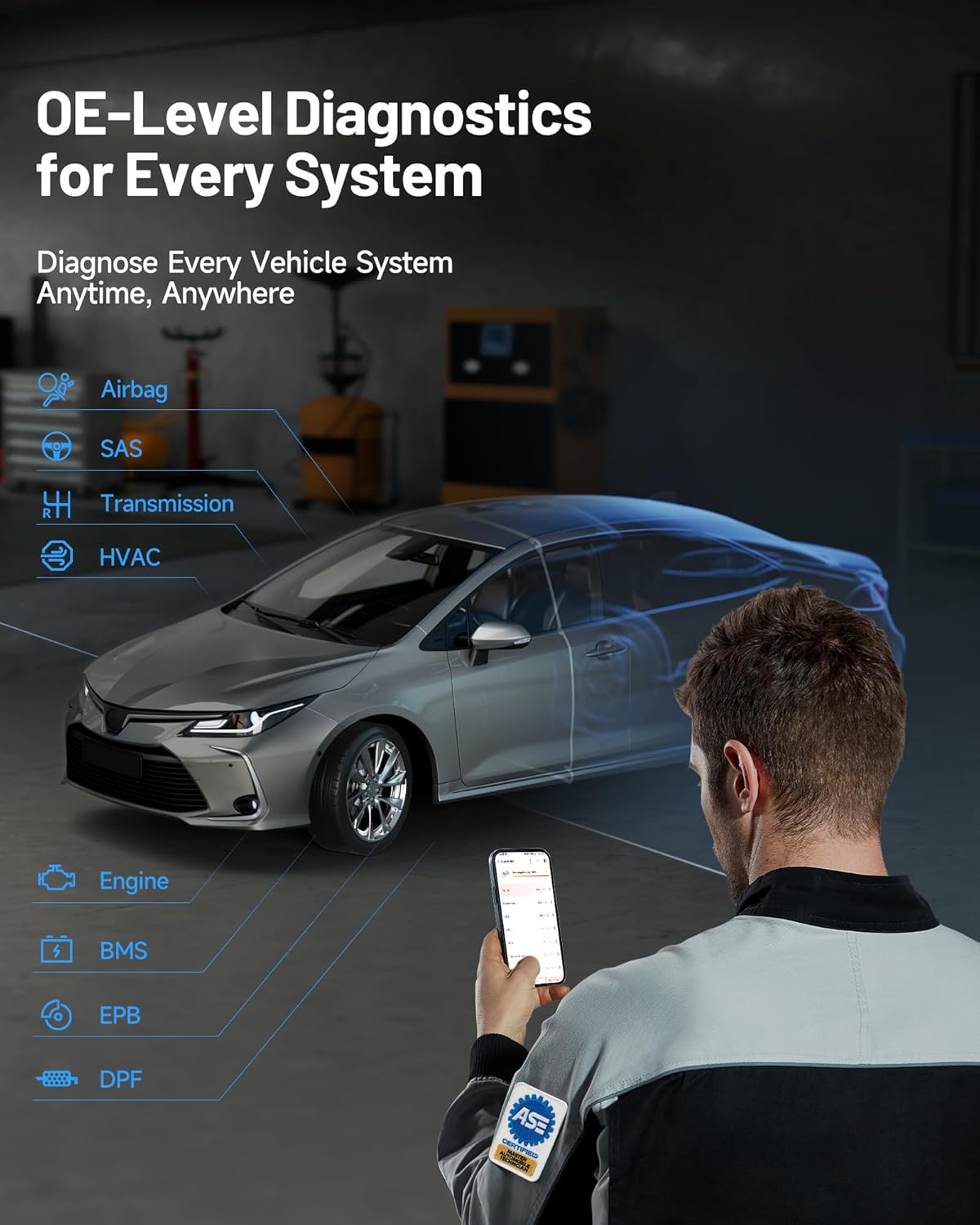
Image 4.1: OE-level diagnostics for every system, showing a mechanic using the device with a car.
- Read/Clear DTCs: Retrieve diagnostic trouble codes (DTCs) from all systems and clear them after repairs.
- Live Data Stream: View real-time data parameters from various sensors and components. Data can be displayed in text, graph, or gauge format.
- Read Freeze Frame: Capture a snapshot of vehicle operating conditions at the moment a DTC was set.
- Read ECU Information: Display specific information for the tested control unit, including unit type, version numbers, and other specifications.
4.2 Bi-directional Control (Active Tests)
This feature allows you to send commands to vehicle components to test their functionality directly, aiding in faster fault isolation.

Image 4.2: Bi-directional control interface demonstrating direct command capabilities for various vehicle components.
To perform an active test:
- Navigate to the 'Bi-directional Control' section within the app.
- Select the component you wish to test (e.g., 'Window Up/Down', 'Fuel Pump On/Off').
- Follow the on-screen instructions to activate and observe the component's response.
4.3 Maintenance Functions (Resets & Calibrations)
The Topscan Master includes over 30 common maintenance and service functions.

Image 4.3: Overview of 30+ common maintenance functions available with the Topscan Master.
Examples of functions include:
- Oil Reset: Reset the oil life system after an oil change.
- EPB Reset: Deactivate and activate the electronic parking brake system for brake service.
- DPF Regeneration: Perform forced diesel particulate filter regeneration.
- TPMS Reset: Reset tire pressure monitoring system sensors.
- BMS Reset: Register new battery replacement to the ECU.
- Throttle Adaptation: Relearn the throttle body position.
- Steering Angle Reset: Reset the steering angle sensor.
- Injector Coding: Code new injector numbers to the ECU.
Always refer to the specific vehicle's service manual and follow all safety precautions when performing maintenance functions.
4.4 TopFix AI Assistant
The integrated TopFix AI Assistant helps simplify complex repairs by providing detailed information and step-by-step guidance.

Image 4.4: TopFix AI Assistant interface providing detailed fault explanations and repair steps.
- Fault Interpretation: Get clear explanations for diagnostic trouble codes (DTCs).
- Step-by-Step Instructions: Access guided repair procedures.
- Technical Data: View wiring diagrams, connector pinouts, and other professional repair documentation.
4.5 Secure Gateway Access (SGW)
The Topscan Master supports secure gateway access for specific vehicle brands, allowing full diagnostic capabilities on newer models.

Image 4.5: Secure Gateway Access comparison, highlighting Topscan Master's broader compatibility.
For FCA vehicles, the device allows unrestricted diagnostics. Note that some secure gateways may require a valid OEM account for full access to certain functions.
5. Maintenance
Proper care and maintenance will extend the life of your Topscan Master device.
- Cleaning: Use a soft, dry cloth to clean the device. Avoid using abrasive cleaners or solvents.
- Storage: Store the device in a cool, dry place away from direct sunlight and extreme temperatures.
- Software Updates: Regularly check for and install software updates via the TOPDON app to ensure compatibility with the latest vehicle models and diagnostic features. The device includes 1 year of free updates.
- Connection: Ensure the OBD2 connector pins are clean and free from debris.
6. Troubleshooting
If you encounter issues with your Topscan Master, refer to the following common troubleshooting steps:
- Device Not Powering On: Ensure the device is securely plugged into the vehicle's OBD2 port and the vehicle's ignition is in the 'ON' position. Check the vehicle's fuse for the OBD2 port if necessary.
- Bluetooth Connection Failure: Make sure Bluetooth is enabled on your smartphone. Close and reopen the TOPDON app. If the issue persists, try restarting both your smartphone and the Topscan Master device.
- App Not Detecting Vehicle: Verify that the device is properly connected to the OBD2 port and the ignition is on. Try manual VIN entry if AutoVIN fails. Ensure the vehicle is OBD2 compliant.
- Diagnostic Function Not Working: Ensure the vehicle model and year are correctly identified in the app. Some advanced functions may require specific vehicle conditions (e.g., engine running, specific temperature).
- Slow Performance: Ensure your smartphone has sufficient memory and is running the latest version of the TOPDON app. Close other background applications.
- Error Messages: Note down any error codes or messages displayed and refer to the app's help section or contact technical support.
7. Specifications
| Feature | Specification |
|---|---|
| Brand | TOPDON |
| Model | TOPDON Topscan Master |
| Item Model Number | TopScan Master-CA |
| Power Source | Vehicle OBD2 Port |
| Product Dimensions | 3.1"L x 1.5"W x 4.7"H |
| Item Weight | 3.87 ounces |
| Operating System Compatibility | iOS and Android |
| Automotive Fit Type | Universal Fit (OBD2 compliant vehicles) |
| Connectivity | Bluetooth |
| Supported Protocols | CAN-FD, DoIP, and standard OBD2 protocols |
8. Warranty and Support
8.1 Software Updates
Your TOPDON Topscan Master includes one year of free software updates from the date of activation. These updates ensure your device remains compatible with new vehicle models and receives the latest diagnostic features and bug fixes. After the initial year, flexible renewal options (monthly, quarterly, or yearly) are available. Core functions such as full-system read/clear codes and live data remain fully usable even without renewal.
8.2 Technical Support
TOPDON provides responsive local technical support to assist with any questions or issues you may encounter. Support is available in 45 languages.
For technical assistance, please visit the official TOPDON website or refer to the contact information provided in the TOPDON app.


