
1. Product Overview
The darkFlash DE360 is an all-in-one liquid CPU cooler designed for efficient thermal management of desktop processors. It features a 2.88-inch IPS LCD display with 480x480 resolution for customizable monitoring and visuals. The cooler includes three PWM ARGB fans and a 360mm radiator, ensuring effective heat dissipation and quiet operation. Its design supports broad compatibility with both Intel and AMD motherboards.

Image: Overview of the darkFlash DE360 All-in-One Liquid CPU Cooler, highlighting its key features including the LCD screen and ARGB fans.
2. What's in the Box
The darkFlash DE360 AIO Cooler package includes the following components:
- AIO Cooler 360mm (Pre-assembled with radiator, pump, and fans)
- Intel Mounting Bracket
- AMD Mounting Bracket
- Backplate
- Mounting Screws (for Intel and AMD sockets)
- Intel 17XX Standoffs
- Intel 115X/1200 Standoffs
- Thermal Grease
- Installation Guide
3. Setup and Installation
3.1 Compatibility Check
Ensure your motherboard and PC case are compatible with a 360mm radiator and the specified CPU sockets.

Image: Diagram illustrating compatibility with Intel LGA2011/1700/1851 and AMD AM4/AM5 sockets.
3.2 Preparing the CPU and Motherboard
- Install the appropriate backplate on the rear of your motherboard, aligning it with the CPU socket holes.
- Insert the correct standoffs (Intel 17XX/115X/1200 or AMD) into the four mounting holes around the CPU socket.
- Apply a small amount of thermal grease to the center of your CPU's integrated heat spreader (IHS).
3.3 Mounting the Pump/Cold Plate
- Carefully place the pump/cold plate assembly onto the CPU, ensuring the thermal grease spreads evenly.
- Secure the pump to the standoffs using the provided mounting screws. Tighten them in a diagonal pattern until snug, but do not overtighten.

Image: Detailed view of the pump's cold plate, showing the protective film that must be removed before installation.
3.4 Radiator and Fan Installation
- Mount the 360mm radiator to an available fan mounting location in your PC case (typically top or front). Ensure proper airflow direction.
- The fans are pre-installed on the radiator. If removed for any reason, reattach them using the provided screws, ensuring the fan blades are oriented for optimal airflow (e.g., pushing air through the radiator).

Image: Dimensional drawing of the DE360 cooler, including radiator, fans, and water block, for case fitment.
3.5 Cable Connections
- Connect the 3-pin pump connector to the CPU_FAN or AIO_PUMP header on your motherboard.
- Connect the fan cables to available fan headers on your motherboard or a fan controller. The DE360's PWM fans allow for automatic speed adjustment based on CPU temperature.
- Connect the ARGB cables to a compatible 5V 3-pin ARGB header on your motherboard for synchronized lighting effects.
- Connect the USB cable from the pump to an available USB 2.0 header on your motherboard. This is essential for LCD screen functionality and software control.
4. Operating Instructions
4.1 Initial Power On
After completing all physical installations and connections, power on your PC. The LCD screen on the pump head should initialize and display default information.
4.2 Software Installation and Customization
- Download the dedicated control software from the official darkFlash website.
- Install the software following the on-screen instructions.
- Launch the software to access customization options for the 2.88-inch IPS LCD display. You can monitor CPU temperature, clock speed, and other system parameters.
- The software allows you to upload custom images or videos to the LCD screen, personalize themes, and adjust display orientation.
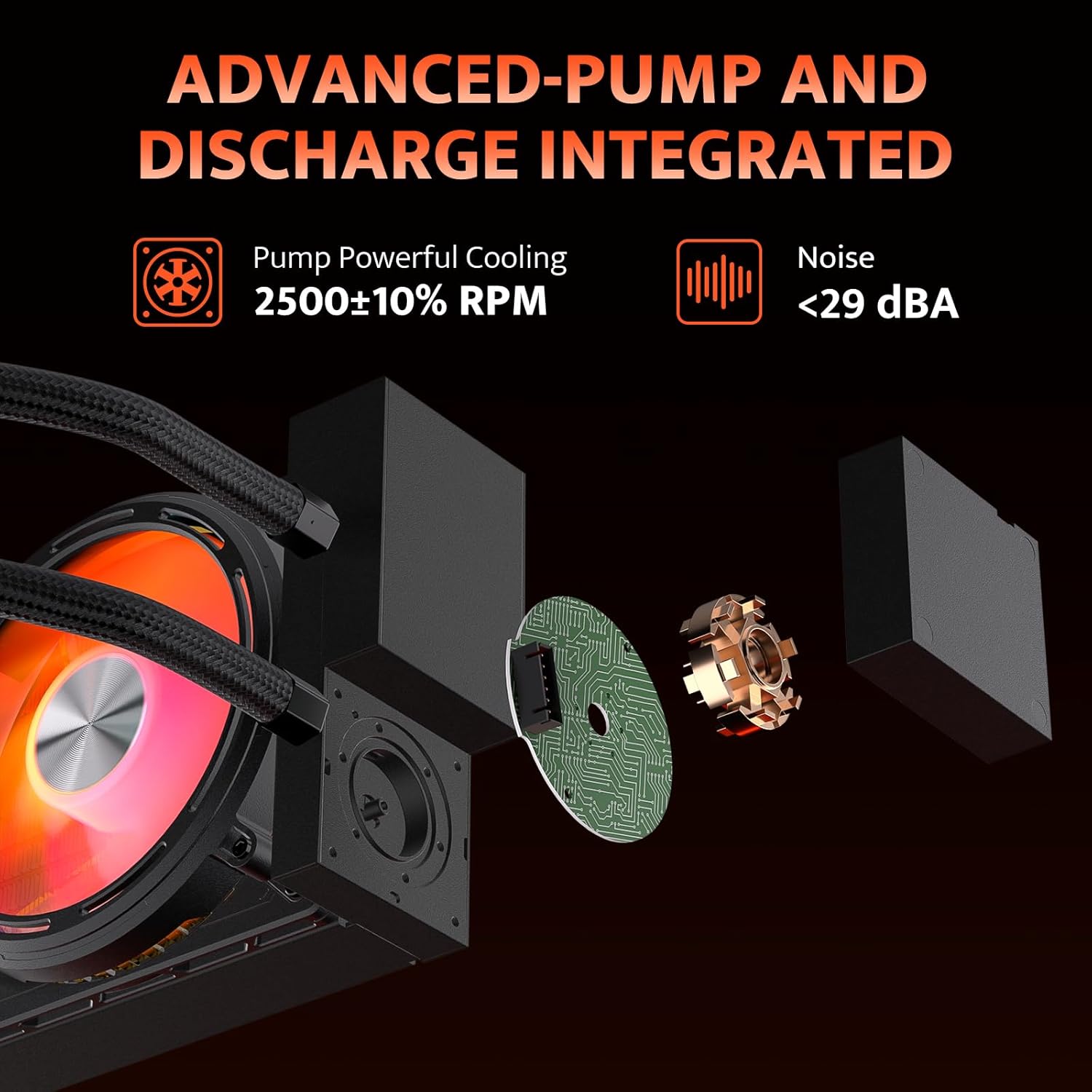
Image: The 2.88-inch IPS LCD display showing real-time CPU temperature and other system metrics.

Image: The intelligent control software interface, demonstrating options for customizing the LCD display with various themes and monitoring data.
4.3 ARGB Lighting Synchronization
The DE360 supports ARGB Sync with compatible motherboards from brands like ASUS (Aura Sync), Gigabyte (RGB Fusion), and MSI (Mystic Light Sync). Use your motherboard's software to control and synchronize the lighting effects of the fans and pump head with other ARGB components in your system.
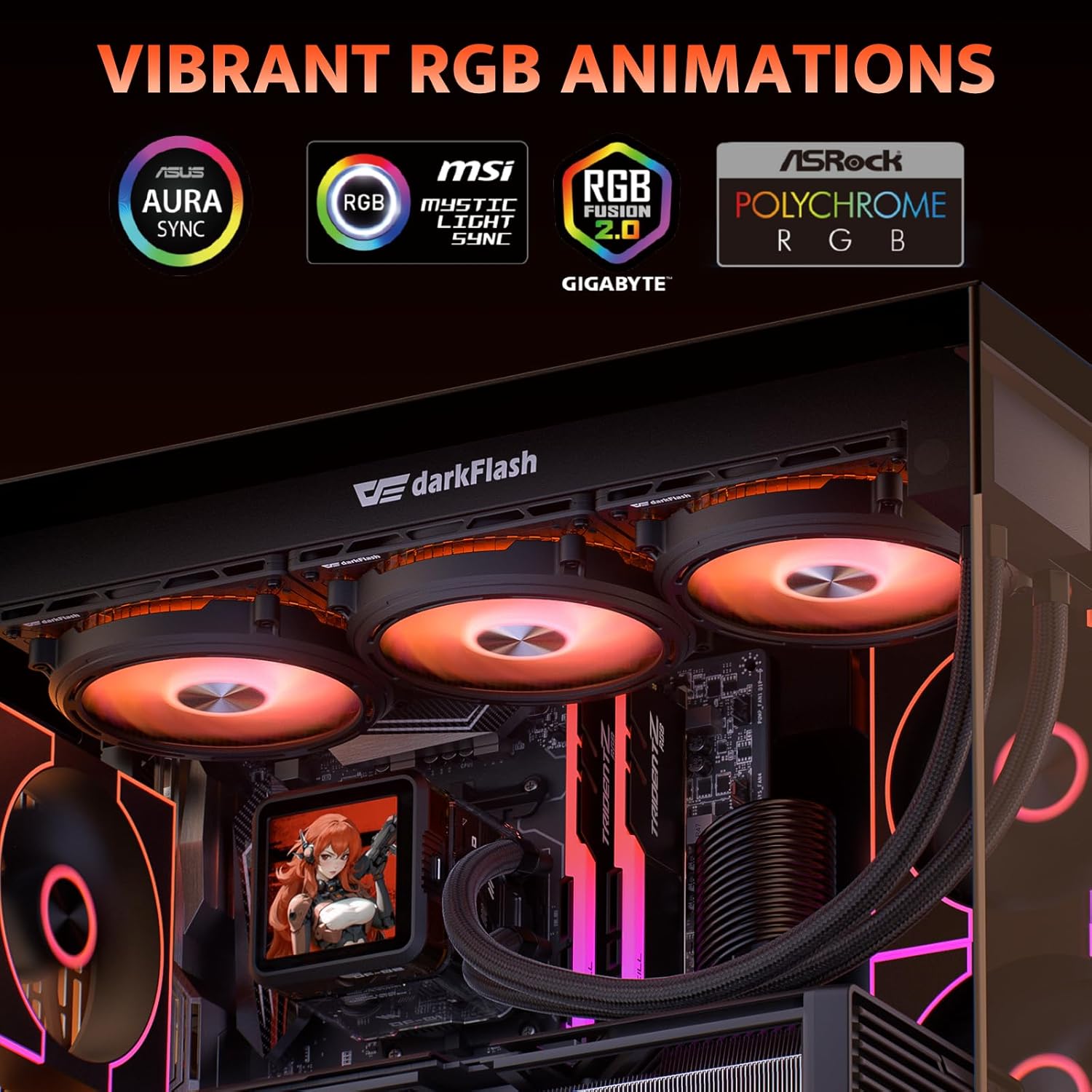
Image: A computer system featuring the darkFlash DE360, demonstrating synchronized ARGB lighting effects.
5. Maintenance
Regular maintenance ensures optimal performance and longevity of your liquid CPU cooler.
- Dust Removal: Periodically clean the radiator fins and fan blades to prevent dust buildup, which can impede airflow and reduce cooling efficiency. Use compressed air or a soft brush.
- Cable Management: Ensure all cables are neatly routed and not interfering with fan operation or airflow.
- Fluid Check: As a closed-loop system, the DE360 does not require regular fluid top-ups. However, inspect the tubing for any signs of leaks or damage.
- Software Updates: Keep the darkFlash control software updated to benefit from performance improvements and new features.
6. Troubleshooting
If you encounter issues with your darkFlash DE360, consider the following troubleshooting steps:
- No Power/No Display:
- Check all power connections, especially the SATA power connector for the pump and fans.
- Ensure the USB 2.0 header cable is securely connected to both the pump and the motherboard.
- Verify that the control software is installed and running correctly.
- High CPU Temperatures:
- Confirm the pump is running (you might hear a faint hum or feel vibrations).
- Check fan operation; ensure all fans are spinning.
- Verify that the cold plate is making proper contact with the CPU. Re-seat if necessary, ensuring thermal paste is correctly applied.
- Clean any dust buildup on the radiator fins.
- ARGB Lighting Not Working/Synchronizing:
- Ensure the ARGB cable is connected to a 5V 3-pin ARGB header, not a 12V 4-pin RGB header. Connecting to a 12V header can damage the LEDs.
- Check your motherboard's ARGB control software for proper settings and synchronization.
- Verify all ARGB connections are secure.
- Unusual Noise:
- Identify the source of the noise (fans or pump).
- If from fans, check for obstructions or loose mounting screws.
- If from the pump, ensure it is mounted correctly and there are no air bubbles trapped. Tilting the PC case gently can sometimes help dislodge air bubbles.
7. Specifications
| Feature | Specification |
|---|---|
| Product Dimensions | 14.17"L x 4.72"W x 2.05"H |
| Power Connector Type | 5-Pin |
| Voltage | 12 Volts |
| Wattage | 1.8 watts |
| Cooling Method | Water |
| Compatible Devices | Desktop |
| Noise Level | 30 Decibels |
| Material | Aluminium (Radiator), Copper, Micro Skived Fins (Cold Plate), Glass |
| Maximum Rotational Speed | 1800 RPM |
| Air Flow Capacity | 64.05 Cubic Feet Per Minute |
| Item Weight | 3.6 Pounds |
| Unit Count | 1.0 Count |
8. Warranty and Support
8.1 Warranty Information
The darkFlash DE360 All-in-One Liquid CPU Cooler comes with a 3-year warranty. This warranty covers defects in materials and workmanship under normal use. Please retain your proof of purchase for warranty claims.
8.2 Customer Support
For technical assistance, troubleshooting, or warranty inquiries, please contact darkFlash customer support through their official website. You can typically find support contact information in the 'Support' or 'Contact Us' sections of the darkFlash website.