
1. Introduction
This manual provides essential information for setting up, operating, and maintaining your Mndstek R36s Pro Retro Handheld Game Console. Please read it thoroughly to ensure optimal performance and longevity of your device.
2. Product Overview
The Mndstek R36s Pro is a portable retro gaming console featuring a 3.5-inch IPS display and a Linux-based operating system. It comes preloaded with a vast library of classic games and supports multiple emulators.
2.1. Device Components

Image: Front and top view of the R36s Pro console with labeled components.
- Lithium-ion batteries (internal)
- Right shoulder button (R1)
- TF1-OS (MicroSD card slot for operating system)
- Volume button
- Left shoulder button (L1)
- 3.5-inch HD screen
- Power key
- RESET button
- TF2-GAME (MicroSD card slot for games)
- Bellmouth orifice (Speaker)
- Game keys (A, B, X, Y)
- START button
- Joystick (R3)
- D-Pad
- HOME/F button
- SELECT button
- DC (Charging port)
- Headphone hole (3.5mm audio jack)
- OTG (USB On-The-Go port)
2.2. Screen Features
The console features a 3.5-inch IPS full-view HD screen with a resolution of 640x480 pixels. This provides crisp, detailed images and vibrant, realistic colors for an immersive gaming experience.

Image: Detailed view of the console's 3.5-inch IPS HD screen.
2.3. Controls
The R36s Pro is equipped with a D-Pad, A/B/X/Y game keys, SELECT and START buttons, and dual 3D joysticks for versatile control across various game types. It also includes L1/R1 and L2/R2 shoulder buttons.

Image: Close-up of the console's dual 3D joysticks.
3. Setup
- Initial MicroSD Card Insertion: Upon receiving the game console, ensure the TF card (MicroSD card) containing the operating system is properly inserted into the TF1-OS slot. The game MicroSD card should be in the TF2-GAME slot.
- Power On: Press and hold the Power key (7) until the screen illuminates.
- Charging: Before first use, fully charge the device. Refer to the 'Battery and Charging' section for details.
4. Operating Instructions
4.1. Navigating Menus
The console runs on an open-source Linux game system. Use the D-Pad or joysticks to navigate through the system menus. The A button typically confirms selections, and the B button returns to the previous screen.
4.2. Selecting and Playing Games
The console supports over 40,000 games across more than 20 emulators. You can browse games by emulator or use the search function to find specific titles.
- Browse: Navigate through the list of available emulators and then select a game from the corresponding list.
- Search: Use the quick search feature to locate games by name.
- Launch: Once a game is selected, press the A button to launch it.
4.3. Volume and Audio
Adjust the game volume using the dedicated Volume button (4). The console includes built-in speakers. For private listening, plug 3.5mm headphones into the Headphone hole (18).
4.4. Game Previews
Many games include a small preview image or video to help you identify the game before launching.
4.5. Video Demonstrations
Video: An overview of the R36s Pro Retro Handheld Game Console, showcasing its features and game selection process.
Video: A detailed review of the Mndstek R36s Pro, highlighting its performance and game library.
Video: Demonstration of the R36s retro gaming device, showing various games and system navigation.
Video: A review of the R36s, sharing personal thoughts and observations on its functionality.
Video: Experience the R36s as an ultimate Gameboy-like device, showcasing its retro gaming capabilities.
Video: A demonstration of the handheld console, highlighting its features as a gift or toy.
Video: An up-close look at the retro game console, detailing its design and interface.
5. Battery and Charging
The console is equipped with a high-capacity 3500mAh polymer lithium battery, providing approximately 6-8 hours of continuous gameplay on a single charge. It supports fast charging via USB-C.

Image: Visual representation of the 3500mAh battery and its features.
5.1. Charging Recommendations
- To ensure efficient charging, use a charger with an output power of at least 5V/2A (10W) or higher.
- Always charge the device via the DC power port (17).
6. Supported Emulators and Games
The R36s Pro supports over 20 mainstream emulators, offering access to a library of over 40,000 classic games. This includes various platforms, ensuring a wide range of gaming options.

Image: Icons representing various supported emulators.
7. Ergonomics and Portability
Designed for comfort during extended gaming sessions, the R36s Pro features an ergonomic shape that fits well in the hands. Its compact and lightweight design makes it highly portable, allowing you to carry your favorite retro games wherever you go.
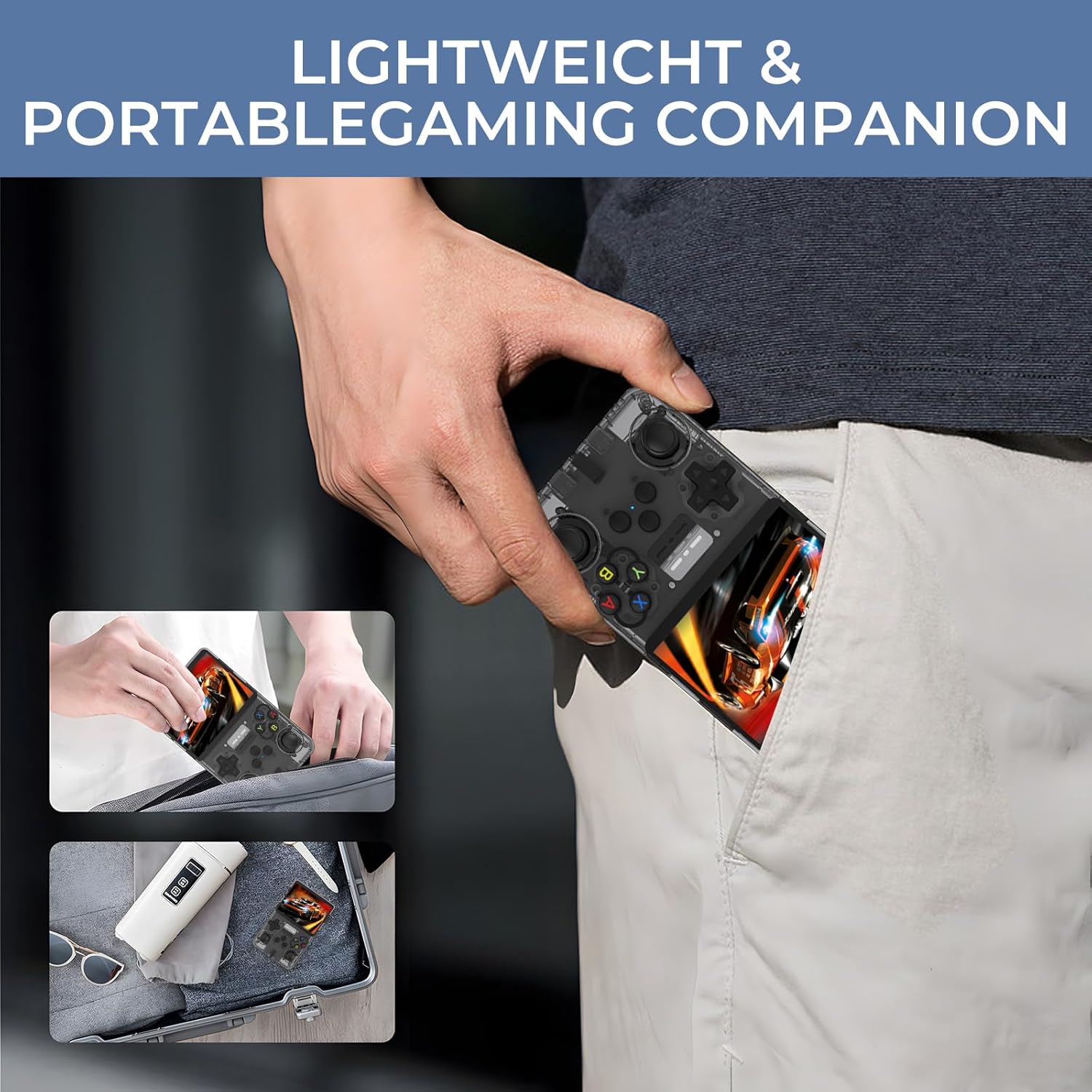
Image: The console being easily carried in a pocket and backpack.
8. Specifications
| Feature | Detail |
|---|---|
| Model Number | r36s |
| Memory Storage Capacity | 128 GB |
| Screen Size | 3.5 inches |
| Screen Resolution | 640x480 (IPS) |
| CPU | RK3326 quad-core ARM 64bit cortex-A35 up to 1.5Ghz |
| Battery | 3500mAh Polymer Lithium |
| Battery Life | 6-8 hours (continuous gameplay) |
| Charging Port | USB-C (DC port) |
| Audio Output | Built-in speakers, 3.5mm headphone jack |
| Operating System | Open source Linux |
| Item Weight | 10.8 ounces |
| Package Dimensions | 8.03 x 5.16 x 1.89 inches |
9. Troubleshooting
- Game Freezes: If a game freezes or the system becomes unresponsive, press the RESET button (8) to restart the console.
- Charging Issues: Ensure you are using a compatible charger (5V/2A or higher) and that it is connected to the DC power port (17).
- No Games Displayed: Verify that the TF2-GAME MicroSD card is correctly inserted into its designated slot (9).
10. Warranty and Support
This product is covered by a 30-day return/replacement policy. For additional support or inquiries, please contact Mndstek customer service.