1. Overview
The Samsung AI Smart Monitor M7 is designed for flexible use, featuring a 32-inch 4K UHD display and an adjustable rolling stand. This allows for easy movement between rooms, providing versatile entertainment and productivity options. The monitor integrates Smart TV Apps, Gaming Hub, AI Picture Optimizer, and SmartThings for an enhanced user experience.

Figure 1: Front view of the Samsung Movingstyle M7 Smart Monitor on its adjustable rolling stand.
2. What's in the Box
Verify that all components are present in the packaging:
- Samsung Movingstyle M7 32" 4K UHD Smart Monitor
- Adjustable Rolling Stand
- Power Cable (13-foot)
- Remote Control
- Batteries for Remote Control

Figure 2: All included components for the Samsung Movingstyle M7 Monitor.
3. Setup & Assembly
Follow these steps to assemble your Samsung Movingstyle M7 Smart Monitor:
- Assemble the Rolling Stand Base: The weighted base features hidden urethane wheels for stability and quiet movement. Ensure the base is placed on a flat, stable surface.
- Attach the Column to the Base: Securely connect the height-adjustable column to the assembled base. The power cable is designed to route through this column for a clean setup.
- Mount the Monitor: Carefully attach the 32-inch monitor to the top of the column's mounting bracket. The monitor supports pivot, swivel, and tilt functionalities.
- Connect Power: Plug the 13-foot power cable into the monitor and route it down through the stand's column to the power outlet.

Figure 3: Rear view of the monitor showing the mounting interface and cable management.
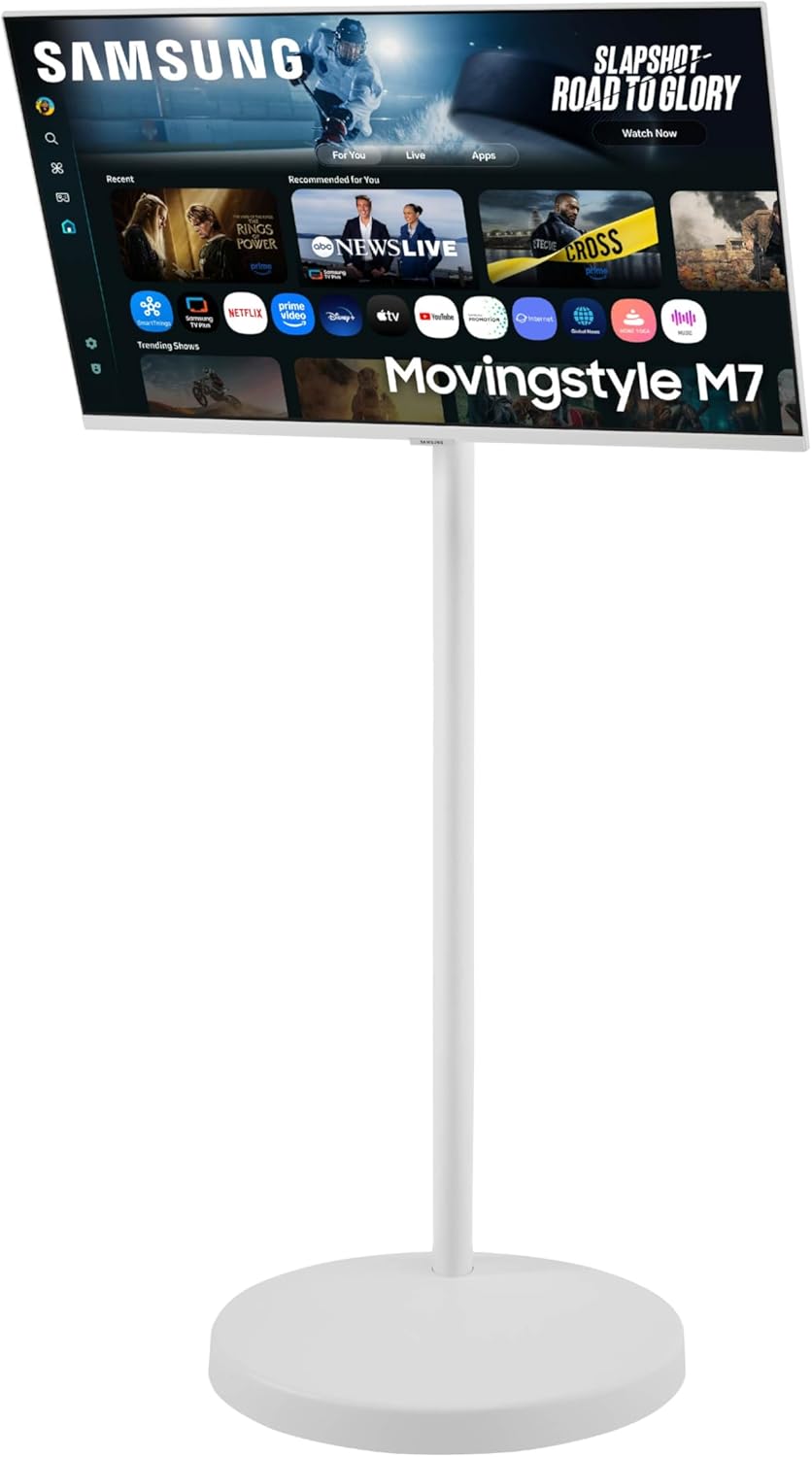
Figure 4: The weighted base of the rolling stand with hidden urethane wheels for easy mobility.
4. Connectivity
The Samsung Movingstyle M7 offers various connectivity options:
- HDMI: Two HDMI inputs (one with ARC support) for connecting external devices.
- USB Type-C: One USB Type-C port (65W power delivery) for connecting and charging laptops, and for display input.
- USB Type-A: Multiple USB Type-A downstream ports for connecting peripherals like keyboards, mice, or external storage.
- Wireless: Built-in Wi-Fi and Bluetooth for network access and connecting wireless accessories.

Figure 5: Close-up of the monitor's port selection including HDMI, USB-C, and USB-A.
5. Operating the Smart Monitor
The Samsung Movingstyle M7 operates on Samsung's Tizen OS, providing a smart TV experience:
- Smart TV Apps: Access popular streaming services like Netflix, Amazon Prime Video, Hulu, and Samsung TV Plus directly from the monitor.
- Gaming Hub: Stream games from top partners without needing a PC or console.
- AI Picture Optimizer: The NQM AI Processor enhances visuals, upscaling lower-resolution content to 4K and adapting picture quality based on content type.
- SmartThings: Control compatible smart home devices and manage energy usage directly from the monitor.
- Multi Control & AirPlay: Seamlessly expand your workflow by mirroring content from Apple devices via AirPlay or controlling multiple Samsung devices with a single mouse and keyboard.
Video 1: A general operation guide for a similar smart monitor, demonstrating app navigation and screen mirroring features. (Note: This video is for a KTC monitor and serves as a general operational reference.)
Video 2: Official product video for the Samsung Movingstyle M7, showcasing its key features and versatility.
6. Adjustability & Design
The Movingstyle M7 is designed for maximum flexibility and aesthetic integration:
- Adjustable Rolling Stand: Easily move the monitor between rooms thanks to its sleek, rounded weighted base with hidden urethane wheels.
- Versatility: The monitor can pivot, swivel, and tilt on its height-adjustable stand, allowing for optimal viewing angles in various settings.
- Sleek Design: Its modern white design with a slim oval column and clean cable management blends seamlessly into any space.

Figure 6: The monitor's mobility allows it to be used in different environments, from living rooms to home gyms.

Figure 7: The monitor can be adjusted for optimal viewing with pivot, swivel, and tilt functions.
7. Specifications
| Feature | Detail |
|---|---|
| Product Dimensions | 17.7 x 28.2 x 50.8 inches |
| Item Weight | 55.6 pounds |
| Item Model Number | F-LS32FM70-MSR |
| Screen Size | 32 Inches |
| Display Resolution | 3840x2160 (4K UHD 2160p) |
| Aspect Ratio | 16:9 |
| Display Technology | LED |
| Connectivity Technologies | Bluetooth, HDMI, USB Type C, Wi-Fi |
| Special Features | Built-In Speakers, Height Adjustment, High Dynamic Range, Multiple Voice Assistance, USB Hub |
| Color | Black |
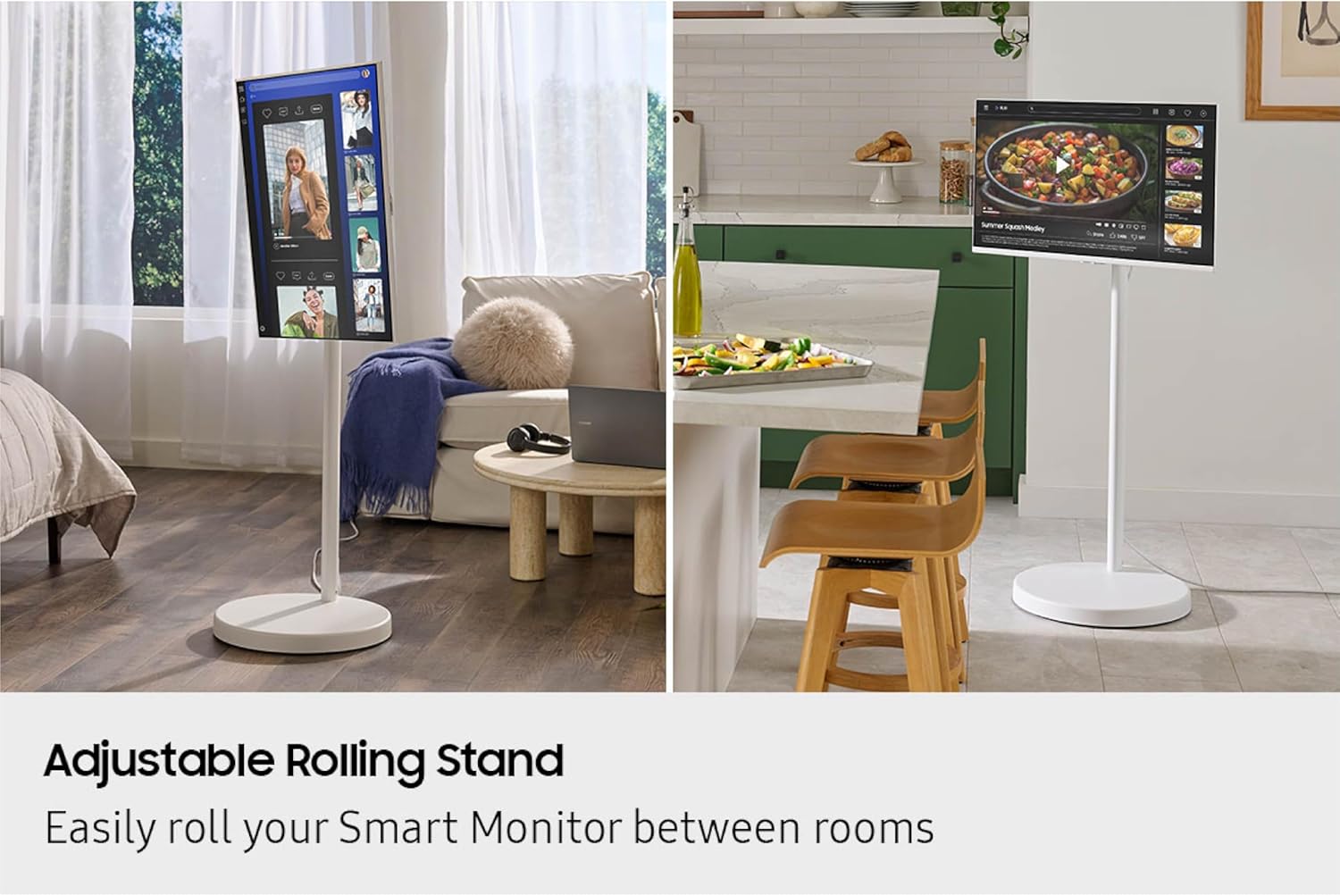
Figure 8: Detailed dimensions of the Samsung Movingstyle M7 monitor and stand.
8. Troubleshooting
If you encounter any issues with your Samsung Movingstyle M7 Smart Monitor, consider the following general troubleshooting steps:
- No Power: Ensure the power cable is securely connected to both the monitor and a working power outlet. Check if the outlet is functional.
- No Picture: Verify that the correct input source is selected on the monitor. Check all cable connections (HDMI, USB-C) to external devices.
- Remote Control Not Working: Ensure batteries are correctly inserted and charged. Point the remote directly at the monitor's sensor.
- Network Connectivity Issues: Check your Wi-Fi router and internet connection. Reconnect the monitor to the Wi-Fi network via the settings menu.
- Sound Problems: Adjust the volume on the monitor and any connected external devices. Check sound output settings.
9. Warranty and Support
For warranty information, technical support, or service inquiries, please refer to the official Samsung website or contact Samsung customer service directly. Keep your purchase receipt and product model number (F-LS32FM70-MSR) handy for faster assistance.