
1. Introduction
Thank you for choosing the WSTER WS-610 Luxury Sedan Bluetooth Speaker. This device combines high-definition audio with a unique luxury sedan design, featuring an LED starry sky display. It supports multiple playback options including Bluetooth, USB, TF card, and FM radio, along with TWS stereo pairing and hands-free calling. Please read this manual carefully to ensure proper use and optimal performance.

Image: The WSTER WS-610 Luxury Sedan Bluetooth Speaker, showcasing its unique car design and LED display.
2. Safety Information
- Do not expose the speaker to extreme temperatures, direct sunlight, or high humidity.
- Avoid dropping or subjecting the device to strong impacts.
- Keep the speaker away from water and other liquids.
- Do not attempt to disassemble or repair the device yourself. Contact qualified service personnel.
- Use only the provided charging cable or a certified Type-C cable for charging.
3. Package Contents
Ensure all items are present in the package:
- WSTER WS-610 Luxury Sedan Bluetooth Speaker
- USB Type-C Charging Cable
- 3.5 mm Auxiliary Cable
- Quick Start Guide
4. Product Overview
The WS-610 speaker features a detailed luxury sedan replica design with functional controls located on the rear trunk area and a distinctive LED starry sky display on the roof.

Image: Top-down view of the WS-610 speaker, highlighting the control buttons (M/ɗ , Play/Pause, Previous, Next) and input ports (DC5V, TF, AUX, USB) on the rear.
Controls and Ports:
- M/ɗ (Mode/Power Button): Press and hold to power on/off. Short press to switch between modes (Bluetooth, FM Radio, USB, TF Card, AUX).
- ▶▌ (Play/Pause Button): Play or pause music. In FM mode, short press to auto-scan and save stations.
- ◀◀ (Previous Track/Volume Down): Short press for previous track. Long press to decrease volume. In FM mode, short press for previous station.
- ▶▶ (Next Track/Volume Up): Short press for next track. Long press to increase volume. In FM mode, short press for next station.
- DC5V Port: For charging the speaker using the provided USB Type-C cable.
- TF Card Slot: Insert a TF (MicroSD) card for music playback.
- AUX Port: Connect external audio devices via the 3.5mm auxiliary cable.
- USB Port: Insert a USB drive for music playback.
5. Setup
5.1 Charging the Speaker
- Connect the USB Type-C charging cable to the DC5V port on the speaker.
- Connect the other end of the cable to a USB power adapter (not included) or a computer's USB port.
- The charging indicator light (next to the USB-C port) will illuminate red while charging and turn off when fully charged.
5.2 Powering On/Off
- To Power On: Press and hold the M/ɗ button until you hear a startup sound and the LED display activates.
- To Power Off: Press and hold the M/ɗ button again until you hear a shutdown sound and the LED display turns off.
6. Operating Instructions
6.1 Bluetooth Pairing
- Power on the speaker. It will automatically enter Bluetooth pairing mode, indicated by a flashing Bluetooth icon on the LED display.
- Enable Bluetooth on your smartphone, tablet, or other device.
- Search for "WS-610" in the list of available Bluetooth devices and select it to connect.
- Once connected, you will hear a confirmation sound, and the Bluetooth icon on the display will stop flashing.

Image: The WS-610 speaker wirelessly connected to a smartphone, illustrating quick Bluetooth pairing.
6.2 True Wireless Stereo (TWS) Pairing
To achieve immersive stereo sound, you can pair two WS-610 speakers together:
- Ensure both WS-610 speakers are powered on and not connected to any Bluetooth device.
- On one speaker (this will be the primary speaker), double-press the M/ɗ button. It will enter TWS pairing mode.
- The primary speaker will search for the secondary speaker. Once connected, you will hear a confirmation tone.
- Now, connect your device to the primary speaker via Bluetooth as described in section 6.1. Both speakers will play audio in stereo.
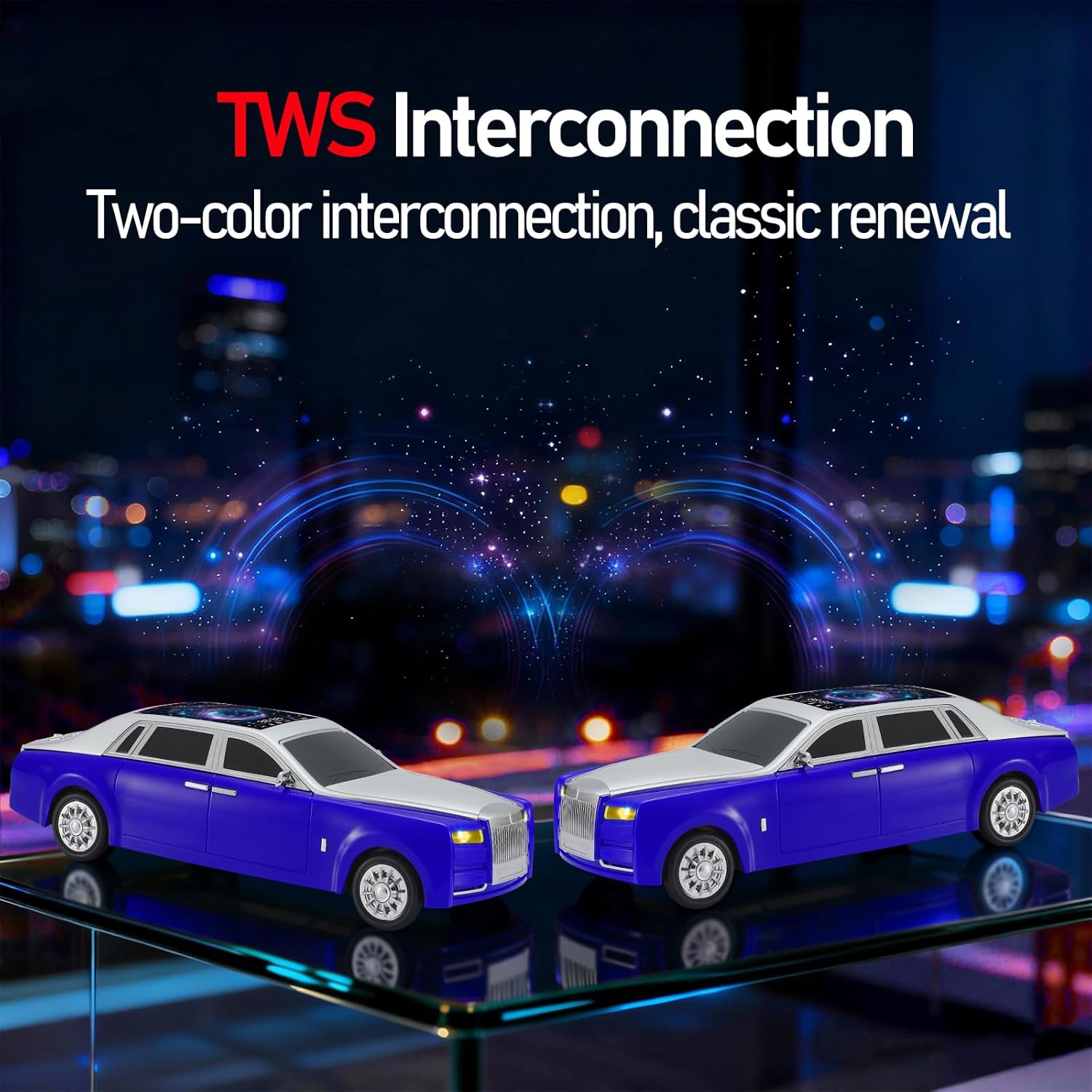
Image: Two WS-610 speakers positioned to demonstrate TWS interconnection for enhanced stereo audio.
6.3 Music Playback
- Bluetooth Mode: After successful pairing, play music from your connected device. Use the speaker's ▶▌, ◀◀, and ▶▶ buttons to control playback and volume.
- USB/TF Card Mode: Insert a USB drive or TF card into the respective port. The speaker will automatically switch to the correct mode and begin playback. Use the playback control buttons.
- FM Radio Mode: Press the M/ɗ button repeatedly until you enter FM Radio mode. Short press the ▶▌ button to auto-scan and save available stations. Use the ◀◀ and ▶▶ buttons to navigate between saved stations.
- AUX Mode: Connect an external audio device using the 3.5mm auxiliary cable. Press the M/ɗ button until AUX mode is selected. Audio will play from your connected device.
6.4 Hands-Free Calling
When connected via Bluetooth, the built-in microphone allows for hands-free calls:
- Answer Call: Short press the ▶▌ button.
- End Call: Short press the ▶▌ button during a call.
- Reject Call: Long press the ▶▌ button.
6.5 LED Starry Sky Display
The LED starry sky display on the roof of the speaker provides dynamic visual effects that synchronize with the music. This feature is active during music playback in most modes.
Video: A demonstration of the WS-610 Luxury Sedan Speaker's LED starry sky screen display in action, showing dynamic light patterns.
Video: A short clip showcasing the LED starry sky screen display on the WS-610 Luxury Sedan Speaker.
6.6 Selfie Timer Function
The speaker includes a selfie timer function. For detailed instructions on activating and using this feature, please refer to the Quick Start Guide included in your package.
7. Maintenance
- Clean the speaker with a soft, dry cloth. Do not use abrasive cleaners or solvents.
- Store the speaker in a cool, dry place when not in use.
- Avoid blocking the speaker grilles to ensure optimal sound quality.
8. Troubleshooting
| Problem | Possible Cause | Solution |
|---|---|---|
| Speaker does not power on. | Low battery. | Charge the speaker using the Type-C cable. |
| Cannot pair via Bluetooth. | Speaker is not in pairing mode or already connected to another device. | Ensure the speaker is in Bluetooth mode and not connected. Turn off Bluetooth on previously connected devices. |
| No sound from speaker. | Volume too low, incorrect mode, or device not playing. | Increase volume on both speaker and connected device. Check the selected mode (Bluetooth, USB, TF, AUX, FM). Ensure music is playing on the source device. |
| FM radio reception is poor. | Weak signal. | Move the speaker to a location with better signal reception. |
| TWS pairing fails. | Speakers are too far apart or already connected to other devices. | Ensure both speakers are close to each other and not connected to any other Bluetooth devices before initiating TWS pairing. |
9. Specifications
| Feature | Detail |
|---|---|
| Model Number | WS-610 |
| Brand | WSTER |
| Speaker Maximum Output Power | 15 Watts |
| Frequency Response | 18 KHz |
| Connectivity Technology | Bluetooth |
| Audio Output Mode | Stereo |
| Enclosure Material | Acrylonitrile Butadiene Styrene (ABS) |
| Additional Features | Built-in Microphone, Display, LED Light, Portable, USB Port |
| Speaker Size | 66 Millimeters |
| Wireless Technology | Bluetooth |
| Number of Batteries | 2 Nonstandard Battery (included) |
| Item Dimensions (D x W x H) | 13.78" x 4.72" x 3.86" |
| Item Weight | 967.4 Grams |
| Compatible Devices | Smartphone, Tablet, Laptop, MP3 Player, FM Radio |

Image: Diagram showing the dimensions of the WS-610 speaker: 13.78 inches (35 cm) long, 4.72 inches (12 cm) wide, and 3.86 inches (9.8 cm) high.
10. Warranty
This product does not include a manufacturer's warranty. Please refer to your retailer's return policy for any issues.
11. Support
For further assistance or inquiries, please contact your point of purchase or refer to the WSTER official website for support resources.
Video: An instructional video from WSTER demonstrating various features and operations of their speakers.
