
Introduction
Thank you for choosing the NEWFAST AC1200 WiFi Repeater. This device is designed to extend the coverage of your existing wireless network, eliminating Wi-Fi dead zones and providing a stronger, more reliable connection throughout your home or office. Please read this manual carefully before using the device to ensure proper installation and operation.
Package Contents
Verify that all items are present in your package:
- 1 x NEWFAST AC1200 WiFi Repeater
- 1 x User Manual
- 1 x RJ-45 Ethernet Cable
Product Overview
Familiarize yourself with the physical components of your NEWFAST AC1200 WiFi Repeater.
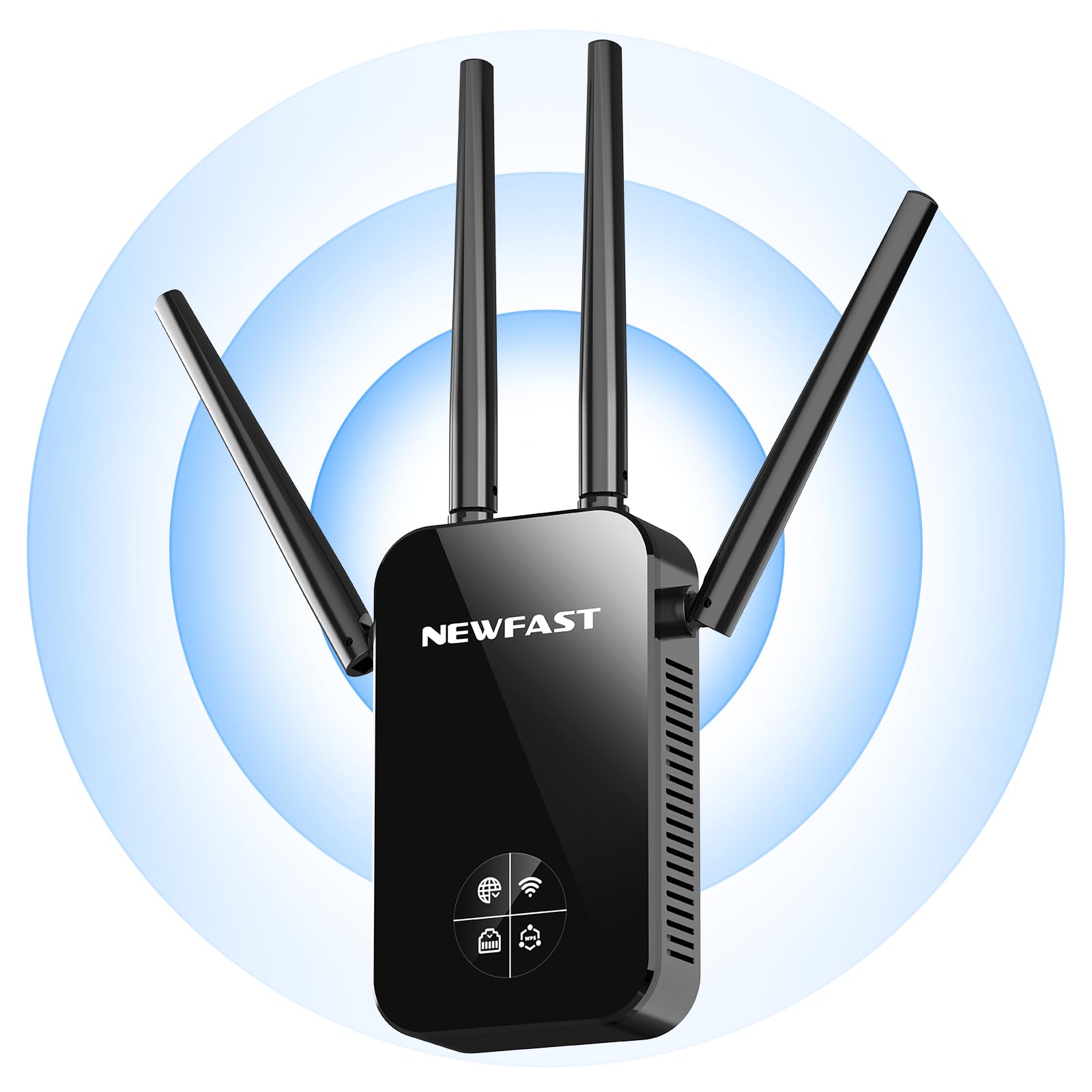
Front view of the NEWFAST AC1200 WiFi Repeater, showing its compact design and indicator lights.
The device typically features indicator LEDs for power, Wi-Fi signal strength, and connection status. It also includes an Ethernet port for wired connections and a WPS button for quick setup.
Setup
Follow these steps for initial setup of your NEWFAST AC1200 WiFi Repeater:
- Power On: Plug the repeater into an electrical outlet near your existing router. Wait for the power indicator light to turn on.
- Connect to Repeater: On your computer or mobile device, connect to the repeater's default Wi-Fi network (e.g., "NEWFAST_Repeater" or similar, usually found on a label on the device). No password is required for the initial connection.
- Access Setup Page: Open a web browser and enter the default IP address (e.g., 192.168.10.1) or web address (e.g., repeater.net) provided in the device's label or quick start guide.
- Login: Enter the default username and password (e.g., admin/admin).
- Select Mode: Choose the desired operating mode (Repeater Mode or Access Point Mode).
- Configure Network:
- Repeater Mode: Select your existing Wi-Fi network from the list, enter its password, and choose whether to keep the same SSID or create a new one for the extended network.
- Access Point Mode: Connect the repeater to your router via an Ethernet cable. Configure a new Wi-Fi network name (SSID) and password for the repeater.
- Apply Settings: Save the settings and wait for the repeater to restart. The indicator lights will show the connection status.
Alternatively, you can use the WPS (Wi-Fi Protected Setup) button for a quicker setup if your router supports it. Press the WPS button on your router, then within two minutes, press the WPS button on the repeater. The devices will automatically connect.
Operating Modes
The NEWFAST AC1200 WiFi Repeater supports multiple operating modes:
- Repeater Mode (Range Extender): This is the primary mode, extending the range of your existing Wi-Fi network. The repeater connects wirelessly to your router and re-broadcasts the signal.
- Access Point (AP) Mode: In this mode, the repeater connects to your router via an Ethernet cable and creates a new wireless network. This is useful for adding Wi-Fi capability to a wired network or creating a separate Wi-Fi network.
Operating Instructions
Once set up, the repeater operates automatically. To ensure optimal performance:
- Placement: Position the repeater halfway between your router and the area with poor Wi-Fi coverage. Ensure it receives a good signal from the router.
- Connection: Connect your wireless devices (smartphones, tablets, laptops) to the extended Wi-Fi network created by the repeater.
- Wired Devices: If in Repeater Mode, you can connect a wired device (e.g., a desktop computer or gaming console) to the repeater's Ethernet port for a stable connection.
Maintenance
To maintain the performance and longevity of your device:
- Cleaning: Gently wipe the device with a dry, soft cloth. Do not use liquid cleaners or aerosols.
- Firmware Updates: Periodically check the manufacturer's website for firmware updates. Updating the firmware can improve performance, add new features, and fix bugs. Follow the instructions provided with the firmware update carefully.
- Restarting: If you experience network issues, try restarting the repeater by unplugging it from the power outlet for 10 seconds and then plugging it back in.
Troubleshooting
If you encounter problems with your NEWFAST AC1200 WiFi Repeater, refer to the following common issues and solutions:
- No Power: Ensure the repeater is securely plugged into a working electrical outlet. Check the power indicator light.
- Cannot Access Setup Page: Verify that your device is connected to the repeater's Wi-Fi network. Try clearing your browser's cache or using a different browser. Ensure you are using the correct IP address or web address.
- Poor Signal Strength: Relocate the repeater closer to your main router. Ensure there are no major obstructions (thick walls, metal objects) between the router and the repeater.
- No Internet Access: Check if your main router has internet access. Ensure the repeater is correctly configured and connected to your router's Wi-Fi network with the correct password.
- WPS Setup Fails: Ensure your router supports WPS and that you are pressing the buttons within the specified time frame. If it continues to fail, try manual setup via the web interface.
- Forgotten Password: If you forget the repeater's login password or Wi-Fi password, you may need to perform a factory reset. Locate the reset button (usually a small pinhole) on the device, press and hold it for 5-10 seconds until the lights flash, then release. This will restore the device to its factory default settings.
Specifications
Key technical specifications for the NEWFAST AC1200 WiFi Repeater:
| Brand | NEWFAST |
| Manufacturer | NEWFAST |
| Product Dimensions | 8.6 x 4.5 x 19.7 cm; 120 g |
| Compatible Devices | Internet Box, Computer, Access Point, Router |
| Special Features | 360 degrees, 1-touch setup, 1-click setup, MU-MIMO, Access Point Mode, LCD Display |
| Included Components | 1 RJ-45 Ethernet Cable, 1 User Manual, 1 AC1200 WiFi Repeater |
| Number of Products | 1 |
| Batteries Required | No |
| Data Transfer Rate | 1200 Megabits per second |
| Wireless Connection Type | 802.11a/b/g/n/ac |
| Frequency | 5.8 GHz |
| Product Weight | 120 g |
| Wireless Communication Standard | 802.11a/b/g/n/ac |
| Frequency Band Class | Dual Band |
| Color | Black |
Warranty and Support
This NEWFAST AC1200 WiFi Repeater comes with a standard manufacturer's warranty. Please refer to the warranty card included in your package or visit the official NEWFAST website for detailed warranty terms and conditions.
For technical support, troubleshooting assistance, or to inquire about product information, please contact NEWFAST customer service through their official website or the contact information provided in your product documentation.


