1. Introduction
This manual provides comprehensive instructions for the TATTMUSE A28U Portable Thermal Printer. It covers initial setup, operational procedures, maintenance, and troubleshooting to ensure optimal performance and longevity of your device. Please read this manual thoroughly before using the printer.

Image: TATTMUSE A28U Portable Thermal Printer in operation, demonstrating its ability to print various documents.

Image: The inkless thermal printer offers a clean and efficient printing experience compared to traditional ink printers.
2. What's in the Box
Please verify that all items are present in your product packaging:
- Portable Printer (1 unit)
- US Letter Thermal Papers (10 sheets)
- User Manual (1 copy)
- USB-C Cable (1 unit)
- USB-C Adapter (1 unit)

Image: The complete packaging list for the TATTMUSE A28U printer.
3. Setup
3.1 Power On and Charging
- To power on the printer, press and hold the power button for 3 seconds. The indicator light will illuminate.
- If your printer contains a disposable protective paper, double-click the power button to automatically eject it.
- If the indicator light does not turn on, charge the printer for at least 1 hour using the provided USB-C cable.
- Connect the USB-C cable to the printer and a 5V2A power adapter (not included). The printer's light will indicate successful power connection.

Image: The printer features a 1500mAh battery for extended use.
3.2 Loading Paper
- The TATTMUSE A28U printer requires specialized thermal paper. Do not use regular copy paper.
- Identify the non-printing side of the thermal paper (usually without words or markings) and ensure it faces downwards.
- Gently insert the paper into the printer's paper guide slot, ensuring it is centered. The printer will automatically pull the paper in.
- Once the paper is correctly loaded, the indicator light will turn green, signifying the printer is ready for use.

Image: The printer supports both single sheet and continuous thermal paper.
3.3 App Installation and Bluetooth Connection
- Download the 'Phomemo' app from your device's app store (App Store for iOS, Google Play for Android) or scan the QR code provided below.
- Enable Bluetooth on your smartphone or tablet.
- Open the Phomemo app, search for available devices, and select 'A28U' to connect.

Image: Scan these QR codes to download the Phomemo app. Download App

Image: The upgraded Bluetooth chip ensures stable and simple connectivity.
3.4 Driver Installation and USB Connection (for PC/Laptop)
- For computer printing, download the necessary drivers from the official website: https://a28u.labelife.cc.
- Connect the A28U printer to your computer using the provided USB-C cable.
- In your computer's print settings, select the 'A28U Printer' to begin printing.

Image: Steps for driver download and USB connection for computer printing.

Image: The printer can be connected via USB for printing from laptops.
4. Operating Instructions
4.1 Printing via Bluetooth
- Ensure your printer is powered on and successfully connected to your device via the Phomemo app.
- Within the Phomemo app, select the document or image you wish to print.
- Review the print preview and adjust settings such as the number of copies or print thickness (Light, Medium, Heavy) as needed.
- Tap the 'Print' button to initiate the printing process.
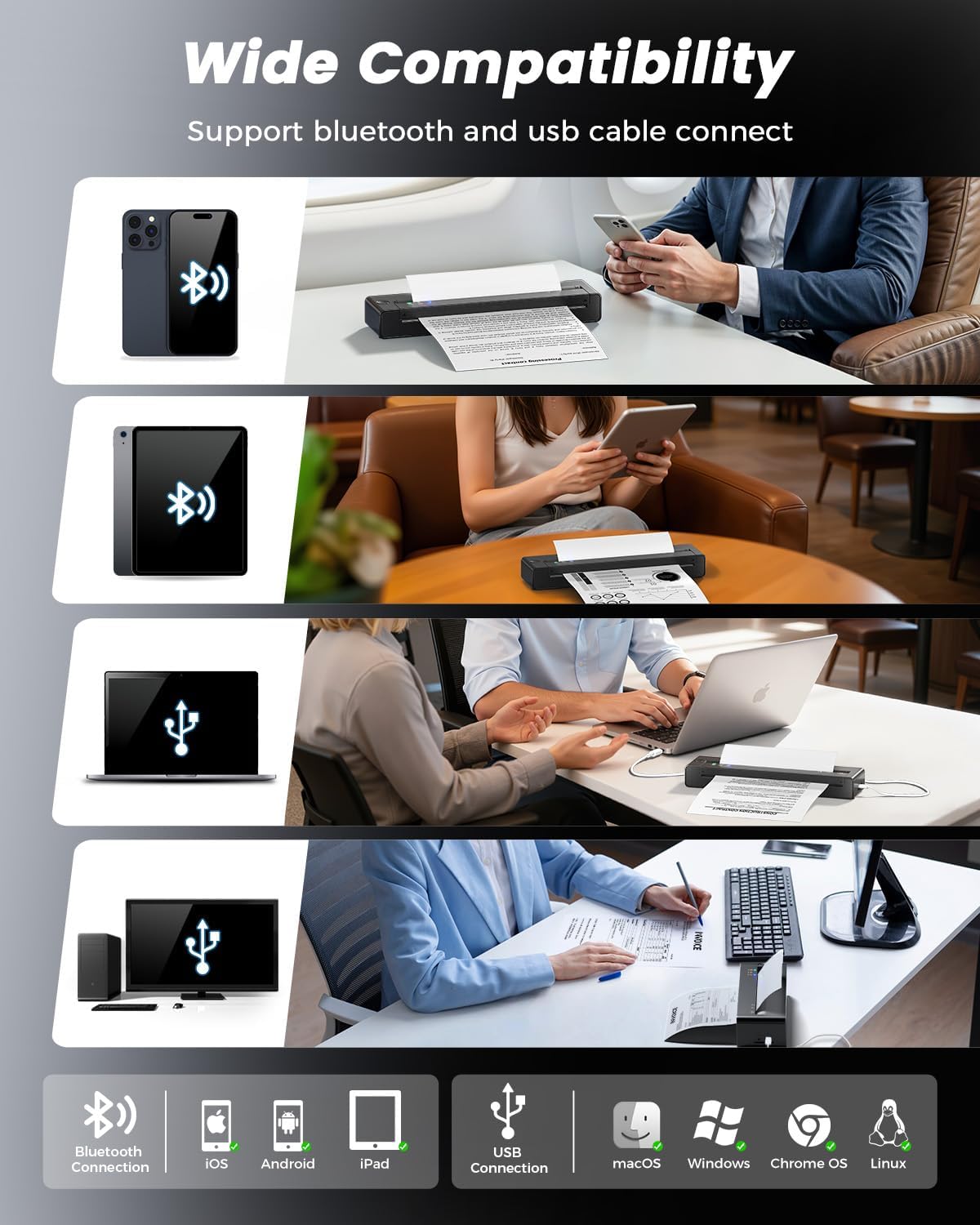
Image: The printer offers wide compatibility with various operating systems and devices via Bluetooth and USB.
Image: Wireless printing via Bluetooth from a mobile device.
4.2 Supported Paper Types and Sizes
The TATTMUSE A28U printer is designed to work with specific thermal paper types and sizes:
- Supported Sizes: US Letter (8.5 x 11 inches), A4 (8.27 x 11.69 inches), B5 (6.93 x 9.84 inches), and A5 (5.83 x 8.27 inches).
- Paper Type: Only thermal paper is supported. The printer is compatible with both single sheet and continuous thermal paper. Regular copy paper is not compatible.

Image: The printer supports multiple paper sizes including US Letter, A4, B5, and A5.
4.3 Print Quality
The printer utilizes advanced thermal direct technology to deliver clear and sharp monochrome prints:
- Resolution: 203 DPI (dots per inch) for detailed output.
- Print Head: Features an upgraded print head with dual-zone heat control and a ±0.1°C temperature lock, ensuring 99% uniform print density.

Image: Example of clear print quality at 203 DPI.
5. Maintenance
5.1 Battery Care
To maximize the lifespan of your printer's battery:
- The printer incorporates cool charging technology to extend battery life.
- Avoid charging or storing the printer in excessively hot environments, as this can degrade battery performance.
- A fully charged battery can print approximately 150 sheets.
5.2 Paper Handling
Proper paper handling helps prevent issues and ensures smooth operation:
- Always ensure thermal paper is inserted straight and centered into the feed slot.
- The printer features a double-tap auto paper return technology. If a paper jam occurs, double-tap the power button to attempt automatic reversal.
5.3 Cleaning
Regular cleaning helps maintain print quality and device performance:
- Ensure the printer is powered off and disconnected from any power source before cleaning.
- Gently wipe the print head with a soft, lint-free cloth to remove any dust or debris.
- Clean the exterior of the printer with a soft, dry cloth. Avoid using harsh chemicals or abrasive materials.
6. Troubleshooting
If you encounter issues with your TATTMUSE A28U printer, refer to the following common problems and solutions:
- Printer not turning on:
Ensure the battery is sufficiently charged. If the indicator light does not come on, charge the printer for at least 1 hour. - Poor print quality (faint or uneven prints):
Verify that you are using specialized thermal paper and that it is loaded correctly with the non-printing side facing downwards. Clean the print head as described in the Maintenance section. - Paper jam:
Double-tap the power button to activate the auto paper reversal function. If the paper remains stuck, power off the printer and gently remove the paper. Ensure paper is inserted straight to prevent future jams. - Bluetooth connection issues:
Confirm that Bluetooth is enabled on your mobile device and the printer is within range. Restart both your device and the printer, then attempt to reconnect through the Phomemo app. - Printer not recognized by computer:
Ensure the correct drivers are installed from https://a28u.labelife.cc and the USB-C cable is securely connected.
7. Specifications
| Feature | Specification |
|---|---|
| Model Name | A28U |
| Brand | TATTMUSE |
| Printing Technology | Dot Matrix (Thermal Direct) |
| Printer Ink Type | Inkless |
| Printer Output | Monochrome |
| Maximum Black and White Print Resolution | 203 dots_per_inch |
| Max Printspeed Monochrome | 7 ppm |
| Connectivity Technology | Bluetooth, USB |
| Supported Media Sizes | US Letter (8.5 x 11 inch), A4, B5, A5 |
| Print Media | Thermal Paper |
| Product Dimensions | 10.39 x 2.44 x 1.42 inches |
| Item Weight | 1.29 pounds (585 Grams) |
| Battery | 1500mAh Rechargeable Battery |

Image: Dimensions and weight of the TATTMUSE A28U printer, emphasizing its compact design.
8. Warranty and Support
For detailed warranty information, product registration, and technical support, please visit the official TATTMUSE website or contact their customer service department. Keep your purchase receipt as proof of purchase for any warranty claims.

