
1. Introduction
Thank you for choosing the Reobiux A20H-1P Dual Lens 6MP Wi-Fi Outdoor Security Camera. This manual provides essential information for setting up, operating, and maintaining your security camera. Please read it thoroughly before use to ensure proper functionality and safety. This camera is designed to provide comprehensive surveillance for your home, garden, garage, or office with advanced features like dual lenses, 2.5K resolution, 360° PTZ, and smart detection.
2. Product Overview
2.1 Key Features
- Dual Lens & 5x Zoom: Equipped with a dual-lens PTZ platform, supporting 360° rotation and dynamic tracking for complete coverage without blind spots.
- 2.5K Resolution & Color Night Vision: Features 2.5K resolution and 14 white LEDs plus dual infrared light sources, ensuring clear color images even in low light conditions up to 30 meters.
- AI Detection & Auto Tracking: Automatically tracks movement when an intruder triggers the alarm, sending real-time alerts to your smartphone.
- Two-Way Audio & Active Alarm: Supports remote real-time communication, allowing interaction with visitors or deterring intruders with bright light flashes and an 80dB siren.
- 2.4G/5G Wi-Fi & Dual Storage: Offers fast wired or wireless connection (2.4G/5G Wi-Fi) and supports storage on a Micro SD card (up to 128GB, not included) or cloud service (subscription required).
2.2 Package Contents
Please check the package for the following items:
- Reobiux Outdoor Camera (A20H-1P) x 1
- Instruction Manual x 1
- Installation Template/View x 1
- 1.6m Power Cable x 1
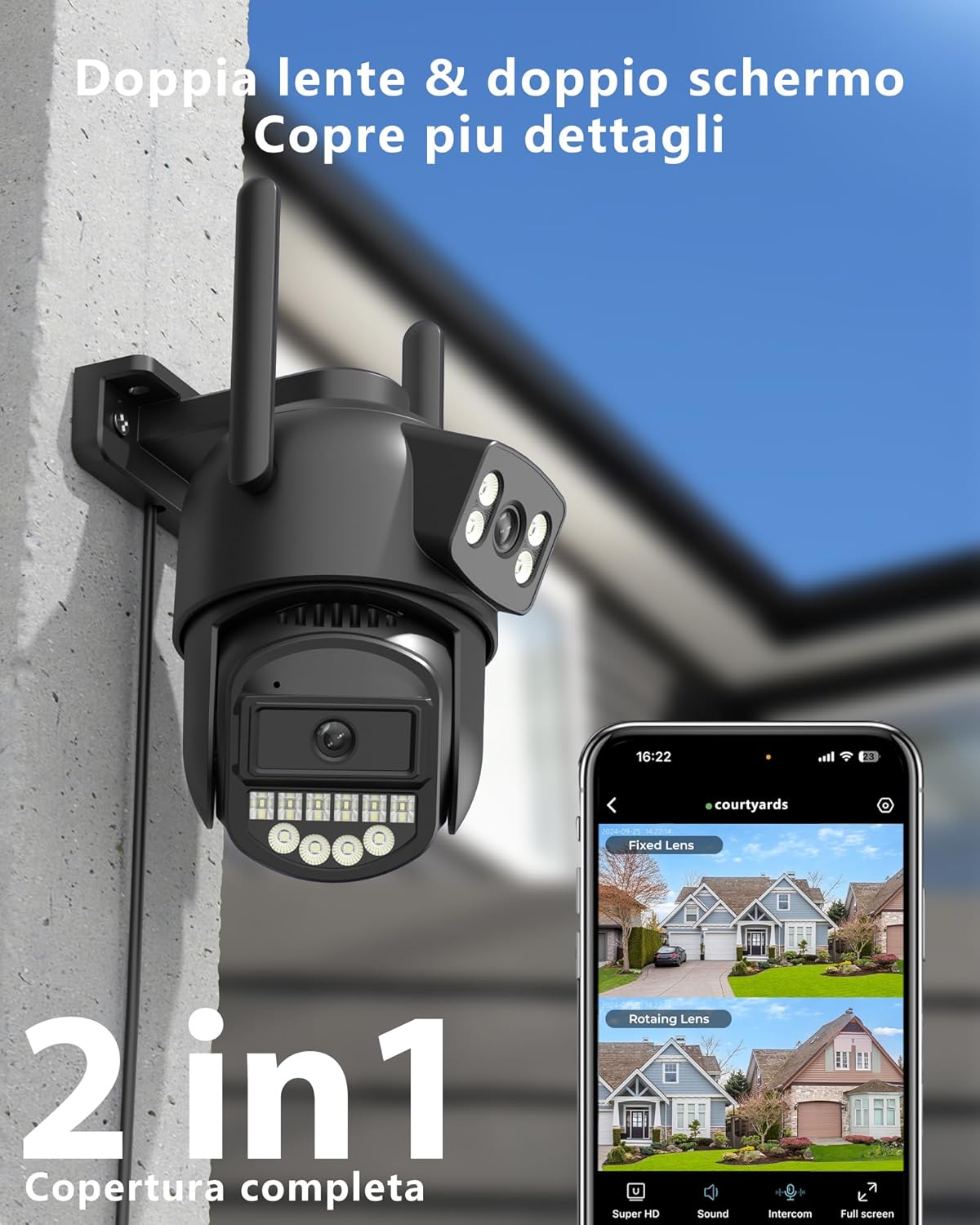
Image: Reobiux A20H-1P Dual Lens 6MP Wi-Fi Outdoor Security Camera, showing its dual lens design and antennas.

Image: Illustration of the dual lens system providing comprehensive security for a property, highlighting 3MP+3MP resolution.
3. Setup Guide
3.1 App Download and Installation
To use your Reobiux camera, you need to download the O-KAM Pro App on your smartphone or tablet. The app is available on both Google Play Store and Apple App Store.
- Scan the QR code provided in the quick start guide or search for "O-KAM Pro" in your device's app store.
- Download and install the app.
- Register for an account or log in if you already have one.

Image: Screenshots of the O-KAM Pro app interface, indicating compatibility with Google Play and App Store.
3.2 Camera Connection
Your camera supports both 2.4GHz and 5GHz Wi-Fi networks, as well as a wired Ethernet connection for flexible installation.
- Power On: Connect the camera to a power source using the provided 1.6m power cable. The camera will initiate its self-test and indicator lights will flash.
- Add Device in App: Open the O-KAM Pro App, tap the "+" icon to add a new device. Follow the on-screen instructions.
- Wi-Fi Connection: Select your 2.4GHz or 5GHz Wi-Fi network and enter the password. Ensure your phone is connected to the same network during setup. The camera will connect automatically.
- Ethernet Connection (Optional): If you prefer a wired connection, connect an Ethernet cable from your router to the camera's RJ45 port. The app will detect the camera automatically.
- Finalize Setup: Once connected, name your camera and set up any initial preferences.

Image: Diagram illustrating the coverage differences between 2.4GHz (wider coverage, lower speed) and 5GHz (reduced coverage, faster speed) Wi-Fi, and the camera's Ethernet port.
3.3 Mounting the Camera
Use the provided installation template and screws to securely mount the camera in your desired outdoor or indoor location. Ensure the camera has a clear field of view and is within Wi-Fi range or near an Ethernet port.
- Choose a mounting location that offers optimal surveillance and protection from direct impact.
- Use the installation template to mark drill holes.
- Drill the holes and insert wall anchors if necessary.
- Secure the camera bracket with screws.
- Adjust the camera angle as needed.
4. Operating Instructions
4.1 Live View and PTZ Control
Once connected, open the O-KAM Pro App to access the live view of your camera. The app displays both fixed and rotating lens views.
- Fixed Lens View: Provides a static overview of a specific area.
- Rotating Lens View: Allows you to pan (horizontal) and tilt (vertical) the camera remotely for a 360° panoramic view. Use the directional controls in the app.
- Digital Zoom: Pinch to zoom on the live feed to magnify details up to 5x.

Image: Split view showing the fixed lens capturing a child playing in a garden and the PTZ lens focusing on a car, demonstrating 2.5K resolution.

Image: A car with an enlarged view of its license plate, illustrating the 2.5K resolution and 5x digital zoom capability for clear detail identification.
4.2 Night Vision Modes
The camera offers advanced night vision capabilities:
- Infrared Night Vision: Automatically activates in low light, providing clear black and white images.
- Color Night Vision: Utilizes the 14 white LEDs to illuminate the area, providing full-color video even in complete darkness. This mode can be activated manually or set to trigger upon motion detection.

Image: Split image showing a garage and patio in daylight on one side and in black and white night vision on the other, highlighting the 30m maximum night vision distance with 14 LEDs.

Image: Three panels comparing a house exterior in daylight, infrared night vision (black and white), and color night vision, demonstrating the camera's versatile night viewing options.
4.3 Two-Way Audio
The built-in microphone and speaker allow for real-time two-way communication.
- Tap the microphone icon in the app to speak through the camera.
- Listen to audio from the camera's surroundings through your phone.

Image: A delivery person at a door, with speech bubbles indicating two-way audio communication via the camera.
4.4 Smart Detection and Alarms
The camera features advanced AI for person and vehicle recognition, reducing false alarms.
- Human/Vehicle Detection: The camera can differentiate between humans, vehicles, and other moving objects.
- Auto Tracking: When a person is detected, the camera's rotating lens will automatically follow their movement.
- Sound & Light Alarm: Upon detection, the camera can emit bright light flashes and an 80dB siren to deter intruders.
- Real-time Notifications: Receive instant alerts on your smartphone when motion is detected.

Image: A child on a skateboard, with an overlay highlighting AI person recognition and automatic tracking with 99% precision.

Image: An intruder being deterred by the camera's sound and light alarm, indicating an 80dB siren.

Image: A person reacting to a camera's alarm and light, with a smartphone notification showing an alert, illustrating immediate notification and active defense.

Image: Multiple blurred figures of intruders being followed by the camera's automatic tracking feature, with a red tracking box.
4.5 Recording and Storage
The camera supports continuous 24/7 recording and event-triggered recording.
- Micro SD Card: Insert a Micro SD card (up to 128GB, not included) into the designated slot. The app will automatically overwrite older recordings when the card is full.
- Cloud Storage: Subscribe to the cloud storage service via the O-KAM Pro App for secure, off-site storage of your recordings.
- Playback: Access recorded footage through the app's playback feature.

Image: A close-up of the camera's SD card slot, with icons indicating 24/7 recording, Micro SD card storage (up to 128GB), and cloud storage options.
4.6 Sharing with Family
You can share access to your camera with family members through the O-KAM Pro App, allowing multiple users to view the live feed and receive alerts.
- In the app, navigate to the camera settings and find the "Share Device" option.
- Invite family members by entering their O-KAM Pro account details.
- They will receive an invitation to view the camera.

Image: A colorful world map with circular images of people using smartphones, and a smartphone displaying camera feeds, illustrating the family sharing feature.
5. Maintenance
Regular maintenance ensures optimal performance and longevity of your Reobiux camera.
- Cleaning: Gently wipe the camera lenses and body with a soft, damp cloth. Avoid using harsh chemicals or abrasive materials that could scratch the lenses.
- Power Connection: Periodically check the power cable for any signs of wear or damage. Ensure it is securely connected.
- Wi-Fi Signal: Monitor the Wi-Fi signal strength in the app to ensure a stable connection. If the signal is weak, consider repositioning the camera or your Wi-Fi router.
- SD Card Management: If using an SD card, ensure it is functioning correctly. The camera automatically overwrites old data, so manual deletion is generally not required unless you wish to clear specific footage.
- Firmware Updates: Check the O-KAM Pro App regularly for firmware updates. Keeping your camera's firmware up-to-date ensures you have the latest features and security enhancements.
6. Troubleshooting
If you encounter issues with your Reobiux camera, refer to the following common problems and solutions:
| Problem | Possible Solution |
|---|---|
| Camera not connecting to Wi-Fi | Ensure your Wi-Fi network is 2.4GHz or 5GHz. Check Wi-Fi password. Move camera closer to router. Restart camera and router. |
| Poor image quality | Clean the camera lens. Ensure sufficient lighting. Check network stability. Adjust resolution settings in the app. |
| No motion detection alerts | Verify motion detection settings are enabled in the app. Adjust sensitivity. Ensure camera has a clear view of the detection area. Check app notification settings on your phone. |
| Two-way audio not working | Check microphone and speaker permissions for the app on your phone. Ensure camera's microphone and speaker are not obstructed. Adjust volume settings. |
| SD card not recording | Ensure the SD card is inserted correctly and is not full. Format the SD card through the app (this will erase all data). Try a different compatible SD card. |
| Camera offline | Check power supply. Verify Wi-Fi or Ethernet connection. Restart camera. If using Wi-Fi, check router status. |
For further assistance, please refer to the in-app help section or contact Reobiux customer support.
7. Specifications
| Feature | Detail |
|---|---|
| Brand | Reobiux |
| Model Name | A20H |
| Connectivity Technology | 2.4/5G WIFI, Wired (Ethernet), Onvif, Rtsp |
| Special Features | Dual Lens, Local Recording, HD Resolution, PTZ Technology, Night Vision |
| Usage Environment | Outdoor, Indoor |
| Compatible Devices | Desktop, Laptop, Smartphone, Tablet |
| Water Resistance Level | IP66 (Waterproof) |
| Form Factor | Bullet |
| Control Method | App |
| Video Capture Resolution | 2.5K |
| Video Encoding | H.265 |
| Night Vision Range | 30 Meters |
| Night Vision Type | Night Color |
| Number of IR LEDs | 14 |
| Max Flash Memory Supported | 128 GB (Micro SD) |
| Power Supply | Wired Electric |
| Voltage | 12 Volt |
| Wattage | 5 watts |
| Batteries Required | No |
| Viewing Angle | 270 Degrees (PTZ) |
| Focus Type | Auto Focus |
| Zoom Type | Digital Zoom |
| Zoom Ratio | 5x |
| Optical Sensor Technology | CMOS |
| Item Dimensions | 12 x 12 x 10 cm |
| Country of Origin | China |

Image: The Reobiux A20H-1P camera mounted outdoors in the rain, highlighting its IP66 waterproof rating.

Image: A diagram illustrating the IP66 waterproof rating, showing the camera functioning normally in temperatures from -30°C to +50°C and in rainy conditions.
8. Warranty and Support
Reobiux is committed to providing reliable products and excellent customer service.
- Warranty: Your Reobiux A20H-1P camera comes with a standard manufacturer's warranty. Please refer to the product packaging or the Reobiux official website for specific warranty terms and conditions.
- Customer Support: Reobiux offers real-time chat support and aims to respond to all messages within 24 hours during business days.
- Online Resources: Visit the Reobiux Store on Amazon or the official Reobiux website for FAQs, updated manuals, and additional support.

Image: An illustration of a customer service representative with a headset and laptop, symbolizing 24/7 availability and quick response times for support.