
1. Introduction
Thank you for choosing the Vakedy HW12 Wireless Gaming Headset. This manual provides essential information for setting up, operating, and maintaining your headset to ensure optimal performance and longevity. Please read it thoroughly before use.
Package Contents
- Wireless Gaming Headset (1)
- 2.4GHz USB Dongle (1)
- Type-C Charging Cable (1)
- User Manual (1)
Compatibility Notes
- Compatible with PS5, PS4, PC, Mac, Laptop, and mobile phones.
- Nintendo Switch: Audio is supported, but the microphone is not compatible.
- Bluetooth mode is not compatible with PS4 or PS5 consoles. Use the 2.4GHz USB dongle for these platforms.
- This headset is not compatible with any Xbox consoles.
2. Product Overview
The Vakedy HW12 Wireless Gaming Headset offers versatile connectivity and high-quality audio for an immersive gaming experience.
Key Features
- Dual Connectivity: Seamlessly switch between 2.4GHz wireless for low-latency gaming on PC/consoles and Bluetooth 5.4 for mobile devices.
- 50mm Drivers: Equipped with powerful 50mm audio drivers for immersive surround sound, deep bass, and clear highs.
- Noise-Canceling Microphone: Features an advanced noise-cancellation microphone to ensure clear voice communication by blocking background sounds. The 120° adjustable boom allows for precise positioning.
- Long Battery Life: A 1200mAh battery provides up to 50 hours of playtime on a single 2-3 hour charge.
- Comfortable Design: Lightweight construction with breathable mesh ear cushions and an adjustable headband for extended comfort during long gaming sessions.
- RGB Lighting: Stylish RGB lighting adds a visual flair to your gaming setup.

Image: The Vakedy HW12 Wireless Gaming Headset, showcasing its design and features.

Image: Diagram illustrating the multi-platform compatibility of the headset via 2.4GHz USB dongle and Bluetooth 5.4.
3. Setup Guide
Initial Charging
- Connect the provided Type-C charging cable to the headset's charging port.
- Plug the other end of the cable into a USB power source (e.g., computer USB port, wall adapter).
- The LED indicator on the headset will show charging status. A full charge typically takes 2-3 hours.

Image: The headset highlighting its 50-hour battery life, indicating charging capability.
2.4GHz Wireless Connection (for PS5, PS4, PC, Laptop)
- Insert the 2.4GHz USB dongle into an available USB port on your PS5, PS4, PC, or laptop.
- Power on the headset. The headset will automatically attempt to connect to the dongle.
- Once connected, the LED indicator on the headset will show a stable light.
- On your device, ensure the audio output is set to "Vakedy HW12 Headset" or similar.

Image: The headset shown with its 2.4GHz USB dongle, illustrating the wireless connection method.
Bluetooth 5.4 Connection (for Mac, Mobile Phones, etc.)
- Ensure the headset is powered on and not connected via 2.4GHz dongle.
- Activate Bluetooth pairing mode on the headset (refer to the Operating Instructions for specific button presses). The LED indicator will flash, indicating it's ready to pair.
- On your device (Mac, mobile phone), go to Bluetooth settings and select "Vakedy HW12" from the list of available devices.
- Once paired, the LED indicator on the headset will show a stable light.
4. Operating Instructions
Power On/Off
- To power on: Press and hold the Power button for approximately 3 seconds until the LED indicator lights up.
- To power off: Press and hold the Power button for approximately 3 seconds until the LED indicator turns off.
Volume Control
- Use the volume roller on the left earcup to adjust the audio output level. Roll up to increase volume, roll down to decrease.
Microphone Usage
- The microphone is adjustable by 120°. Position it close to your mouth for optimal voice pickup.
- To mute/unmute the microphone: Press the dedicated Mute button on the headset. The LED on the microphone tip will indicate its status (e.g., red for muted).
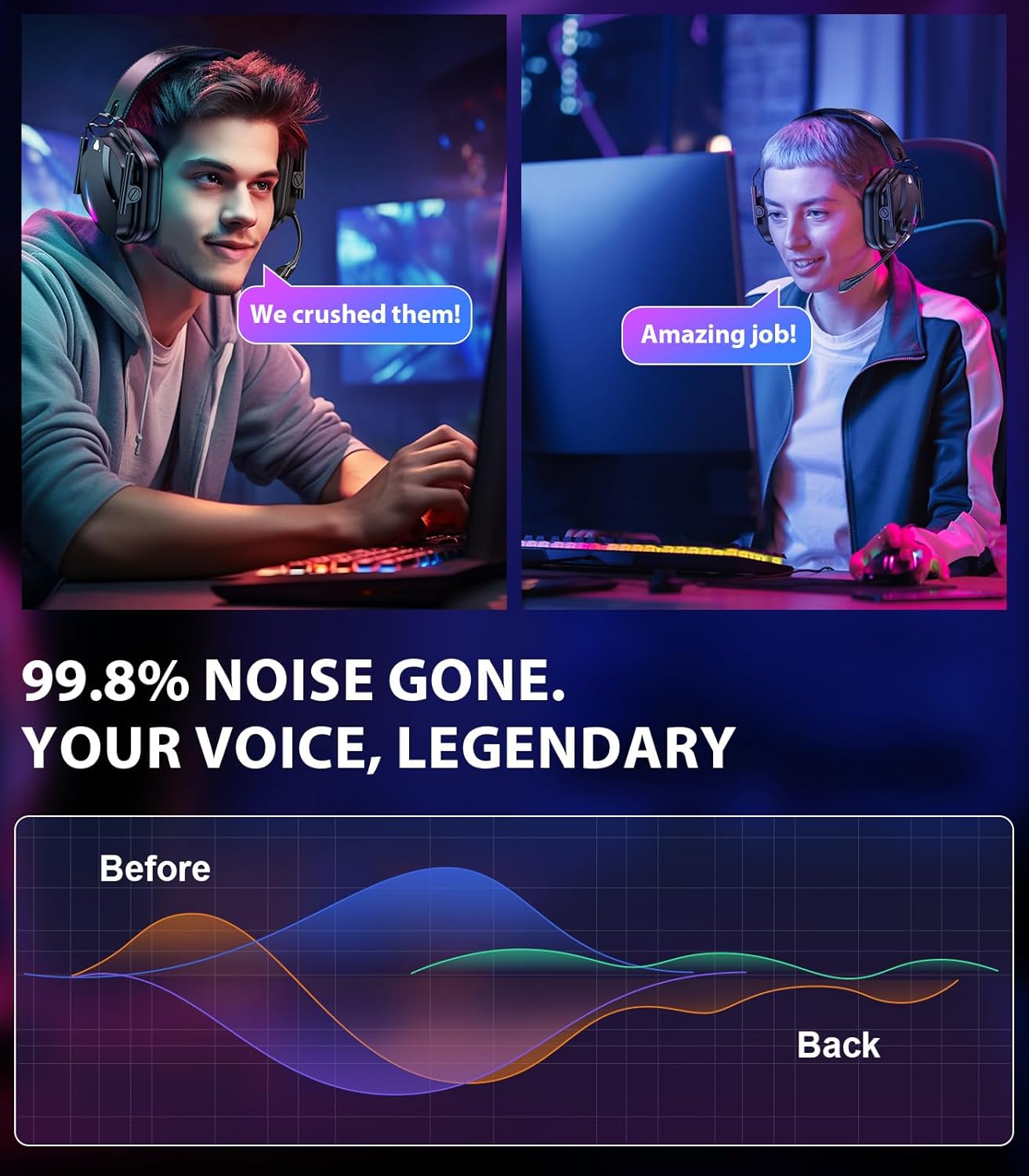
Image: Two individuals communicating with the headset, illustrating the clarity of the noise-canceling microphone.
Switching Modes (2.4GHz / Bluetooth)
- The headset automatically prioritizes the 2.4GHz connection if the dongle is detected and connected.
- To switch to Bluetooth mode, ensure the 2.4GHz dongle is disconnected or the headset is out of range. Then, activate Bluetooth pairing as described in the Setup Guide.
RGB Lighting Control
- Press the RGB button (if available) to cycle through lighting modes or turn the RGB lights on/off.
5. Maintenance
Cleaning
- Use a soft, dry cloth to wipe the headset's surfaces.
- For ear cushions, gently wipe with a slightly damp cloth and allow to air dry completely before use.
- Do not use harsh chemicals, solvents, or abrasive cleaners.
Storage
- Store the headset in a cool, dry place away from direct sunlight and extreme temperatures.
- Avoid placing heavy objects on the headset.
Battery Care
- To prolong battery life, avoid fully discharging the headset frequently.
- Charge the headset regularly, even if not in use for extended periods.
6. Troubleshooting
| Problem | Possible Cause | Solution |
|---|---|---|
| No sound from headset | Headset not powered on; Volume too low; Incorrect audio output selected; Not connected. | Ensure headset is on; Increase volume; Select 'Vakedy HW12' as audio output; Reconnect 2.4GHz dongle or re-pair Bluetooth. |
| Microphone not working | Microphone muted; Incorrect input device selected; Compatibility issue (e.g., Switch). | Unmute microphone; Select 'Vakedy HW12 Microphone' as input device; Note that the microphone is not compatible with Nintendo Switch. |
| Connection unstable/laggy | Interference; Out of range; Low battery. | Move closer to the 2.4GHz dongle/Bluetooth device; Ensure no strong interference sources nearby; Charge the headset. |
| Headset not charging | Cable not properly connected; Faulty cable/power source. | Ensure Type-C cable is securely connected; Try a different cable or USB power source. |
7. Specifications
| Feature | Detail |
|---|---|
| Brand | Vakedy |
| Model Number | HW12 |
| Connectivity | 2.4GHz Wireless, Bluetooth 5.4 |
| Audio Driver Size | 50mm |
| Frequency Range | 20 Hz - 20,000 Hz |
| Impedance | 32 Ohms |
| Audio Latency | 20 Milliseconds (2.4GHz) |
| Battery Capacity | 1200mAh |
| Playtime | Up to 50 Hours |
| Charge Time | 2-3 Hours |
| Bluetooth Range | 10 Meters |
| Microphone | Noise-Canceling, 120° Adjustable Boom |
| Ear Placement | Over Ear |
| Control Type | Button Control, Push Button |
| Material | ABS, Leather, PC |
| Color | Matte Black |
8. Video Demonstration
Video: An official demonstration of the Vakedy HW12 Wireless Gaming Headset, showcasing its features and design.
9. Warranty and Support
Warranty Information
The Vakedy HW12 Wireless Gaming Headset comes with a 1-year limited warranty from the date of purchase. This warranty covers manufacturing defects and workmanship under normal use. It does not cover damage caused by misuse, accidents, unauthorized modifications, or normal wear and tear.
Customer Support
For technical assistance, warranty claims, or any questions regarding your Vakedy HW12 headset, please contact our customer support team. Refer to the contact information provided on the product packaging or the official Vakedy website.
