
Introduction
Thank you for choosing the Dpofirs Wireless Car Video Box Adapter. This device is designed to enhance your in-car entertainment and connectivity by converting your wired car system into a wireless multimedia hub. It supports wireless CarPlay and Android Auto, offers efficient performance, and includes advanced features like real-time tracking and dual application use. Please read this manual carefully to ensure proper installation, operation, and maintenance of your device.
Product Overview
Key Features
- Efficient Performance: Equipped with a 2290 quad-core processor and 4GB of RAM for smooth multitasking and responsiveness.
- Wireless Convenience: Seamlessly converts your car's wired connection to wireless CarPlay and Android Auto for easy integration with iOS and Android devices.
- Dual Application Use: Allows simultaneous use of two applications, such as navigation and music streaming, enhancing your driving experience.
- Advanced Functions: Access Android 13.0, download applications from the Play Store, and utilize TrackHU for real-time vehicle tracking via WiFi or 4G LTE.
- Sustainable Performance: Benefits from continuous Over-The-Air (OTA) updates, ensuring the device remains current with new features and improved performance.
Device Components
The Dpofirs Wireless Car Video Box Adapter features a durable design and essential ports for connectivity.

Image: Top view of the Dpofirs Wireless Car Video Box Adapter, showing the 'CarPlay' and 'Auto' indicators, regulatory marks (CE, FC, RoHS), input specifications (5V=1A), model number (BY961P), and two included USB cables (USB-A to USB-C and USB-C to USB-C).

Image: Close-up view of the side of the Dpofirs Wireless Car Video Box Adapter, highlighting the USB-A and USB-C ports for power and data connection. The model information 'Model:BY961P' and 'Input: 5V=1A' are clearly visible.
- Main Unit: The compact adapter box.
- USB-C Port: For power input and connection to the car's USB port.
- USB-A Port: For additional connectivity, such as external storage or other peripherals.
- LED Indicators: For CarPlay and Android Auto status.
- Ventilation Grille: Located on the sides for heat dissipation.
- Material: Constructed with Aero-Grade Aluminium Alloy and Grade 6H tempered glass for durability and a premium feel.
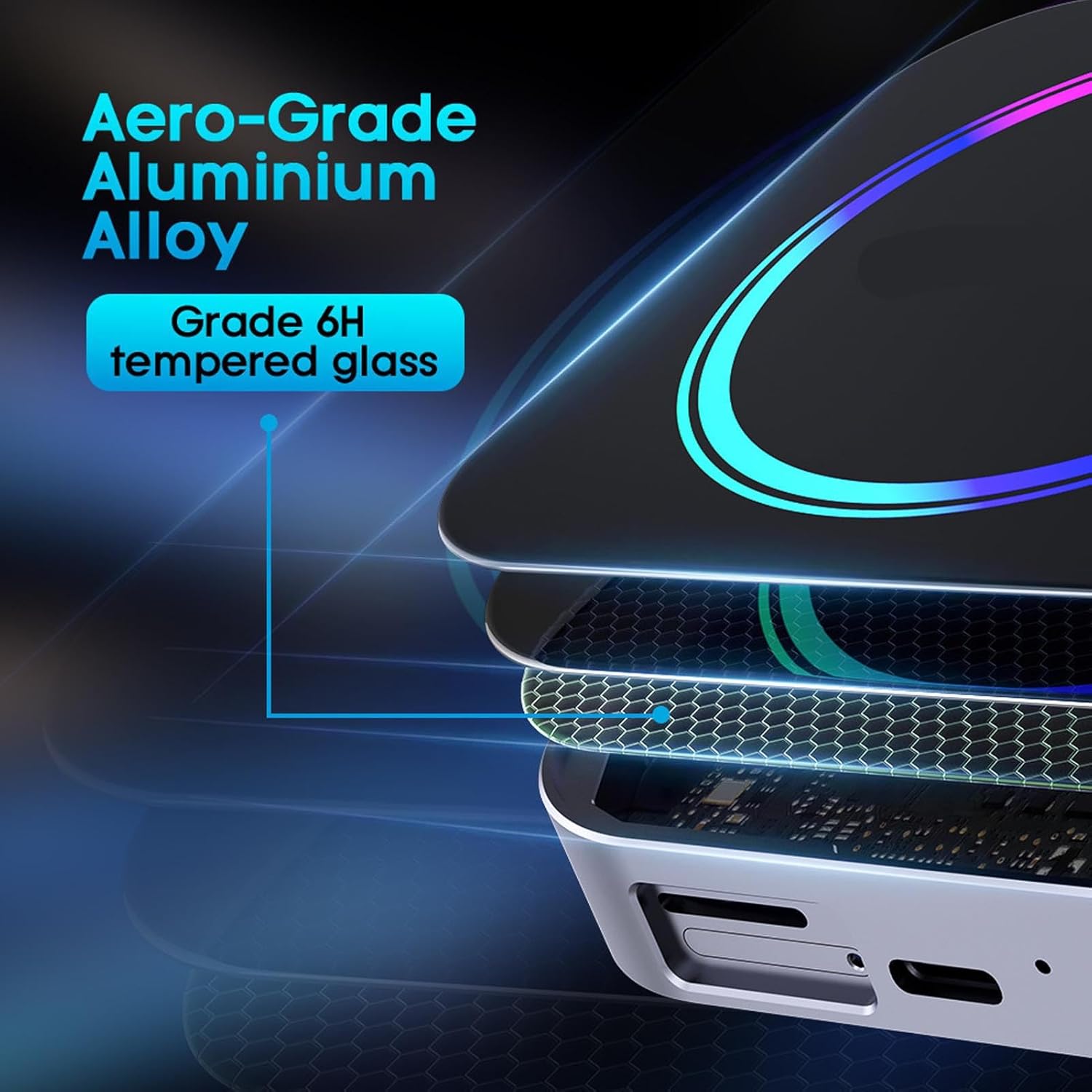
Image: An exploded view diagram illustrating the construction of the Dpofirs Wireless Car Video Box Adapter, highlighting its Aero-Grade Aluminium Alloy casing and Grade 6H tempered glass top layer, indicating robust build quality.
Setup Instructions
- Connect to Car: Plug the Dpofirs adapter into your car's USB port (typically the one used for wired CarPlay/Android Auto). Use the provided USB-C to USB-A or USB-C to USB-C cable as appropriate for your vehicle.
- Power On: Once connected, the adapter will power on automatically. The LED indicators on the device will illuminate.
- Car Screen Display: The car's infotainment screen should display the adapter's interface. Follow any on-screen prompts.
- Pair with Phone:
- For Wireless CarPlay: On your iPhone, go to Settings > General > CarPlay. Select your car, then follow the instructions to pair. Alternatively, enable Bluetooth and Wi-Fi on your iPhone, then connect to the adapter's Bluetooth name displayed on your car screen.
- For Wireless Android Auto: Ensure Android Auto is installed on your Android phone. Enable Bluetooth and Wi-Fi on your phone, then connect to the adapter's Bluetooth name displayed on your car screen. Follow any prompts on your phone and car screen.
- Initial Configuration: The first connection may take slightly longer as the system initializes. Once connected, your phone's CarPlay or Android Auto interface will appear on the car's screen.

Image: The Dpofirs Wireless Car Video Box Adapter displayed next to a car's infotainment screen, illustrating features such as 'USB Plug & Play', '14s AUTO RE-CONNECT', 'One-click disconnection & User Switching', and 'Free and Easy updates'. This image highlights the ease of setup and use.
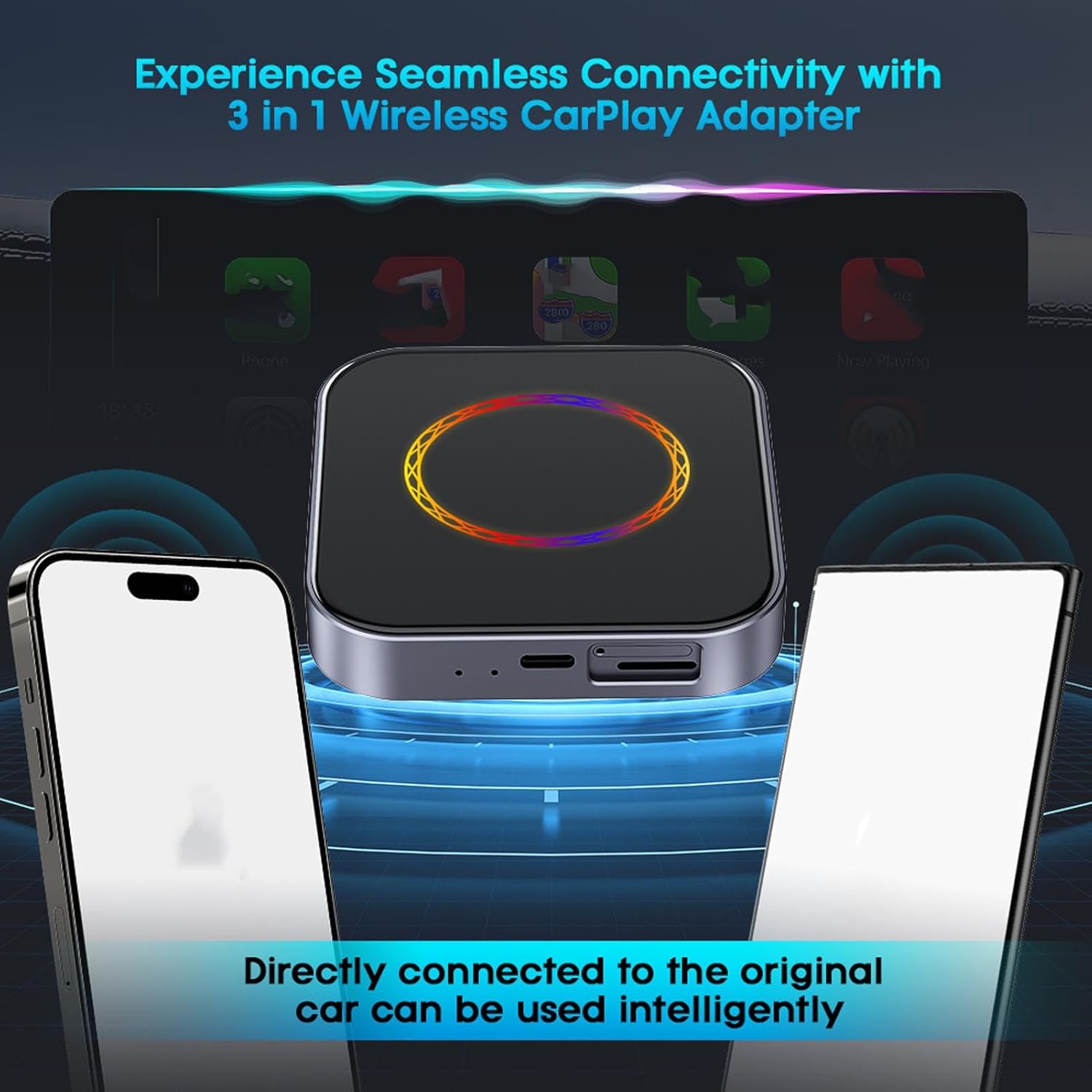
Image: The Dpofirs Wireless Car Video Box Adapter positioned in front of a car's infotainment screen, with two smartphones on either side. The screen displays a navigation interface, emphasizing seamless connectivity and intelligent use directly with the original car system.
Operating Instructions
Using Wireless CarPlay/Android Auto
- Once paired, your phone's interface will automatically project onto the car's screen.
- Navigate through apps using your car's touchscreen, steering wheel controls, or voice commands.
Dual Application Mode
- The device supports split-screen functionality, allowing you to run two applications simultaneously.
- Refer to the on-screen interface for options to activate and manage split-screen mode. Typically, this involves dragging an app to one side of the screen or selecting a split-screen icon.
Downloading Applications
- Access the Play Store directly from the adapter's interface on your car screen.
- Ensure the device is connected to a Wi-Fi network or has an active 4G LTE connection to download apps.
Real-time Tracking with TrackHU
- If TrackHU is pre-installed or downloaded, open the application.
- Follow the in-app instructions to set up and monitor your vehicle's location in real-time. This feature requires an active internet connection (Wi-Fi or 4G LTE).
Maintenance
- Cleaning: Use a soft, dry cloth to clean the device. Avoid using liquid cleaners or abrasive materials.
- Software Updates: Regularly check for and install OTA (Over-The-Air) updates to ensure optimal performance and access to the latest features. Updates can typically be found in the device's settings menu.
- Storage: When not in use for extended periods, store the device in a cool, dry place away from direct sunlight and extreme temperatures.
- Cable Care: Handle connection cables gently to prevent damage. Avoid bending or twisting them excessively.
Troubleshooting
- Device Not Powering On: Ensure the USB cable is securely connected to both the adapter and the car's USB port. Try a different USB port in your car if available.
- No Display on Car Screen: Verify that your car's infotainment system supports wired CarPlay or Android Auto. Restart your car and the adapter.
- Unable to Connect Wirelessly:
- Ensure Bluetooth and Wi-Fi are enabled on your smartphone.
- Forget the device from your phone's Bluetooth settings and attempt to pair again.
- Check if your phone's operating system is up to date.
- Slow Performance or App Crashes:
- Close unnecessary applications running in the background on the adapter.
- Ensure the device has sufficient ventilation.
- Check for and install any available software updates.
- No Sound: Check the volume settings on both your car's infotainment system and your smartphone. Ensure the correct audio output is selected on your car's system.
Specifications
| Model | BY961P |
| Processor | 2290 Quad-core |
| RAM | 4GB |
| Operating System | Android 13.0 |
| Connectivity | 4G LTE, Wi-Fi, Bluetooth |
| Input Voltage | 5V=1A |
| Material | Aero-Grade Aluminium Alloy, Grade 6H Tempered Glass |
| Compatibility | Vehicles with wired CarPlay/Android Auto |
Warranty and Support
For warranty information and technical support, please refer to the documentation included with your purchase or contact Dpofirs customer service directly. Keep your proof of purchase for warranty claims.
Contact Information: Please visit the official Dpofirs website or refer to your product packaging for the most up-to-date contact details for customer support.