1. Introduction
The Dell P2725QE 4K UHD 27" Computer Monitor is designed to enhance your workflow with clarity, comfort, and control. This display serves as a productivity partner for professionals requiring high performance and simplicity. Featuring 4K detail, ergonomic flexibility, and an integrated USB-C hub, it transforms your workspace into an efficient creative station. Whether you are analyzing data, creating visual content, or participating in virtual meetings, every aspect of this monitor is engineered to maintain sharp focus and inspire your work environment.
2. What's in the Box
Upon unboxing your Dell P2725QE monitor, you should find the following items:
- 1 x Dell P2725QE 27" 4K UHD USB Type-C Hub Monitor
- 1 x AC Power Cable
- 1 x DisplayPort to DisplayPort 1.4 Cable
- 1 x USB-C to C Cable
- 1 x USB Type-C to Type-A Cable
- 1 x Diginerds Cleaning Kit
3. Setup Instructions
3.1. Physical Assembly
Carefully remove all components from the packaging. Attach the monitor stand to the back of the display panel. Ensure it is securely fastened. The stand is designed for easy assembly and provides robust support.
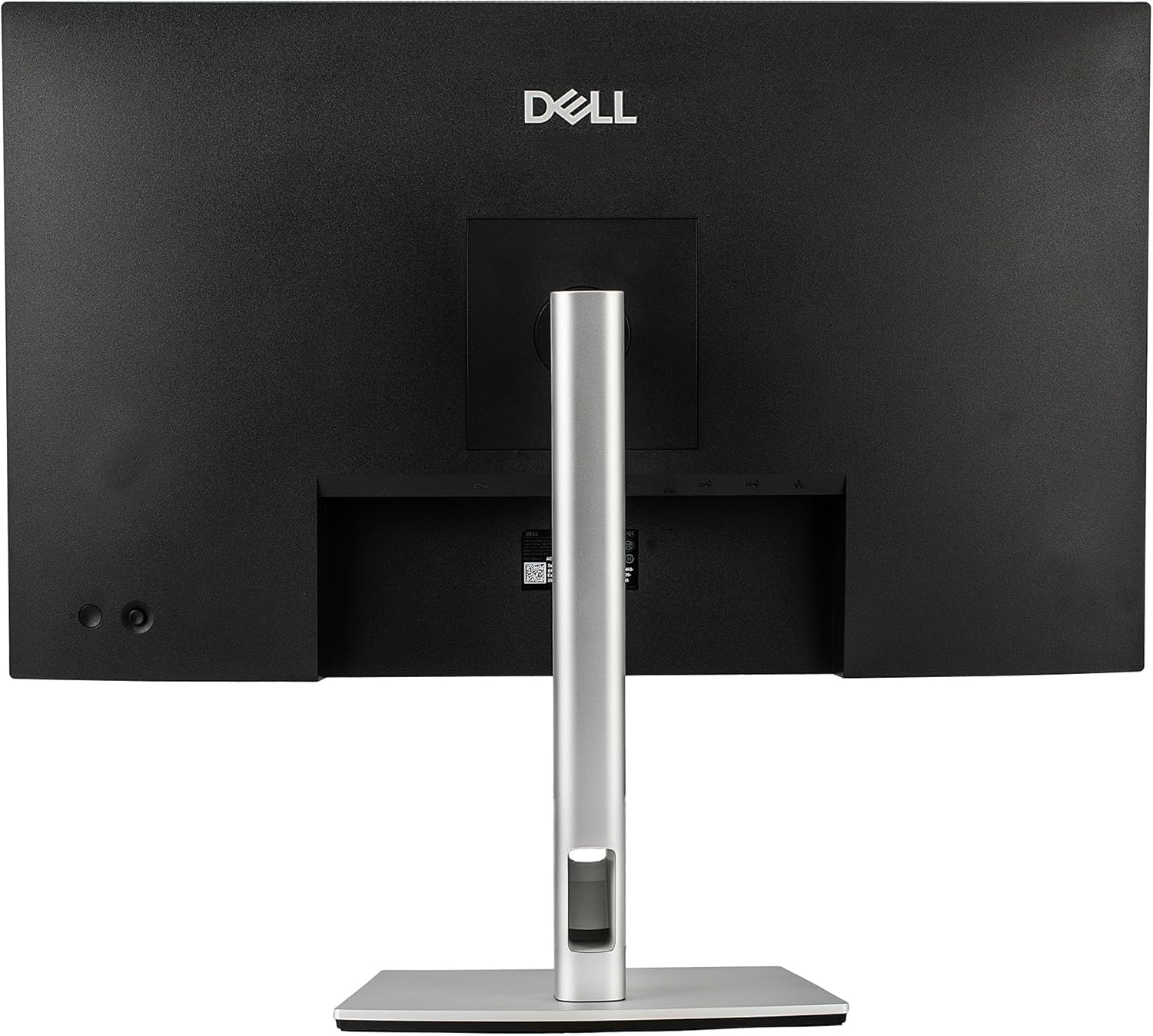
Image: Rear view of the Dell P2725QE monitor with the adjustable stand securely attached.

Image: Side profile of the Dell P2725QE monitor resting on its adjustable stand, showcasing its slim design.
3.2. Connecting Cables
Connect the necessary cables to your monitor and computer. The Dell P2725QE features a versatile USB-C connection that provides 90W power delivery, data transfer, and video output through a single cable. Alternatively, you can use the DisplayPort or HDMI connections for video input.
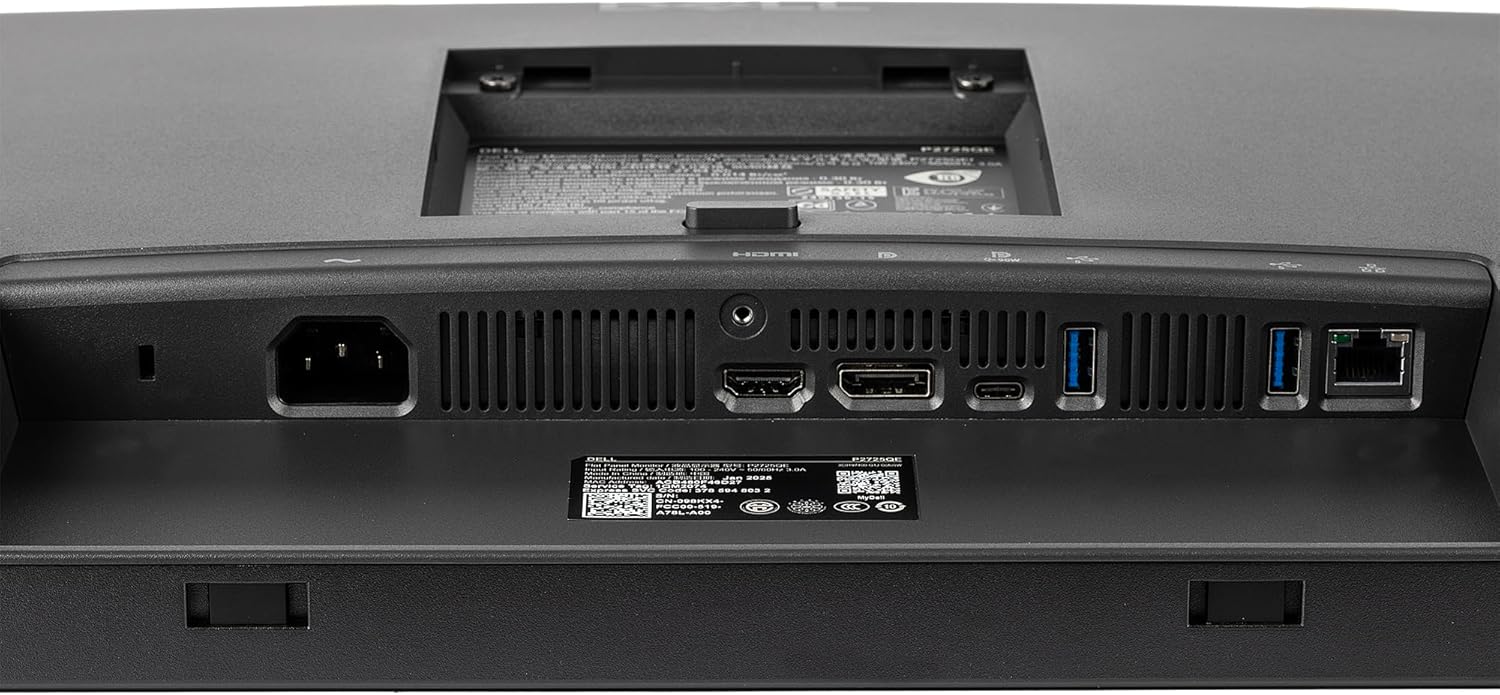
Image: A detailed view of the input/output ports on the back of the Dell P2725QE monitor, including USB-C, HDMI, and DisplayPort.
4. Operating Instructions
4.1. Powering On/Off
Press the power button located on the monitor to turn it on or off. The power indicator light will illuminate when the monitor is active.
4.2. Adjusting Display Settings
You can adjust various display settings such as brightness, contrast, and color modes directly through the monitor's on-screen display (OSD) menu. Navigate the OSD using the buttons or joystick (if present) on the monitor. For advanced control, Dell provides software that allows you to adjust these settings directly from your connected Mac or Windows PC without needing to physically interact with the monitor buttons.
4.3. Ergonomic Adjustments
The adjustable stand allows for personalized viewing comfort. You can:
- Tilt: Adjust the screen's vertical angle.
- Swivel: Rotate the screen horizontally.
- Pivot: Rotate the screen 90 degrees for portrait mode.
- Height Adjustment: Raise or lower the screen to your preferred eye level.

Image: The Dell P2725QE monitor displayed at an angle, illustrating its ability to tilt and swivel for ergonomic viewing.
5. Key Features
- 4K UHD Clarity: Experience breathtaking 4K UHD clarity on a 27-inch IPS panel, delivering true-to-life color accuracy, deep contrast, and wide viewing angles. Ideal for creative professionals and productivity-focused users.
- Integrated USB-C Hub: Simplify your workspace with an all-in-one USB-C connection providing 90W power delivery, data transfer, and video output through a single cable. Perfect for charging laptops or connecting modern devices without clutter.
- Dell ComfortView Plus: Work comfortably for longer hours with Dell’s ComfortView Plus low blue light technology. This feature reduces eye strain while maintaining vivid colors and accurate contrast, ensuring an optimal viewing experience.
- Adjustable Ergonomic Stand: The stand supports tilt, swivel, pivot, and height adjustments, allowing for personalized comfort and workflow flexibility.
6. Specifications
| Feature | Value |
|---|---|
| Product Dimensions | 7 x 27 x 21 inches |
| Item Weight | 21.3 pounds |
| Manufacturer | Dell |
| ASIN | B0FWRY1WX2 |
| Item model number | P2725QE_EDIIV_1V |
| Standing screen display size | 27 Inches |
| Aspect Ratio | 4:3 |
| Resolution | 3840 x 2160 |
| Brand | Dell |
| Screen Size | 27 Inches |
| Resolution | 4K UHD 2160p |
| Screen Surface Description | Glossy |
7. Troubleshooting
If you encounter any issues with your Dell P2725QE monitor, please refer to the following general troubleshooting steps:
- No Power: Ensure the power cable is securely connected to both the monitor and a working power outlet. Check the power indicator light.
- No Signal: Verify that the video cable (USB-C, DisplayPort, or HDMI) is correctly connected to both the monitor and your computer. Ensure your computer's display output is enabled and set to the correct input source on the monitor.
- Display Issues: If the display is blurry, flickering, or has incorrect colors, try adjusting the monitor's resolution and refresh rate through your computer's display settings. You can also reset the monitor to its factory default settings via the OSD menu.
- USB-C Connectivity Problems: If the USB-C connection is not providing power, video, or data, ensure your computer's USB-C port supports these functions (DisplayPort Alt Mode and Power Delivery). Try using a different USB-C cable.
- Software Issues: If using Dell's display management software, ensure it is up-to-date. Reinstalling the software may resolve conflicts.
For more detailed troubleshooting, please consult the full user manual available on the Dell support website.
8. Maintenance
To ensure the longevity and optimal performance of your Dell P2725QE monitor, follow these maintenance guidelines:
- Cleaning the Screen: Use the provided Diginerds Cleaning Kit or a soft, lint-free cloth lightly dampened with a non-abrasive, ammonia-free cleaner specifically designed for display screens. Avoid spraying liquid directly onto the screen.
- Cleaning the Casing: Wipe the monitor casing with a soft, dry cloth. Avoid harsh chemicals or abrasive materials.
- Ventilation: Ensure the ventilation openings on the monitor are not blocked to prevent overheating.
- Storage: When not in use for extended periods, store the monitor in a cool, dry place away from direct sunlight and extreme temperatures.
9. Warranty and Support
Your Dell P2725QE monitor may be eligible for extended protection plans. Please refer to your purchase documentation for details on available plans and their coverage. For technical support, warranty claims, or to access the latest drivers and documentation, please visit the official Dell support website or contact Dell customer service.
- Protection Plans: Optional 4-Year Protection Plan and Complete Protect monthly plan are available.
- Return Policy: Typically 30 days for refund/replacement.


