1. Product Overview
The ROADOM KC-607 is a versatile retro-style portable CD player designed for various audio needs. It combines classic aesthetics with modern functionality, offering multiple playback options including CD, USB, FM radio, and Bluetooth audio. This device features integrated speakers, a rechargeable battery for portability, and intuitive controls, making it suitable for home use, outdoor activities, or as a decorative piece.
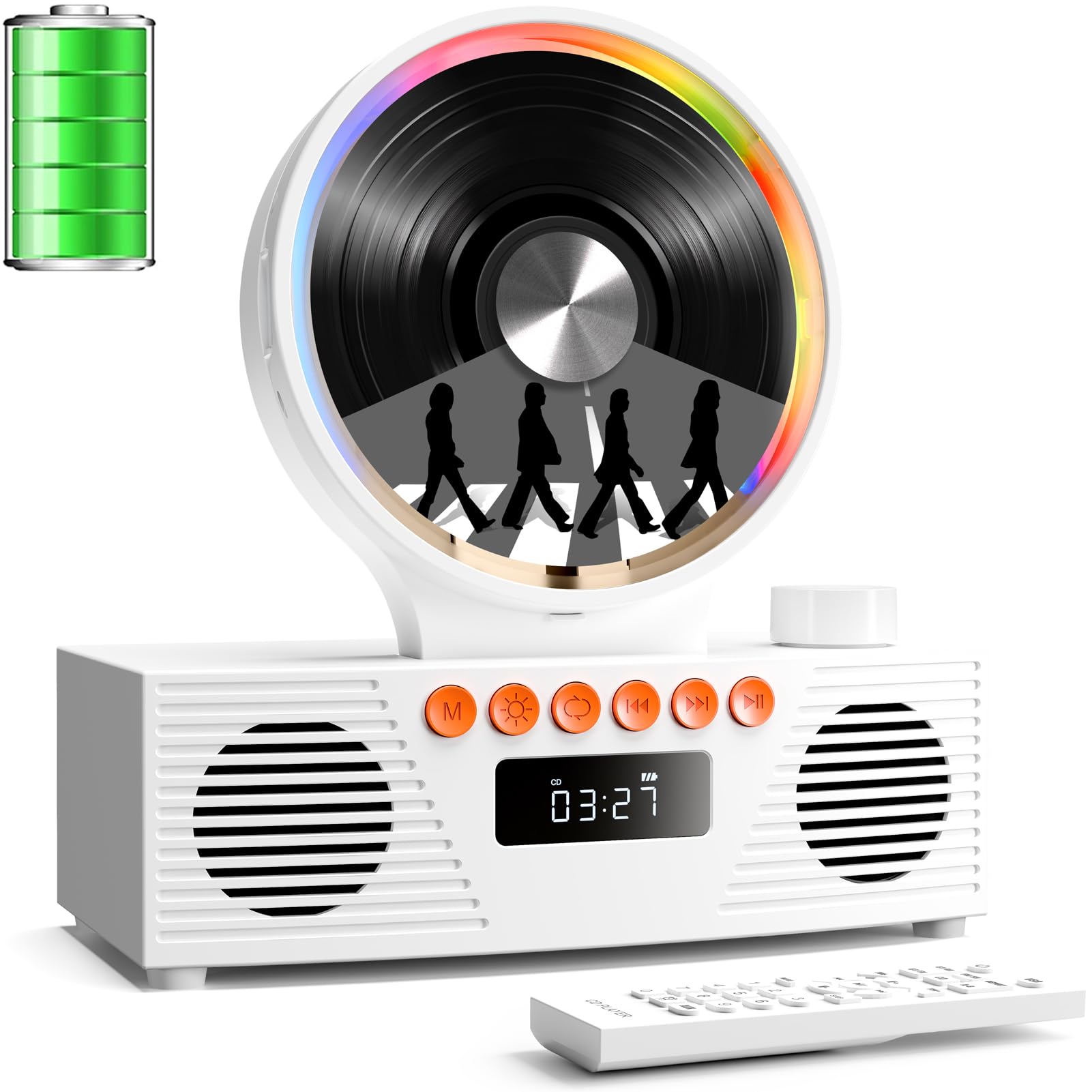
Image 1: Front view of the ROADOM KC-607 CD Player highlighting its features like 4000mAh portable power, magnetic 90° hatch, and various playback modes.
2. What's in the Box
- ROADOM CD Player × 1
- USB-A to USB-C Charge Cable × 1
- 3.5 mm Male to Male AUX Cable × 1
- User Manual × 1
- Remote Control × 1

Image 2: The ROADOM KC-607 CD Player and its accessories laid out, including the remote control, USB-C charging cable, and AUX cable.
3. Product Features
- Versatile Playback: Supports CD, CD-R, CD-RW, USB drives, FM radio, and Bluetooth audio. Compatible with MP3 and WMA digital formats.
- Retro Design & Mood Lights: Features a vintage aesthetic with a transparent magnetic suction panel and colorful multi-mode RGB mood lights, adding a decorative touch.
- Portable Power: Equipped with a 4000mAh rechargeable battery for extended playback, ideal for outdoor or car use. Lightweight design with silicone pads for easy transport.
- Immersive Sound: Dual 45mm speakers and dual diaphragms deliver stereo sound with rich bass and clear audio.
- Connectivity: Supports Bluetooth receive and transmit, AUX in & out, and USB/TF card slots for comprehensive audio connections.
- Easy Controls: Intuitive buttons, a volume knob with mute function, and an LED display for simple operation. Includes an infrared remote control for convenience.
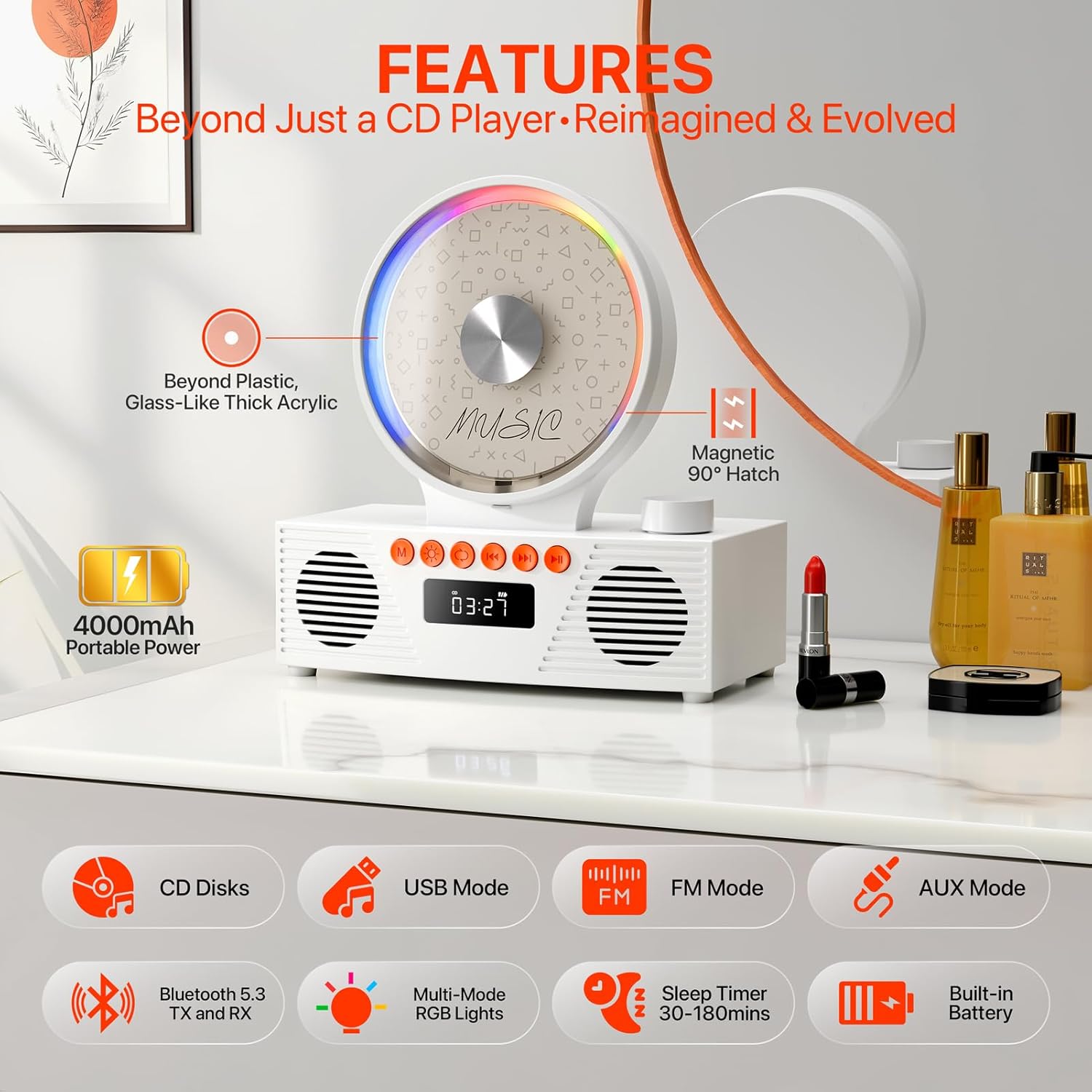
Image 3: The CD player showcasing its compatibility with various audio formats including CD, CD-R, CD-RW, MP3, and WMA files.
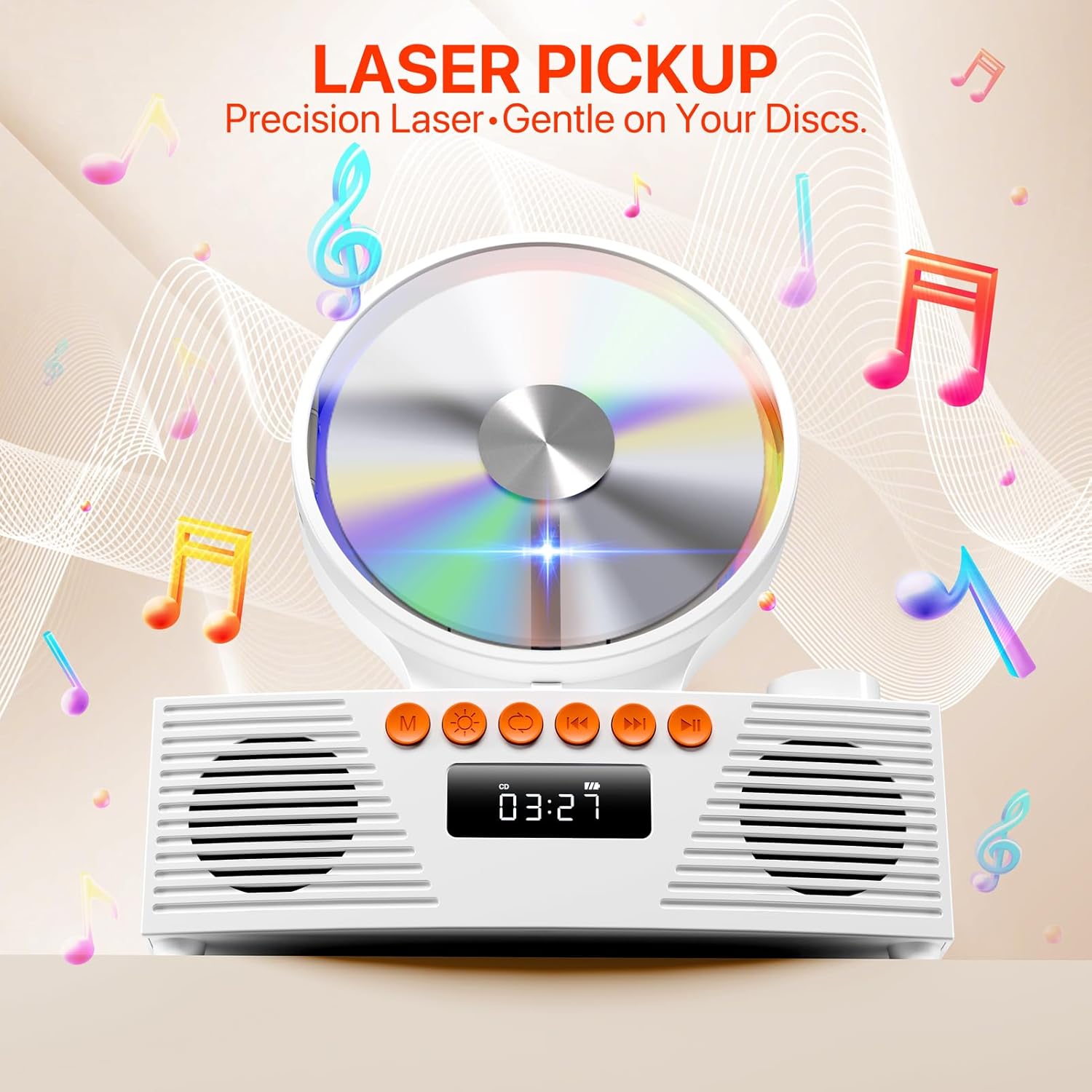
Image 4: Visual representation of the sound output and RGB lighting effects of the CD player, highlighting its audio quality and aesthetic features.
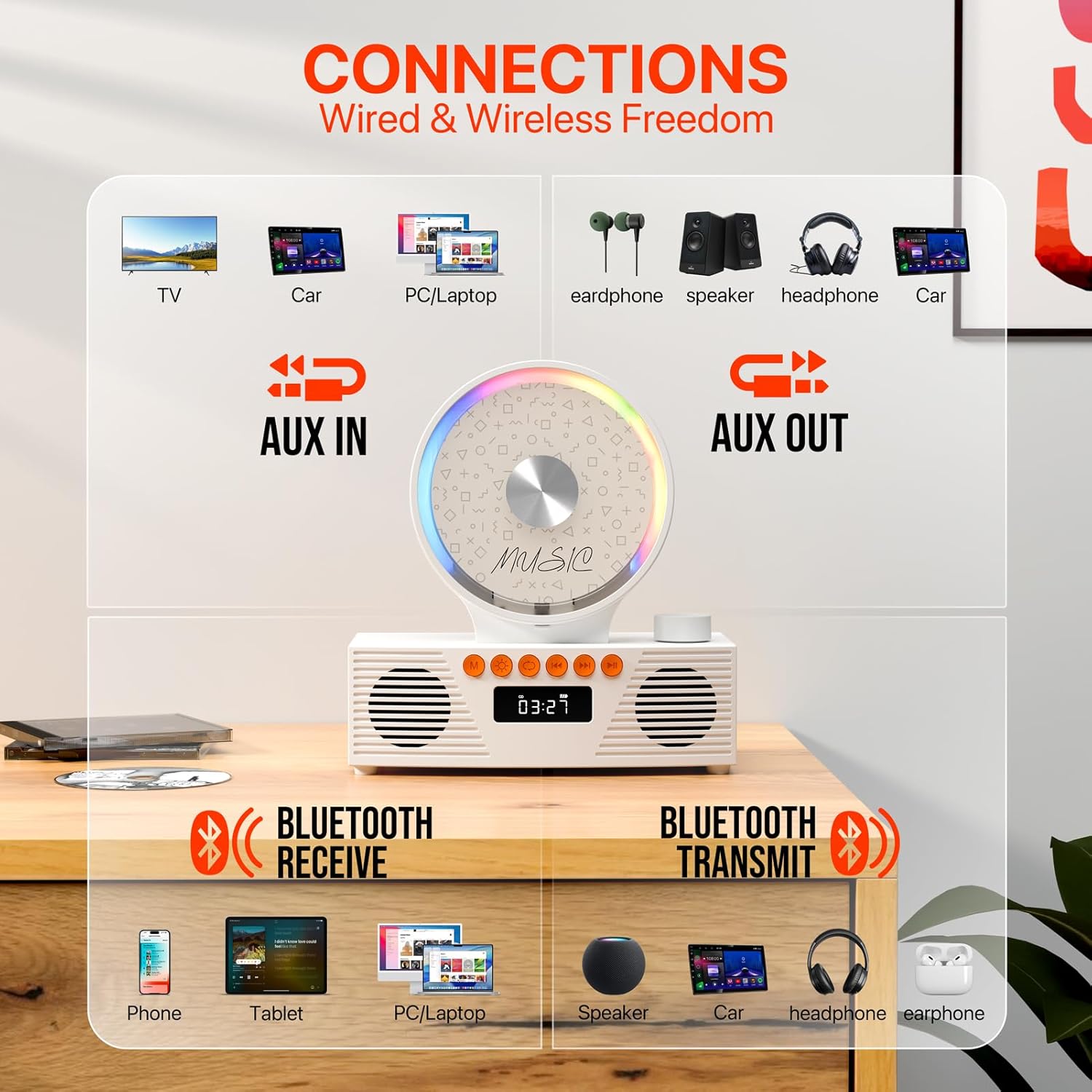
Image 5: Diagram illustrating the multiple connectivity options of the CD player, including AUX In, AUX Out, Bluetooth Receive, and Bluetooth Transmit, connecting to various devices.
4. Setup Guide
4.1 Powering On/Off
- Locate the Power On/Off switch on the back of the unit.
- Slide the switch to the 'ON' position to power on the device. The LED display will light up.
- To power off, slide the switch to the 'OFF' position.
4.2 Charging the Battery
The device includes a built-in 4000mAh rechargeable battery. Use the provided USB-A to USB-C charge cable.
- Connect the USB-C end of the cable to the Type-C charging port on the back of the CD player.
- Connect the USB-A end to a compatible USB power adapter (not included) or a USB port on a computer.
- The Charging LED indicator will show charging status.
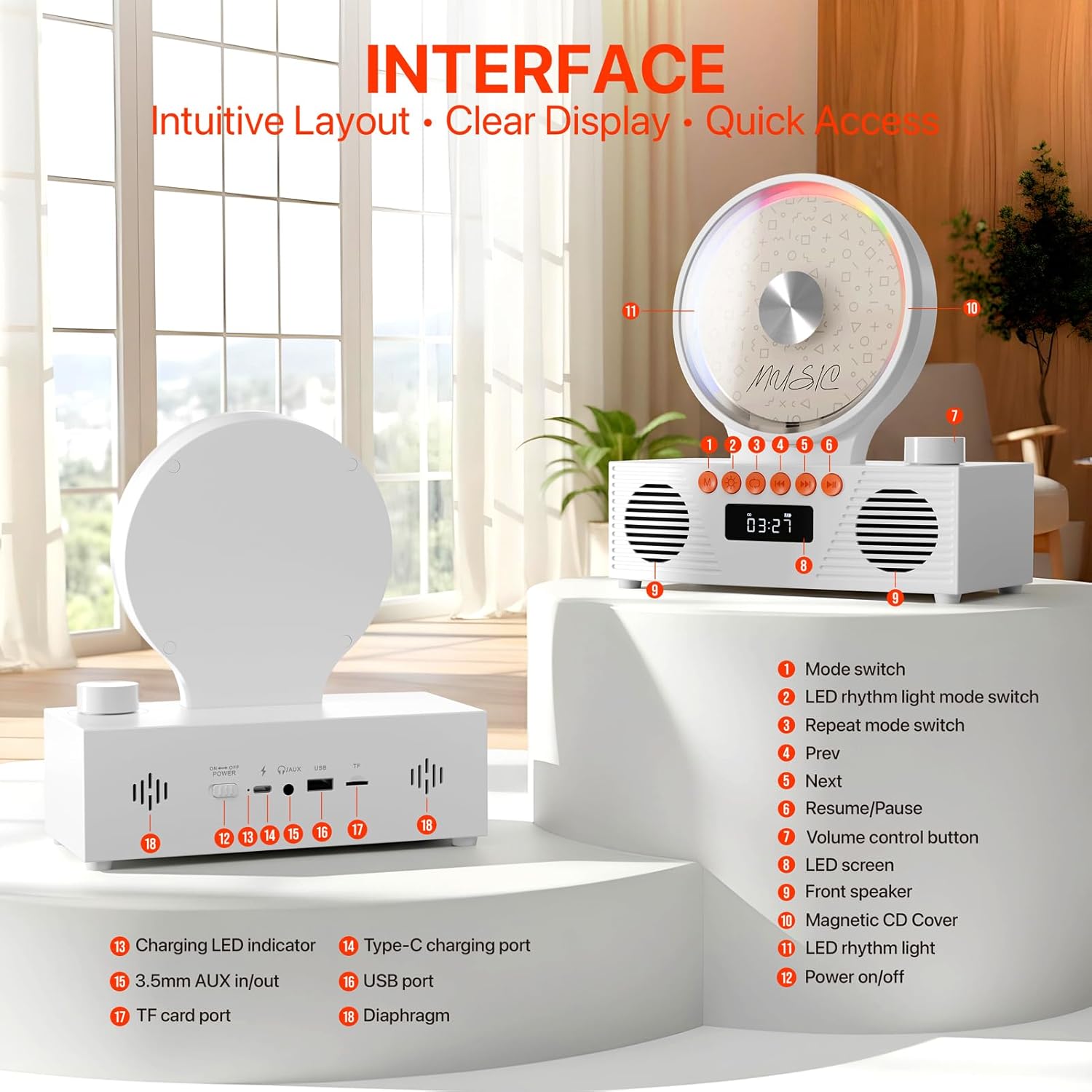
Image 6: Detailed view of the rear interface of the CD player, showing the power switch, charging port, AUX in/out, USB port, and TF card slot.
4.3 Loading a CD
- Gently open the magnetic CD cover.
- Place the CD onto the spindle, ensuring it is securely seated.
- Close the magnetic CD cover. The player will automatically detect the CD and begin reading it.
- Note: Remove any protective paper or film from the CD before use. Supported CD formats are CD, CD-R, CD-RW.
4.4 Connecting via Bluetooth (Receive Mode)
- Press the 'Mode' button until 'BLUE' appears on the LED display. The device is now in Bluetooth receive mode.
- On your mobile device (phone, tablet, PC/laptop), enable Bluetooth and search for available devices.
- Select 'CD Player' from the list to pair. Once connected, you can stream audio from your device to the CD player.
4.5 Connecting via Bluetooth (Transmit Mode)
- Ensure the CD player is in CD Mode or USB Mode.
- Activate Bluetooth pairing on your external Bluetooth speaker or headphones.
- The CD player will automatically search for and connect to nearby Bluetooth audio devices.
- Note: Ensure your headphones or speakers are disconnected from other devices before attempting to pair.
4.6 Using USB/TF Card
- Insert a USB drive into the USB port or a TF card into the TF card slot on the back of the unit.
- Press the 'Mode' button to select 'USB' or 'TF' mode.
- The player will automatically detect and play audio files (MP3, WMA) from the storage device.
- Note: Only FAT32 format and 1-128GB storage devices are supported.
4.7 FM Radio
- Press the 'Mode' button to select 'FM' mode.
- Use the 'Prev' and 'Next' buttons to scan for radio stations.
- The LED display will show the current frequency.
4.8 AUX Input/Output
- AUX In: Connect an external audio device (e.g., smartphone, computer) to the 3.5mm AUX In port using the provided AUX cable. Select 'LINE' mode.
- AUX Out: Connect external speakers or headphones to the 3.5mm AUX Out port.
- Note: Ensure the AUX cable is fully inserted into the jacks for proper connection.
5. Operating Instructions
5.1 Basic Playback Controls
- Play/Pause: Press the 'Resume/Pause' button to start or pause playback.
- Next/Previous Track: Use the 'Next' and 'Prev' buttons to skip tracks or stations.
- Volume Control: Rotate the volume control knob on the top right to adjust the volume. Press the knob to mute/unmute.
5.2 Repeat Settings (CD & USB Modes Only)
Press the 'Repeat Mode' button to cycle through repeat options:
- ONE: Repeat current track.
- ALL: Repeat all tracks.
- SFL: Shuffle play.
- OFF: Turn off repeat function. Playback stops after the last track.
- A-B Repeat: Press once at point A, press again at point B to repeat a segment.

Image 7: Illustration of the repeat settings available on the CD player, including single track repeat, all tracks repeat, shuffle, and turning off repeat.
5.3 Sleep Timer
Set a timer for the device to automatically power off.
- Press the 'Sleep Timer' button repeatedly to select desired duration (e.g., 30, 60, 90, 120, 150, 180 minutes).
- Select 'OFF' to cancel the sleep timer.

Image 8: Display of the sleep timer function, allowing users to set automatic power-off intervals from 30 to 180 minutes.
6. Maintenance
- Keep the device clean by wiping it with a soft, dry cloth. Avoid using liquid cleaners or abrasive materials.
- Handle CDs by the edges to prevent scratches. Store them in their cases when not in use.
- Avoid exposing the device to extreme temperatures, direct sunlight, or high humidity.
- Do not attempt to disassemble or repair the unit yourself. Contact customer support for assistance.
7. Troubleshooting
| Problem | Possible Cause | Solution |
|---|---|---|
| Device does not power on. | Battery is low or depleted. Power switch is off. | Charge the battery using the USB-C cable. Ensure the power switch is in the 'ON' position. |
| CD not playing or skipping. | CD is dirty, scratched, or inserted incorrectly. Unsupported CD format. | Clean the CD with a soft cloth. Reinsert the CD correctly. Ensure it's a supported format (CD, CD-R, CD-RW). |
| No sound from speakers. | Volume is too low or muted. Incorrect mode selected. External device not connected properly. | Increase volume or unmute. Select the correct playback mode (CD, Bluetooth, FM, USB, AUX). Check all cable connections. |
| Bluetooth connection issues. | Device not in pairing mode. Too far from the player. Interference. | Ensure the player is in 'BLUE' mode. Move closer to the player. Disconnect other Bluetooth devices. |
| Remote control not working. | Batteries are dead or inserted incorrectly. Obstruction between remote and player. | Replace remote batteries (AAA, not included). Ensure clear line of sight to the player's sensor. |
8. Specifications
- Model Number: KC-607
- Brand: ROADOM
- Color: White
- Connectivity Technology: Auxiliary, Bluetooth, USB
- Special Features: Analog Volume Control, Built-In Radio, Dustproof, Portable, Rechargeable
- Item Weight: 2.01 pounds
- Package Dimensions: 9.57 x 8.82 x 4.92 inches
- Batteries: 1 Nonstandard Battery (included)
- Manufacturer: ROADOM
9. Warranty & Support
ROADOM stands behind its products. For any questions or support needs, please refer to the following:
- Product Warranty: 12 Months
- Returns: 30 Days Free Returns
- After-sale Service: 24 Hours Support
Please contact ROADOM customer service for further assistance. Refer to the included User Manual for contact details.

Image 9: Visual representation of ROADOM's commitment to customer satisfaction, including product warranty, free returns, and after-sale service.
10. Official Product Video
Video 1: An official product video from ROADOM-US showcasing the Retro Portable CD Player for home use, highlighting its features and design in various settings.