
1. Introduction
Thank you for choosing the Yigars Y580 Robot Vacuum and Mop. This manual provides essential information for the safe operation, maintenance, and troubleshooting of your device. Please read it thoroughly before use and retain it for future reference.
2. Safety Instructions
- Ensure the robot is used indoors only.
- Do not use the robot in wet environments or near water.
- Keep loose cables, curtains, and other objects that could entangle the robot out of its path.
- Supervise children and pets when the robot is operating.
- Use only the original charging base and power adapter.
- Do not attempt to repair or modify the robot yourself. Contact customer support for assistance.
- Empty the dustbin regularly to maintain optimal performance.
3. Package Contents
Verify that all items are present in the package:
- Yigars Y580 Robot Vacuum and Mop
- Charging Base
- Power Adapter
- Side Brushes (2 pairs)
- Mop Pads (2)
- HEPA Filter (1 spare)
- User Manual
4. Product Overview
The Yigars Y580 combines vacuuming, sweeping, and mopping functionalities. It features 360° LiDAR navigation for precise mapping and obstacle avoidance.

Image: The Yigars Y580 Robot Vacuum and Mop, showcasing its sleek white design, LiDAR sensor, side brushes, and included accessories like a filter and a smartphone displaying the app interface.
5. Setup
5.1 Charging Base Placement
Place the charging base against a wall in an open area, ensuring there are no obstacles within 1 meter (3 feet) to the sides and 2 meters (6 feet) in front. Connect the power adapter to the charging base and plug it into a power outlet.
5.2 Initial Charge
Place the robot on the charging base. Ensure the charging contacts on the robot align with those on the base. The robot will begin charging automatically. For first-time use, fully charge the robot before operation.
5.3 App Connection (Wi-Fi 2.4 GHz)
The Yigars Y580 can be controlled via a mobile application (Smart Life or Tuya APP). Follow these steps to connect:
- Download the Smart Life or Tuya APP from your smartphone's app store.
- Register or log in to your account.
- Ensure your smartphone is connected to a 2.4 GHz Wi-Fi network. The robot does not support 5 GHz Wi-Fi.
- Add a new device in the app, selecting 'Robot Vacuum' or similar.
- Follow the in-app instructions to connect the robot to your Wi-Fi network. This usually involves resetting the robot's Wi-Fi and entering your Wi-Fi password.

Image: A visual guide demonstrating the step-by-step process of connecting the Yigars Y580 robot vacuum to a smartphone application, including downloading the app, adding the device, connecting to a 2.4 GHz Wi-Fi network, and confirming successful connection.
5.4 Voice Assistant Integration
The Yigars Y580 is compatible with Amazon Alexa and Google Assistant. Once connected to the Smart Life/Tuya app, you can link your account to Alexa or Google Home apps to enable voice control. Refer to the respective voice assistant app's instructions for linking smart home devices.
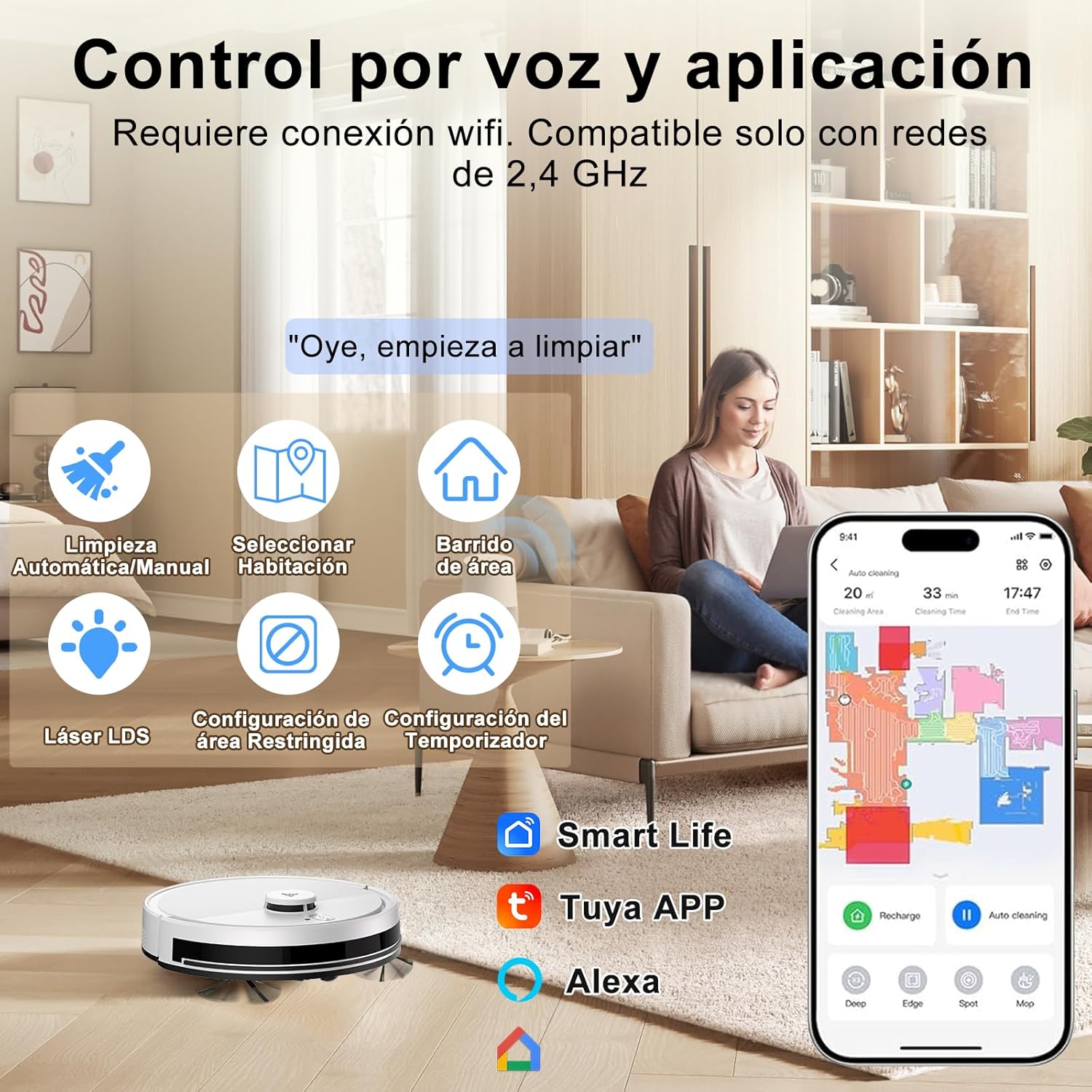
Image: An illustration showing the Yigars Y580 robot vacuum being controlled via voice commands and a smartphone app, highlighting features like automatic/manual cleaning, room selection, area sweeping, LDS laser, restricted area settings, and timer functions. Compatible with Smart Life, Tuya APP, and Alexa.
6. Operating Instructions
6.1 Cleaning Modes
The robot offers various cleaning modes accessible via the mobile app:
- Automatic Mode: The robot intelligently plans its cleaning path for the entire area.
- Scheduled Cleaning: Set specific times for the robot to clean automatically.
- Zone Cleaning: Define specific areas on the map for the robot to clean.
- Spot Cleaning: Direct the robot to clean a concentrated area.

Image: An illustration showing the Yigars Y580 robot vacuum cleaning a living room, with icons representing various cleaning modes: Automatic Mode, Scheduled Cleaning (S-shape path), Spot Mode, and Timed Mode.
6.2 Vacuuming and Mopping
The Yigars Y580 performs 3-in-1 cleaning: vacuuming, sweeping, and mopping. It features a 350 ml dustbin and a 250 ml water tank with three adjustable humidity levels. The suction power can reach up to 4000Pa (with three adjustable speeds) and is suitable for all floor types, including short-pile carpets (under 1.5 cm).

Image: A cutaway view of the Yigars Y580 robot vacuum demonstrating its sweeping and mopping capabilities, highlighting the 2700Pa suction power and its effectiveness against pet hair, dust, crumbs, and pet food pellets.
6.3 Obstacle Avoidance and Navigation
Equipped with 360° LiDAR laser technology, the robot precisely maps your home environment and plans efficient cleaning routes. It can overcome obstacles up to 18 mm high and ascend inclines of up to 15°, allowing it to navigate thresholds and carpets effectively.

Image: The Yigars Y580 robot vacuum demonstrating its 360° LiDAR obstacle avoidance capabilities, showing its ability to navigate around objects and over small thresholds.
6.4 Smart Mapping and Management
The robot uses fast mapping technology and can automatically save up to five different maps. This allows for multi-floor cleaning and customized cleaning zones. You can set virtual walls and restricted areas via the app to prevent the robot from entering specific zones.

Image: A diagram illustrating the Yigars Y580 robot vacuum's ability to automatically save up to five different maps, supporting area selection and zone cleaning functions for multi-floor homes.

Image: A visual representation of the Yigars Y580 robot vacuum's virtual wall and restricted zone configuration capabilities, allowing users to define areas where the robot should not clean.
6.5 Battery Management
The robot is equipped with a high-efficiency battery providing up to 120 minutes of runtime. When the battery level drops below 20%, the robot automatically returns to its charging base. Once sufficiently recharged (to 90%), it will resume cleaning from where it left off.

Image: A diagram illustrating the Yigars Y580 robot vacuum automatically returning to its charging base when the battery level is low (20%) and then resuming cleaning from its last position after recharging.
7. Maintenance
Regular maintenance ensures optimal performance and extends the lifespan of your Yigars Y580.
7.1 Dustbin and Water Tank
- Empty Dustbin: After each cleaning cycle, remove and empty the dustbin.
- Clean Water Tank: After mopping, empty any remaining water from the tank and allow it to air dry.
7.2 Brushes
- Side Brushes: Check for tangled hair or debris weekly. Remove and clean if necessary. Replace if worn.
- Main Brush: Remove the main brush cover and clean any tangled hair or debris from the brush and its bearings. Perform this monthly or as needed.
7.3 Filters
- HEPA Filter: Tap the filter to remove dust. Do not wash the HEPA filter with water. Replace every 3-6 months depending on usage.
7.4 Sensors
- Wipe the cliff sensors, wall sensors, and charging contacts with a clean, dry cloth monthly to ensure proper function.
8. Troubleshooting
If you encounter issues with your Yigars Y580, refer to the following common problems and solutions:
| Problem | Possible Cause | Solution |
|---|---|---|
| Robot does not turn on | Low battery; Power switch off | Charge the robot; Ensure power switch is on |
| Robot cannot charge | Charging contacts dirty; Charging base not powered | Clean charging contacts; Check power connection to base |
| Robot gets stuck frequently | Too many obstacles; Loose cables | Clear the cleaning area; Secure loose items |
| Poor cleaning performance | Full dustbin; Clogged filter; Worn brushes | Empty dustbin; Clean/replace filter; Clean/replace brushes |
| App connection failed | Incorrect Wi-Fi (5GHz); Wrong password; Robot too far from router | Ensure 2.4GHz Wi-Fi; Re-enter password; Move robot closer to router |
For further assistance, please contact Yigars customer support.
9. Specifications
| Feature | Detail |
|---|---|
| Brand | Yigars |
| Model Name | Y580 |
| Model Number | 001 |
| Color | White |
| Suction Power | Up to 4000Pa (3 adjustable speeds) |
| Navigation | 360° LiDAR Laser (LDS) |
| Battery Life | Up to 120 minutes |
| Battery Capacity | 2600mAh |
| Dustbin Capacity | 350 ml |
| Water Tank Capacity | 250 ml (3 humidity levels) |
| Noise Level | Approx. 60 dB |
| Obstacle Climbing Ability | Up to 18 mm (15° incline) |
| Compatible Devices | Smartphones (Wi-Fi 2.4GHz), Amazon Alexa, Google Home |
| Filter Type | HEPA |
| Dimensions | 33L x 33W x 10H cm |
| Product Weight | 3 kg |

Image: The Yigars Y580 robot vacuum highlighting its 2600mAh battery capacity, providing up to 120 minutes of cleaning time, and its low operating noise level of approximately 60dB.

Image: The Yigars Y580 robot vacuum illustrating its support for OTA (Over-The-Air) firmware and software updates, ensuring the system remains current with the latest features and improvements.
10. Warranty and Support
The Yigars Y580 Robot Vacuum and Mop comes with a standard manufacturer's warranty. Please refer to the warranty card included in your package for specific terms and conditions. For technical support, troubleshooting assistance, or warranty claims, please contact Yigars customer service through the contact information provided in your product documentation or on the official Yigars website.


