1. Introduction
Thank you for choosing the PUSOKEI 48MP HD Digital Camera. This manual provides essential information for the safe and effective operation of your new camera. Please read it thoroughly before use and retain it for future reference.
This camera is designed for capturing high-resolution photos and videos, featuring a 48-megapixel sensor, 2.8-inch color display, 16x digital zoom, autofocus, dual screens, and Wi-Fi connectivity.
2. Safety Information
- Do not expose the camera to water or moisture.
- Avoid dropping the camera or subjecting it to strong impacts.
- Keep the camera away from extreme temperatures and direct sunlight.
- Do not attempt to disassemble or modify the camera.
- Use only approved accessories and power sources.
- Keep out of reach of children.
3. Package Contents
Verify that all items are present in your package:
- PUSOKEI Digital Camera
- Charging Cable (USB)
- User Manual (this document)
- Strap

Image: The PUSOKEI Digital Camera shown alongside its included USB charging cable and wrist strap.
4. Setup
4.1. Charging the Battery
The camera has a built-in 1000mAh LiPo battery. Before first use, fully charge the camera.
- Connect the provided USB charging cable to the camera's charging port.
- Connect the other end of the USB cable to a USB power adapter (not included) or a computer's USB port.
- The charging indicator light will illuminate. It will turn off or change color when charging is complete.

Image: A conceptual diagram showing the camera's internal 1000mAh battery, highlighting its capacity and support for power bank charging.
4.2. Inserting a Memory Card
The camera supports a small memory card (MicroSD), up to a maximum of 256GB (not included).
- Locate the memory card slot on the camera.
- Insert the memory card with the gold contacts facing the correct direction until it clicks into place.
- To remove, gently press the card until it springs out.
4.3. Initial Power On and Language Settings
- Press and hold the power button to turn on the camera.
- Upon first use, you may be prompted to select a language. Use the navigation buttons to select your preferred language (English, Simplified Chinese, Traditional Chinese, Japanese, Korean, French, German, Spanish, Italian, Russian, etc.) and confirm.
5. Operating Instructions
5.1. Camera Overview
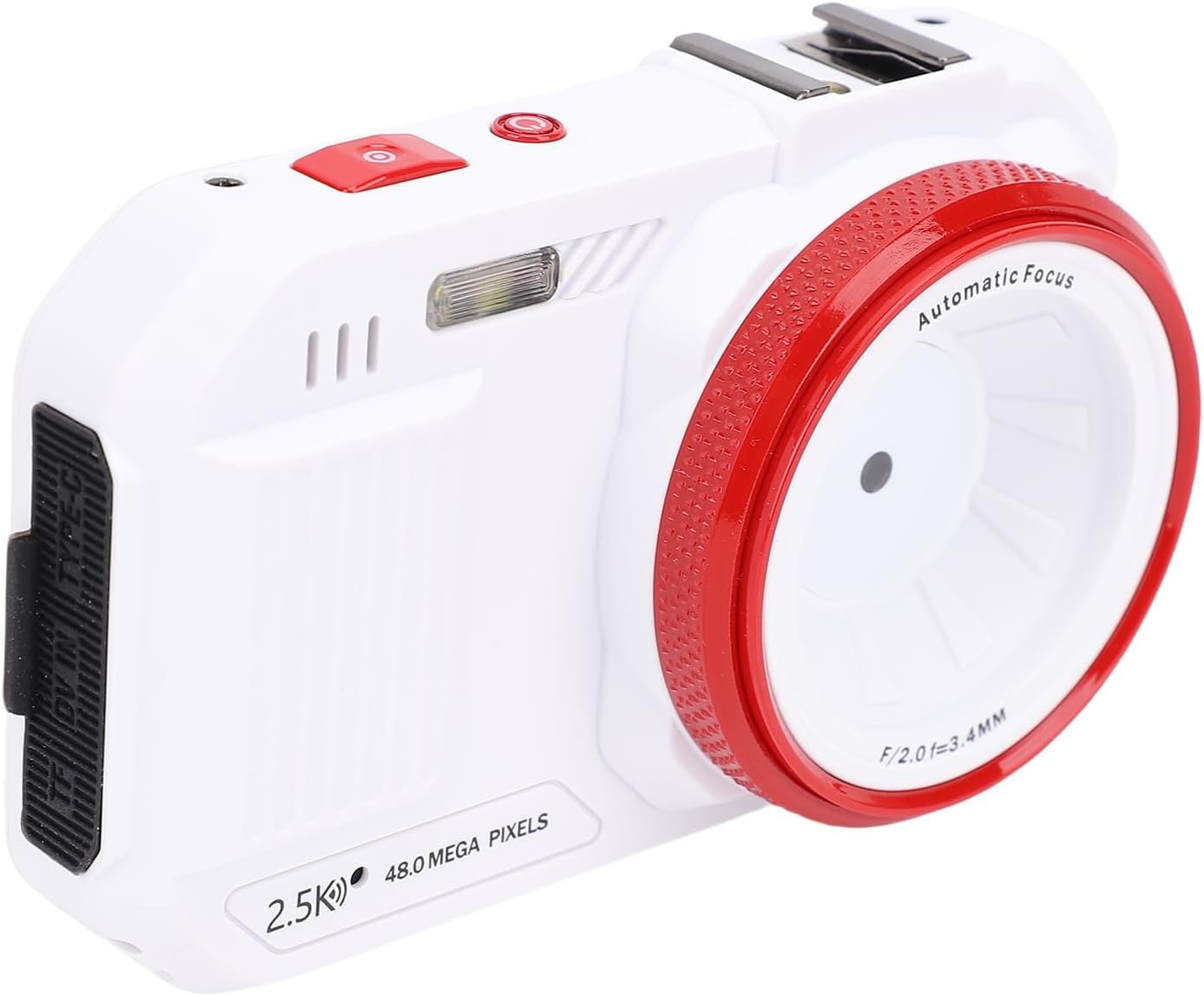
Image: A three-quarter front view of the PUSOKEI Digital Camera, highlighting its white body with red accents around the lens and a red shutter button.
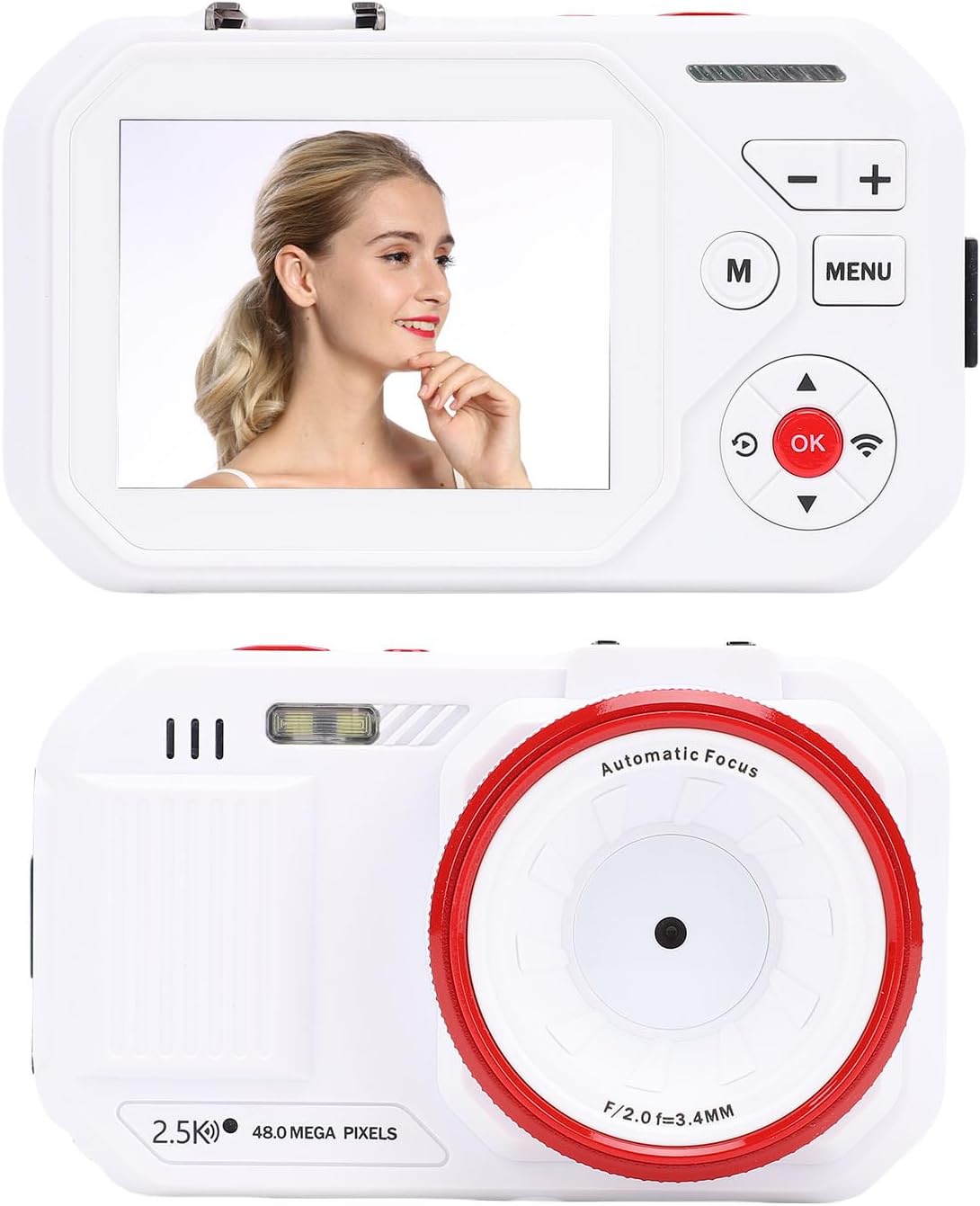
Image: A composite image showing both the front and rear of the PUSOKEI Digital Camera. The rear display shows a woman's face, demonstrating the screen's clarity.
5.2. Taking Photos
The camera supports photo resolutions up to 48MP.
- Turn on the camera.
- Frame your shot using the 2.8-inch color screen or the front dual screen for selfies.
- Press the shutter button to capture the image.

Image: A visual representation of the camera's 48MP capability, showing a high-resolution photograph of a woman in a field, emphasizing detail and color.
5.3. Recording Videos
Record videos in AVI format with resolutions including 2720x1520 (2.5K), 1920x1080 (Full HD), and 1280x720 (HD).
- Switch the camera to video mode (refer to the on-screen menu).
- Press the record button to start recording. Press again to stop.
5.4. Autofocus Function
The camera features high-speed and precise autofocus to ensure clear images.
- When composing your shot, the camera will automatically adjust focus.
- A green frame typically indicates successful focus.

Image: A dynamic shot of a dog running, with a focus box overlaid, illustrating the camera's high-speed autofocus capability.
5.5. 16x Digital Zoom
Utilize the 16x digital zoom to bring distant subjects closer.
- Use the zoom controls (usually marked 'W' for wide and 'T' for telephoto) to adjust the zoom level.
- Note that digital zoom may reduce image quality compared to optical zoom.

Image: A visual comparison showing a distant lighthouse and a zoomed-in view, illustrating the camera's 16x digital zoom capability.
5.6. Dual Screens for Selfies
The camera features a main rear screen and a smaller front screen, ideal for self-portraits.
- When facing the camera towards yourself, the front screen will activate to provide a live preview.
- Frame your selfie and press the shutter button.
5.7. Wi-Fi Connectivity
Connect your camera to a compatible device via Wi-Fi for easy photo and video transfer.
- Enable Wi-Fi on your camera through the menu settings.
- On your smartphone or tablet, search for the camera's Wi-Fi network and connect.
- Use the dedicated camera app (if available, refer to camera's on-screen instructions for app name) to browse and transfer files.

Image: A graphic illustrating the wireless transfer of images from the PUSOKEI Digital Camera to a smartphone via Wi-Fi.
6. Maintenance
6.1. Cleaning the Camera
- Use a soft, dry cloth to clean the camera body.
- For the lens, use a specialized lens cleaning cloth and solution. Avoid touching the lens surface with your fingers.
- Do not use harsh chemicals or abrasive cleaners.
6.2. Battery Care
- Charge the battery regularly, even if the camera is not in use, to maintain battery health.
- Avoid fully discharging the battery frequently.
- Store the camera in a cool, dry place when not in use.
7. Troubleshooting
If you encounter issues with your camera, refer to the following common problems and solutions:
- Camera does not turn on: Ensure the battery is charged. Connect the charging cable and try again.
- Cannot take photos/videos: Check if a memory card is inserted correctly and has sufficient free space.
- Images are blurry: Ensure the autofocus is working correctly. Clean the lens if it is dirty. Check lighting conditions.
- Wi-Fi connection issues: Ensure Wi-Fi is enabled on the camera and your connecting device. Try restarting both devices.
- Camera freezes: Turn off the camera by holding the power button. If unresponsive, allow the battery to drain completely, then recharge and restart.
8. Specifications
| Feature | Specification |
|---|---|
| Item Type | Digital Camera |
| Material | ABS |
| Display Screen | 2.8 Inch HD Color Display Screen |
| Lens | AF Lens |
| Memory Support | Small Memory Card (MicroSD), Maximum 256GB (Not Included) |
| Languages | English, Simplified Chinese, Traditional Chinese, Japanese, Korean, French, German, Spanish, Italian, Russian, etc. |
| Photo Format | JPG |
| Wi-Fi | Yes |
| Photo Resolution | 48M, 36M, 24M, 16M, 10M, 8M, 5M, 3 MP, 2M, 1M |
| Video Format | AVI |
| Video Resolution | 2720x1520 (2.5K), 1920x1080 (Full HD), 1280x720 (HD) |
| Compatible Systems | Win Me, 2000, 2003, XP, Vista, 7, OS X |
| Built-in Battery | 1000mAh LiPo Battery |
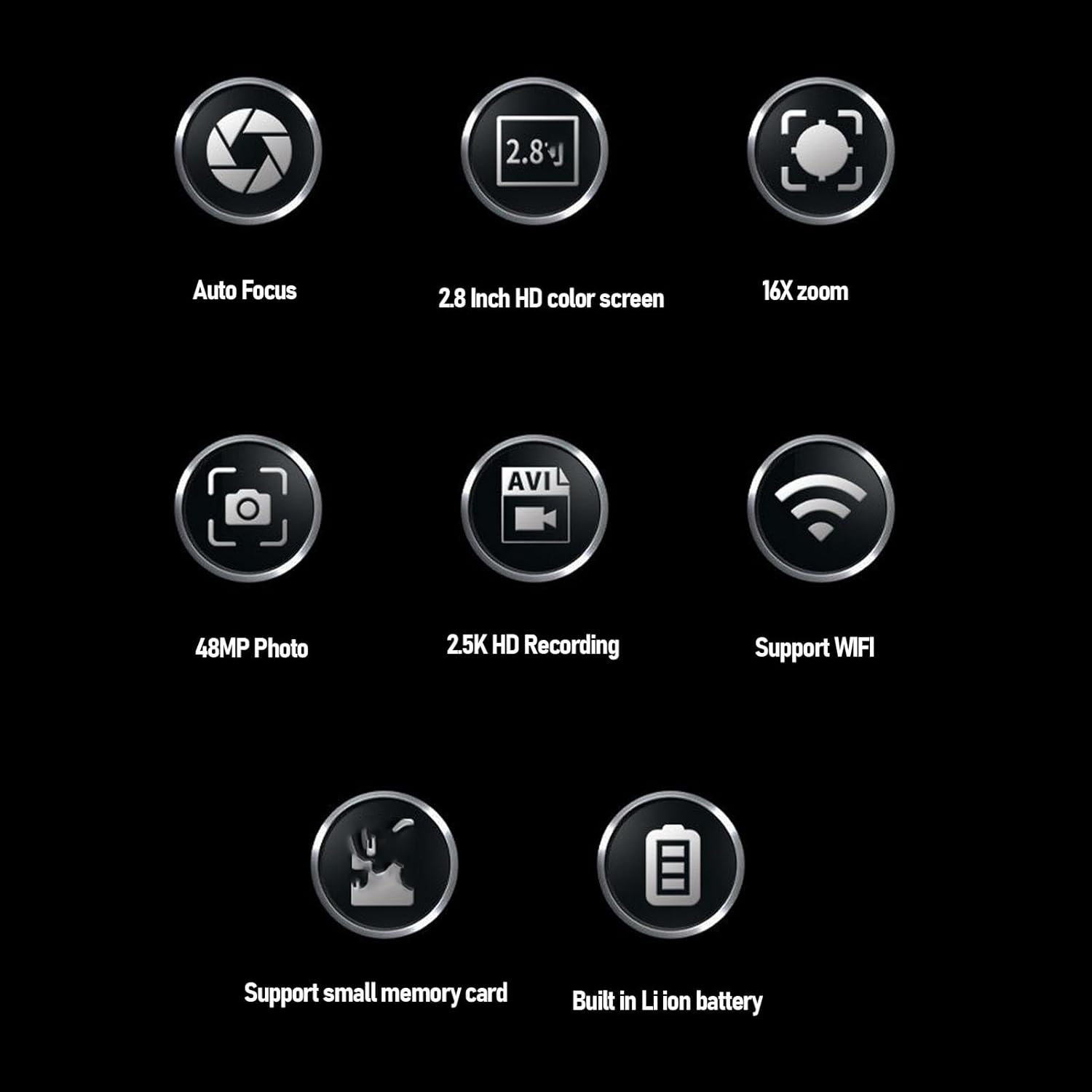
Image: A grid of icons visually summarizing the camera's main features, including autofocus, 2.8-inch screen, 16x zoom, 48MP photo, 2.5K HD recording, Wi-Fi support, small memory card support, and built-in Li-ion battery.
9. Warranty and Support
9.1. Manufacturer Warranty
This PUSOKEI Digital Camera is covered by a 90-day manufacturer warranty from the date of purchase. This warranty covers defects in materials and workmanship under normal use. It does not cover damage caused by misuse, accidents, unauthorized modifications, or external causes.
9.2. Customer Support
For technical assistance, warranty claims, or further inquiries, please contact PUSOKEI customer support through the retailer's platform or the official PUSOKEI website (if available).


