
1. Introduction
This manual provides essential information and instructions for the LZF ZPad3 11-inch Android Tablet. Please read this manual thoroughly before using your device to ensure proper operation and to maximize its features. Keep this manual for future reference.
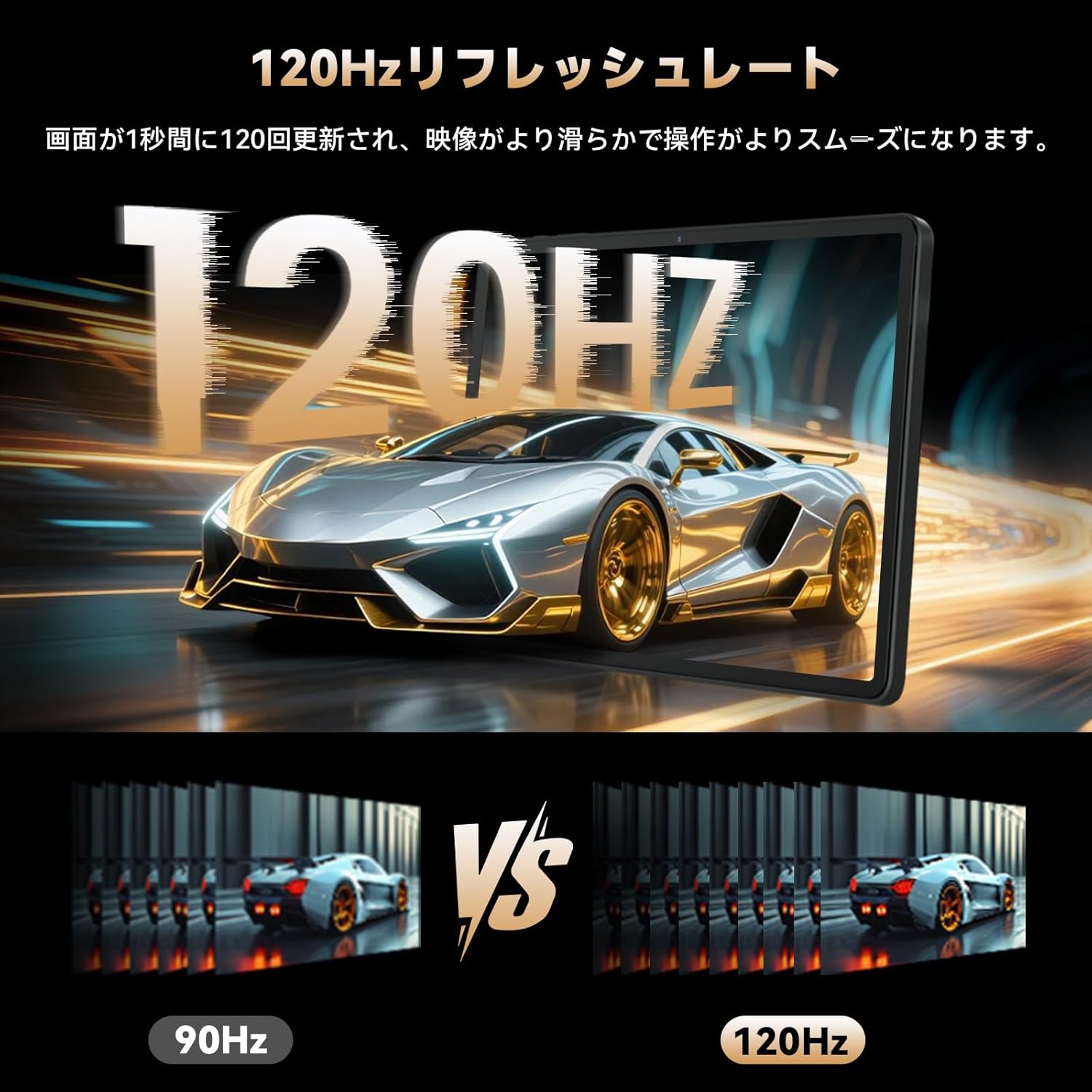
Image 1.1: The LZF ZPad3 11-inch Android Tablet.
2. Device Overview
The LZF ZPad3 is an 11-inch Android tablet designed for versatile use, from entertainment to productivity. It features a high-resolution display, powerful processor, ample memory, and robust connectivity options.
2.1 Package Contents
- LZF ZPad3 Tablet x1
- USB Type-C Cable x1
- Charging Adapter x1 (5V/2A 10W)
- SIM Card Pin x1
- User Manual (this document)

Image 2.1: Illustration of the LZF ZPad3 tablet and its included accessories.
2.2 Physical Components
Familiarize yourself with the tablet's buttons, ports, and cameras.
- Power Button: Located on the side, used to power on/off or wake/sleep the device.
- Volume Buttons: Adjust audio volume.
- USB Type-C Port: For charging and data transfer.
- 3.5mm Headphone Jack: For connecting wired audio devices.
- Card Slot: Accommodates Nano SIM cards and MicroSD cards.
- Rear Camera: 16MP camera for high-resolution photos and videos.
- Front Camera: 8MP camera for video calls and selfies.
- Microphone: For audio input during calls or recordings.
- Dual Speakers: For enhanced audio output.

Image 2.2: Side view and dimensions of the LZF ZPad3 tablet, highlighting its thin profile.
3. Setup Instructions
3.1 Initial Power On
- Press and hold the Power Button until the LZF logo appears on the screen.
- Follow the on-screen prompts to select your language, region, and connect to a Wi-Fi network.
- Sign in with your Google account or create a new one to access the Google Play Store and other services.
3.2 Charging the Battery
Before first use, fully charge the tablet. Use the provided USB Type-C cable and charging adapter.
- Connect the USB Type-C cable to the tablet's charging port.
- Connect the other end of the cable to the charging adapter, then plug the adapter into a power outlet.
- The battery icon on the screen will indicate charging status.
- For faster charging, a PD18W compatible charger (sold separately) is recommended. The included charger is 10W.

Image 3.1: The LZF ZPad3 tablet connected to a charger, illustrating its 10000mAh battery capacity.
3.3 Inserting SIM and MicroSD Cards
The ZPad3 supports dual Nano SIM cards or one Nano SIM and one MicroSD card for expanded storage.
- Locate the card slot on the side of the tablet.
- Insert the SIM card pin into the small hole next to the card slot to eject the tray.
- Place your Nano SIM card(s) and/or MicroSD card into the tray according to the diagram.
- Carefully reinsert the tray into the tablet.
- If using a SIM card for mobile data, you may need to configure APN settings. Refer to your mobile carrier for details.

Image 3.2: The LZF ZPad3 tablet demonstrating 4G LTE SIM-free capability, showing a family on a video call.
4. Operating Instructions
4.1 Basic Navigation
- Touch: Tap an icon to open an app or select an item.
- Swipe: Slide your finger across the screen to scroll through pages or content.
- Pinch: Use two fingers to zoom in or out on images and web pages.
- Long Press: Press and hold an item for additional options.
4.2 Face Recognition
Set up face recognition for quick and secure unlocking.
- Go to Settings > Security > Face Unlock.
- Follow the on-screen instructions to register your face.
- Once registered, you can unlock the tablet by looking at the front camera.

Image 4.1: The LZF ZPad3 tablet showcasing features like split-screen multitasking and face recognition.
4.3 Multitasking with App Pair
The Android 15 system allows you to pair two apps to launch them simultaneously in split-screen mode.
- Open the first app you want to use.
- Swipe up from the bottom of the screen to access the recent apps view.
- Tap the app icon at the top of the first app's window and select "Split top."
- Choose the second app from the recent apps or app drawer to open it in the other half of the screen.
- You can save frequently used app pairs for quick access.
4.4 Camera Usage
The tablet is equipped with a 16MP rear camera and an 8MP front camera.
- Open the Camera app from the home screen or app drawer.
- Switch between front and rear cameras using the camera switch icon.
- Tap the shutter button to take a photo or press the record button to start/stop video recording.
- Adjust settings like flash, timer, and mode as needed.

Image 4.2: The LZF ZPad3 tablet's 8MP front and 16MP rear cameras, capable of capturing clear images.
5. Key Features
5.1 Display and Visuals
The ZPad3 features an 11-inch 1920x1200 Full HD display with a 120Hz refresh rate, ensuring smooth visuals for scrolling and video playback. In-Cell technology provides a clear, vivid display with 224ppi density and wide viewing angles. Widevine L1 certification enables 1080P HD streaming on platforms like Netflix, Amazon Prime Video, Hulu, and Disney+.

Image 5.1: Visual comparison demonstrating the smoothness of a 120Hz refresh rate versus a lower refresh rate on the ZPad3.

Image 5.2: The LZF ZPad3 tablet displaying content, highlighting its Widevine L1 certification for high-quality streaming.
5.2 Performance
Powered by the MediaTek Helio G99 (MT8781) 8-core processor (2x ARM Cortex-A76 at 2.2GHz, 6x ARM Cortex-A55 at 2.0GHz), the ZPad3 delivers smooth performance for daily tasks, video streaming, and multitasking. The Mali-G57 MC2 GPU enhances graphics, providing a fluid experience for 3D games and high-resolution video. The 6nm process technology ensures efficient power consumption.

Image 5.3: Diagram illustrating the MediaTek Helio G99 8-core processor, the core of the ZPad3 tablet.

Image 5.4: The Mali-G57 MC2 GPU in action, demonstrating enhanced graphics performance for gaming on the ZPad3 tablet.
5.3 Memory and Storage
The ZPad3 offers 20GB RAM (8GB physical + 12GB virtual) and 256GB internal storage, expandable up to 2TB via MicroSD. This ensures smooth multitasking and ample space for applications, media, and documents.

Image 5.5: Visual representation of the ZPad3's 20GB RAM and 256GB storage, with MicroSD expansion up to 2TB.
5.4 Connectivity
The ZPad3 supports 4G LTE cellular communication with dual SIM slots (2x Nano SIM or 1x Nano SIM + 1x TF card), allowing internet access anywhere. It features dual-band Wi-Fi (2.4GHz/5GHz) for stable, high-speed wireless connections, and Bluetooth 5.0 for connecting accessories with minimal audio delay.

Image 5.6: The LZF ZPad3 tablet connected to various wireless devices via WiFi and Bluetooth 5.0.
5.5 Operating System and User Experience
Running on the latest Android 15, the ZPad3 offers enhanced stability, security, and multitasking capabilities. Features include improved privacy controls with app-specific permissions and a private space for sensitive applications, an App Pair function for launching two apps in split-screen mode, and single-app screen recording. The user interface is optimized for the 11-inch display, minimizing operational errors.

Image 5.7: The LZF ZPad3 tablet displaying the Android 15 operating system interface.
5.6 GPS and Sensors
Integrated GPS, BDS, and GALILEO ensure accurate navigation. A gravity sensor enables automatic screen rotation for versatile viewing.

Image 5.8: The LZF ZPad3 tablet displaying a navigation map, demonstrating its GPS capabilities.
6. Specifications
| Feature | Description |
|---|---|
| Brand | LZF |
| Model Name | ZPad3 |
| Product Dimensions | 25.83 x 16.99 x 0.76 cm |
| Item Weight | 495 g |
| Screen Size | 10.95 inches |
| Display Resolution | 1920x1200 Pixels (FHD) |
| Refresh Rate | 120Hz |
| Processor | MediaTek Helio G99 (MT8781) 8-core, 2.2 GHz |
| RAM Size | 20 GB (8GB physical + 12GB virtual) |
| Hard Disk Size | 256 GB |
| Expandable Storage | Up to 2TB via MicroSD |
| Graphics Coprocessor | Mali-G57 MC2 |
| Operating System | Android 15 |
| Rear Camera | 16 MP |
| Front Camera | 8 MP |
| Battery Capacity | 10000 mAh |
| Charging | PD18W Fast Charging (10W charger included) |
| Connectivity | 4G LTE (SIM-free), Dual-band Wi-Fi (2.4/5GHz), Bluetooth 5.0 |
| Navigation | GPS, BDS, GALILEO |
| Other Features | Face Recognition, Gravity Sensor, Widevine L1 |
7. Maintenance
7.1 Cleaning the Device
- Use a soft, lint-free cloth to clean the screen and body of the tablet.
- Avoid using harsh chemicals, abrasive cleaners, or aerosol sprays.
- Do not allow moisture to enter openings.
7.2 Battery Care
- Avoid exposing the tablet to extreme temperatures (hot or cold).
- Do not fully discharge the battery frequently.
- If storing the tablet for an extended period, charge it to about 50% and power it off.
7.3 Software Updates
Regularly check for and install software updates to ensure optimal performance and security.
- Go to Settings > System > System update.
- Follow the on-screen instructions to download and install any available updates.
8. Troubleshooting
8.1 Device Not Powering On
- Ensure the battery is charged. Connect the tablet to a charger and wait a few minutes before attempting to power on again.
- Press and hold the Power Button for at least 10-15 seconds to force a restart.
8.2 Screen Unresponsive
- Force restart the device (see above).
- If the issue persists, contact customer support.
8.3 Wi-Fi or Cellular Connectivity Issues
- Toggle Wi-Fi/Cellular data off and on in the Quick Settings panel.
- Restart your router (for Wi-Fi) or ensure your SIM card is properly inserted and activated (for cellular).
- Check APN settings for cellular data if necessary.
8.4 Apps Crashing or Freezing
- Close the problematic app and reopen it.
- Clear the app's cache and data (Settings > Apps > [App Name] > Storage > Clear Cache/Data).
- Ensure the app is updated to the latest version.
9. Warranty and Support
Your LZF ZPad3 tablet comes with a 1-year warranty. For technical support, warranty claims, or any inquiries, please contact LZF Customer Service.
9.1 Contacting Customer Service
Customer service is available from 10:00 to 19:00 (excluding Saturdays, Sundays, and public holidays).
- Via Product Page: Click on the seller's name on the product page and select "Ask a question."
- Via Amazon Account: Go to your Amazon account > Order History > Select the relevant order > Contact Seller.
*Damage caused by human factors, disasters, or other force majeure events is not covered by the warranty.

Image 9.1: LZF customer support details, including warranty period and contact methods.
9.2 Repair Center
LZF operates a dedicated repair center in Tokyo for expert inspection and genuine parts replacement, ensuring comprehensive repair and exchange services for customer issues.

Image 9.2: An LZF technician working at the Tokyo repair center, emphasizing professional service.
10. Product Videos
Video 10.1: An overview of the LZF ZPad3 tablet's key features and design.
Video 10.2: A lifestyle video showcasing various usage scenarios of the LZF ZPad3 tablet.
