
1. Introduction
Thank you for choosing the Yigars Y300 Robot Vacuum and Mop 2-in-1. This device is designed to provide efficient and convenient cleaning for your home, combining powerful vacuuming with effective mopping. Please read this manual thoroughly before use to ensure proper operation and maintenance.
2. Safety Information
To reduce the risk of injury or damage, read these safety instructions carefully and keep them for future reference.
- This appliance can be used by children aged 8 years and above and persons with reduced physical, sensory or mental capabilities or lack of experience and knowledge if they have been given supervision or instruction concerning use of the appliance in a safe way and understand the hazards involved.
- Children should be supervised to ensure that they do not play with the appliance.
- Cleaning and user maintenance shall not be made by children without supervision.
- Do not use the robot in wet environments or near water.
- Ensure the charging base is placed on a flat surface against a wall, with clear space around it.
- Remove any loose cables, small objects, or fragile items from the cleaning path before operation.
- Do not use the robot to pick up large debris, liquids, or burning objects.
- Only use the original power adapter and charging base provided with the robot.
3. Package Contents
Verify that all components are present in the package:
- Y300 Robot Vacuum (x1)
- Charging Station (x1)
- Remote Control (x1)
- Power Adapter (x1)
- Side Brushes (x2)
- HEPA Filter (x2)
- Cleaning Brush (x1)
- Water Tank (x1)
- Mop Pad (x2)
- Instruction Manual (x1)

Image: All items included in the Yigars Y300 Robot Vacuum and Mop package, laid out for identification.
4. Product Overview
Familiarize yourself with the main components of your Yigars Y300 robot vacuum.
Robot Main Unit

Image: Top view of the Yigars Y300 robot vacuum, showing the power button and clean/pause indicator.
Dustbin and Water Tank
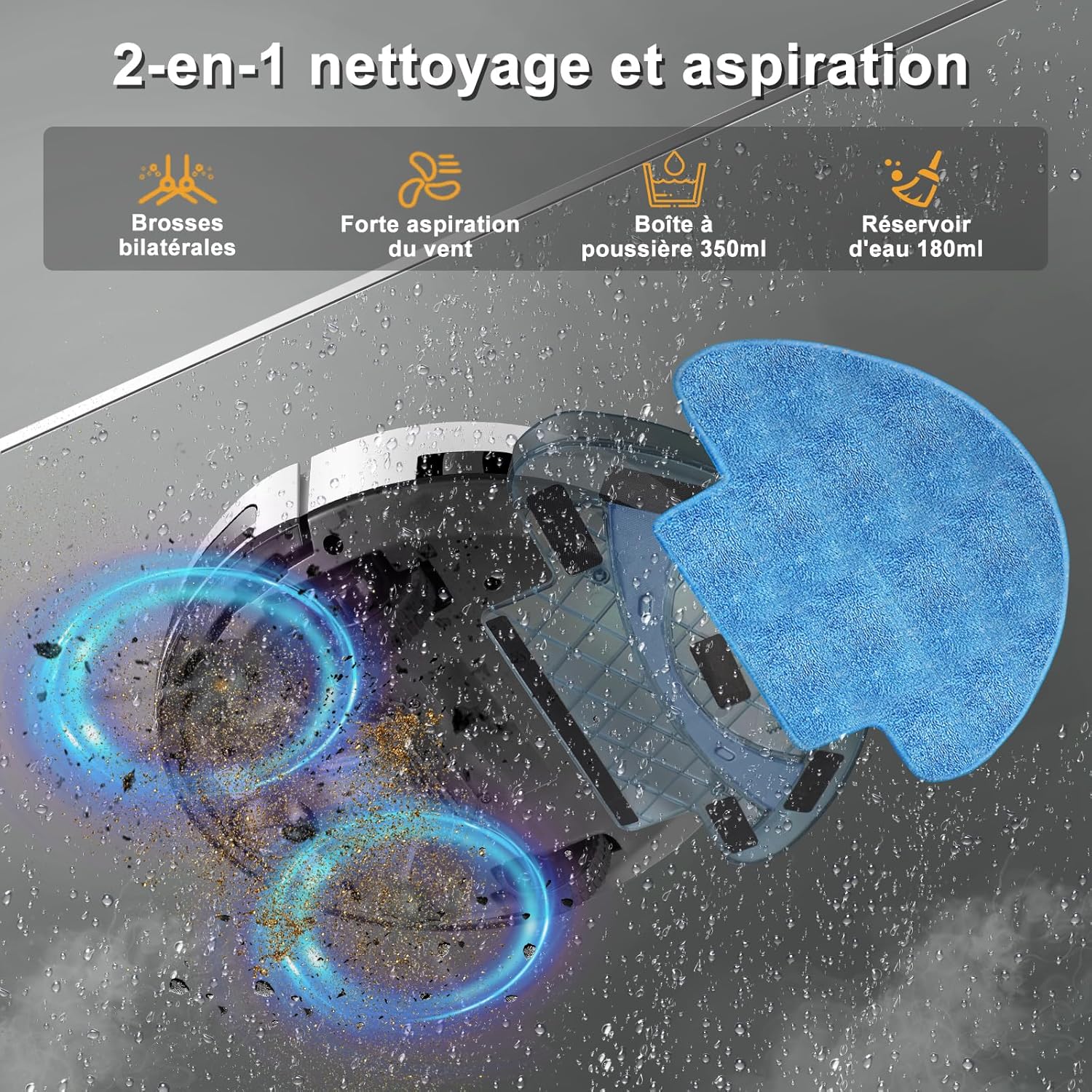
Image: The Yigars Y300 robot vacuum with its dustbin and water tank assembly, highlighting the 2-in-1 cleaning capability.
5. Setup
5.1 Charging Base Placement
Place the charging base against a wall in an open area. Ensure there is at least 0.5 meters (1.6 feet) of clear space on both sides and 1.5 meters (4.9 feet) in front of the charging base. Connect the power adapter to the charging base and plug it into a wall outlet.
5.2 Initial Charging
Place the robot onto the charging base. Ensure the charging contacts on the robot align with those on the base. The robot will begin charging automatically. For first-time use, fully charge the robot for 4-6 hours.

Image: The Yigars Y300 robot vacuum automatically docking with its charging station, illustrating the automatic recharge feature.
5.3 App Connection (Wi-Fi Setup)
The Yigars Y300 supports app control via a 2.4GHz Wi-Fi network. Follow these steps to connect:
- Download the "Tuya Smart" or "Smart Life" app from your smartphone's app store.
- Register or log in to your account.
- Ensure your phone is connected to a 2.4GHz Wi-Fi network.
- Open the app, tap "Add Device" or the "+" icon.
- Select "Small Home Appliances" > "Robot Vacuum" or search for "Y300".
- Follow the in-app instructions to reset the robot's Wi-Fi (usually by pressing and holding a button on the robot until an indicator light flashes).
- Enter your Wi-Fi network name and password in the app.
- Confirm the connection process in the app. Once connected, you can control the robot remotely.

Image: A step-by-step guide on how to connect the Yigars Y300 robot vacuum to a 2.4GHz Wi-Fi network using a smartphone app.
6. Operating Instructions
6.1 Starting and Stopping Cleaning
- Via Robot Button: Press the power button on the robot once to start or pause cleaning.
- Via Remote Control: Use the "Auto Cleaning" button on the remote control to start or pause.
- Via App: Use the "Start" or "Pause" function in the Tuya Smart/Smart Life app.
- Via Voice Control: Compatible with Alexa and Google Assistant. Say "Alexa, turn on the Y300" or "Ok Google, start cleaning with Y300."

Image: A user interacting with a smart speaker to control the Yigars Y300 robot vacuum using voice commands, highlighting compatibility with Alexa and Google Assistant.

Image: A detailed diagram of the remote control for the Yigars Y300 robot vacuum, showing buttons for power, recharge, direction, automatic cleaning, intelligent cleaning, water mode, and suction mode.
6.2 Cleaning Modes
The Y300 offers multiple cleaning modes:
- Automatic Cleaning: The robot intelligently navigates to clean the entire area.
- Spot Cleaning: Focuses on a specific dirty area, cleaning in a spiral pattern.
- Random Cleaning: Cleans by moving in random directions.
- Manual Control: Use the remote control or app to direct the robot manually.

Image: Illustrations of the Yigars Y300 robot vacuum performing different cleaning modes: Spot Cleaning, Random Cleaning, and Manual Cleaning.
6.3 Suction Levels
The robot features three adjustable suction levels (up to 4500Pa) to suit different cleaning needs:
- Quiet (800Pa): For light dust and quiet operation.
- Standard (1600Pa): For general debris.
- Maximum (3000-4500Pa): For fine particles, pet hair, and stubborn dirt.

Image: Visual representation of the Yigars Y300 robot vacuum's three suction power levels (Calm, Standard, Maximum) and the types of debris they handle, from dust to coffee beans.
6.4 Mopping Function
To use the mopping function:
- Fill the 180ml water tank with clean water.
- Attach the mop pad securely to the water tank.
- Install the water tank assembly into the robot.
- Start a cleaning cycle. The robot will vacuum and mop simultaneously.
The fine mop pad ensures even water distribution for effective stain removal. Remove the mop pad and empty the water tank after each use.

Image: A diagram showing the Yigars Y300 robot vacuum's internal components for 2-in-1 cleaning, including the 350ml dustbin, 180ml water tank, and washable mop pad.
6.5 Obstacle Avoidance and Navigation
The Y300 is equipped with infrared sensors for automatic obstacle detection and fall prevention. Its slim design (7.8cm height) allows it to clean under furniture. It can also climb over obstacles up to 15mm, such as door sills and thin carpets.

Image: The Yigars Y300 robot vacuum navigating around furniture, demonstrating its automatic obstacle avoidance capabilities.

Image: The Yigars Y300 robot vacuum's slim profile (7.8cm) and its ability to climb over 15mm obstacles, such as carpet edges.
7. Maintenance
Regular maintenance ensures optimal performance and extends the lifespan of your robot vacuum.
7.1 Emptying the Dustbin
Open the robot's top cover and remove the dustbin. Open the dustbin lid and empty its contents into a trash bin. It is recommended to empty the dustbin after each cleaning cycle.
7.2 Cleaning the Filter
Remove the HEPA filter from the dustbin. Tap the filter gently to remove dust. The filter can be rinsed with water; ensure it is completely dry before re-installing. Replace the HEPA filter every 3-6 months, or as needed.
7.3 Cleaning Side Brushes
Periodically check the side brushes for tangled hair or debris. Use the provided cleaning brush or scissors to remove any obstructions. If brushes are worn, replace them.
7.4 Cleaning the Mop Pad
Remove the mop pad from the water tank after each use. Rinse it thoroughly with water and allow it to air dry completely before storing or reusing.
7.5 Cleaning Sensors and Charging Contacts
Wipe the robot's sensors (cliff sensors, anti-collision sensors) and the charging contacts on both the robot and the charging base with a clean, dry cloth. This prevents dust buildup from affecting performance.
8. Troubleshooting
If you encounter issues with your Yigars Y300, refer to the following common problems and solutions:
| Problem | Possible Cause | Solution |
|---|---|---|
| Robot does not start or respond. | Low battery; Power switch off; Robot stuck. | Charge the robot; Ensure power switch is ON; Clear obstructions. |
| Robot does not charge. | Charging contacts dirty; Charging base unplugged; Robot not properly docked. | Clean charging contacts; Plug in charging base; Re-dock the robot. |
| Poor cleaning performance. | Dustbin full; Filter clogged; Side brushes worn/tangled. | Empty dustbin; Clean/replace filter; Clean/replace side brushes. |
| Robot cannot connect to Wi-Fi/App. | Incorrect Wi-Fi password; Not 2.4GHz network; Robot too far from router. | Verify password; Connect to 2.4GHz Wi-Fi; Move robot closer to router; Reset Wi-Fi on robot. |
| Robot gets stuck frequently. | Too many obstacles; Cliff sensors dirty; High thresholds. | Clear cleaning area; Clean sensors; Use virtual barriers if available. |
| Robot does not return to charging base. | Charging base obstructed; Robot too far from base; Low battery. | Clear area around base; Manually place robot near base; Ensure sufficient battery. |
9. Specifications
| Feature | Specification |
|---|---|
| Model Name | Y300 |
| Brand | Yigars |
| Color | Bwhite |
| Dimensions (L x W x H) | 32 x 32 x 7.8 cm |
| Weight | 3 Kilograms |
| Suction Power | Up to 4500Pa (3000Pa nominal) |
| Dustbin Capacity | 350 ml |
| Water Tank Capacity | 180 ml |
| Battery Life | Up to 100 minutes |
| Noise Level | Less than 70 Decibels |
| Charging Time | 4-6 hours |
| Climbing Ability | 15 mm |
| Control Type | App Control, Button Control, Voice Control, Remote Control |
| Special Features | Simultaneous vacuuming and mopping, Low noise, Washable filter, Wet/Dry, Obstacle avoidance |
| Compatibility | Smartphone (2.4GHz Wi-Fi), Alexa, Google Assistant |
10. Warranty Information
Yigars products are covered by a standard manufacturer's warranty. Please refer to the warranty card included in your package or contact customer support for specific details regarding warranty duration and terms. Keep your purchase receipt as proof of purchase for warranty claims.
11. Support
For further assistance, technical support, or inquiries, please contact Yigars customer service through the following channels:
- Email: [Insert Customer Service Email Here]
- Phone: [Insert Customer Service Phone Number Here]
- Website: Visit the official Yigars website for FAQs and support resources.
When contacting support, please have your product model (Y300) and purchase information ready.


