
1. Introduction
Thank you for choosing the MEUIS MR-YZX L-Shaped Gaming Desk. This desk is designed to provide a functional and organized workspace with integrated features such as storage shelves, a reversible pegboard, LED lighting, and built-in power outlets. This manual provides essential information for assembly, operation, maintenance, and troubleshooting to ensure optimal use and longevity of your product.
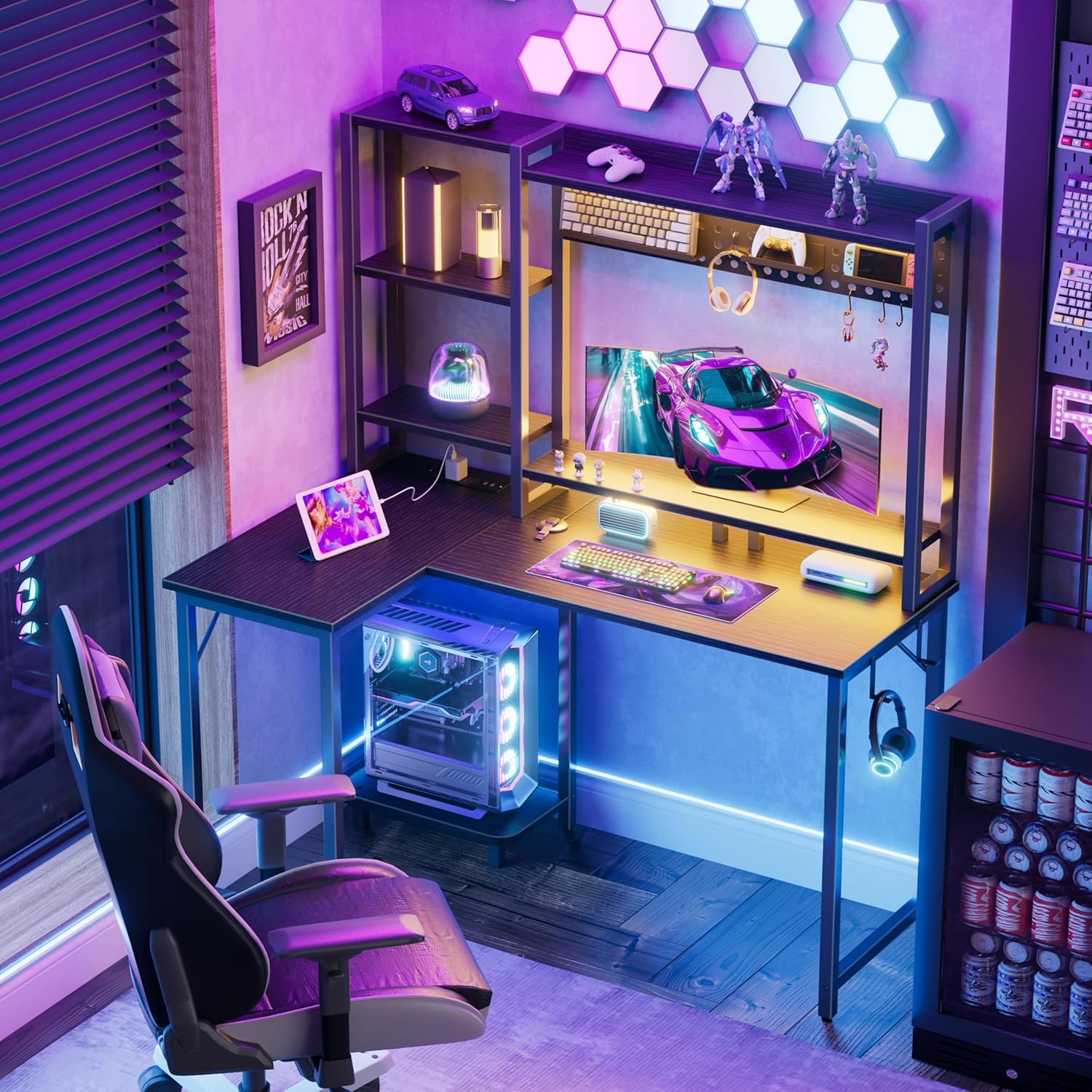
Image 1.1: The MEUIS L-Shaped Gaming Desk in a typical setup, showcasing its various features including the monitor stand, shelves, and LED lights.
2. Safety Information
Warning: This desk is heavy and requires assembly. Always use appropriate tools and techniques to assemble and move the desk to prevent injury.
- Read all instructions carefully before assembly and use.
- Ensure all parts are present and undamaged before beginning assembly.
- Assemble the desk on a soft, clean surface to prevent scratches.
- Do not overtighten screws during assembly to avoid damaging components.
- Keep children and pets away from the assembly area.
- Do not exceed the weight capacity of the desk or shelves.
- Ensure the power outlets are properly grounded and used with compatible devices.
3. Package Contents
Verify that all components listed in the included assembly guide are present. The package typically includes:
- Desk panels (main desktop, L-extension, shelves, hutch)
- Steel frame components (legs, support bars)
- Hardware kit (screws, bolts, nuts, Allen wrench)
- Built-in power outlet unit with cable
- LED light strip with controller and remote
- Pegboard with hooks
- Monitor stand
- PC stand
- Assembly instructions manual
4. Setup and Assembly Instructions
Follow the detailed step-by-step instructions provided in the separate assembly manual included with your product. The general steps are outlined below:
- Unpack and Identify Parts: Carefully unbox all components and lay them out on a protected surface. Refer to the parts list in your assembly guide to identify each piece.
- Assemble the Main Desk Frame: Begin by connecting the main desktop panels and attaching the steel leg frames according to the diagrams.
- Attach the L-Shaped Extension: The L-shaped section with the hutch and shelves is reversible. Decide whether you want the extension on the left or right side of the main desk before proceeding. Attach the extension frame and desktop panel.
- Install Hutch, Shelves, and Pegboard: Secure the hutch frame to the main desk. Install the adjustable open shelves and the pegboard. The pegboard includes 5 free hooks for flexible storage.
- Install Power Outlets: Integrate the built-in power hub into the designated slot on the desktop. Ensure the 4.9ft power cable is routed neatly.
- Install LED Light Strip: Attach the LED light strip to the underside of the hutch or monitor stand as desired. Connect it to the controller and power source.
- Place Monitor Stand and PC Stand: Position the monitor stand on the main desktop for ergonomic viewing. Place the PC stand on the floor under the L-extension.
- Final Checks: Once assembled, gently shake the desk to ensure all connections are secure and stable. Tighten any loose screws.

Image 4.1: Product dimensions and illustration of the reversible L-shaped configuration.

Image 4.2: The reversible design of the desk, allowing the L-extension to be set up on either the left or right side.
5. Operating Instructions
5.1 Built-in Power Hub
The desk features a built-in power hub to keep your workspace tidy and powered. It includes:
- 3 AC Outlets (120V/12A)
- 2 USB Ports (5V/2A)
- 4.9ft Power Cord
To use, simply plug the desk's main power cord into a wall outlet. You can then plug your devices directly into the AC outlets or USB ports on the desk.

Image 5.1: The integrated power hub with AC outlets and USB ports for convenient device charging and power.
5.2 Music-Sync LED Light Strip
The integrated LED light strip allows for customizable ambiance. It offers:
- 10 Colors
- 6 Brightness Levels
- 10 Dynamic Modes
- Music Sync Function
- Memory Function (retains last setting)
Control the LED lights using the inline controller, the provided remote control, or a compatible mobile application. Refer to the separate LED light strip manual for detailed instructions on pairing and advanced features, including music synchronization.

Image 5.2: Overview of the LED light strip's control options and features.
5.3 Monitor Stand
The elevated monitor stand promotes a healthy sitting posture and spine comfort by raising your monitor to eye level. Place your monitor directly on the stand.

Image 5.3: The monitor stand helps achieve an ergonomic setup, improving sitting posture.
6. Maintenance
- Cleaning: Wipe the desk surfaces with a soft, damp cloth. Avoid harsh chemicals or abrasive cleaners that could damage the finish.
- Hardware Check: Periodically check all screws and bolts to ensure they remain tight. Retighten as necessary to maintain stability.
- Cable Management: Regularly organize cables to prevent tangles and damage, especially around the power hub.
- LED Strip Care: Avoid bending or creasing the LED strip excessively. Keep the controller and remote dry.
7. Troubleshooting
7.1 LED Lights Not Working
- Ensure the LED strip is properly connected to the controller and power source.
- Check if the power adapter is securely plugged into a working wall outlet.
- Verify that the remote control battery is functional and correctly inserted.
- Try using the inline controller to rule out remote issues.
7.2 Power Outlets Not Functioning
- Confirm the desk's main power cord is securely plugged into a live wall outlet.
- Test the wall outlet with another device to ensure it is working.
- Check for any tripped circuit breakers in your home.
- Ensure devices plugged into the desk's outlets are functioning correctly.
7.3 Desk Instability
- Check and tighten all assembly screws and bolts.
- Ensure the desk is placed on a flat, level surface.
- Adjust the non-slip footpads on the bottom of the legs to level the desk.
8. Specifications
| Feature | Detail |
|---|---|
| Model Number | MR-YZX |
| Product Dimensions | 31.5"D x 47.2"W x 59.3"H |
| Material Type | Alloy Steel, Engineered Wood (MDF) |
| Color | Black |
| Special Features | Built-In USB Outlet, Compact, Ergonomic, Monitor Stand, Reversible, LED Lights, Pegboard |
| Power Outlets | 3 AC Outlets (120V/12A), 2 USB Ports (5V/2A) |
| Power Cord Length | 4.9 ft |
| Number of Shelves | 1 (adjustable open shelf) |
| Item Weight | 39.2 Pounds |
| Assembly Required | Yes |
9. Warranty Information
The MEUIS MR-YZX L-Shaped Gaming Desk comes with a Limited Warranty. Please refer to the warranty card included in your package for specific terms, conditions, and duration of coverage. This warranty typically covers manufacturing defects and material flaws under normal use.
10. Customer Support
If you have any questions, require assistance with assembly, or encounter any issues with your MEUIS MR-YZX L-Shaped Gaming Desk, please contact our customer support team.
Email: support@meuis.com (Example email, please refer to your product packaging for actual contact information)
Phone: 1-800-XXX-XXXX (Example phone, please refer to your product packaging for actual contact information)
Please have your model number (MR-YZX) and purchase date ready when contacting support.