
Yigars Y580
Yigars Y580 Robot Vacuum and Mop Combo User Manual
1. Introduction
Thank you for choosing the Yigars Y580 Robot Vacuum and Mop Combo. This device is designed to provide efficient and convenient cleaning for your home, combining vacuuming, sweeping, and mopping functions. Equipped with advanced LiDAR navigation and smart mapping technology, it ensures thorough coverage and intelligent operation. Please read this manual carefully before using the product to ensure proper operation and maintenance.
2. Safety Instructions
To reduce the risk of injury or damage, observe the following safety precautions:
- This appliance can be used by children aged 8 years and above and persons with reduced physical, sensory or mental capabilities or lack of experience and knowledge if they have been given supervision or instruction concerning use of the appliance in a safe way and understand the hazards involved.
- Children should be supervised to ensure they do not play with the appliance.
- Cleaning and user maintenance shall not be made by children without supervision.
- Do not operate the robot vacuum near open flames or heat sources.
- Do not use the robot vacuum to pick up large or sharp objects, liquids, or burning materials.
- Ensure the charging dock is placed on a flat surface against a wall, with adequate clear space around it.
- Keep hair, loose clothing, fingers, and all parts of the body away from openings and moving parts.
- Only use the original power adapter and charging dock provided with the product.
- Before cleaning or maintenance, always turn off the robot and unplug the charging dock.
3. Package Contents
Verify that all components are present in the package:
- Robot Vacuum
- Instruction Guide
- Filter
- Side Brush
- Water Tank
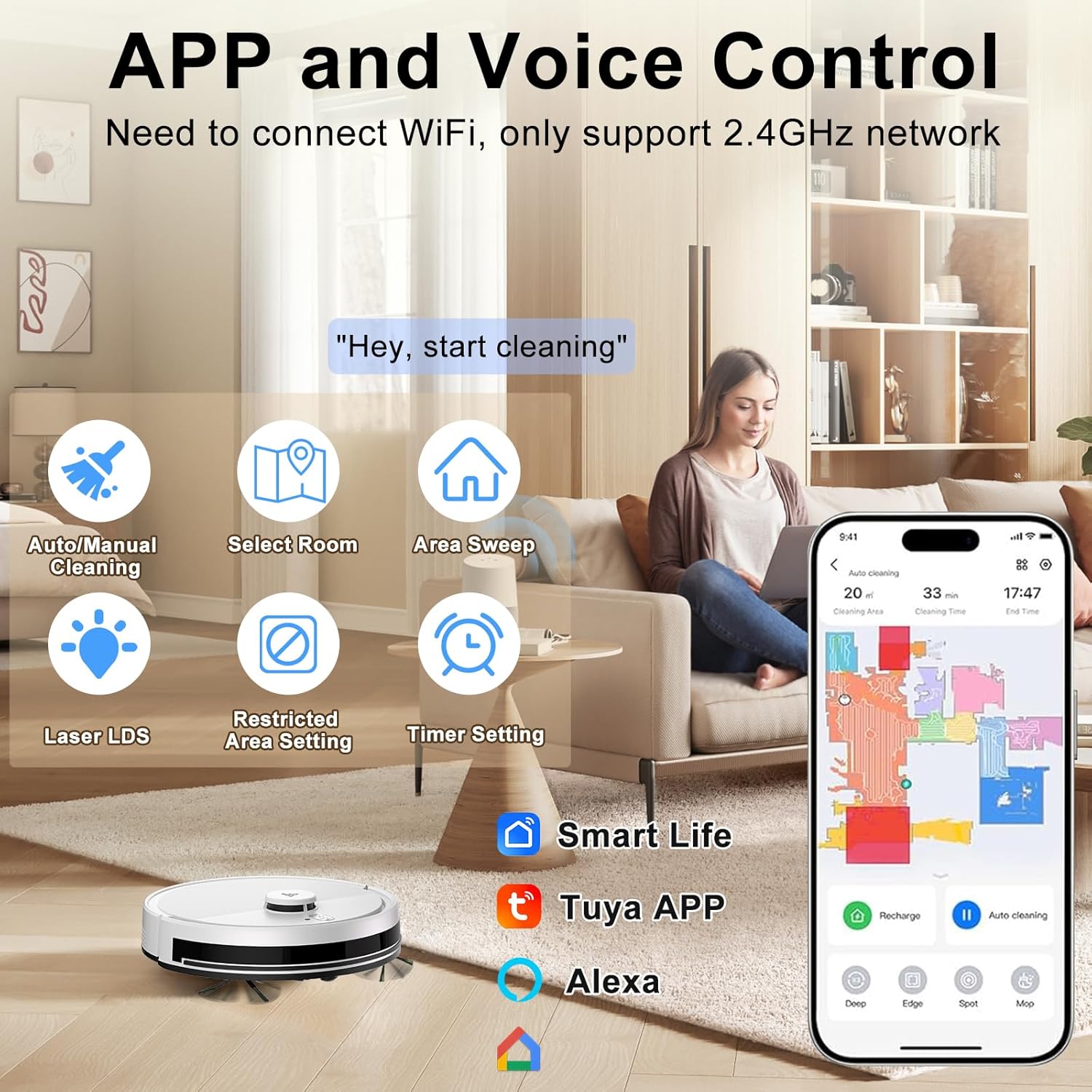
Image: Yigars Y580 Robot Vacuum and its accessories.
4. Product Overview
The Yigars Y580 is a versatile robot vacuum and mop designed for comprehensive floor cleaning. Key features include:
- LiDAR Navigation: Utilizes Laser LDS technology for precise mapping and efficient route planning.
- Smart Mapping: Stores up to 5 distinct maps, supporting zone and sectional cleaning, and allowing for scheduled tasks.
- 3-in-1 Cleaning: Vacuums, sweeps, and mops simultaneously with 4000Pa adjustable suction power.
- Obstacle Avoidance: Features 18mm obstacle clearance and 15° climbing capability to navigate thresholds and carpets.
- App & Voice Control: Manage cleaning via a mobile app, Amazon Alexa, or Google Assistant.
- Long Battery Life: Up to 120 minutes of continuous operation, with automatic recharging and resume function.
- OTA Updates: Supports automatic firmware and software updates for continuous improvement.

Image: Yigars Y580 Robot Vacuum.
5. Setup
5.1 Charging the Robot
Place the charging dock on a hard, level surface against a wall. Ensure there is at least 0.5 meters of clear space on both sides and 1.5 meters in front of the dock. Connect the power adapter to the dock and plug it into a wall outlet. Place the robot onto the charging dock. The robot will automatically return to the dock to recharge when its battery is low.

Image: Robot vacuum returning to charging dock.
5.2 App Connection
To unlock the full smart features of your Yigars Y580, connect it to the mobile app. The robot supports Smart Life and Tuya APP. Ensure your Wi-Fi network is 2.4GHz, as 5GHz networks are not supported.
- Download the Smart Life or Tuya APP from your smartphone's app store.
- Register or log in to your account.
- Add the Y580 device by following the in-app instructions. This typically involves resetting the robot's Wi-Fi and connecting to a temporary hotspot.
- Once connected, you can control the robot, view real-time maps, and set cleaning schedules.

Image: App connection guide for Yigars Y580.
6. Operating the Robot Vacuum
6.1 Initial Mapping
Upon its first use, the robot will perform an initial mapping run to create a detailed map of your home. Ensure all doors are open and clear any obstacles to allow for complete mapping. The robot can store up to 5 different maps.

Image: Robot vacuum mapping process.
6.2 Cleaning Modes
The Yigars Y580 offers various cleaning modes accessible via the mobile app or voice commands:
- Auto Mode: The robot intelligently cleans the entire mapped area.
- Plan Cleaning (S-shape Cleaning): The robot cleans in an efficient S-shaped pattern.
- Spot Mode: Focuses on a specific dirty area for intensive cleaning.
- Timing Mode: Schedule cleaning times for automated operation.
6.3 Smart Control Features
Through the app, you can:
- Select Rooms/Zones: Choose specific areas for cleaning.
- Set Restricted Areas/Virtual Walls: Define areas the robot should avoid.
- Monitor Cleaning: View real-time cleaning progress and maps.
- Adjust Suction & Water Flow: Customize cleaning intensity.
- Voice Control: Integrate with Amazon Alexa or Google Assistant for hands-free operation.

Image: App and voice control interface.
6.4 Mopping Function
Attach the water tank and mop pad to enable the mopping function. The robot will vacuum and mop simultaneously. Adjust the water flow settings via the app for different floor types.

Image: Sweeping and mopping in one step.
6.5 Obstacle Avoidance
The Y580 is equipped with intelligent obstacle avoidance, allowing it to navigate around furniture and other objects. It can clear obstacles up to 18mm and climb inclines of up to 15 degrees.

Image: Intelligent obstacle avoidance.
6.6 Official Product Video
Video: Official Yigars Y580 Robot Vacuum demonstration. This video showcases the robot's features, including its navigation, cleaning capabilities, and overall performance in a home environment.
7. Maintenance
Regular maintenance ensures optimal performance and extends the lifespan of your robot vacuum.
7.1 Dustbin and Filter
- Empty the dustbin after each cleaning cycle.
- Clean the HEPA filter regularly by tapping it gently to remove dust. Do not wash the HEPA filter with water.
- Replace the filter every 3-6 months, depending on usage.
7.2 Brushes
- Remove and clean the main brush and side brushes weekly. Use the cleaning tool to cut and remove tangled hair.
- Ensure brushes are free from debris to prevent damage and maintain cleaning efficiency.
7.3 Water Tank and Mop Pad
- Empty any remaining water from the tank after each mopping session.
- Wash the mop pad thoroughly after each use and allow it to air dry.
7.4 Sensors and Charging Contacts
- Wipe all sensors (cliff sensors, wall sensors, LiDAR sensor) and charging contacts on both the robot and the charging dock with a clean, dry cloth monthly.
8. Troubleshooting
If you encounter issues with your Yigars Y580, refer to the following common problems and solutions:
| Problem | Possible Cause | Solution |
|---|---|---|
| Robot does not turn on or charge. | Battery is completely drained; charging contacts are dirty; power adapter not connected. | Place the robot directly on the charging dock; clean charging contacts; ensure power adapter is securely plugged in. |
| Robot gets stuck frequently. | Too many obstacles; low clearance areas; tangled wires. | Clear the cleaning area of clutter; use virtual walls in the app for problematic zones. |
| Poor cleaning performance. | Dustbin full; brushes tangled; filter clogged; suction power too low. | Empty dustbin; clean main and side brushes; clean or replace filter; increase suction power via the app. |
| App connection issues. | Incorrect Wi-Fi password; 5GHz Wi-Fi network; robot too far from router. | Ensure 2.4GHz Wi-Fi; verify password; move robot closer to router; reset Wi-Fi on robot and try connecting again. |
| Robot makes unusual noises. | Debris in brushes or wheels; fan obstruction. | Inspect and clean main brush, side brushes, and wheels; check for any foreign objects. |
9. Specifications
| Feature | Specification |
|---|---|
| Brand | Yigars |
| Model Name | Y580 |
| Special Features | Anti-Fall, Detachable Canister, LiDAR Navigation, Multi-Floor Mapping, Pet Hair Pick Up |
| Color | White |
| Product Dimensions | 12.6"L x 12.6"W x 3.9"H |
| Included Components | Filter, Instruction Guide, Robot Vacuum, Side Brush, Water Tank |
| Filter Type | Hepa |
| Battery Life | Up to 120 minutes (5 days standby) |
| Cleaning Path Width | 11 Inches |
| Voltage | 220 Volts |
| Dustbin Capacity | 350 Milliliters |
| Water Tank Capacity | 250 Milliliters |
| Power Source | Battery Powered |
| Batteries Included | Yes (1 x 12V battery) |
| Control Method | App |
| Compatible Devices | Hard Floors |
| Form Factor | Robot |
| Manufacture Year | 2025 |
| Smart Home Compatibility | Smart Home Compatible (Alexa, Google Assistant) |
| Item Weight | 6.6 pounds |
| Surface Recommendation | Hardwood, Carpet (low-pile), Tile, Laminate |
10. Warranty and Support
Yigars products are designed for reliability and performance. For warranty information, please refer to the warranty card included in your product packaging or visit the official Yigars website. If you experience any issues or have questions regarding your Yigars Y580 Robot Vacuum and Mop Combo, please contact Yigars customer support through the contact information provided on the official website or within the mobile application.
Related documentsY580


Ask a question about this manual
Ask about setup, troubleshooting, compatibility, parts, safety, or missing instructions. Manuals+ will review the question and use this page’s manual context to help answer it.