
1. Introduction
This manual provides detailed instructions for the operation and maintenance of your FEELWORLD S55E 5.5 inch DSLR Field Monitor. Please read this manual thoroughly before using the product to ensure proper function and to prevent damage. Keep this manual for future reference.
The FEELWORLD S55E is a compact 5.5-inch Full HD IPS monitor designed for DSLR and mirrorless cameras. It features a 1920x1152 resolution, 1000:1 contrast ratio, and a 160° wide viewing angle. Key features include 4K HDMI input/output, custom 3D LUT support, and professional monitoring tools such as waveform, vectorscope, histogram, and peaking focus assist.

Image: The FEELWORLD S55E monitor displaying a scene, highlighting its 5.5-inch screen size and 500 Nits brightness.
2. Safety Information
- Do not expose the monitor to rain or moisture to avoid fire or electric shock hazards.
- Do not open the casing. Refer all servicing to qualified personnel.
- Avoid placing the monitor near heat sources or in direct sunlight for extended periods.
- Use only the specified power adapters and batteries.
- Clean the screen with a soft, dry cloth. Do not use liquid cleaners.
3. Package Contents
Verify that all items are present in the package:
- 1 x FEELWORLD S55E Monitor
- 1 x NP-F550 Battery (4400mAh)
- 1 x Tilt Arm
- 1 x Sunshade
- 1 x 0.5m Micro HDMI Cable
- 1 x Mini USB to USB Cable
- 1 x User Manual
- 1 x Carrying Bag
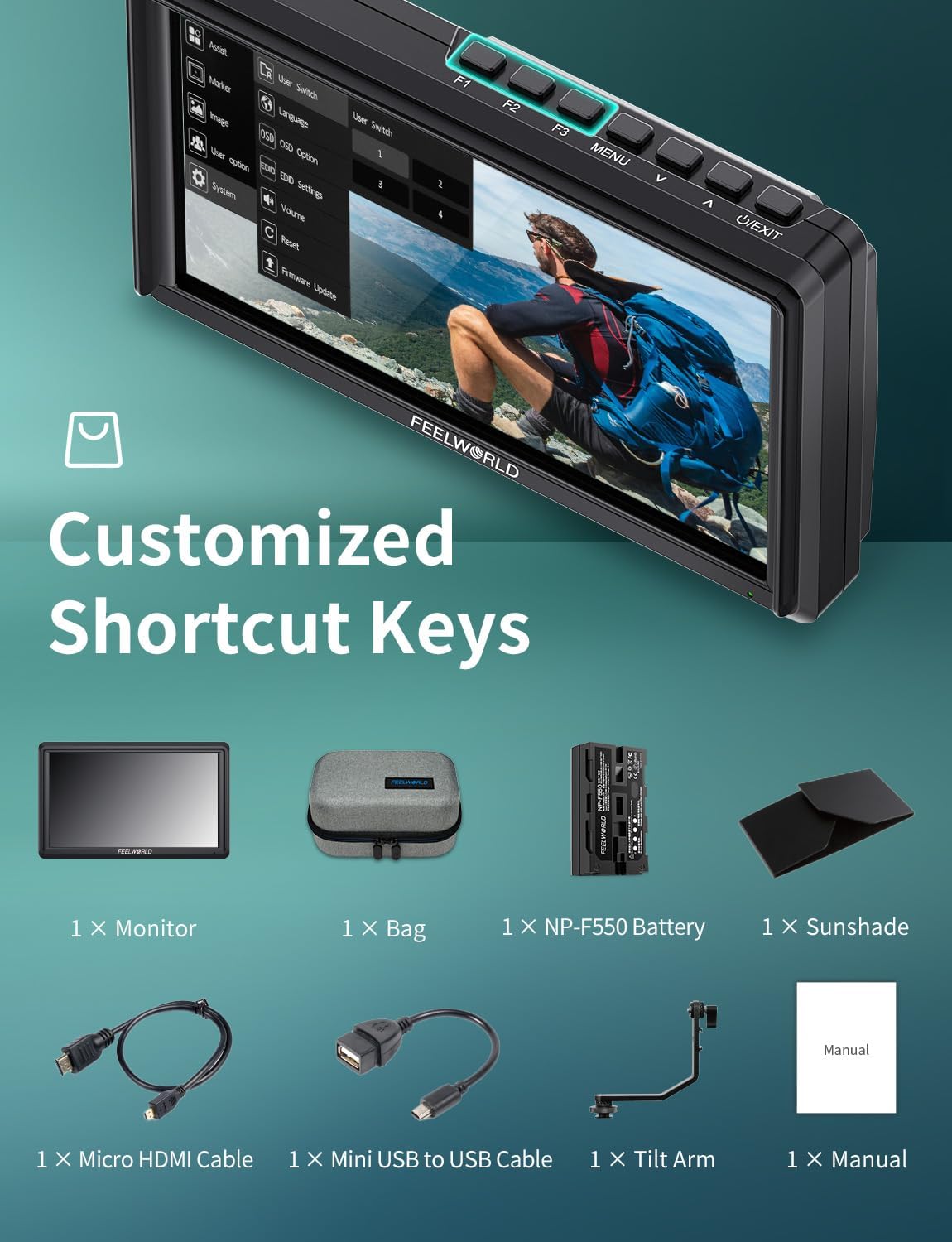
Image: An illustration showing the FEELWORLD S55E monitor and its included accessories: bag, NP-F550 battery, sunshade, Micro HDMI cable, Mini USB to USB cable, tilt arm, and user manual.
4. Product Overview
The FEELWORLD S55E is designed for professional video monitoring with a lightweight and compact form factor. It features a robust build with essential ports and controls for efficient operation.
4.1 Monitor Features
- Display: 5.5-inch IPS Full HD (1920x1152)
- Brightness: 500 nits
- Contrast Ratio: 1000:1
- Viewing Angle: 160° (H/V)
- Color Depth: 8-bit
- Weight: Approximately 175g (0.385 lbs)

Image: A graphic illustrating key features of the FEELWORLD S55E, including its 5.5-inch 500 Nits display, lightweight design, DC OUT 8.4V, Waveform function, 8-bit color, and flexible power options.
4.2 Ports and Controls
The monitor includes various ports and control buttons for connectivity and functionality.
- HDMI In: Connects to camera or video source.
- HDMI Out: Passes video signal to another monitor or recorder.
- DC In 12V: Power input.
- DC Out 8.4V: Power output for cameras.
- USB Upgrade: For firmware updates and 3D LUT loading.
- 3.5mm Headphone Jack: For audio monitoring.
- Function Buttons (F1, F2, F3): Customizable shortcut keys.
- MENU Button: Accesses the main menu.
- Navigation Buttons (Up/Down/Left/Right): For menu navigation and adjustments.
- Power Button: Turns the monitor on/off.
- 1/4 inch Mounting Points: Located on the bottom and right side for attaching to camera rigs or accessories.

Image: A diagram showing the dimensions of the FEELWORLD S55E monitor and the location of its HDMI input/output, DC power input, power output, 3.5mm earphone jack, USB upgrade port, and custom function keys.
5. Setup
5.1 Power Supply
The S55E monitor offers flexible power options:
- DC Input: Connect a 12V DC power adapter to the 'DC IN 12V' port for continuous power.
- Battery Power: Insert a compatible Sony NP-F series battery (e.g., NP-F550, NP-F750, NP-F970) or Canon LP-E6 battery into the rear battery slot. The included NP-F550 battery provides approximately 1.5 hours of runtime.

Image: An illustration demonstrating the dual battery system of the FEELWORLD S55E, showing compatibility with NP-F series and LP-E6 batteries, along with estimated runtimes for different NP-F battery capacities.

Image: A visual guide to the three power methods for the FEELWORLD S55E: DC power supply, NP-F battery power, and LP-E6 battery power.
5.2 Connecting to a Camera
Use the included Micro HDMI cable to connect your camera's HDMI output to the 'HDMI IN' port on the monitor. The monitor supports 4K60Hz HDMI signals.

Image: The FEELWORLD S55E monitor connected via HDMI, illustrating its 4K HDMI input and output capabilities and supported HDMI formats.
5.3 Powering Your Camera (DC Out)
The monitor features an 8.4V DC output port ('DC OUT 8.4V') that can power your camera, extending shooting time. An optional dummy battery adapter power cable is required for this function.

Image: The FEELWORLD S55E monitor connected to a DSLR camera, demonstrating its 8.4V DC output interface used to power the camera via an optional dummy battery adapter.
5.4 Mounting the Monitor
Attach the monitor to your camera rig or hot shoe using the included tilt arm and the 1/4 inch mounting points on the monitor.
Image: A close-up of the FEELWORLD S55E monitor showing its 1/4 inch mounting ports on the bottom and right side, compatible with various camera accessories and mounting systems.
5.5 Attaching the Sunshade
The portable sunshade can be easily installed to reduce glare and improve visibility in bright outdoor conditions.
Image: The FEELWORLD S55E monitor with the portable sun-hood attached, demonstrating its ease of installation and function in blocking strong light.
6. Operating the Monitor
6.1 Basic Operation
- Power On/Off: Press and hold the power button.
- Menu Navigation: Use the MENU button to enter the main menu. Use the navigation buttons to scroll and select options. Press MENU again to confirm or exit.
- Custom Shortcut Keys (F1, F2, F3): These buttons can be assigned to frequently used functions for quick access. Customize them in the 'User Switch' menu option.
6.2 Professional Monitoring Features
The S55E includes a suite of professional tools to assist with accurate exposure, focus, and color grading.
- Custom 3D LUT: Load up to 32 custom .cube LUT files via the USB port for real-time color grading preview. The monitor comes with four preloaded De-log LUTs.
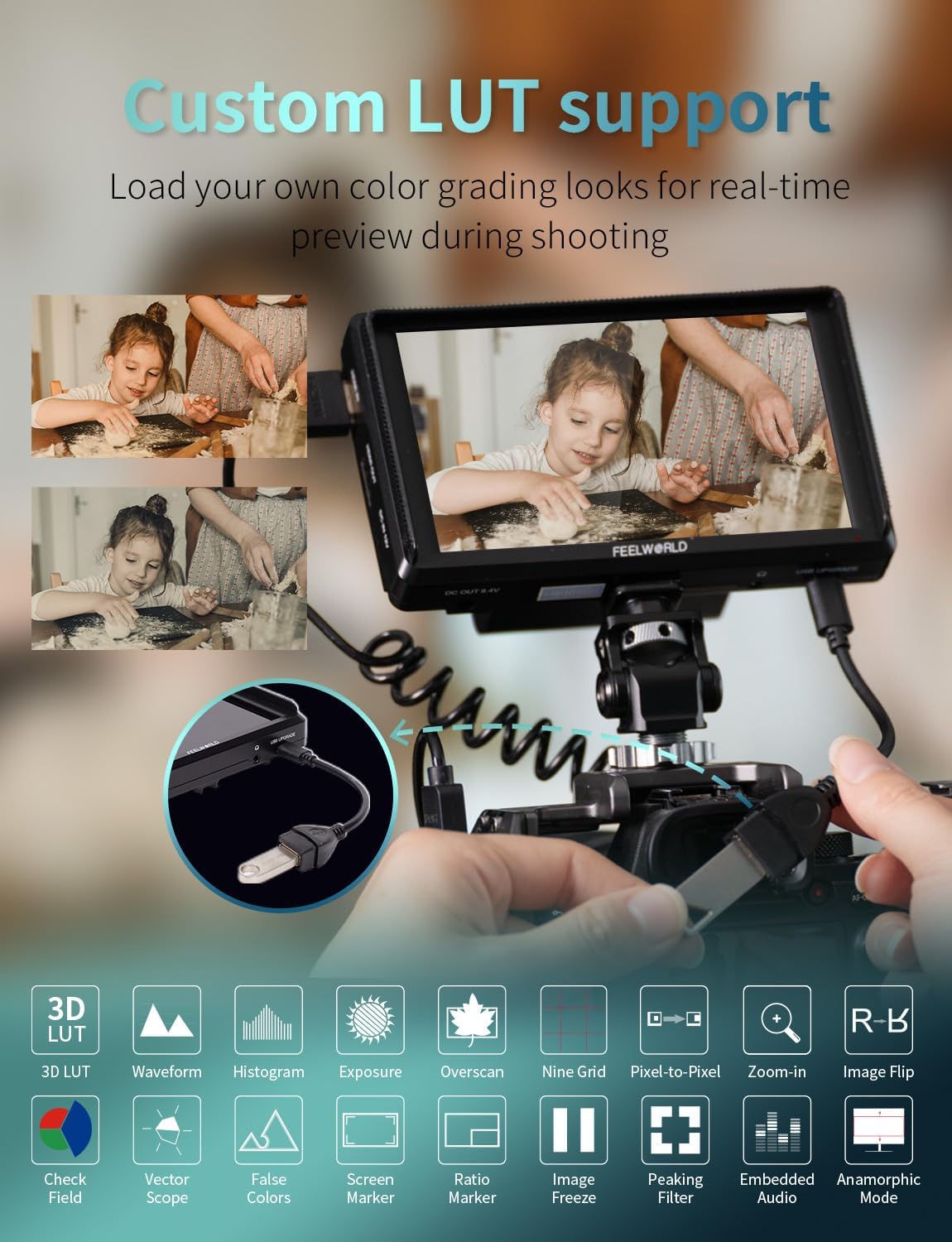
Image: The FEELWORLD S55E monitor displaying a scene with custom LUTs applied, illustrating the monitor's support for loading custom 3D LUTs for cinematic color styles and various professional tools.
Steps for loading 3D LUTs:
- Ensure your USB flash drive is formatted to FAT32 and contains .cube LUT files (max 32 files, single file not exceeding 7.9MB, LUT-3D size 16,17,32,33,64,65).
- Connect the USB flash drive to the monitor via the Mini USB to USB cable.
- Enter the main menu: MENU > LUT > LUT Import > Confirm to load. The monitor will automatically detect the USB flash drive and load the LUT files.
To clear imported LUTs, insert an empty USB flash drive and follow the same import steps.

Image: A detailed guide on how to load custom 3D LUTs onto the FEELWORLD S55E monitor using a USB flash drive, including file format requirements and menu navigation steps.
- HDR Monitoring: Enables clearer display of both lighter and darker details in high dynamic range footage.

Image: The FEELWORLD S55E monitor displaying a scene with HDR monitoring enabled and disabled, demonstrating how it enhances visibility of details in both highlights and shadows.
- Peaking Focus Assist: Highlights in-focus areas with adjustable intensity (1-10) and selectable colors (Red, Green, Blue) for precise manual focusing.

Image: A close-up of a bird on a branch, demonstrating the Peaking Focus Assist feature of the FEELWORLD S55E, which highlights in-focus areas to aid manual focusing.
- Waveform Monitoring: Displays the overall brightness and color information (RGB, YUV, Y) of the image, assisting in exposure correction and checking lighting evenness.

Image: Examples of Waveform Monitoring on the FEELWORLD S55E, showing RGB, YUV, and Y waveforms to assist with exposure and color calibration.
- False Color: Aids in setting camera exposure by displaying different colors for various exposure levels, allowing for proper exposure without external test equipment.
Image: A comparison showing an original picture and the same picture with False Color applied on the FEELWORLD S55E, demonstrating how this feature helps in evaluating exposure levels.
- Histogram: Displays the graphic of color tone distribution (RGB1, RGB2, Y) to intuitively show the exposure status and overlapping histograms in red, green, and blue channels. The Y Histogram checks picture brightness.
Image: Examples of Histogram displays on the FEELWORLD S55E, illustrating how it shows color tone distribution and helps identify underexposed, correct, and overexposed areas.
- Anamorphic Mode: Allows viewing unsqueezed images from anamorphic lenses (1.33x, 1.6x, 2.0x, or custom 1.20x-2.0x magnification).
Image: A demonstration of the Anamorphic mode on the FEELWORLD S55E, showing how it unsqueezes footage from 1.33x and 2.0x anamorphic lenses.
- Vertical Screen Marker (9:16): Provides a vertical screen marker for composing shots for vertical video platforms.

Image: The FEELWORLD S55E monitor displaying a vertical screen marker (9:16 ratio), useful for framing content for vertical video platforms.
- Other features include: Waveform, Vectorscope, Histogram, Exposure, Overscan, Nine Grid, Pixel-to-Pixel, Zoom-in, Image Flip, Check Field, Ratio Marker, Image Freeze, Embedded Audio.
7. Maintenance
7.1 Cleaning
- Screen: Use a soft, lint-free cloth to gently wipe the screen. For stubborn smudges, slightly dampen the cloth with water. Avoid harsh chemicals or abrasive materials.
- Body: Wipe the monitor body with a dry, soft cloth.
7.2 Storage
- When not in use, store the monitor in a cool, dry place, away from direct sunlight and extreme temperatures.
- Use the provided carrying bag for protection during transport and storage.
- Remove batteries if storing for extended periods to prevent leakage.
8. Troubleshooting
| Problem | Possible Cause | Solution |
|---|---|---|
| No image on screen | 1. Power not connected or low battery. 2. HDMI cable loose or faulty. 3. Incorrect input source selected. | 1. Check power connection or replace/charge battery. 2. Reconnect or replace HDMI cable. 3. Ensure camera is outputting signal and monitor input is correct. |
| Image flickering or distorted | 1. HDMI cable issue. 2. Signal incompatibility. 3. Power supply instability. | 1. Try a different HDMI cable. 2. Check camera output resolution/frame rate against monitor specifications. 3. Ensure stable power source. |
| No audio | 1. Audio not enabled on camera. 2. Headphone connection issue. 3. Monitor volume too low. | 1. Check camera audio settings. 2. Ensure headphones are properly connected. 3. Adjust monitor volume. |
| Cannot load 3D LUTs | 1. USB drive format incorrect. 2. LUT file format incorrect or too large. 3. USB cable connection issue. | 1. Format USB drive to FAT32. 2. Ensure LUTs are .cube files, max 7.9MB each, and within supported 3D LUT sizes. 3. Reconnect USB cable. |
9. Specifications
| Feature | Specification |
|---|---|
| Screen Size | 5.5 inches |
| Resolution | 1920 x 1152 (Full HD) |
| Aspect Ratio | 16:9 |
| Brightness | 500 cd/m² (Nits) |
| Contrast Ratio | 1000:1 |
| Viewing Angle | 160° H/V |
| Color Depth | 8-bit |
| HDMI Input/Output | 4K60Hz (Max 4096x2160p 60/50/30/29.97/25/24/23.98) |
| Audio Output | 3.5mm Headphone Jack |
| Power Input | DC 12V |
| Power Output | DC 8.4V |
| Battery Compatibility | Sony NP-F series, Canon LP-E6 |
| USB Port | Mini USB for firmware upgrade and 3D LUT import |
| Mounting Points | 1/4 inch threads (bottom, right) |
| Dimensions | 142L x 87.2H x 27.5D (mm) |
| Weight | Approx. 175g (0.385 lbs) |
10. Warranty and Support
FEELWORLD products are covered by a limited warranty. Please refer to the warranty card included in your package or visit the official FEELWORLD website for detailed warranty terms and conditions.
For technical support, troubleshooting assistance, or service inquiries, please contact FEELWORLD customer service through their official website or the contact information provided with your product.