
1. Introduction
This manual provides instructions for the Adesso WKB-7010 Bluetooth Keyboard Case, designed for use with iPad Pro 11-inch and iPad Air 10.9-inch models. This product combines a protective case with a detachable wireless keyboard and integrated touchpad, transforming your tablet into a portable workstation.

Image 1.1: The Adesso WKB-7010 Bluetooth Keyboard Case with an iPad in use.
2. Package Contents
Please verify that all items are present in your package:
- Adesso WKB-7010 Bluetooth Keyboard Case
- USB-C Charging Cable
- User Manual (this document)
3. Compatibility
The Adesso WKB-7010 Bluetooth Keyboard Case is compatible with the following Apple iPad models:
- iPad Pro 11-inch: 1st generation (2018), 2nd generation (2020), 3rd generation (2021), 4th generation (2022)
- iPad Air 10.9-inch: 4th generation (2020), 5th generation (2022), 6th generation (2024 M2 models)
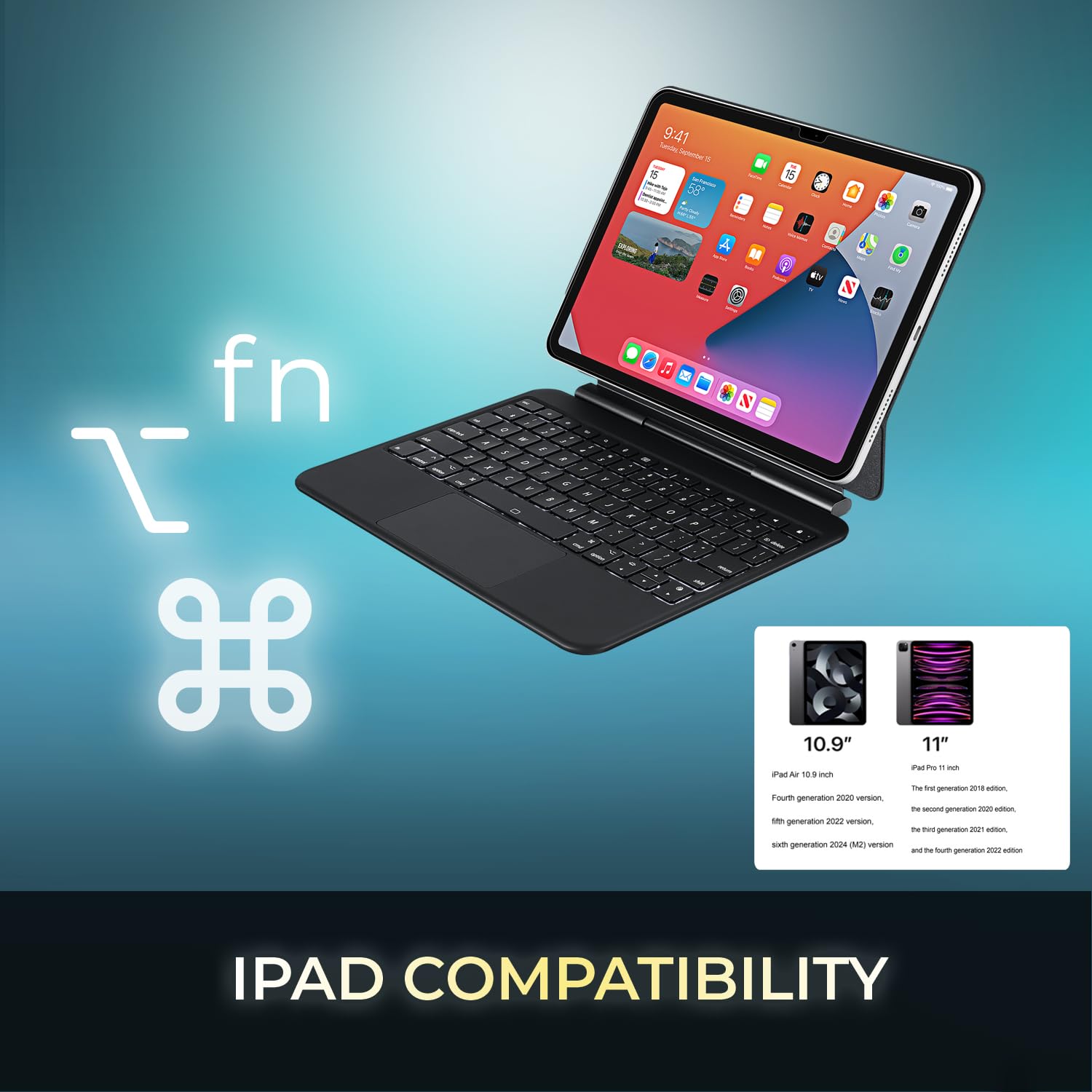
Image 3.1: Visual representation of compatible iPad models (10.9" and 11").
4. Features
- Detachable Design: The keyboard can be separated from the case for flexible use.
- Adjustable Stand: The case converts into a stand with multiple viewing angles.
- Integrated Touchpad: Provides precise navigation and multi-touch gesture support.
- Bluetooth 5.1 Connectivity: Offers stable wireless connection up to 30 feet with low power consumption.
- Rechargeable Battery: Built-in 450 mAh lithium polymer battery for extended use.
- Scissor-Switch Keys: Low-profile keys designed for comfortable and responsive typing.
- Durable Construction: Ultra-slim aluminum design for portability and protection.

Image 4.1: The case allows for various adjustable viewing angles for the iPad.

Image 4.2: The keyboard case features an ultra-slim and compact design, as shown with a ruler for scale.
5. Setup
5.1. Charging the Keyboard
Before initial use, fully charge the keyboard. Connect the included USB-C cable to the keyboard's charging port and the other end to a USB power source (e.g., computer, wall adapter). The charging indicator light will illuminate during charging and turn off when fully charged.

Image 5.1: The keyboard features a built-in rechargeable battery and charges via USB-C.
5.2. Inserting Your iPad
Carefully place your iPad into the protective case, ensuring it is securely seated. The magnetic closure will help secure the tablet and keyboard when closed.
5.3. Bluetooth Pairing
- Ensure the keyboard is turned on and fully charged.
- Turn on the keyboard by sliding the power switch to the "ON" position.
- Press the Fn + C keys simultaneously to activate Bluetooth pairing mode. The Bluetooth indicator light will flash.
- On your iPad, go to Settings > Bluetooth.
- Turn on Bluetooth.
- Locate "Adesso WKB-7010" (or similar) in the list of available devices and tap to connect.
- Once connected, the Bluetooth indicator light on the keyboard will stop flashing.

Image 5.2: The keyboard utilizes Bluetooth 5.1 wireless technology for connection.
6. Operating Instructions
6.1. Keyboard Functions
The keyboard features standard QWERTY layout keys and dedicated function keys for iPad control. Use the Fn key in combination with other keys for special functions (e.g., media control, volume, screen brightness).
6.2. Touchpad Usage
The integrated touchpad supports various gestures for navigation and interaction with your iPad. Ensure that "AssistiveTouch" or "Trackpad & Mouse" settings are configured on your iPad for optimal performance.
- Single Finger Tap: Left-click.
- Two Finger Tap: Right-click (context menu).
- Two Finger Scroll: Scroll up/down or left/right.
- Pinch to Zoom: Use two fingers to zoom in or out.
- Three Finger Swipe Up: Go to Home screen.
- Three Finger Swipe Left/Right: Switch between open apps.
7. Charging the Keyboard
The keyboard is equipped with a 450 mAh rechargeable lithium polymer battery. A full charge takes approximately 3 hours using the provided USB-C cable.
- Continuous Use (backlight off): Up to 150 hours
- Continuous Use (backlight on): Up to 2.5 hours
- Standby Time: Up to 90 days
When the battery is low, the power indicator light may flash or turn red. Connect the keyboard to a power source to recharge.
8. Maintenance
- Keep the keyboard and case clean by wiping with a soft, dry cloth.
- Avoid exposing the device to extreme temperatures, humidity, or direct sunlight.
- Do not use harsh chemicals or abrasive cleaners.
- Store the device in a cool, dry place when not in use for extended periods.
9. Troubleshooting
9.1. Keyboard Not Connecting
- Ensure the keyboard is turned on and fully charged.
- Verify Bluetooth is enabled on your iPad.
- Put the keyboard into pairing mode (Fn + C).
- Forget the device on your iPad's Bluetooth settings and attempt to re-pair.
- Restart both your iPad and the keyboard.
9.2. Touchpad Not Responding
- Ensure the keyboard is connected via Bluetooth.
- Check iPad settings for "Trackpad & Mouse" or "AssistiveTouch" to ensure external input devices are enabled.
- Restart the keyboard and iPad.
9.3. Keys Not Working
- Ensure the keyboard is fully charged.
- Verify a stable Bluetooth connection.
- Clean around the affected keys to remove any debris.
10. Specifications
| Model Number | WKB-7010 |
| Connectivity Technology | Bluetooth 5.1 |
| Compatible Devices | iPad Pro 11-inch, iPad Air 10.9-inch |
| Battery Type | Rechargeable Lithium Polymer |
| Battery Capacity | 450 mAh |
| Charging Port | USB-C |
| Operating Distance | Up to 30 feet (10 meters) |
| Key Switch Type | Scissor-Switch |
| Material | Aluminum, Leather (case exterior) |
| Dimensions (L x W x H) | 10 x 7.8 x 0.55 inches |
| Weight | 1.2 pounds |
11. Warranty and Support
This Adesso product comes with a 1 Year Limited Manufacturer Warranty. For warranty claims or technical support, please contact Adesso customer service. You can find contact information on the official Adesso website: www.adesso.com
Please retain your proof of purchase for warranty service.


