
Introduction
This manual provides essential information for the safe and efficient use of your Motorola Edge 60 Neo 5G smartphone. Please read this guide thoroughly before operating your device to ensure optimal performance and longevity. The Motorola Edge 60 Neo is a 5G smartphone featuring a 2.6 GHz Octa-core processor, 8GB of RAM, and 256GB of internal storage. It operates on Android 15 and is powered by a 5200mAh non-removable battery.
Setup
1. Unboxing and Initial Charge
Carefully remove all components from the packaging. Connect the provided USB cable to the phone's USB Type-C port and the other end to a power adapter (sold separately) or a computer. Allow the device to charge fully before first use.

Image: Bottom view of the Motorola Edge 60 Neo, highlighting the USB Type-C charging port and speaker grille.
2. SIM Card Installation
The Motorola Edge 60 Neo supports Dual SIM functionality. Locate the SIM tray on the side of the device. Use the SIM ejector tool (if provided) to open the tray. Place your Nano-SIM cards into the designated slots, ensuring proper orientation. Carefully reinsert the tray into the phone.
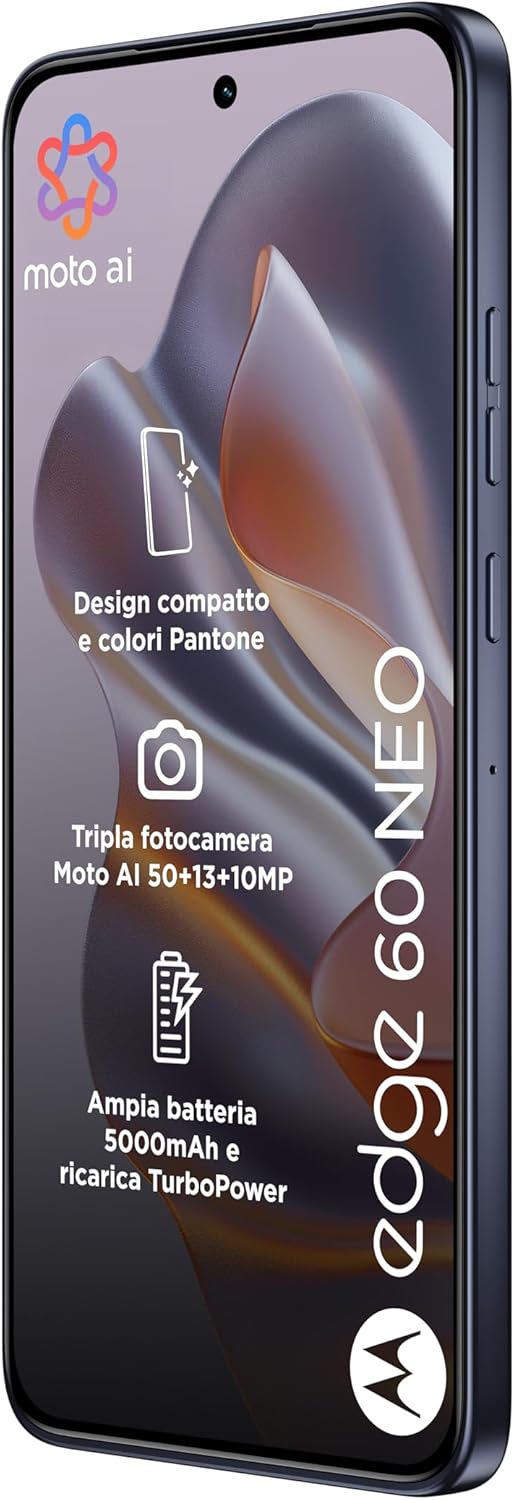
Image: Right side view of the Motorola Edge 60 Neo, illustrating the location of the SIM card tray and volume buttons.
3. Powering On and Initial Configuration
Press and hold the Power button until the Motorola logo appears. Follow the on-screen prompts to select your language, connect to a Wi-Fi network, and set up your Google account. This process will guide you through essential settings to personalize your device.
Operating Instructions
1. Basic Navigation
Your Motorola Edge 60 Neo features a 6.36-inch LTPO P-OLED touchscreen. Use touch gestures such as tap, swipe, pinch-to-zoom, and long-press to navigate the interface. The Android 15 operating system provides an intuitive user experience.

Image: Front view of the Motorola Edge 60 Neo, showcasing its vibrant display.
2. Camera Usage
The device is equipped with a versatile triple camera system: a 50 MP main sensor with OIS, a 10 MP telephoto lens with 3x optical zoom and OIS, and a 13 MP ultrawide lens. The front camera is 32 MP. Open the Camera application to capture photos and videos. Tap on the screen to focus, and use the on-screen controls to switch modes (e.g., Photo, Video, Portrait) and adjust settings.

Image: Back view of the Motorola Edge 60 Neo, highlighting the triple camera module.
3. Connectivity
- 5G Network: The device supports 5G cellular technology. Ensure your SIM card and plan are 5G compatible for optimal network speeds.
- Wi-Fi: Access Wi-Fi settings from the Quick Settings panel or the Settings app to connect to available networks.
- Bluetooth: Pair with Bluetooth accessories like headphones or speakers via the Bluetooth settings.
4. Battery Management
The 5200mAh battery provides extended usage. To optimize battery life, adjust screen brightness, disable unused features like Bluetooth or Wi-Fi when not needed, and close background applications. The device supports fast charging via USB Type-C.
Maintenance
1. Cleaning Your Device
Use a soft, lint-free cloth to clean the screen and body of your phone. Avoid using harsh chemicals or abrasive materials, as these can damage the display or finish. The device is water resistant; however, avoid submerging it in water.
2. Software Updates
Regularly check for and install software updates to ensure your device has the latest features, security patches, and performance improvements. You can find update options in the Settings app under 'System' or 'Software Update'.
3. Battery Care
To prolong battery lifespan, avoid extreme temperatures. Do not leave the phone fully charged or fully discharged for extended periods. Use only approved chargers and cables.
Troubleshooting
Common Issues and Solutions:
- Device Not Powering On: Ensure the battery is charged. Connect the phone to a charger and wait a few minutes before attempting to power on again. If unresponsive, try a force restart by holding the Power button for an extended period (e.g., 10-15 seconds).
- Network Connectivity Issues: Check if your SIM card is properly inserted. Verify that mobile data is enabled in settings. If issues persist, restart your device or contact your network provider to confirm service status.
- Applications Crashing: Try clearing the cache for the problematic app in Settings > Apps. If the issue continues, consider reinstalling the app. Ensure your device's software is up to date.
- Slow Performance: Close unused background applications. Clear unnecessary files and data to free up storage. A factory reset can resolve persistent performance issues, but remember to back up your data first.
Specifications
| Brand | Motorola |
| Model Name | Motorola Edge 60 Neo |
| Processor | Mediatek Dimensity 7400 (4 nm) Octa-core (4x2.6 GHz Cortex-A78 & 4x2.0 GHz Cortex-A55) |
| RAM | 8 GB |
| Internal Storage | 256 GB (non-expandable) |
| Operating System | Android 15 |
| Display | 6.36 inches, LTPO P-OLED, 1B colors, 1200 x 2670 pixels |
| Rear Camera | 50 MP (wide, OIS), 10 MP (telephoto, 3x optical zoom, OIS), 13 MP (ultrawide) |
| Front Camera | 32 MP (wide) |
| Battery | 5200mAh (non-removable) |
| Connectivity | 5G, Wi-Fi, Bluetooth, USB Type-C |
| SIM Card | Dual SIM |
| Water Resistance | Water Resistant |
| Dimensions | 6.07 x 2.8 x 0.32 inches |
| Weight | 179 Grams |
Warranty Information
Your Motorola Edge 60 Neo comes with a 1 Year Manufacturer Warranty. This warranty covers defects in materials and workmanship under normal use. For specific terms and conditions, please refer to the warranty card included with your product or visit the official Motorola support website.
Support
For further assistance, technical support, or to access additional resources, please visit the official Motorola support website. You can also find FAQs, software downloads, and contact information for customer service there.
Official Motorola Support: www.motorola.com/support


