
1. Introduction
This manual provides essential information for setting up, operating, and maintaining your Besttab T60 Android 16 Tablet. Please read it thoroughly to ensure proper usage and to maximize your device's capabilities.
2. Package Contents
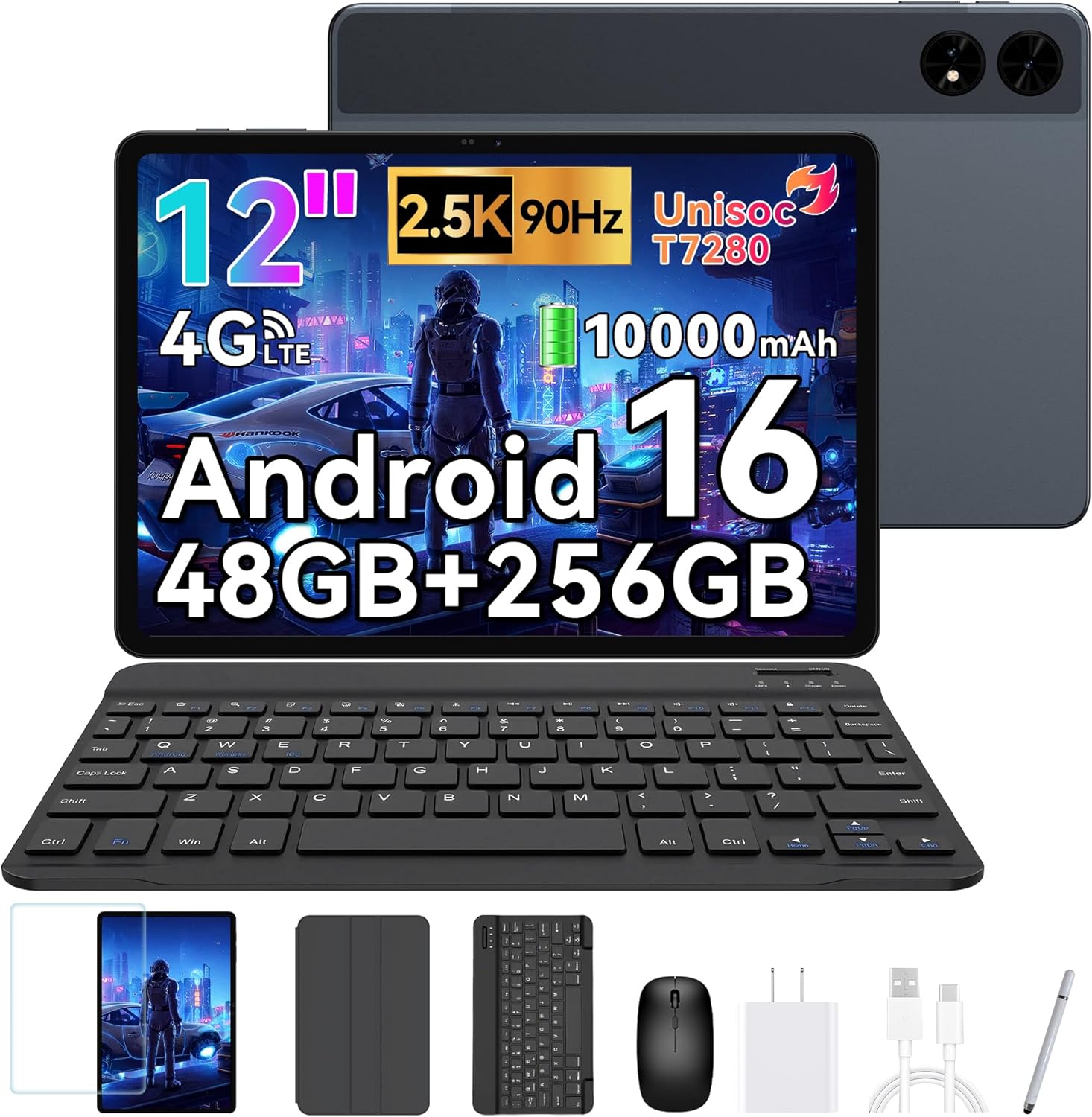
Verify that all items listed below are included in your product package:
- Besttab T60 Tablet
- Bluetooth Keyboard
- Wireless Mouse
- Touch Pen (Stylus)
- Protective Case
- Tempered Glass Screen Protector Film
- 9V2A Fast Charging Adapter
- USB Type-C Cable
- User Manual (Japanese)

3. Physical Components
Familiarize yourself with the physical layout and components of your Besttab T60 tablet.

3.1. Buttons and Ports
- Power Button: Located on the side, used to power on/off or wake/sleep the device.
- Volume Buttons: Adjust the device's volume.
- USB Type-C Port: For charging and data transfer.
- 3.5mm Headphone Jack: For connecting wired headphones.
- SIM/MicroSD Card Slot: Insert 4G LTE SIM cards and MicroSD card for storage expansion.
- Speakers: Quad-box Smart-PA Stereo Speakers for enhanced audio.
3.2. Cameras
- Front Camera: 8MP for video calls and selfies.
- Rear Camera: 16MP AI camera for high-quality photos and videos.
4. Setup
4.1. Initial Power On
- Press and hold the Power button until the Besttab logo appears.
- Follow the on-screen prompts to complete the initial setup, including language selection, Wi-Fi connection, and Google account setup.
4.2. SIM Card and MicroSD Card Installation
The Besttab T60 supports dual SIM cards and MicroSD card expansion up to 2TB.
- Locate the SIM/MicroSD card slot on the side of the tablet.
- Use the provided SIM tray ejector tool to open the tray.
- Carefully place your Nano-SIM cards and/or MicroSD card into the designated slots.
- Insert the tray back into the tablet until it clicks into place.
4.3. Wi-Fi Connection
Connect your tablet to a Wi-Fi network for internet access.
- Go to Settings > Wi-Fi.
- Toggle Wi-Fi On.
- Select your desired network from the list and enter the password if prompted.
4.4. Language Settings
To change the system language:
- Go to Settings > System > Languages & input > Languages.
- Tap Add a language and select your preferred language.
- Drag your preferred language to the top of the list to set it as the primary language.
5. Operating Instructions
5.1. Display Features
The Besttab T60 features a 12-inch IPS LCD with a 2400*1600 QHD resolution and 90Hz refresh rate, providing a clear and smooth visual experience.

5.2. Performance and Storage
Equipped with a high-performance Unisoc T7280 Octa-Core CPU, 48GB RAM, and 256GB ROM (expandable up to 2TB via MicroSD), the tablet handles multitasking and demanding applications efficiently.


5.3. Battery Management
The 10,000mAh battery, combined with AI power-saving modes, provides extended usage. It supports 18W fast charging via the USB Type-C port.

5.4. Connectivity
The T60 supports 4G LTE communication with dual SIM slots, dual-band Wi-Fi 6 (2.4GHz and 5GHz), and precise GPS/GLONASS/Galileo/Beidou positioning.
5.5. Camera Usage
Utilize the 8MP front camera for clear video calls and the 16MP AI rear camera for capturing high-quality photos and videos.

5.6. Special Features
- PC Mode: Connect to an external display for a desktop-like experience.
- Parental Control: Manage usage time and content for children.
- Split Screen: Use two apps simultaneously for enhanced productivity.
- Wireless Projection: Cast your tablet screen to a compatible display.
- Gemini AI: Integrated AI features for smart planning, personal assistance, advanced recognition, data analysis, and report generation.

6. Maintenance
- Cleaning: Use a soft, lint-free cloth to clean the screen and body. Avoid harsh chemicals.
- Software Updates: Regularly check for system updates in Settings > System > System updates to ensure optimal performance and security.
- Battery Care: Avoid extreme temperatures. For long-term storage, charge the battery to around 50%.
- Storage Management: Periodically clear unnecessary files and apps to free up storage space and maintain performance.
7. Troubleshooting
7.1. Common Issues and Solutions
| Issue | Solution |
|---|---|
| Tablet does not power on | Ensure the battery is charged. Press and hold the power button for 10-15 seconds. |
| Wi-Fi connection issues | Restart the tablet and your Wi-Fi router. Check Wi-Fi settings and ensure the password is correct. |
| Slow performance | Close unnecessary background apps. Clear cache and data for frequently used apps. Check for system updates. |
| Apps crashing | Update the app to the latest version. Clear the app's cache and data in Settings. Reinstall the app if the issue persists. |
8. Specifications
| Feature | Detail |
|---|---|
| Brand | BESTTAB |
| Model Name | T60 |
| Operating System | Android 16 |
| Screen Size | 12 Inches |
| Display Resolution | 2400*1600 Pixels (QHD) |
| Display Refresh Rate | 90Hz |
| Processor | Unisoc T7280 Octa-Core CPU |
| RAM | 48 GB |
| Storage Capacity | 256 GB (Expandable up to 2TB with MicroSD) |
| Battery Capacity | 10000 mAh |
| Rear Camera | 16 MP |
| Front Camera | 8 MP |
| Wireless Connectivity | Bluetooth, Wi-Fi (802.11 ac/b/g/n), 4G LTE |
| GPS | GPS/GLONASS/Galileo/Beidou |
| Dimensions (L x W x H) | 27 x 19 x 0.8 cm |
| Color | Gray |
9. Warranty and Support
The Besttab T60 tablet comes with a 2-year manufacturer's warranty. For any product defects or issues, please contact customer support for returns or exchanges.
For further assistance, please refer to the contact information provided in your product packaging or visit the official Besttab support website.
