
1. Introduction
The Phomemo M832D is a portable thermal inkless printer designed for convenient printing on the go. This manual provides essential information to help you set up, operate, and maintain your printer effectively. It supports various paper sizes, including US Letter and A4, and offers multiple connectivity options.
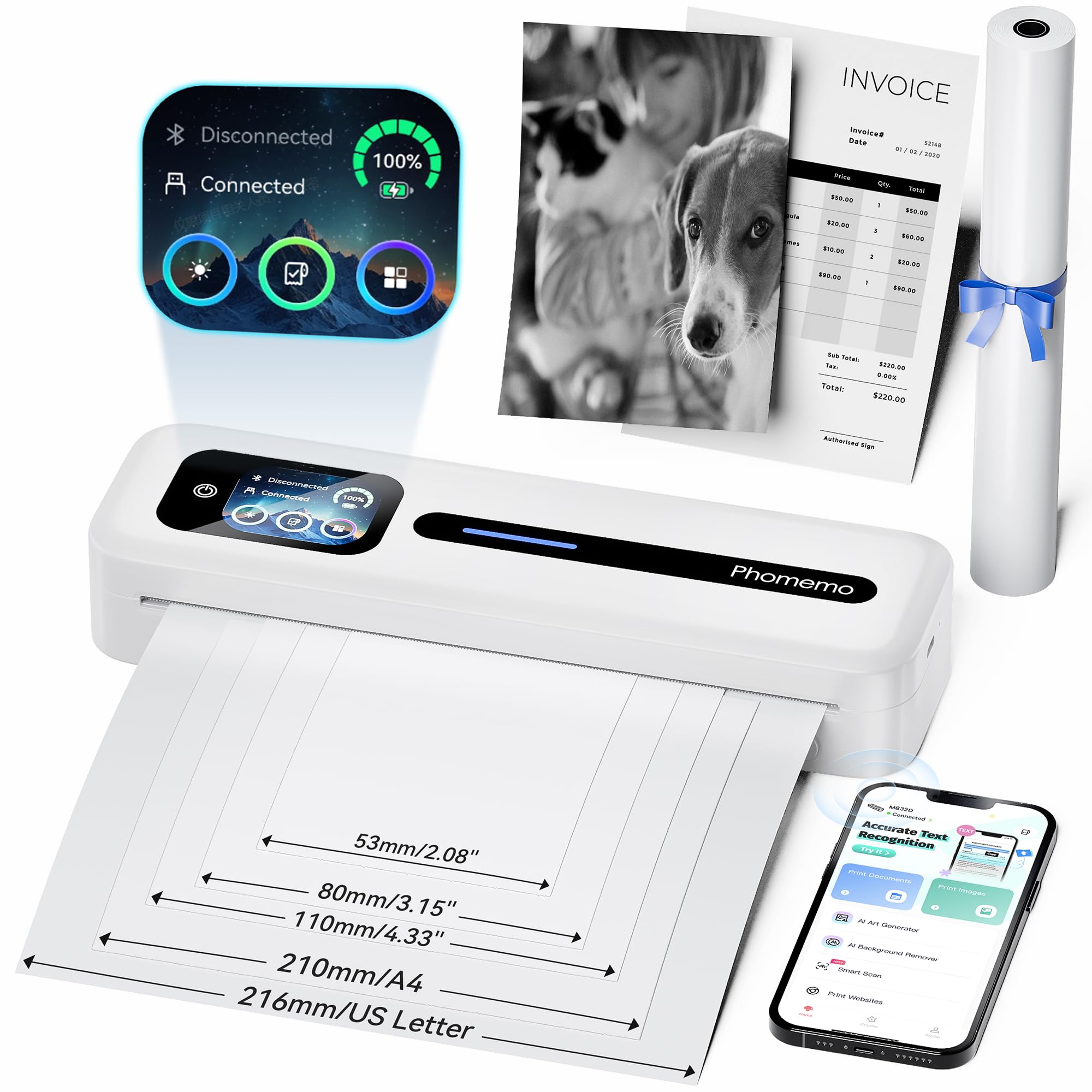
Figure 1: Phomemo M832D Portable Thermal Printer.

Figure 2: The M832D printer highlighting its compact size and light weight of 1.5 lbs.
2. What's in the Box
Please check the package contents to ensure all items are present:
- 1x Phomemo M832D Portable Printer
- 1x US Letter Size Thermal Roll Paper (pre-installed inside the printer)
- 1x USB-C Charging Cable & USB-Type C Adapter
- 1x User Manual

Figure 3: All components included in the Phomemo M832D package.
3. Setup Guide
3.1 Initial Charging
Before first use, fully charge the printer using the provided USB-C cable and adapter. The touchscreen display will indicate the battery status.
3.2 Loading Paper
The M832D printer supports various thermal paper types and sizes. Follow these steps to load paper:
- Open the paper compartment cover.
- Insert the thermal paper roll or stack, ensuring the printable side faces the print head.
- Close the paper compartment cover securely. The printer will automatically detect and align the paper.

Figure 4: Illustration of loading thermal paper and the various supported paper sizes.
3.3 App Installation (for Mobile Devices)
To print from your smartphone or tablet, download the official Phomemo Smart APP:
- Scan the QR code provided in the quick start guide or search for "Phomemo" in your device's app store.
- Install the Phomemo Smart APP.

Figure 5: Overview of the Phomemo Smart APP interface for printing documents and images.
3.4 Connectivity
3.4.1 Bluetooth Connection (iOS/Android)
- Ensure your printer is powered on.
- On your mobile device, enable Bluetooth.
- Open the Phomemo Smart APP.
- Within the app, search for and select the M832D printer to connect. The printer's touchscreen will show a connected status.

Figure 6: Steps for connecting the M832D printer wirelessly via Bluetooth to a phone or tablet. For app download, scan the QR code: Phomemo App.
3.4.2 USB-C Connection (PC/Laptop)
- Download the latest driver from the official Phomemo website (refer to the user manual for the specific URL).
- Connect the M832D printer to your computer using the provided USB-C cable.
- Install the driver and follow the on-screen instructions to complete the setup.

Figure 7: Instructions for connecting the M832D printer to a computer via USB-C cable.
4. Operating Instructions
4.1 Touchscreen Display Functions
The M832D features an intuitive touchscreen display for easy control and monitoring:
- Power Display: Shows current battery level.
- Connection Status: Indicates whether the printer is connected via Bluetooth or USB.
- User Guide: Access on-screen help and tutorials.
- Paper Status: Identifies paper placement and type.
- Settings: Adjust screen brightness, auto-shutdown time, perform calibration, print self-test page, and restore factory settings.

Figure 8: The smart display showing power, connection status, and access to the user guide.

Figure 9: The 2.01-inch LCD display showing various menu options for printer settings and help.

Figure 10: Overview of the multifunctional settings available on the M832D printer, including screen brightness, calibration, and factory reset.
4.2 Printing Documents
Once connected, you can print documents, photos, and web pages directly from the Phomemo Smart APP or your computer's print dialogue. Select the M832D as your printer and adjust print settings as needed.
4.3 Supported Media Types and Sizes
The M832D printer is compatible with various thermal paper types and sizes:
- Sizes: 8.5" x 11" (US Letter), A4, 2.08" (53mm), 3.15" (80mm), and 4.33" (110mm).
- Types: Thermal roll paper, folded thermal paper, and single-sheet thermal paper.

Figure 11: The M832D printer supports multiple paper sizes and types, including US Letter, A4, and various smaller formats.
5. Maintenance
5.1 Cleaning the Print Head
To ensure optimal print quality, regularly clean the print head. Use a soft, lint-free cloth lightly dampened with isopropyl alcohol. Gently wipe the print head surface. Ensure the printer is off and cooled down before cleaning.
5.2 Battery Care
To prolong battery life:
- Avoid fully discharging the battery frequently.
- Store the printer in a cool, dry place when not in use for extended periods.
- Charge the printer periodically if stored for a long time to prevent deep discharge.
6. Troubleshooting
If you encounter issues with your Phomemo M832D printer, refer to the common problems and solutions below:
- Blank Prints: Check if the thermal paper is loaded correctly with the printable side facing the print head. Ensure the paper is thermal paper.
- Paper Not Detected: Open and close the paper compartment to re-seat the paper. Perform a calibration via the touchscreen settings.
- Connection Issues: For Bluetooth, ensure Bluetooth is enabled on your device and the printer, and try reconnecting through the app. For USB, verify the cable connection and driver installation.
- Poor Print Quality: Clean the print head. Ensure the battery is sufficiently charged. Use high-quality thermal paper.

Figure 12: The printer's Help Center provides guidance on common issues like paper loading and blank prints.
7. Specifications
| Feature | Detail |
|---|---|
| Model Series | M832D |
| Printing Technology | Thermal |
| Printer Output | Monochrome |
| Maximum Black and White Print Resolution | 300 DPI |
| Max Printspeed Monochrome | 15 ppm |
| Maximum Media Size | 8.5 x 11 inch |
| Supported Media Sizes | 8.5 x 11 (US Letter), A4, 2.08", 3.15", 4.33" |
| Print Media | Thermal Paper |
| Connectivity Technology | Bluetooth, USB (Type C) |
| Compatible Devices | Laptops, PC, Smartphones, Tablets |
| Control Method | App, Touchscreen |
| Battery | 2600mAh Lithium Polymer (included) |
| Max Input Sheet Capacity | 150 sheets |
| Product Dimensions | 12.17"D x 2.5"W x 1.87"H |
| Item Weight | 1.52 pounds |
8. Warranty and Support
For warranty information and technical support, please refer to the warranty card included in your package or visit the official Phomemo website. You can also contact Phomemo customer service directly for assistance with product issues or inquiries.


