
Introduction
This manual provides essential information for the safe and efficient use of your coocaa 65Y74 65-inch Frameless UHD 4K Smart Google TV. Please read these instructions thoroughly before operating the television and retain them for future reference.
The coocaa 65Y74 series offers a 65-inch frameless 4K UHD display, powered by Google TV, providing a comprehensive entertainment experience with smart features and advanced connectivity.
What's in the Box
Carefully unpack the box and ensure all items are present and undamaged. If any items are missing or damaged, contact your retailer immediately.
- TV Unit (1N)
- Stand Bases (2N)
- Quick Start Guide (1N)
- Warranty Card (1N)
- Remote Control (1N)
- AAA Batteries (2N)
- Power Cord (1N)
- Screws (4N)
- AV Converting Cable (1N)

Image: Illustration of the items included in the coocaa 65Y74 TV packaging.
Setup
1. Attaching the Stand Bases
- Place the TV screen-down on a soft, flat surface to prevent damage.
- Align each stand base with the corresponding slots on the bottom of the TV.
- Secure the stand bases using the provided screws. Ensure they are firmly attached.
2. Wall Mounting (Optional)
If you intend to wall mount the TV, refer to the instructions provided with your wall mount kit. The TV supports a VESA mount standard of 400 x 400 mm. Remove the stand bases if they were previously attached.
3. Connecting Peripherals
Connect your external devices (set-top box, gaming console, Blu-ray player, sound system) to the appropriate ports on the TV's rear panel.
- HDMI Ports: The TV has 3 HDMI ports (including HDMI 2.1) for high-definition audio and video.
- USB Ports: Two USB 2.0 ports are available for connecting USB storage devices.
- Digital Audio Output: For connecting to external audio systems.
- AV Input: Use the provided AV converting cable for older devices.
- Ethernet Port: For a wired internet connection.

Image: Close-up of the TV's rear panel with labeled connectivity ports.
4. Power Connection
Connect the power cord to the TV's power input and then to a suitable electrical outlet. Do not power on the TV until all connections are made.
5. Remote Control Setup
Insert the two AAA batteries into the remote control, ensuring correct polarity.
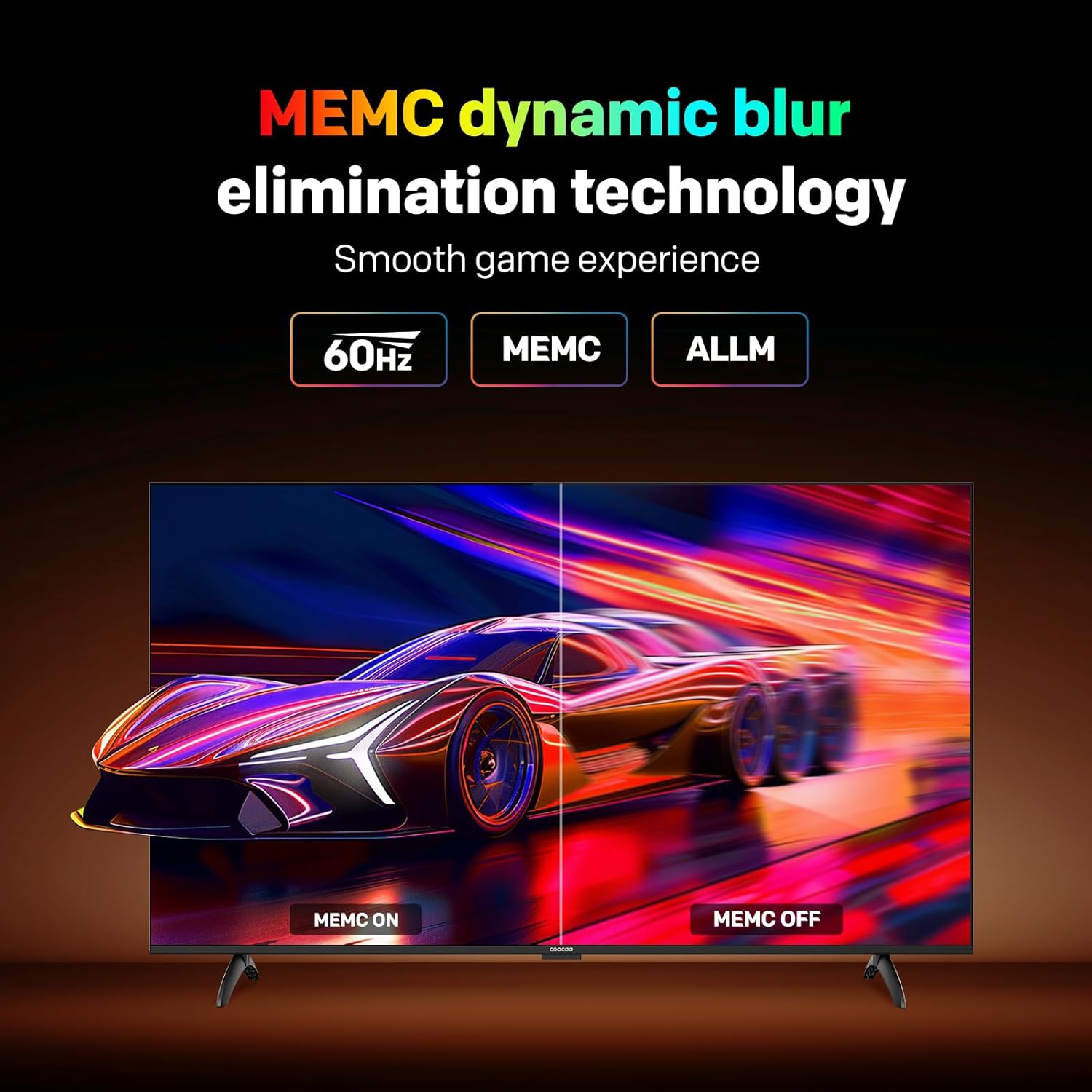
Image: The coocaa 65Y74 Smart Google TV remote control.
Operating Instructions
1. Initial Power-On and Google TV Setup
- Press the power button on the remote control or the TV.
- Follow the on-screen instructions to complete the initial setup, including language selection, network connection (Wi-Fi or Ethernet), and Google account sign-in.
- Pair the remote control via Bluetooth if prompted for voice control functionality.
2. Basic TV Functions
- Power: Press the Power button to turn the TV on or off.
- Volume: Use the Volume +/- buttons to adjust the sound level.
- Channels: Use the Channel +/- buttons to change channels (if connected to an antenna/cable).
- Input Source: Press the Input button to select connected devices (HDMI 1, HDMI 2, USB, etc.).
3. Navigating Google TV
The Google TV interface provides access to apps, streaming services, and personalized content recommendations. Use the directional pad and OK button on your remote to navigate menus and select items.
4. Using Google Assistant
Press the Google Assistant button on your remote and speak into the microphone to control your TV, search for content, get information, and manage smart home devices.
5. Casting and Mirroring
The TV supports Chromecast built-in, Miracast, and Airplay for casting content from compatible mobile devices or computers directly to your TV screen.
Key Features
Your coocaa 65Y74 TV is equipped with advanced technologies to enhance your viewing and user experience.
Display Technology
- 4K UHD Resolution (3840 x 2160): Delivers sharp, detailed images.
- Frameless Design: Maximizes screen space for an immersive viewing experience.
- 60 Hz Refresh Rate: Provides smooth motion for most content.
- HDR10 & HLG Support: Enhances contrast and color accuracy for compatible content.
- DCI-P3 Wide Color Gamut: Offers a broader range of colors for more vibrant and realistic visuals.
- MEMC (Motion Estimation, Motion Compensation): Reduces motion blur in fast-paced scenes.
- AI Skin Color Restoration: Optimizes skin tones for natural-looking images.
- Eye Care Features: Includes Flicker-Free technology and Night mode to reduce eye strain.

Image: Visual demonstration of 4K Ultra-Clear resolution.

Image: Representation of DCI-P3 wide color gamut.

Image: Visual comparison of HDR10 decoding.

Image: Demonstration of MEMC dynamic blur elimination technology.

Image: Example of AI skin color restoration.

Image: Visual explanation of Eye Care features.
Audio System
- 30 Watts Output: Powerful speakers deliver clear sound.
- Dolby Digital: Provides immersive surround sound experience.
Smart Features
- Google TV 5.0: Access millions of apps from the Google Play Store.
- Pre-loaded Apps: Includes Netflix, YouTube, Zee5, Prime Video, Sony LIV, Eros Now, Hotstar, Hungama, JioCinema.
- Google Assistant Built-in: Voice control for seamless interaction.
- 2 GB RAM + 32 GB Flash Memory: Ensures smooth operation and ample storage for apps.
- Dual-band Wi-Fi & Bluetooth 5.1: For versatile wireless connectivity.

Image: Visual representation of the 2GB RAM and 32GB storage.
Product Overview Video
Watch this short video for a quick overview of the coocaa 65Y74 4K Google TV's main features and specifications.
Video: A 7-second preview showcasing the coocaa 65Y74 4K Google TV's key features like 4K display, frameless design, Google TV, and connectivity options.
Maintenance
Cleaning the TV
- Always unplug the TV before cleaning.
- Use a soft, dry cloth to wipe the screen and cabinet.
- For stubborn marks, lightly dampen the cloth with water or a mild, non-abrasive screen cleaner. Never spray cleaner directly onto the screen.
- Avoid using alcohol, benzene, thinners, or other volatile substances, as they may damage the TV.
Software Updates
The TV may receive periodic software updates to improve performance and add new features. Ensure your TV is connected to the internet to receive these updates. You can usually check for updates in the TV's settings menu.
Troubleshooting
If you encounter issues with your TV, refer to the following common solutions. If the problem persists, contact customer support.
| Problem | Possible Solution |
|---|---|
| No power | Check if the power cord is securely connected to the TV and the power outlet. Ensure the power outlet is working. |
| No picture, but sound is present | Check the input source. Ensure the connected device is powered on and functioning correctly. Try a different HDMI cable. |
| No sound, but picture is present | Check the volume level. Ensure the TV is not muted. Check audio output settings if using external speakers. |
| Remote control not working | Replace the batteries. Ensure there are no obstructions between the remote and the TV. Re-pair the Bluetooth remote if necessary. |
| Cannot connect to Wi-Fi | Ensure your Wi-Fi router is on and working. Re-enter the Wi-Fi password. Try restarting the TV and router. |
Specifications
Detailed technical specifications for the coocaa 65Y74 65-inch Frameless UHD 4K Smart Google TV.
| Feature | Specification |
|---|---|
| Model Name | Y74 |
| Model Number | 65Y74 |
| Screen Size | 65 Inches (164 cm) |
| Display Technology | UHD (LED Backlighting) |
| Resolution | 4K (3840 x 2160) |
| Refresh Rate | 60 Hz |
| HDR Format Supported | HDR10 |
| Operating System | Google TV |
| Memory (RAM) | 2 GB |
| Storage (ROM) | 32 GB |
| Audio Output Power | 30 Watts (2 x 15W RMS) |
| Audio Encoding | Dolby Audio (DD) |
| HDMI Ports | 3 (including HDMI 2.1) |
| USB Ports | 2 (USB 2.0) |
| Wireless Technology | Dual-band Wi-Fi, Bluetooth 5.1 |
| Mounting Type | Wall Mount & Table Mount |
| VESA Mount Standard | 400 x 400 mm |
| Product Dimensions (D x W x H) | 8D x 144.5W x 83.8H Centimeters |
| Item Weight Without Stand | 13.8 Kilograms |
| Power Consumption | 160 Watts |

Image: Dimensional drawing of the coocaa 65Y74 TV.
Warranty and Support
Warranty Information
Your coocaa 65Y74 TV comes with a 1-year warranty provided by the manufacturer from the date of purchase. This is an Onsite Warranty on the product. Please note that no delivery damages are covered under this warranty.
To avail warranty service, you will need your invoice and the product's model name. Contact the brand's toll-free number for assistance.
Customer Support
- Brand Toll-Free Number: 1800123446666
- When contacting support, please provide the product's model name (65Y74) and seller's details as mentioned on your invoice. The service center will schedule a convenient slot for your service request.


