
1. Introduction
Thank you for choosing the Yigars Y000 Robot Vacuum Cleaner and Mop. This device is designed to provide efficient and convenient floor cleaning, combining powerful vacuuming with effective mopping. Please read this manual thoroughly before use to ensure proper operation, maintenance, and to maximize the lifespan of your robot cleaner.
2. Safety Instructions
To reduce the risk of injury or damage, read these safety instructions carefully and keep them for future reference.
- This appliance can be used by children aged 8 years and above and persons with reduced physical, sensory or mental capabilities or lack of experience and knowledge if they have been given supervision or instruction concerning use of the appliance in a safe way and understand the hazards involved.
- Children should be supervised to ensure that they do not play with the appliance.
- Cleaning and user maintenance shall not be made by children without supervision.
- Do not use the robot in environments with open flames or fragile objects.
- Ensure the charging dock is placed against a wall on a hard, level surface.
- Keep hair, loose clothing, fingers, and all parts of body away from openings and moving parts.
- Do not use the robot to pick up large debris, liquids, or burning objects.
- Only use the original power adapter provided with the robot.
3. Package Contents
Verify that all components are present and in good condition upon opening the package.

Image: Package contents including the Yigars Y000 robot, charging station, remote control, power adapter, side brushes, HEPA filters, cleaning brush, water tank, mop pad, and user manual.
- Yigars Y000 Robot Vacuum Cleaner and Mop
- Charging Station
- Remote Control
- Power Adapter
- Side Brushes (2 pairs)
- HEPA Filters (2 pieces)
- Cleaning Brush
- Water Tank
- Mop Pad (2 pieces)
- User Manual
4. Product Overview
Familiarize yourself with the main components of your Yigars Y000 robot cleaner.
Top View

Image: Top view of the Yigars Y000 robot vacuum cleaner.
Bottom View and Components

Image: Exploded view showing the 350ml dustbin with HEPA filter, 180ml water tank, and washable mop pad.
- Main Body: Contains the motor, battery, and control systems.
- Dustbin: Collects dry debris. Capacity: 350 ml.
- Water Tank: Holds water for mopping. Capacity: 180 ml.
- Mop Pad: Attaches to the water tank for wet cleaning.
- Side Brushes: Sweep debris into the suction path.
- Driving Wheels: Allow the robot to move across various surfaces.
- Universal Wheel: Provides directional movement.
- Charging Contacts: Connect with the charging dock.
- Sensors: Infrared sensors for obstacle detection and cliff avoidance.
5. Setup
5.1 Charging Dock Placement
Place the charging dock against a wall in an open area. Ensure there is at least 1 meter (3 feet) of clear space on both sides and 2 meters (6 feet) in front of the dock for the robot to easily return for charging.
5.2 Initial Charging
Connect the power adapter to the charging dock and plug it into a wall outlet. Place the robot onto the charging dock. The indicator light on the robot will show charging status. Fully charge the robot before its first use (approximately 4-5 hours).
5.3 Installing Dustbin and Water Tank
The robot comes with a combined dustbin and water tank module. Ensure the dustbin is empty and the water tank is filled with clean water before use, especially for mopping functions.

Image: The dustbin and water tank module being inserted into the robot cleaner. Ensure it clicks into place.
5.4 Installing Side Brushes
Attach the side brushes to the corresponding posts on the bottom of the robot. Press down until they click into place.
5.5 Wi-Fi Setup (for App Control)
To use the mobile application for control, you need to connect the robot to your home Wi-Fi network (2.4 GHz only).
- Download the "Tuya Smart" or "Smart Life" app from your app store.
- Register or log in to your account.
- Add a new device by selecting "Robot Vacuum" or similar.
- Follow the in-app instructions to connect the robot to your 2.4 GHz Wi-Fi network. This usually involves putting the robot into pairing mode (refer to app for specific button presses).

Image: Wi-Fi setup instructions for connecting the robot to the mobile application.
6. Operation
6.1 Power On/Off
- Power On: Press and hold the power button on the robot for a few seconds until the indicator light turns on.
- Power Off: Press and hold the power button until the indicator light turns off.
6.2 Cleaning Modes
The Yigars Y000 offers multiple cleaning modes to suit different needs.

Image: Multiple cleaning modes available for the robot vacuum.
- Auto Cleaning: The robot intelligently navigates and cleans the entire area.
- Spot Cleaning: The robot cleans a specific area in a spiral pattern for concentrated cleaning.
- Edge Cleaning: The robot cleans along walls and furniture edges.
- Manual Control: Use the remote control or app to direct the robot manually.
6.3 Control Methods
You can control your robot using various methods:

Image: Four ways to control the Yigars Y000 robot vacuum.
6.3.1 Remote Control
The included remote control allows for easy operation without the need for a smartphone.

Image: Remote control functions for the Yigars Y000 robot vacuum.
- Power On/Off: Starts or stops the robot.
- Recharge: Sends the robot back to the charging dock.
- Directional Buttons: Manually control the robot's movement.
- Cleaning Mode Selection: Choose between different cleaning patterns.
- Suction/Water Mode: Adjust suction power or water flow for mopping.
6.3.2 Mobile Application Control
After Wi-Fi setup, use the Tuya Smart or Smart Life app for advanced control and scheduling.

Image: App control interface for the Yigars Y000 robot vacuum.
- Start/Stop cleaning remotely.
- Change cleaning modes.
- Schedule cleaning times.
- View cleaning history and map (if supported by model).
6.3.3 Voice Control
The robot is compatible with Amazon Alexa and Google Assistant for convenient voice commands.

Image: Voice control compatibility with Amazon Alexa and Google Assistant.
- Enable the Yigars skill/action in your Alexa or Google Home app.
- Use commands like "Alexa, turn on Y300" or "Hey Google, start cleaning with Yigars."
6.4 Automatic Recharging
When the battery level is low, the robot will automatically return to its charging dock. You can also send it back manually using the remote control or app.

Image: The robot automatically returning to its charging station. Battery capacity: 2600 mAh, Runtime: 100 minutes, Coverage: 100 m².
7. Maintenance
Regular maintenance ensures optimal performance and extends the lifespan of your robot cleaner.
7.1 Emptying the Dustbin
Empty the dustbin after each cleaning cycle. Open the top cover, remove the dustbin, and dispose of the collected debris.
7.2 Cleaning the Water Tank and Mop Pad
After mopping, empty any remaining water from the tank and clean the mop pad. The mop pad is washable and reusable.
7.3 Cleaning Filters
Tap the HEPA filter to remove dust. Do not wash the HEPA filter with water. Replace the HEPA filter every 3-6 months, depending on usage.
7.4 Cleaning Side Brushes
Regularly check side brushes for tangled hair or debris. Use the provided cleaning tool or scissors to remove any obstructions. Replace worn brushes.
7.5 Cleaning Sensors
Wipe the infrared sensors and charging contacts on the robot and charging dock with a clean, dry cloth to ensure proper function.
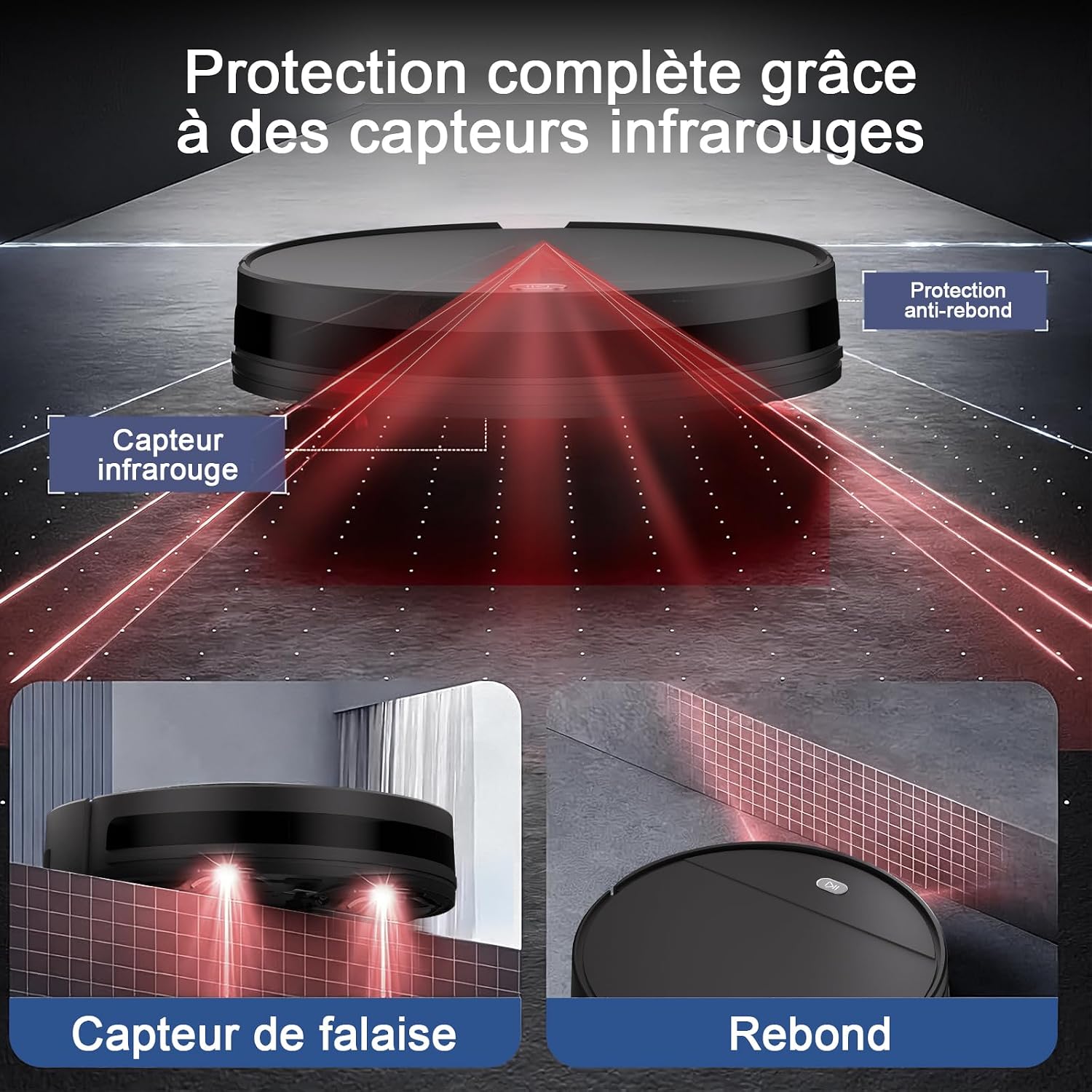
Image: Infrared sensors for obstacle and cliff detection, crucial for safe navigation.
8. Troubleshooting
If your robot encounters an issue, refer to this section for common solutions.
| Problem | Possible Cause | Solution |
|---|---|---|
| Robot does not power on. | Low battery; power button not pressed correctly. | Charge the robot; press and hold the power button for 3 seconds. |
| Robot cannot charge. | Charging contacts are dirty; charging dock is unplugged. | Clean charging contacts; ensure charging dock is plugged in. |
| Robot gets stuck frequently. | Too many obstacles; low clearance under furniture. | Clear obstacles; ensure robot has enough space (7.8cm height). |
| Poor cleaning performance. | Dustbin full; filters clogged; side brushes worn. | Empty dustbin; clean/replace filters; clean/replace side brushes. |
| Wi-Fi connection failed. | Incorrect Wi-Fi band (not 2.4GHz); wrong password. | Ensure 2.4GHz Wi-Fi; re-enter password; reset robot's Wi-Fi. |
9. Specifications
Technical details of the Yigars Y000 Robot Vacuum Cleaner and Mop.
| Feature | Specification |
|---|---|
| Model Name | Y000 |
| Brand | Yigars |
| Suction Power | Up to 5500 Pa (3 levels: 3000 Pa, 4500 Pa, 5500 Pa) |
| Dustbin Capacity | 350 ml |
| Water Tank Capacity | 180 ml |
| Battery Type | Lithium-ion |
| Battery Capacity | 2600 mAh |
| Operating Voltage | 14.6 Volts |
| Runtime | Approx. 100 minutes |
| Coverage Area | Approx. 100 m² |
| Dimensions (L x W x H) | 32 x 32 x 7.8 cm |
| Noise Level | < 70 dB |
| Filter Type | HEPA H11 |
| Control Methods | App Control, Remote Control, Button Control, Voice Control (Alexa/Google Assistant) |
| Wi-Fi Compatibility | 2.4 GHz only |
| Recommended Surface | Hardwood, Tile, Low-pile Carpet |
10. Warranty and Support
Yigars products come with a standard manufacturer's warranty. Please refer to the warranty card included in your package for specific terms and conditions.
For technical support, troubleshooting assistance, or to inquire about replacement parts, please contact Yigars customer service through the contact information provided on the product packaging or the official Yigars website.
Please have your model number (Y000) and purchase information ready when contacting support.