
1. Introduction
Thank you for choosing the AULA F3018 Mechanical Keyboard. This keyboard is designed for high-level mechanical performance and robust construction, offering precision for gaming and comfort for typing. It features Blue switches for a tactile and audible click, an ABNT2 layout with 'Ç' for Brazilian Portuguese compatibility, and full RGB lighting with multiple customizable effects. The reinforced braided cable enhances durability and ensures a stable connection. This manual provides essential information for setup, operation, and maintenance of your keyboard.
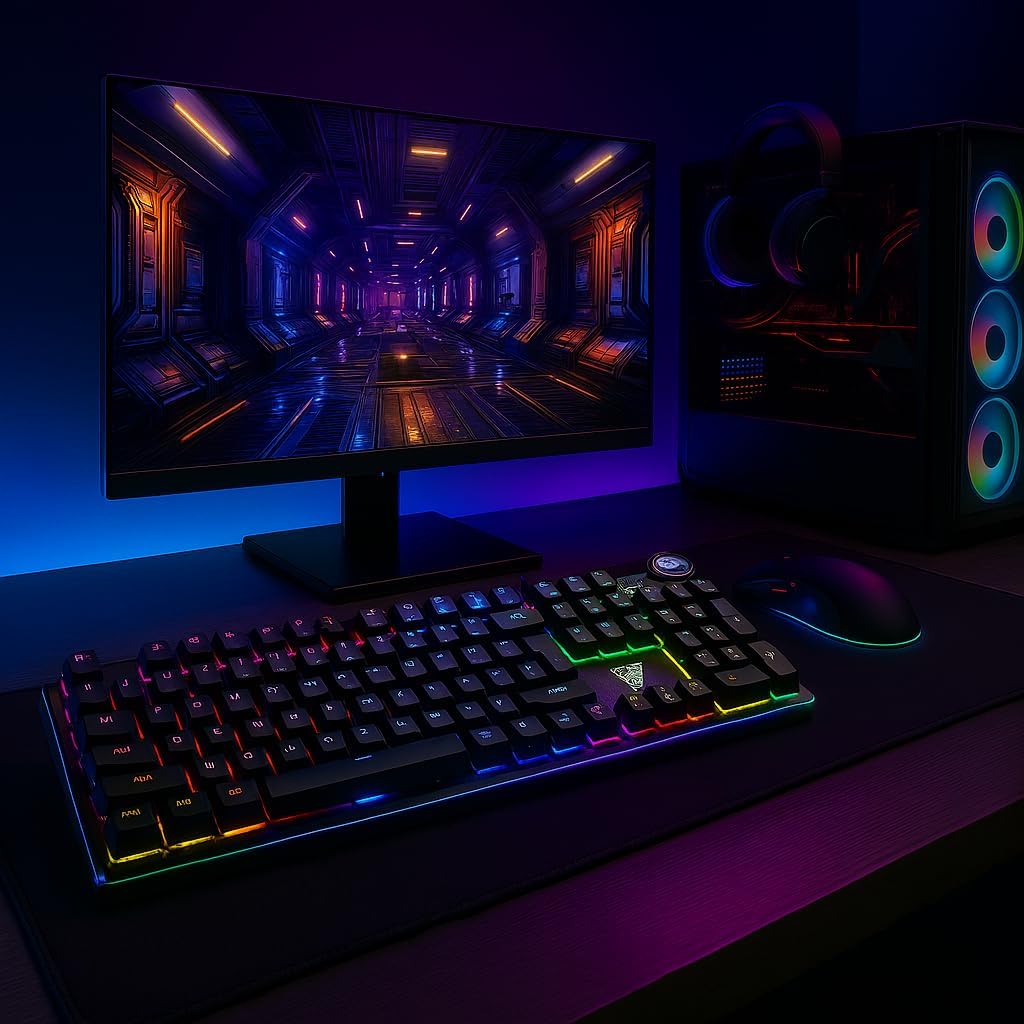
Image 1.1: AULA F3018 Mechanical Keyboard in a typical desktop setup, showcasing its RGB lighting and full-size design.
2. Package Contents
Ensure all items are present in the package:
- AULA F3018 Mechanical Keyboard
- USB Cable (attached)
- User Manual (this document)
3. Setup
Follow these steps to connect your AULA F3018 Mechanical Keyboard:
- Unpack the Keyboard: Carefully remove the keyboard from its packaging.
- Connect to Computer: Insert the USB connector of the keyboard's reinforced cable into an available USB port on your computer (PC, Notebook, or MacBook). The keyboard supports USB 2.0 and USB 3.0 ports.
- Driver Installation: The keyboard is plug-and-play. Your operating system will automatically detect and install the necessary drivers. No additional software installation is required for basic functionality.
- Verify Connection: Once connected, the keyboard's RGB lighting should illuminate, indicating a successful connection. You can now begin using your keyboard.

Image 3.1: Angled view of the AULA F3018 keyboard, highlighting the durable, reinforced USB cable for connection.
4. Operating Instructions
4.1. Basic Functions
The AULA F3018 is a full-size ABNT2 layout keyboard with 108 keys, providing all standard typing and navigation functions.
4.2. RGB Lighting Control
The keyboard features full RGB backlighting with multiple effects. Use the following key combinations to control the lighting:
- Fn + [Key]: Specific keys may have secondary functions for lighting control. Refer to the keycaps for symbols indicating lighting adjustments.
- Lighting Modes: Cycle through various lighting effects and patterns.
- Brightness Adjustment: Increase or decrease the brightness of the backlighting.
- Speed Adjustment: Change the speed of dynamic lighting effects.

Image 4.1: The AULA F3018 keyboard illuminated with vibrant RGB lighting, demonstrating customizable visual effects.
4.3. Multimedia Controls
The keyboard includes dedicated multimedia keys and a volume control knob for convenient media management:
- Volume Knob: Rotate the knob clockwise to increase volume, counter-clockwise to decrease volume. Press the knob to mute/unmute audio.
- Dedicated Multimedia Keys: Located above the numeric keypad, these keys provide quick access to functions like Play/Pause, Stop, Previous Track, and Next Track.

Image 4.2: Detailed view of the volume control knob and adjacent multimedia keys on the AULA F3018 keyboard.
5. Maintenance
Proper maintenance ensures the longevity and optimal performance of your keyboard:
- Cleaning: Use a soft, dry cloth to wipe the surface of the keyboard. For dust and debris between keys, use compressed air. Avoid using harsh chemicals or abrasive materials.
- Spill Prevention: While the keyboard is moisture-resistant, avoid direct liquid spills. In case of a spill, immediately disconnect the keyboard and allow it to dry completely before reconnecting.
- Cable Care: Do not bend or twist the reinforced cable excessively. Store it neatly to prevent damage.
- Storage: When not in use for extended periods, store the keyboard in a clean, dry environment away from direct sunlight and extreme temperatures.
6. Troubleshooting
If you encounter issues with your AULA F3018 keyboard, refer to the following common problems and solutions:
- Keyboard Not Responding:
- Ensure the USB cable is securely connected to both the keyboard and the computer.
- Try connecting the keyboard to a different USB port on your computer.
- Restart your computer.
- Test the keyboard on another computer to rule out a computer-specific issue.
- RGB Lighting Not Working:
- Check if the lighting is turned off or set to minimum brightness using the keyboard's lighting control functions (e.g., Fn + [Key]).
- Ensure the keyboard is properly connected and receiving power.
- Keys Not Registering or Double-Typing:
- Clean the affected key(s) with compressed air to remove any debris.
- If the issue persists, it might indicate a hardware fault. Contact customer support.
- Multimedia Keys Not Functioning:
- Ensure your operating system's media player is active and in focus.
- Check for any conflicting software or drivers.
7. Specifications
| Feature | Description |
|---|---|
| Model Name | AULA F3018 Mechanical Keyboard |
| Model Number | F3018 |
| Brand | AULA (Generic) |
| Switch Type | Tactile Blue Switch |
| Keyboard Layout | ABNT2 (Portuguese) |
| Number of Keys | 108 |
| Connectivity | Wired (USB, USB 2.0, USB 3.0) |
| Backlight | Full RGB, Adjustable |
| Compatible Devices | MacBook, Notebook, PC |
| Material | Acrylonitrile Butadiene Styrene (ABS) |
| Color | Black |
| Dimensions (L x W x H) | 44 cm x 14 cm x 3 cm |
| Water Resistance Level | Moisture Resistant |
| Recommended Uses | Gaming, Personal, Programming |
| Included Components | USB Cable |
| Country of Origin | China |

Image 7.1: Dimensions of the AULA F3018 Mechanical Keyboard, showing its length, width, and height.

Image 7.2: Key features of the AULA F3018 keyboard, including switch type, layout, and connectivity.
8. Warranty and Support
The AULA F3018 Mechanical Keyboard comes with a 30-day seller warranty from the date of purchase. This warranty covers manufacturing defects under normal use.
For technical support, warranty claims, or any questions regarding your product, please contact your retailer or the seller directly. Please retain your proof of purchase for warranty validation.


