
Introduction
This manual provides essential instructions for setting up, operating, maintaining, and troubleshooting your Lenovo Idea Tab 11 Tablet with Pen. Please read this manual thoroughly before using your device to ensure proper function and longevity.
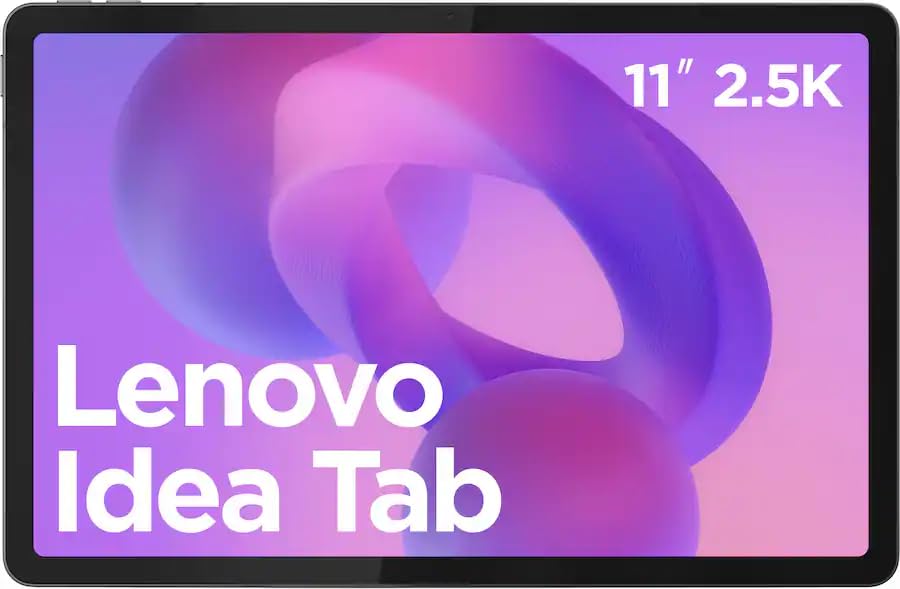
Image: The Lenovo Idea Tab 11 Tablet with its included pen, showcasing the 11-inch 2.5K display.
Setup
1. Unboxing and Initial Charge
Carefully remove all components from the packaging. The box should contain the Lenovo Idea Tab 11 Tablet and the Lenovo Tab Pen. Before first use, fully charge the tablet using a compatible USB-C charger. The battery indicator on the screen will show charging status.
2. Powering On/Off
- To power on: Press and hold the Power button until the Lenovo logo appears.
- To power off: Press and hold the Power button, then select 'Power off' from the options on the screen.
- To restart: Press and hold the Power button, then select 'Restart' from the options.
3. Initial Setup Wizard
Upon first power-on, the tablet will guide you through an initial setup process. Follow the on-screen prompts to:
- Select your language.
- Connect to a Wi-Fi network.
- Sign in with your Google Account or create a new one.
- Set up screen lock (PIN, pattern, password, or fingerprint).
4. Lenovo Tab Pen Setup
The Lenovo Tab Pen is battery-powered. Ensure a fresh AAA battery is inserted correctly. The pen is designed to work immediately with the tablet for basic functions. For advanced features or pairing, refer to the tablet's Bluetooth settings or the dedicated pen application if available.
Operating Instructions
1. Basic Navigation
The Lenovo Idea Tab uses standard Android touch gestures:
- Tap: Select an item or open an app.
- Swipe: Scroll through pages or lists.
- Pinch-to-zoom: Zoom in or out on images and web pages.
- Long press: Access contextual menus or move icons.
2. Using the Lenovo Tab Pen
The Lenovo Tab Pen offers 4,096 levels of pressure sensitivity and tilt support for a natural writing and drawing experience. It is ideal for note-taking, sketching, and navigating the tablet interface.
- Writing/Drawing: Use the pen directly on the screen in compatible applications.
- Navigation: Tap, swipe, and select items as you would with your finger.
- Button Functions: The pen may have programmable buttons for quick access to eraser, right-click, or other functions. Refer to the tablet's settings for customization.

Image: The Lenovo Idea Tab 11 Tablet being used with the Lenovo Tab Pen for note-taking and creative tasks.
3. Display Settings
Your tablet features an 11-inch 2.5K (2560 x 1600 pixels) display with a 90 Hz refresh rate. You can adjust display settings such as brightness, color mode, and refresh rate in the tablet's 'Settings' menu under 'Display'.
4. Audio
The tablet is equipped with Dolby Atmos speakers for enhanced audio experience. Adjust volume using the physical volume buttons or through the quick settings panel.
5. Connectivity
- Wi-Fi: Connect to wireless networks via 'Settings' > 'Network & internet' > 'Wi-Fi'. Supports 802.11ac and 802.11ax standards.
- Bluetooth: Pair with Bluetooth devices like headphones or keyboards via 'Settings' > 'Connected devices' > 'Bluetooth'.
6. Storage Management
The tablet comes with 128 GB of internal storage. To manage storage, go to 'Settings' > 'Storage'. You can view used space, free up space, and manage files.
Maintenance
1. Cleaning the Device
Use a soft, lint-free cloth to clean the screen and body of the tablet. For stubborn smudges, slightly dampen the cloth with water or a screen-safe cleaning solution. Avoid harsh chemicals or abrasive materials.
2. Battery Care
- Avoid extreme temperatures, which can degrade battery life.
- Do not leave the tablet fully charged or fully discharged for extended periods.
- Use only approved chargers and cables.
3. Software Updates
Regularly check for and install software updates to ensure optimal performance, security, and access to new features. Go to 'Settings' > 'System' > 'System update'.
4. Storage Optimization
Periodically review and delete unnecessary files, apps, and media to maintain sufficient free storage space for smooth operation.
Troubleshooting
1. Device Not Turning On
- Ensure the battery is charged. Connect the tablet to a charger for at least 30 minutes.
- Press and hold the Power button for 10-15 seconds to perform a forced restart.
2. Screen Not Responding
- Restart the tablet.
- Ensure the screen is clean and free of debris.
3. Lenovo Tab Pen Not Working
- Check the pen's battery and replace it if necessary.
- Ensure the pen is within range of the tablet.
- Restart the tablet.
4. Wi-Fi Connectivity Issues
- Toggle Wi-Fi off and on in 'Settings'.
- Restart your Wi-Fi router.
- Forget the network and reconnect.
5. Factory Reset
If issues persist, you may need to perform a factory reset. Warning: This will erase all data on your tablet. Back up important data before proceeding. Go to 'Settings' > 'System' > 'Reset options' > 'Erase all data (factory reset)'.
Specifications

Image: Visual representation of key specifications for the Lenovo Idea Tab 11 Tablet, highlighting the MediaTek Dimensity 6300 processor, 8GB LPDDR4 RAM, and 128GB UFS 2.2 Storage.
| Feature | Detail |
|---|---|
| Model Name | Lenovo Idea Tab 11 |
| Model Number | ZAFR0928US |
| Display | 11-inch 2.5K (2560 x 1600 pixels) LCD, 90 Hz Refresh Rate |
| Processor | MediaTek Dimensity 6300 |
| RAM | 8GB LPDDR4X |
| Storage | 128GB UFS 2.2 |
| Operating System | Android 15 |
| Wireless Connectivity | Wi-Fi (802.11ac, 802.11ax), Bluetooth |
| Audio | Dolby Atmos Speakers |
| Dimensions (LxWxH) | 8.31 x 4.91 x 0.33 inches |
| Weight | 3 pounds |
| Included Accessories | Lenovo Tab Pen |
Warranty and Support
Your Lenovo Idea Tab 11 Tablet with Pen is covered by a limited warranty. For detailed warranty information, please refer to the warranty card included with your product or visit the official Lenovo support website. For technical assistance, software updates, or service inquiries, please contact Lenovo customer support.
Lenovo Support Website: support.lenovo.com