
Introduction
Thank you for choosing the Liretope 4K HD Indoor Security Camera S22. This compact and versatile camera is designed to provide reliable surveillance for your home or office, offering advanced features such as 4K HD video, infrared night vision, smart motion detection, and convenient app control. This manual will guide you through the setup, operation, and maintenance of your new device.

Image: The Liretope S22 4K HD Indoor Security Camera on its stand, highlighting its compact design and key features like smart motion detection, infrared night vision, multiple storage options, easy video playback, Ultra HD 4K resolution, and 2.4G & AP Mode WiFi.
What's in the Box
- S22 Hidden Camera
- Camera Mount
- Instruction Manual
- USB-C Fast Charging Cable
Product Overview
The S22 camera features a sleek, minimalist design, making it easy to integrate into any environment. Its compact size allows for discreet placement, while the robust construction ensures durability.
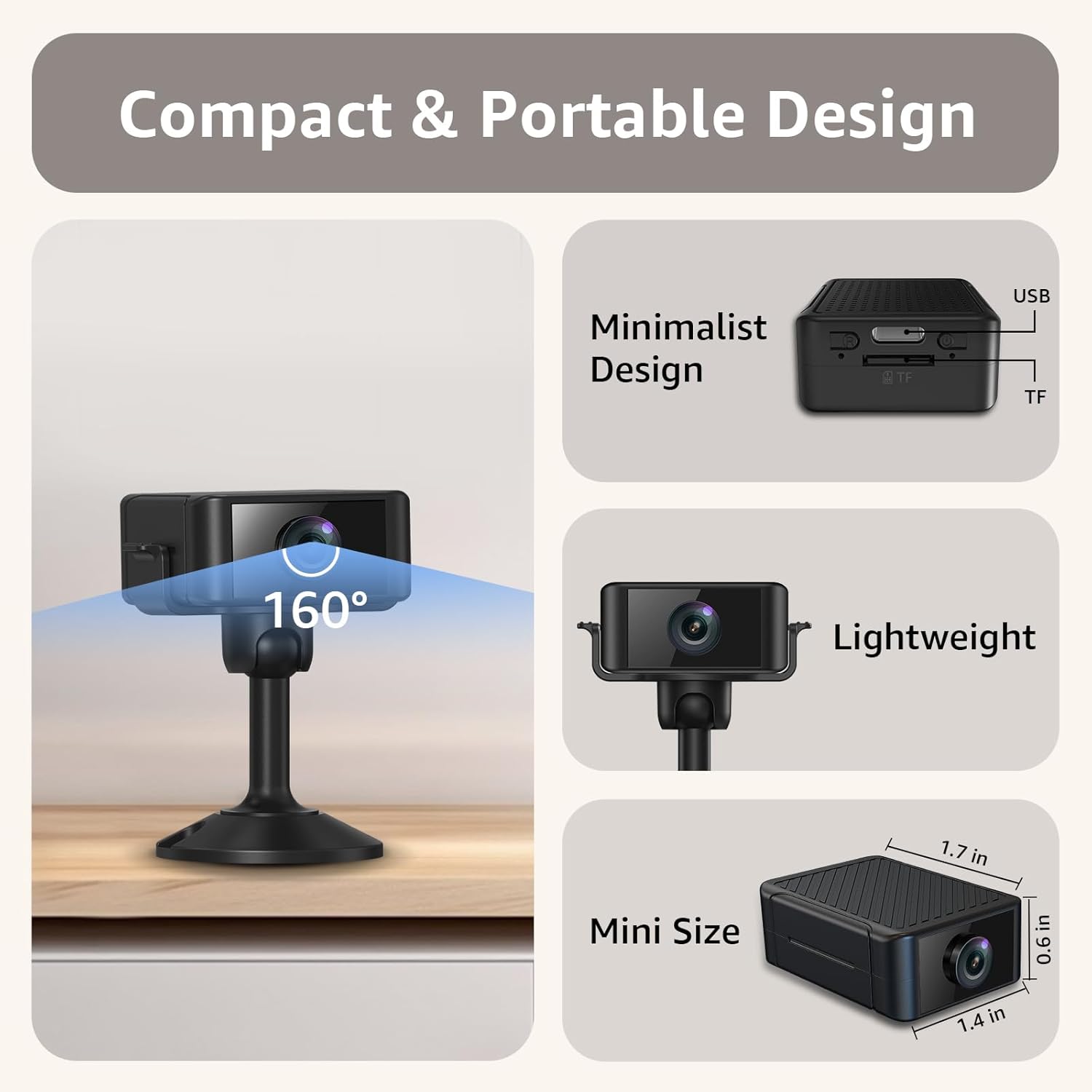
Image: A visual representation of the camera's compact and portable design, showing its small dimensions (1.7 in x 1.4 in x 0.6 in) and a 160° wide-angle view.
The camera is equipped with a 1000mAh rechargeable battery, providing 4-6 hours of cordless operation. For continuous monitoring, it can be powered via a power bank or wall outlet using the included USB-C cable.

Image: The S22 camera with a visual overlay indicating a 4-hour rechargeable battery life.
Setup Guide
Powering On
To power on the camera, locate the power button and press it until the indicator light slowly blinks blue. This indicates the camera is ready for connection.
Video: A step-by-step guide on how to power on the camera and connect it to the mobile application, demonstrating the Bluetooth connection method.
App Installation and Connection
The Liretope S22 camera connects to your smartphone via a dedicated application. Follow these steps to install the app and connect your camera:
- Download the 'O-KAM' app from your device's app store (iOS or Android).
- Enable Bluetooth on your smartphone.
- Open the 'O-KAM' app and tap 'Add devices'.
- The app will discover the camera via Bluetooth. Tap 'Connect'.
- Select your 2.4GHz Wi-Fi network and enter the password. Confirm the details.
- The connection process may take 1-2 minutes. Once connected, assign a name to your camera.
- Test the Wi-Fi signal strength at your desired installation location.

Image: Visual guide illustrating the four steps for 2.4GHz Wi-Fi connection: turning on Bluetooth, selecting the Wi-Fi network, pairing the camera, and viewing the feed.
Alternative: AP Connection Steps
If direct Wi-Fi connection is not feasible, you can use the Access Point (AP) mode:
- In the app, select "Hotspot Configuration".
- Choose the camera's signal starting with "@OK-".
- Set the Wi-Fi network for the camera.
- You can now view the camera feed.

Image: Visual guide illustrating the four steps for AP connection: selecting hotspot configuration, choosing the camera's signal, setting the Wi-Fi network, and viewing the feed.
Operating Instructions
Live View and Recording
Once connected, open the app to access the live video feed. You can initiate manual recordings directly from the app interface.
Motion Detection and Alerts
The S22 camera features smart motion detection with real-time alerts. You can customize detection zones and time schedules within the app to receive notifications via app pop-up or email when motion is detected.
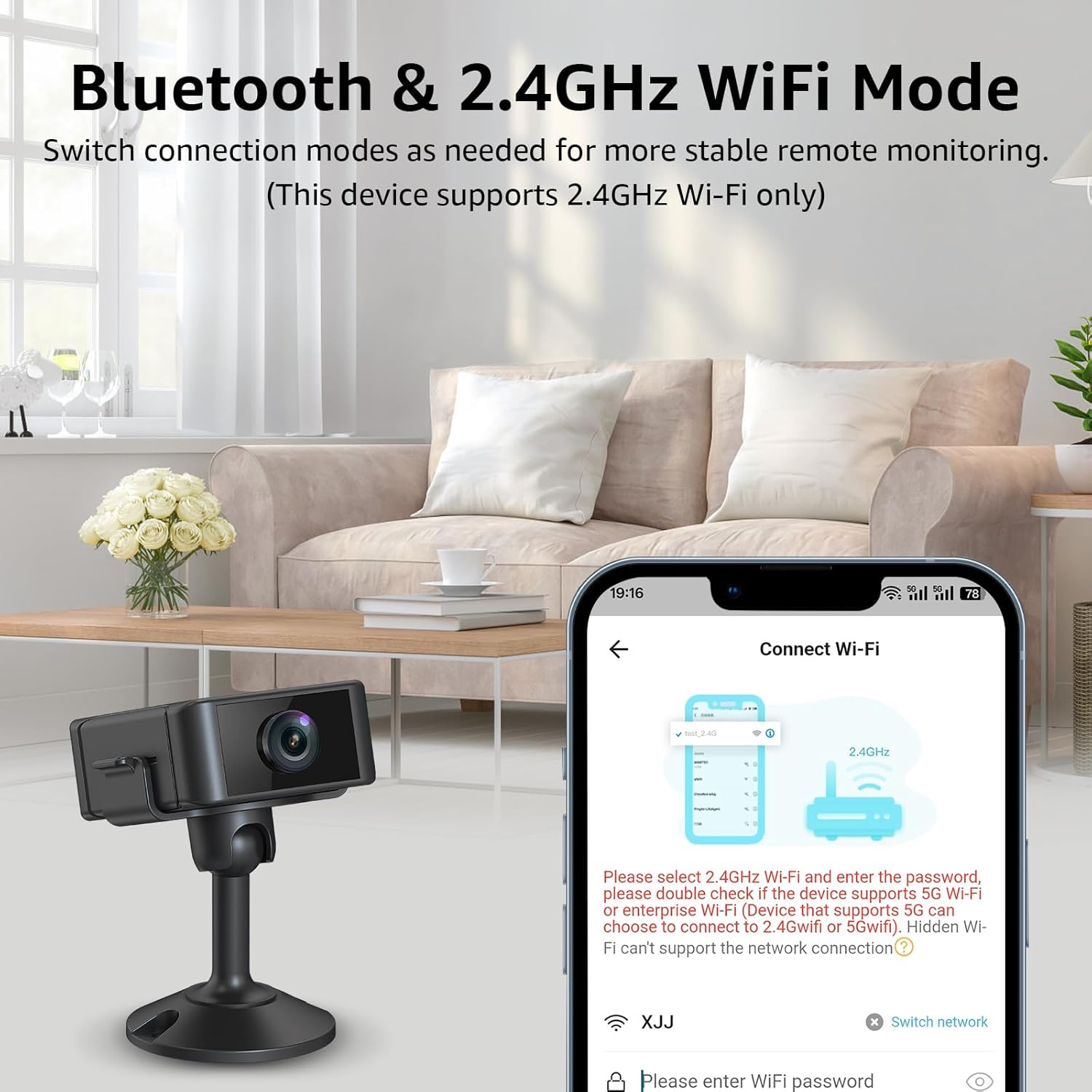
Image: A smartphone displaying app notifications for motion detection, with a dog on a couch in the background, illustrating the real-time alert feature.

Image: A living room scene with an overlay showing customizable activity zones and highlighting both general motion detection and specific human detection capabilities.
Night Vision
Advanced infrared technology provides clear 24/7 visibility, even in zero-light conditions. The camera automatically switches to night vision mode when ambient light is low.
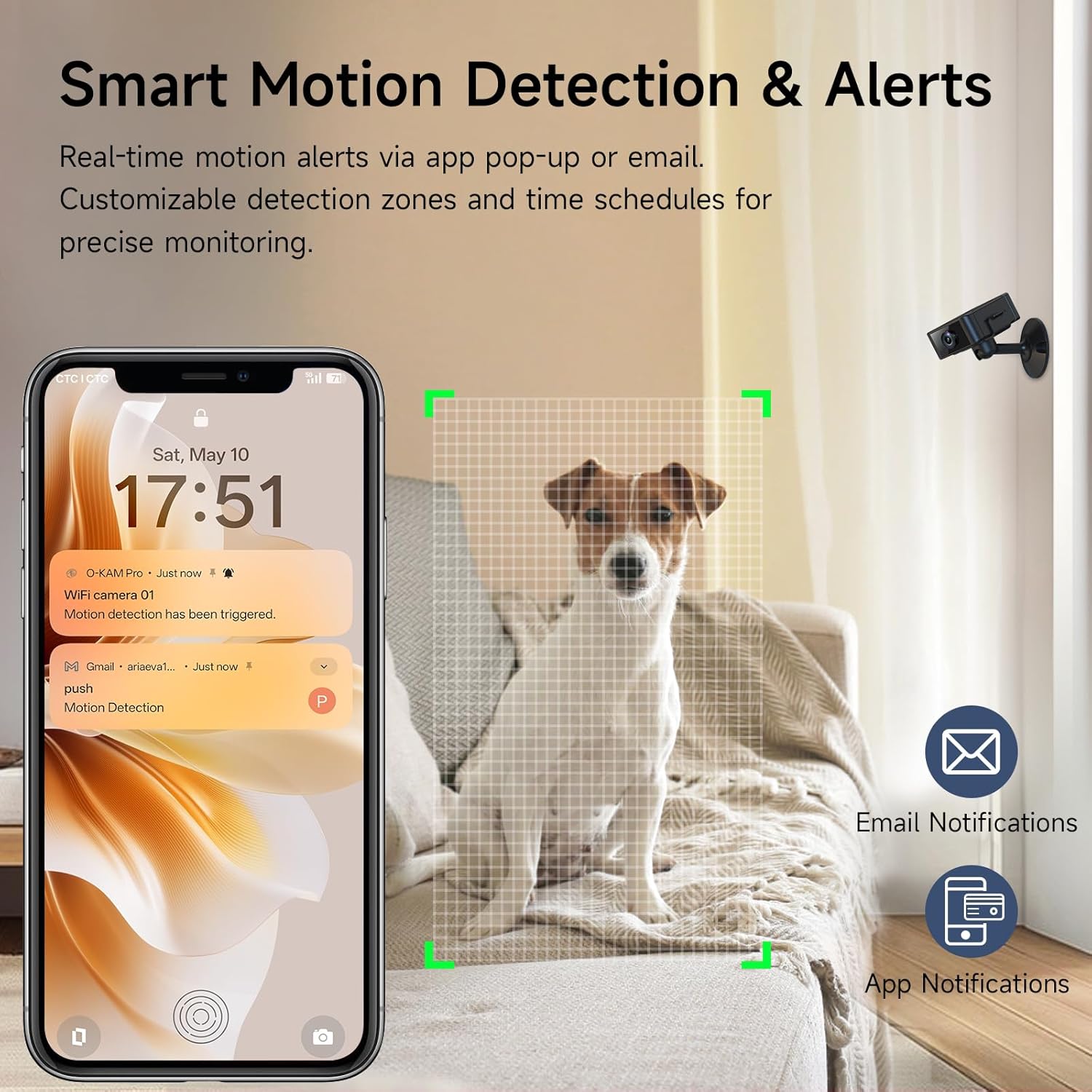
Image: A smartphone displaying a clear 4K night vision feed of a sleeping baby, demonstrating the camera's ability to capture high-quality video in low-light conditions.

Image: A split image showing a baby sleeping in a well-lit room (4K Ultra HD Imaging) and the same baby sleeping in a dark room (Night Vision HD), illustrating the camera's adaptive night vision capabilities for 24/7 protection.
Storage Options
The camera supports dual storage options: local recording via an SD card (up to 256GB, not included) for continuous 24/7 footage, or encrypted cloud storage for critical moments. A 7-day free cloud trial is included.

Image: The S22 camera next to icons for Cloud Storage and TF Card, indicating support for both storage methods. A Micro SD card is shown with a note that it is not included.
Multi-User Sharing
The camera supports simultaneous live monitoring by up to 4 users. Shared users have view-only access, ensuring the main account retains full control over all device settings.
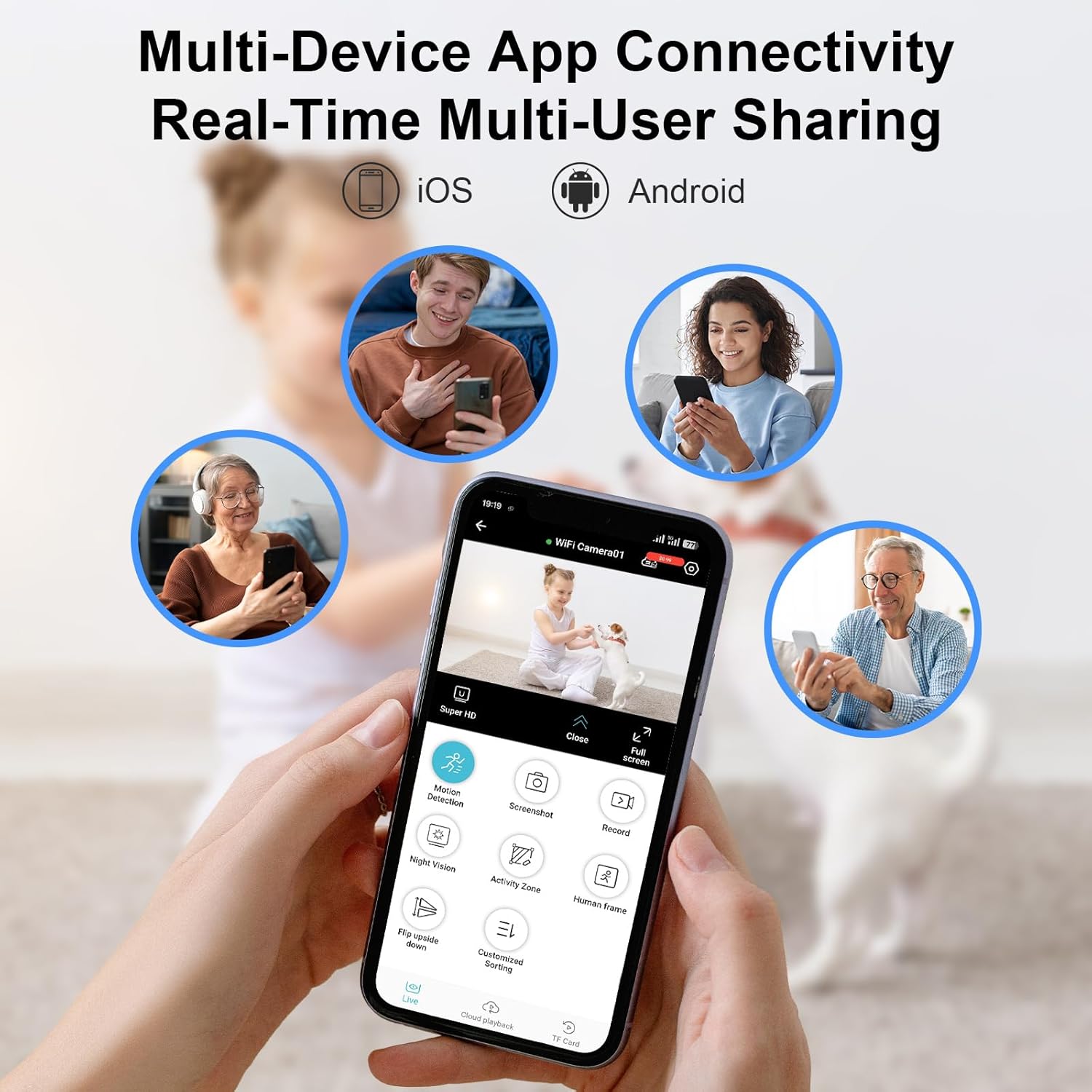
Image: A collage showing multiple individuals viewing the camera feed on their smartphones, demonstrating multi-device app connectivity and real-time multi-user sharing capabilities.
Placement and Mounting
The compact design and included camera mount allow for versatile placement. The camera can be placed on flat surfaces or mounted on walls, adapting to various environments such as baby rooms, offices, convenience stores, or homes.

Image: A living room scene with the S22 camera shown on a wall mount and on a stand, illustrating its versatile placement options and highlighting features like smart motion detection, multiple storage options, 4K resolution, infrared night vision, easy video playback, and 2.4G & AP Mode WiFi.

Image: A collage of four images depicting different scenarios (baby room, office, convenience store, home) where the S22 camera can be used for smart protection.
Battery and Charging
The camera is equipped with a robust 1000mAh battery, providing 4-6 hours of cordless recording. For extended use, connect the camera to a power bank or wall outlet using the provided USB-C fast charging cable.

Image: The S22 camera on a dark background with a large '240 Min' text, indicating its battery life.
Specifications
| Feature | Detail |
|---|---|
| Video Resolution | 4K HD |
| Connectivity | Wireless (Wi-Fi 2.4GHz) |
| Power Source | Battery Powered (1000mAh) |
| Battery Life | 4-6 hours (cordless) |
| Storage Options | SD Card (up to 256GB), Cloud Storage |
| Night Vision Range | 30 Meters |
| Lens Angle | 160° Wide-Angle |
| Motion Detection | Yes, with real-time alerts |
| Control Method | App (O-KAM) |
| Indoor/Outdoor Usage | Indoor |
| Material | Plastic |
| Item Weight | 3.45 ounces |
Troubleshooting
Camera Not Connecting to Wi-Fi
- Ensure your Wi-Fi network is 2.4GHz. The camera does not support 5GHz networks.
- Verify the Wi-Fi password is correct (case-sensitive).
- Place the camera closer to your Wi-Fi router during setup.
- Restart your router and the camera, then attempt connection again.
No Motion Detection Alerts
- Check the app settings to ensure motion detection is enabled.
- Verify that alert notifications are turned on in your phone's settings for the 'O-KAM' app.
- Adjust the sensitivity settings for motion detection within the app.
Poor Video Quality
- Ensure the camera lens is clean and free from obstructions.
- Check your Wi-Fi signal strength. A weak signal can affect video streaming quality.
- Adjust video resolution settings in the app if your network bandwidth is limited.
Maintenance
- Cleaning: Use a soft, dry cloth to clean the camera lens and body. Avoid abrasive cleaners or solvents.
- Firmware Updates: Regularly check the 'O-KAM' app for available firmware updates to ensure optimal performance and security.
- Battery Care: For long-term storage, charge the camera to about 50% to prolong battery life. Avoid extreme temperatures.
- SD Card Management: Periodically format your SD card through the app to maintain recording efficiency and prevent data corruption.
Warranty and Support
Your Liretope S22 camera comes with a standard manufacturer's warranty. For detailed warranty information, please refer to the product packaging or contact Liretope customer support.
If you encounter any issues not covered in this manual or require further assistance, please contact our customer support team:
- Email: [Insert Customer Support Email Here]
- Phone: [Insert Customer Support Phone Number Here]
- Website: [Insert Manufacturer Website Here]
Please have your product model (S22) and purchase date ready when contacting support.